See what your clients see
Step through your own online booking page as a client would, on a phone or a computer. Nothing is booked, charged or sent.
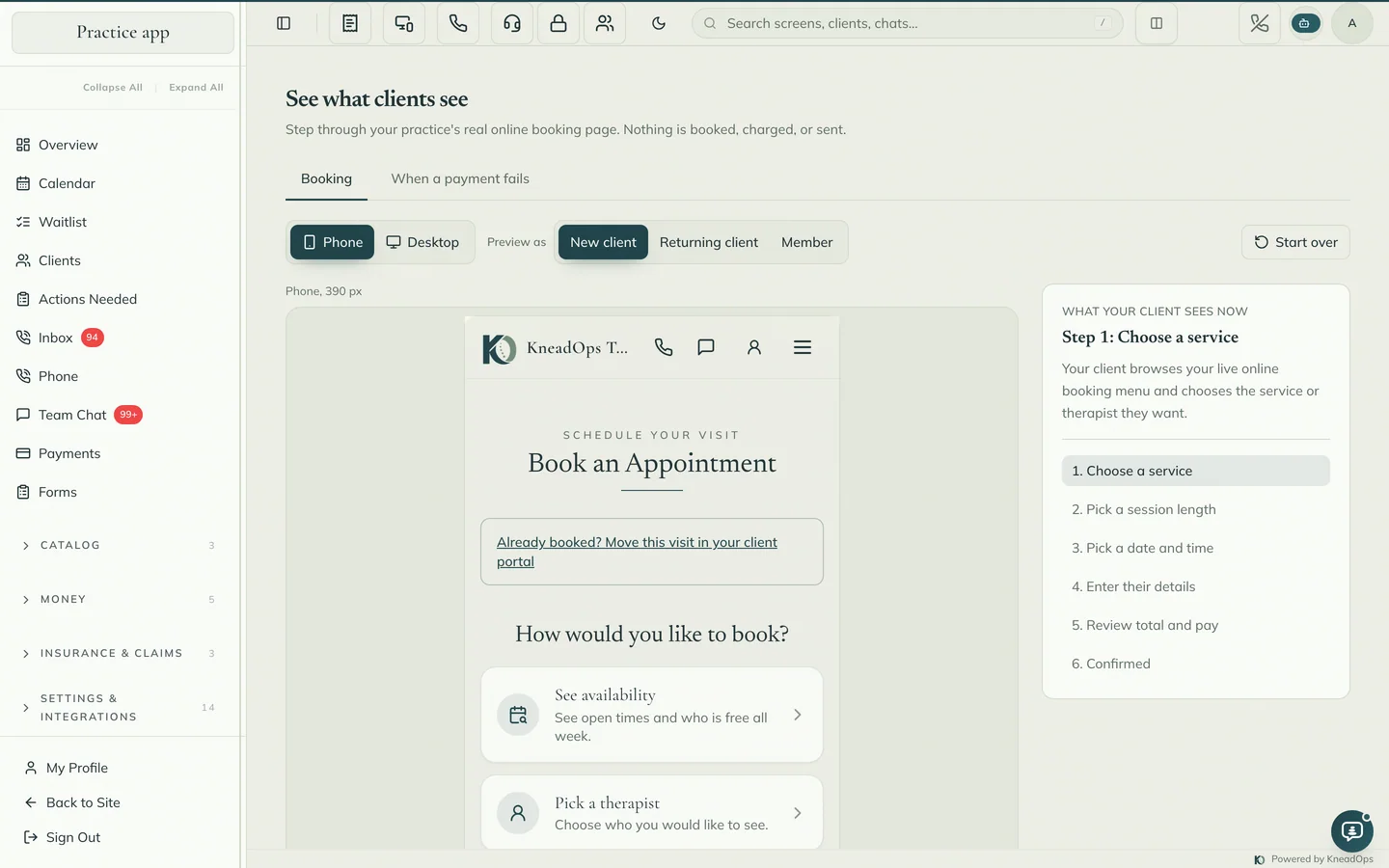
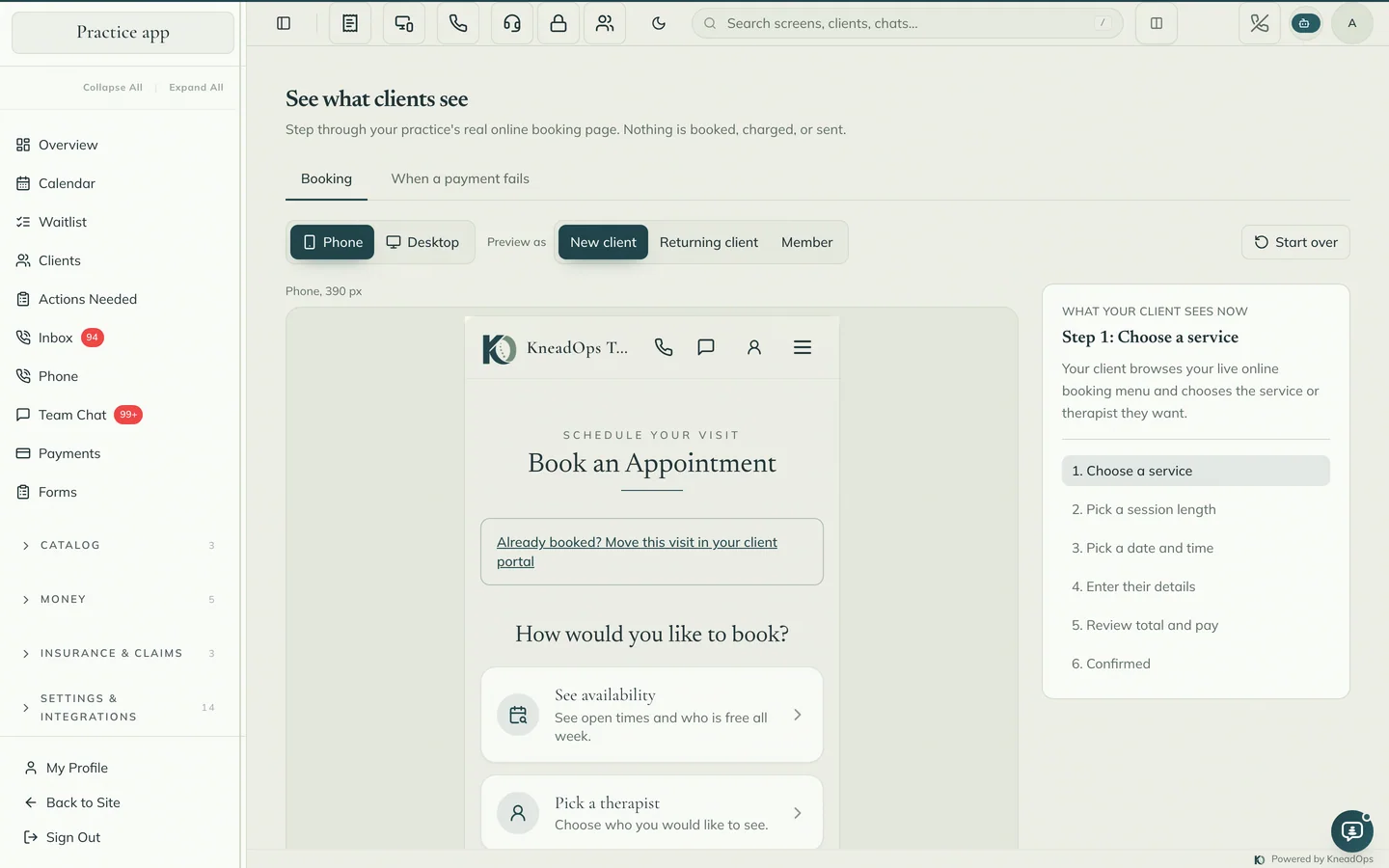
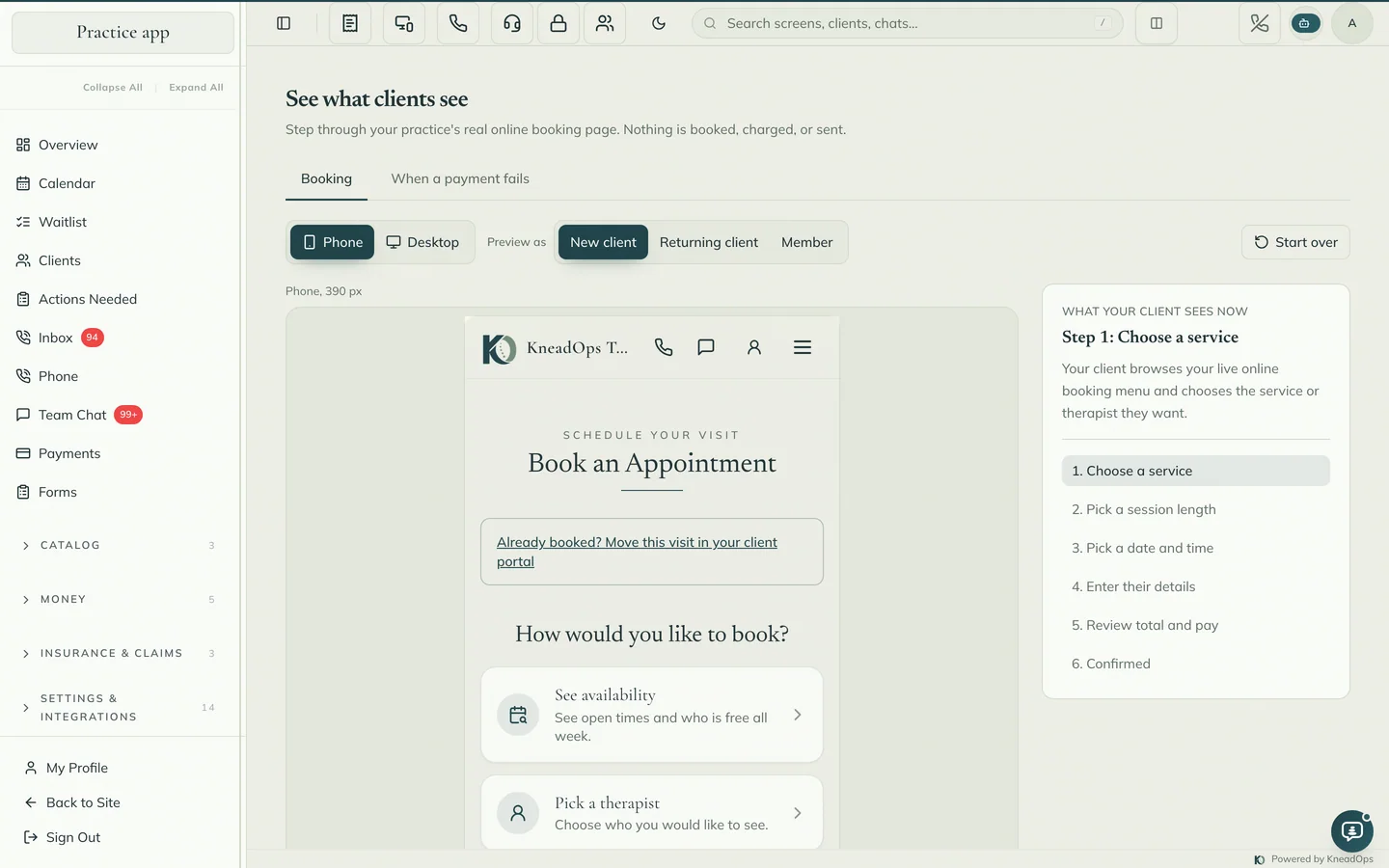
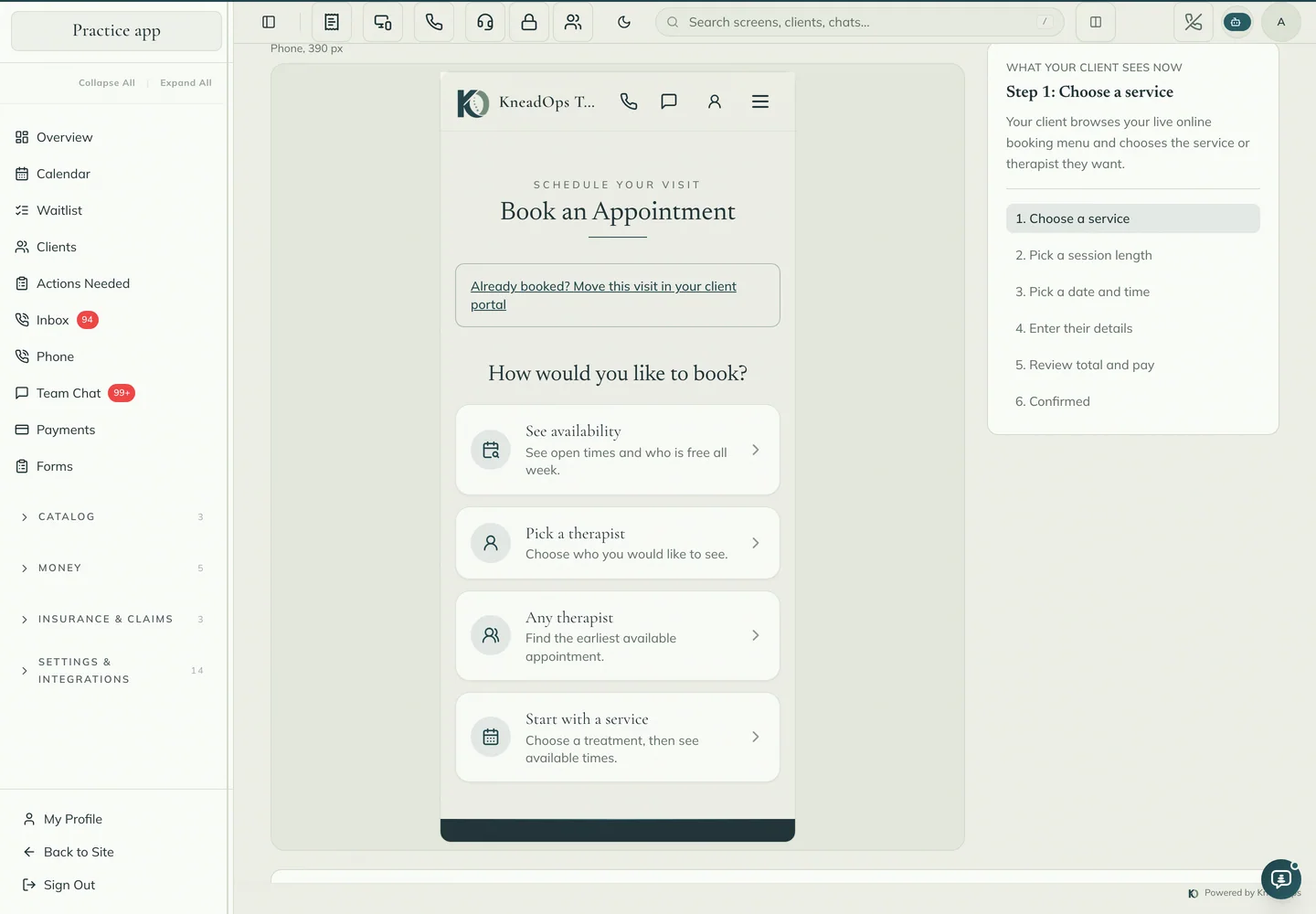
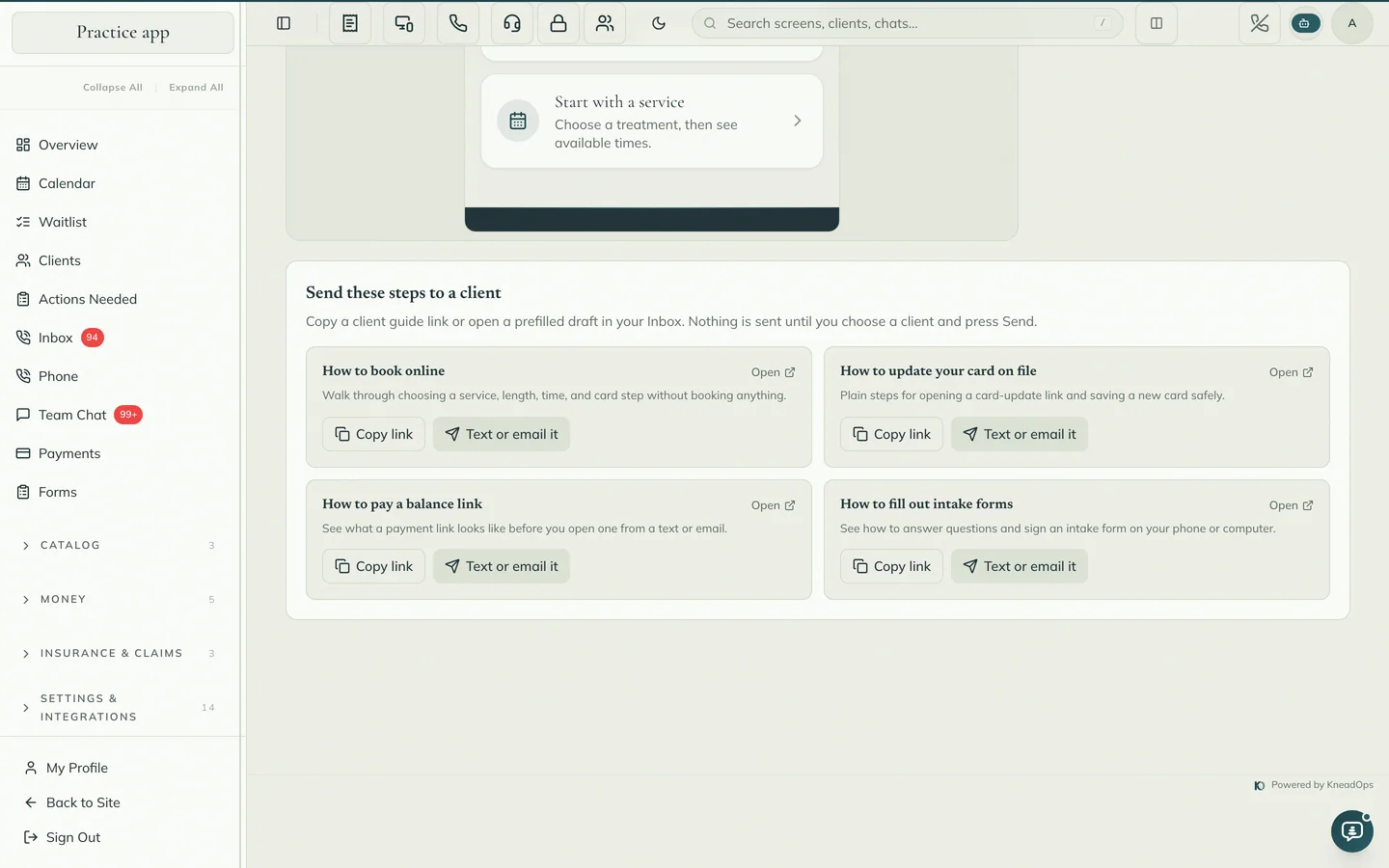
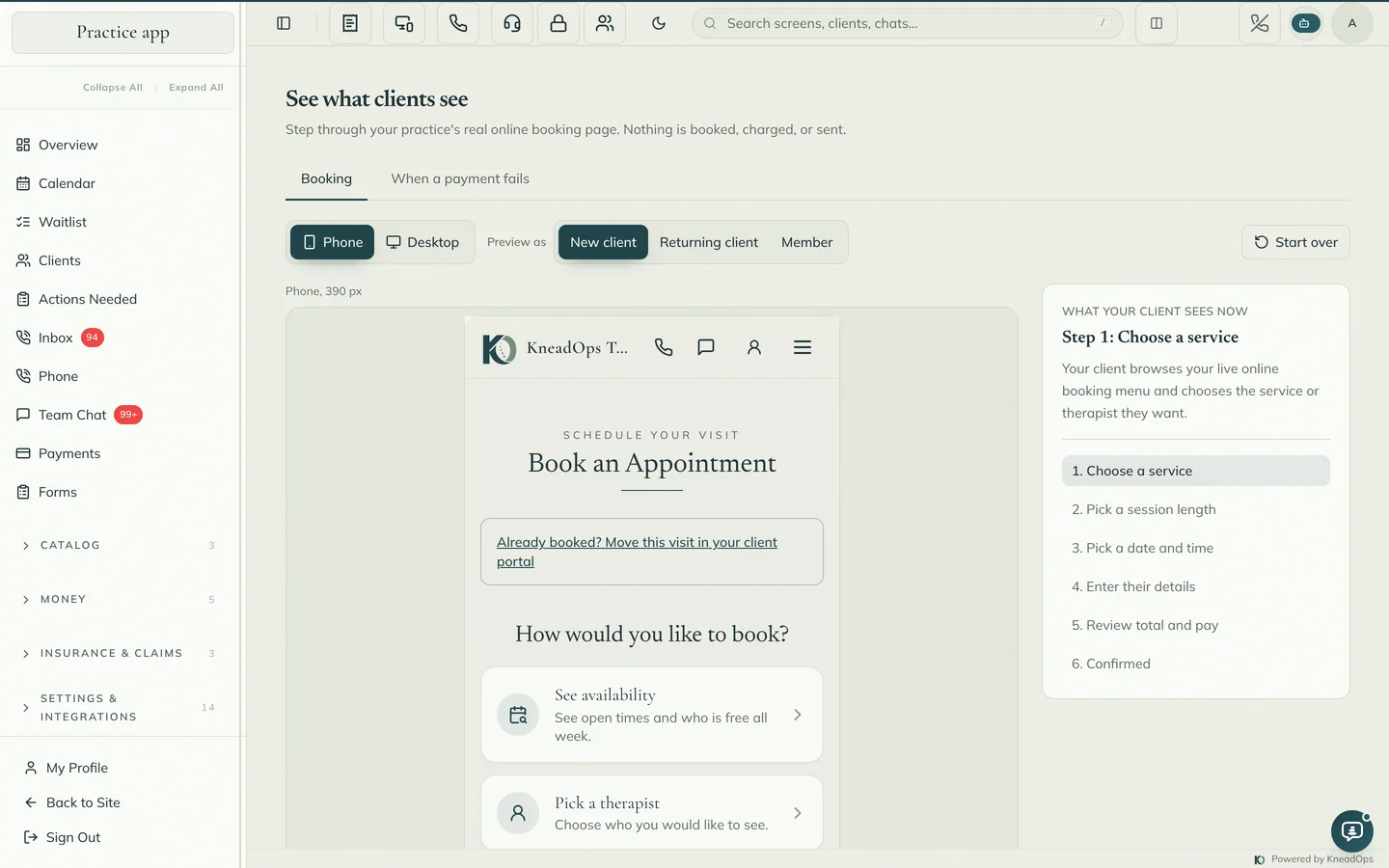
Step 1: Open See what clients see
Open See what clients see. Only the practice owner's sign-in can open it. Your real online booking page loads inside a preview frame.
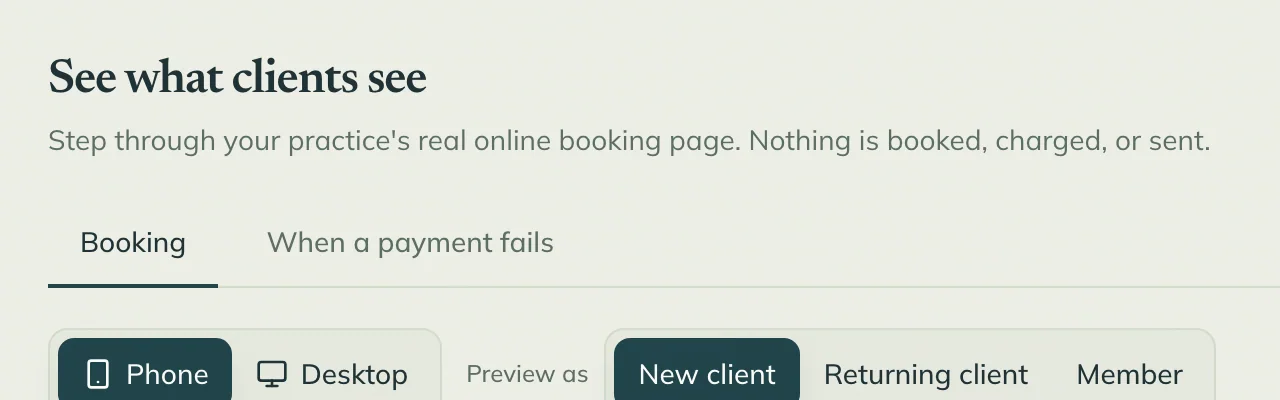
Step 2: Pick a phone or a computer
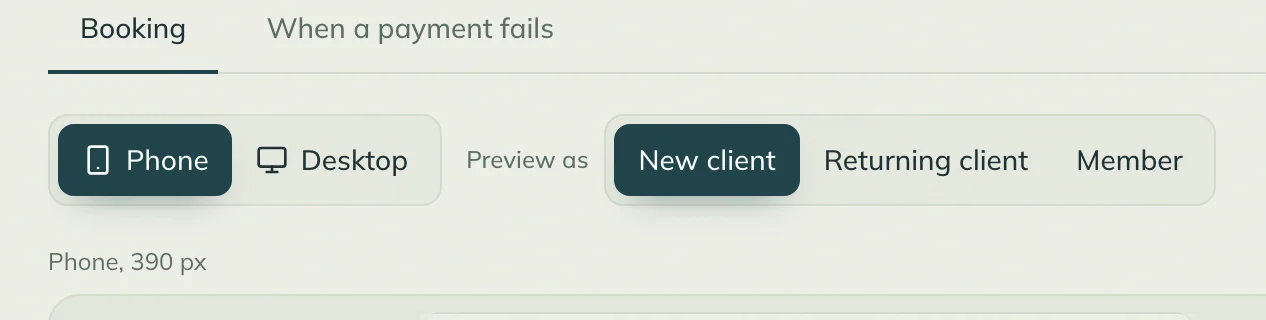
Press Phone or Desktop to switch the frame. Each keeps the real page width and shrinks to fit your screen.
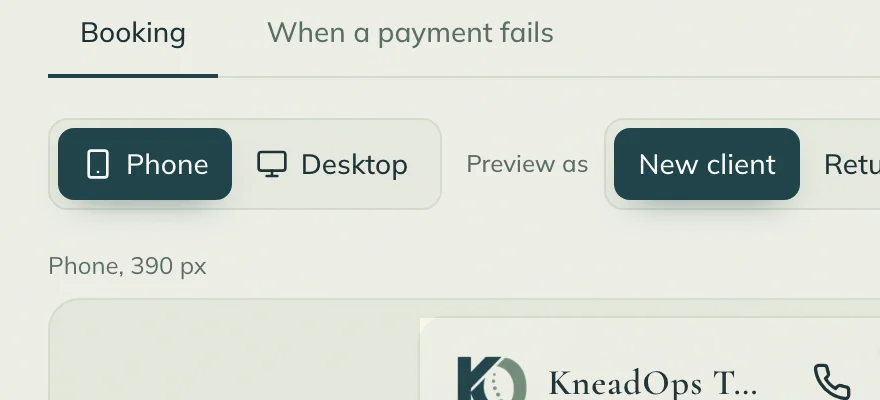
Step 3: Choose who you're previewing as
Under Preview as, pick New client, Returning client or Member. The preview uses a made-up sample client, never a real one.
Step 4: Step through it like a client
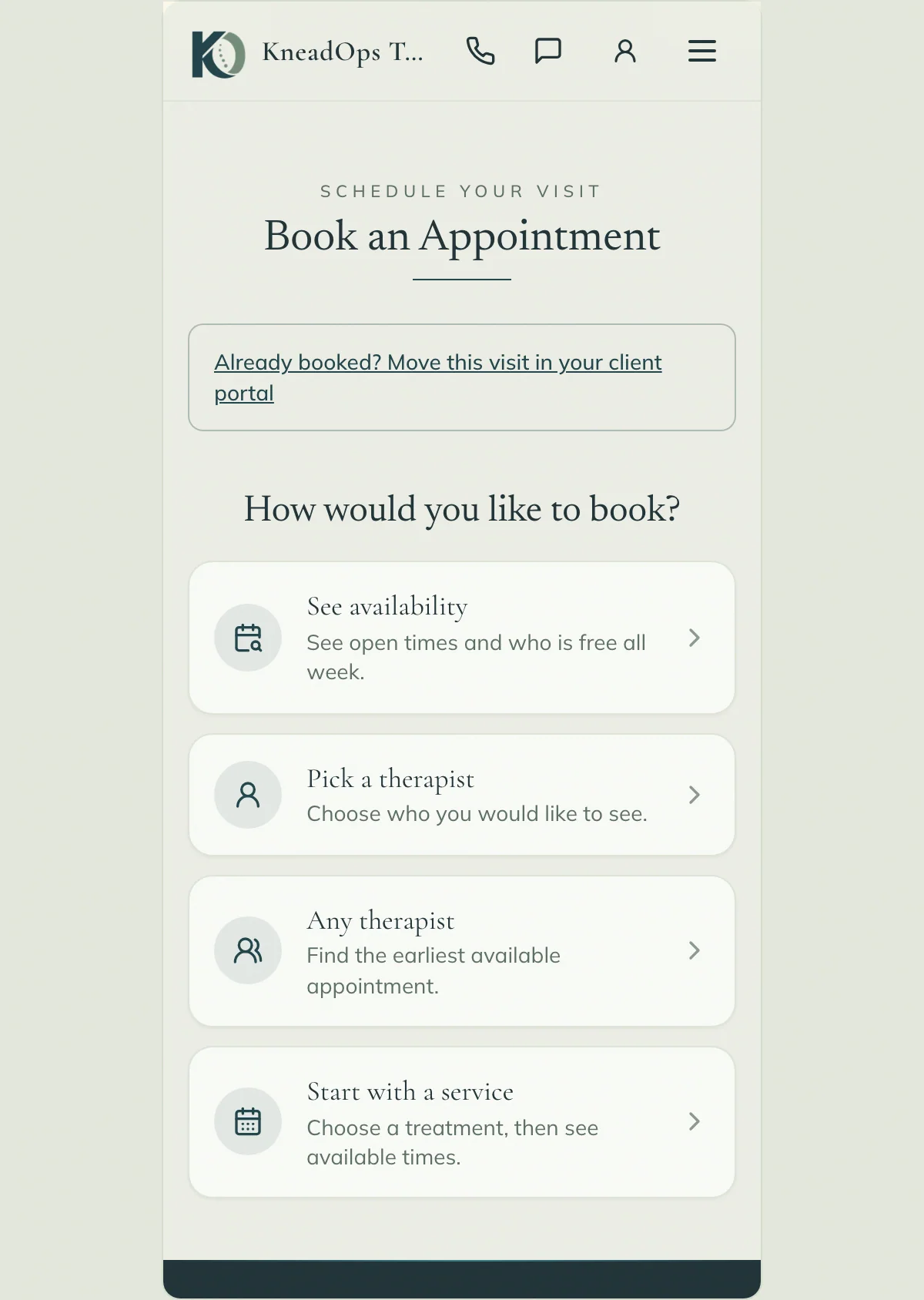
Click through the frame just as a client would: how they want to book, a service, a length, a day and a time. The panel beside it says what your client does on each step. Nothing is booked or charged, even on the payment step. Press Start over to begin again.
Step 5: Send the steps to a client
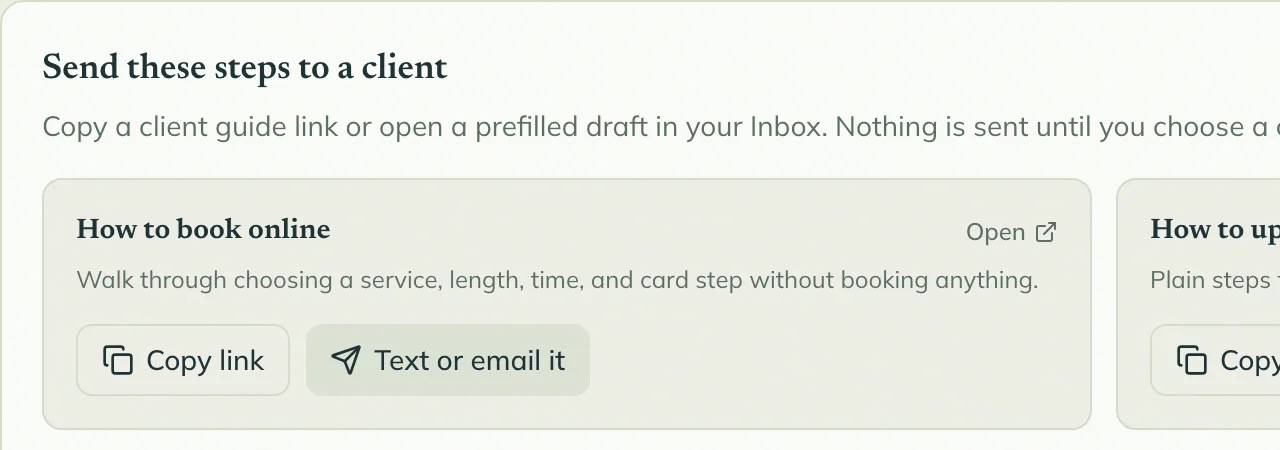
After the last step, What your client gets shows the texts, email and forms they would get, with sample details. To help a client on the phone, scroll to Send these steps to a client and press Copy link, or Text or email it to open a draft in your Inbox. Nothing goes out until you pick the client and press Send.
Step 6: See the payment problem screens
Open the When a payment fails tab to see what a member or client sees when a card is declined, so you can guide them over the phone.

Still stuck?
Ask Kneadle from the chat button in your practice app. It can walk you through this screen or do it with you.