Invite a team member and set what they can do
Add someone to your team, give them a role, and send their sign-in invitation.
Step 1: Open Staff & Roles
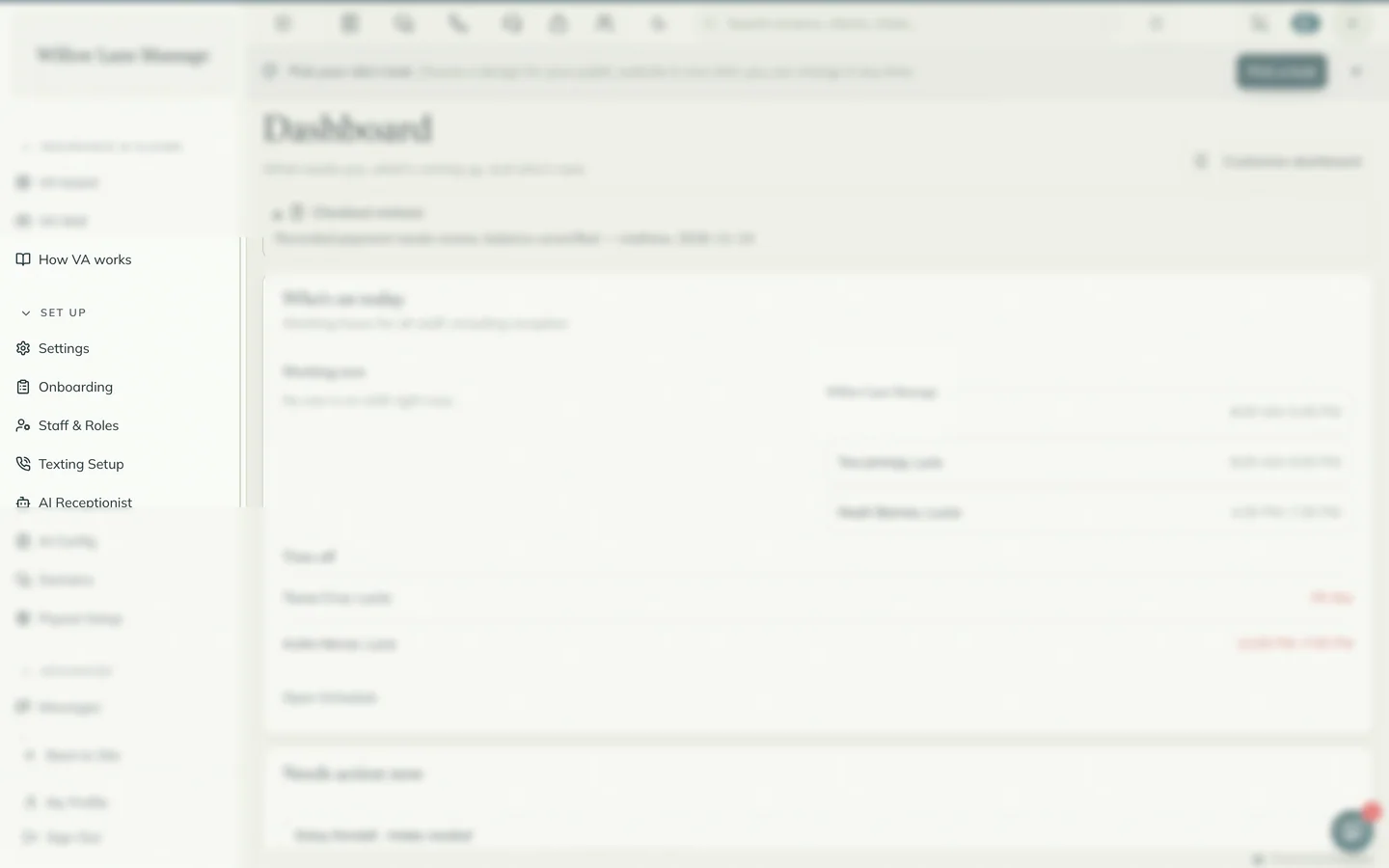
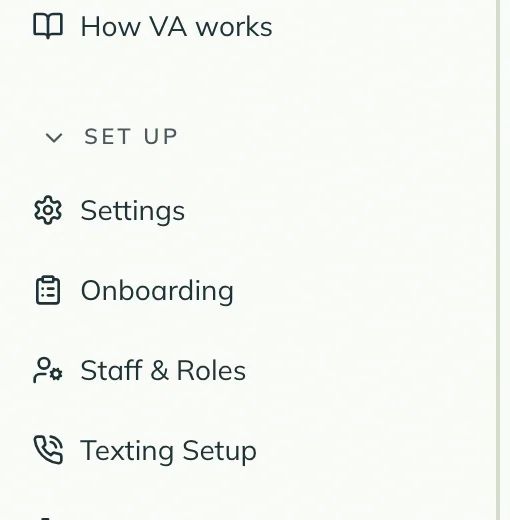
In the menu on the left, open Set up and choose Staff & Roles.
Step 2: Press Add Staff
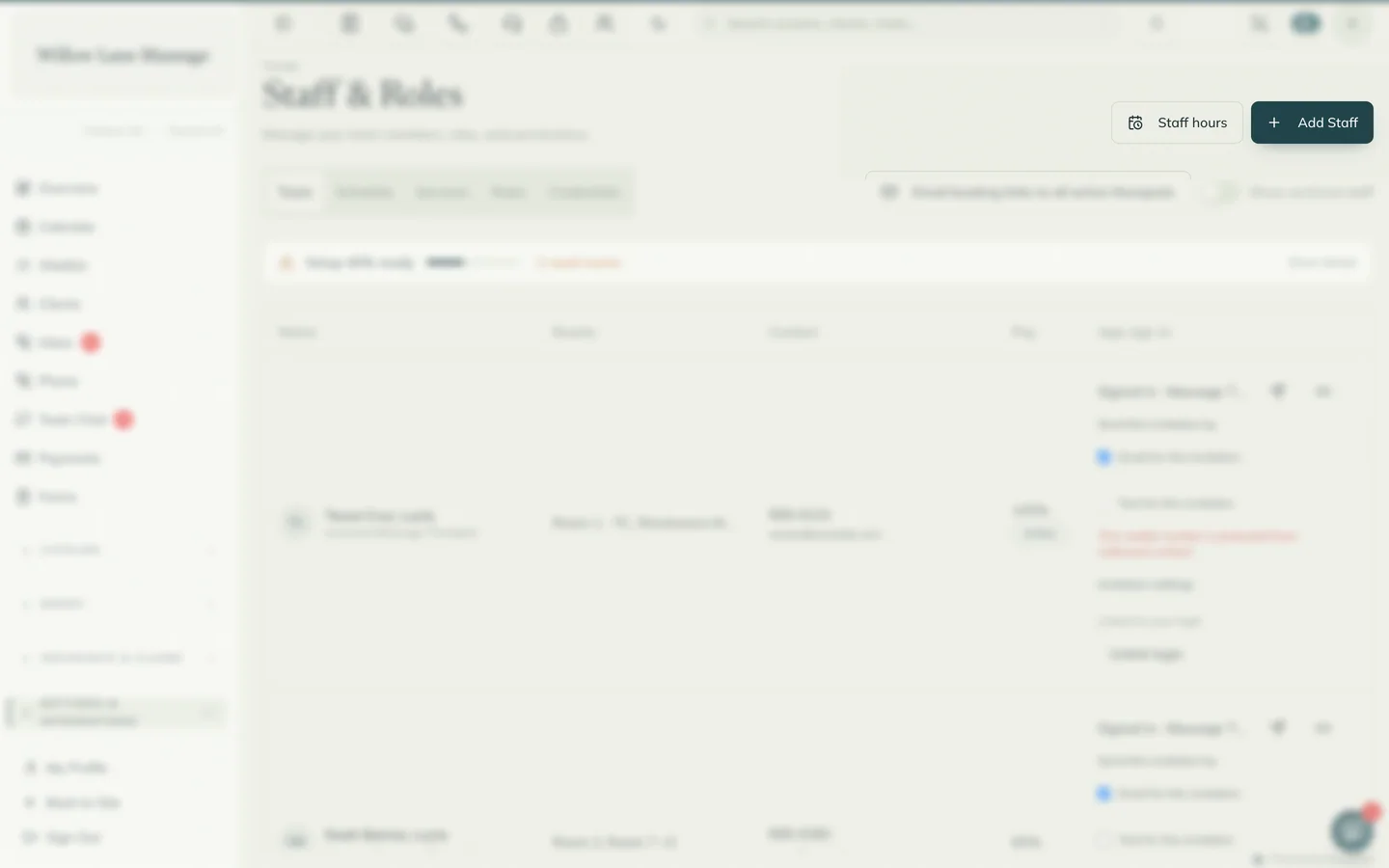
Press Add Staff at the top right.

Step 3: Enter their name and work email
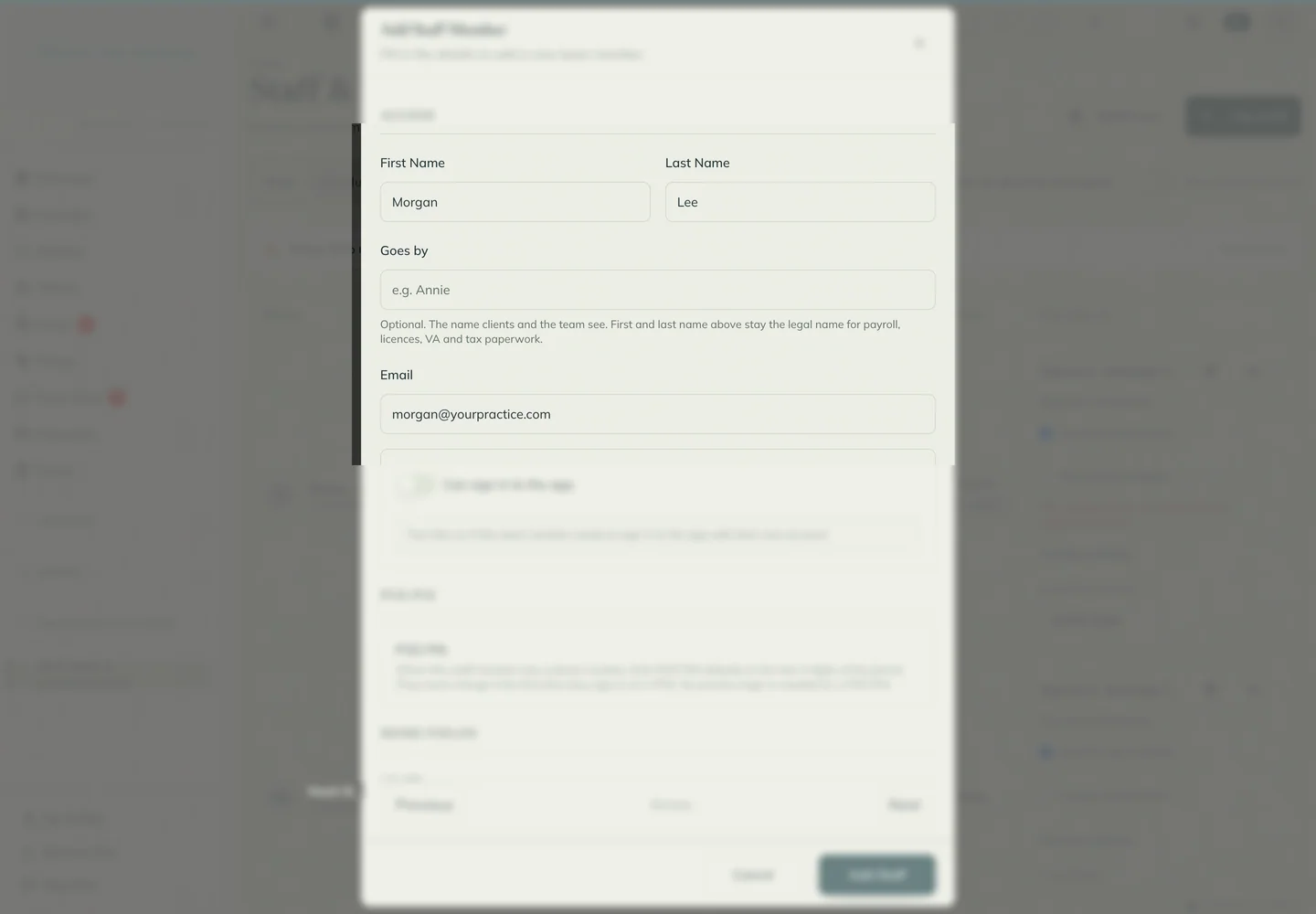
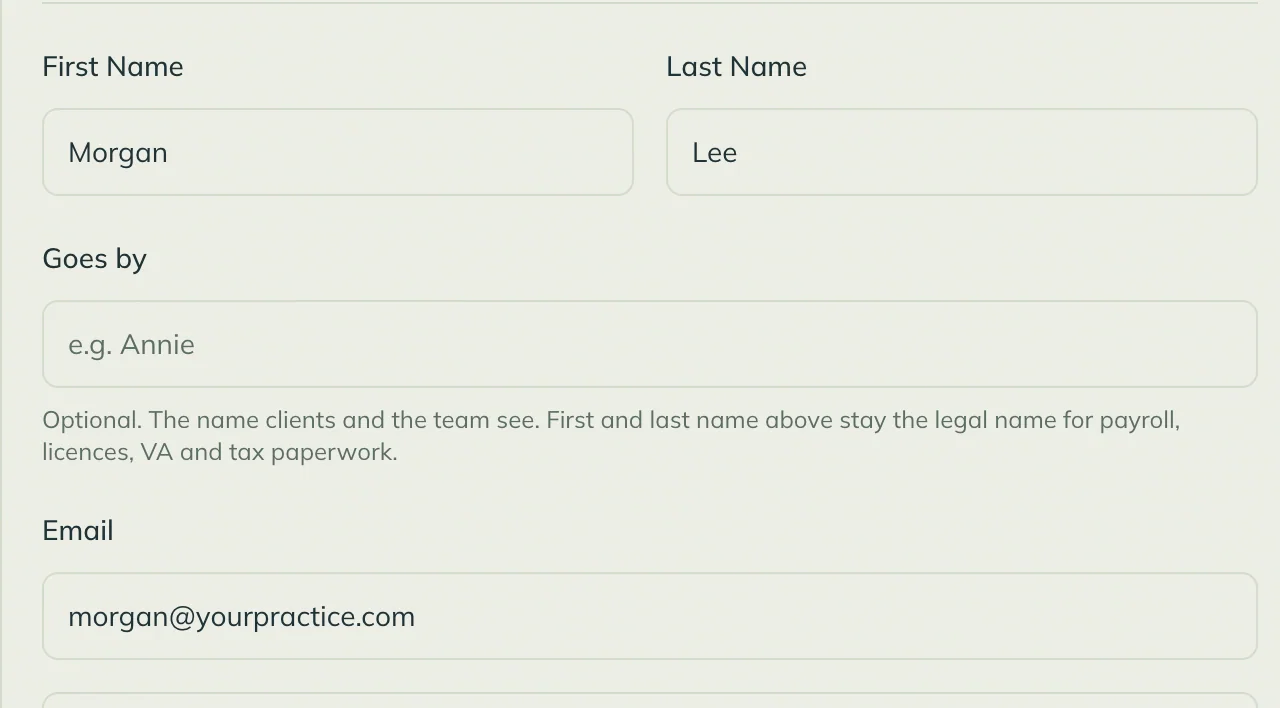
Type their First Name, Last Name and Email. The invitation goes to this email, so use the one they check.
Step 4: Let them sign in and pick a role
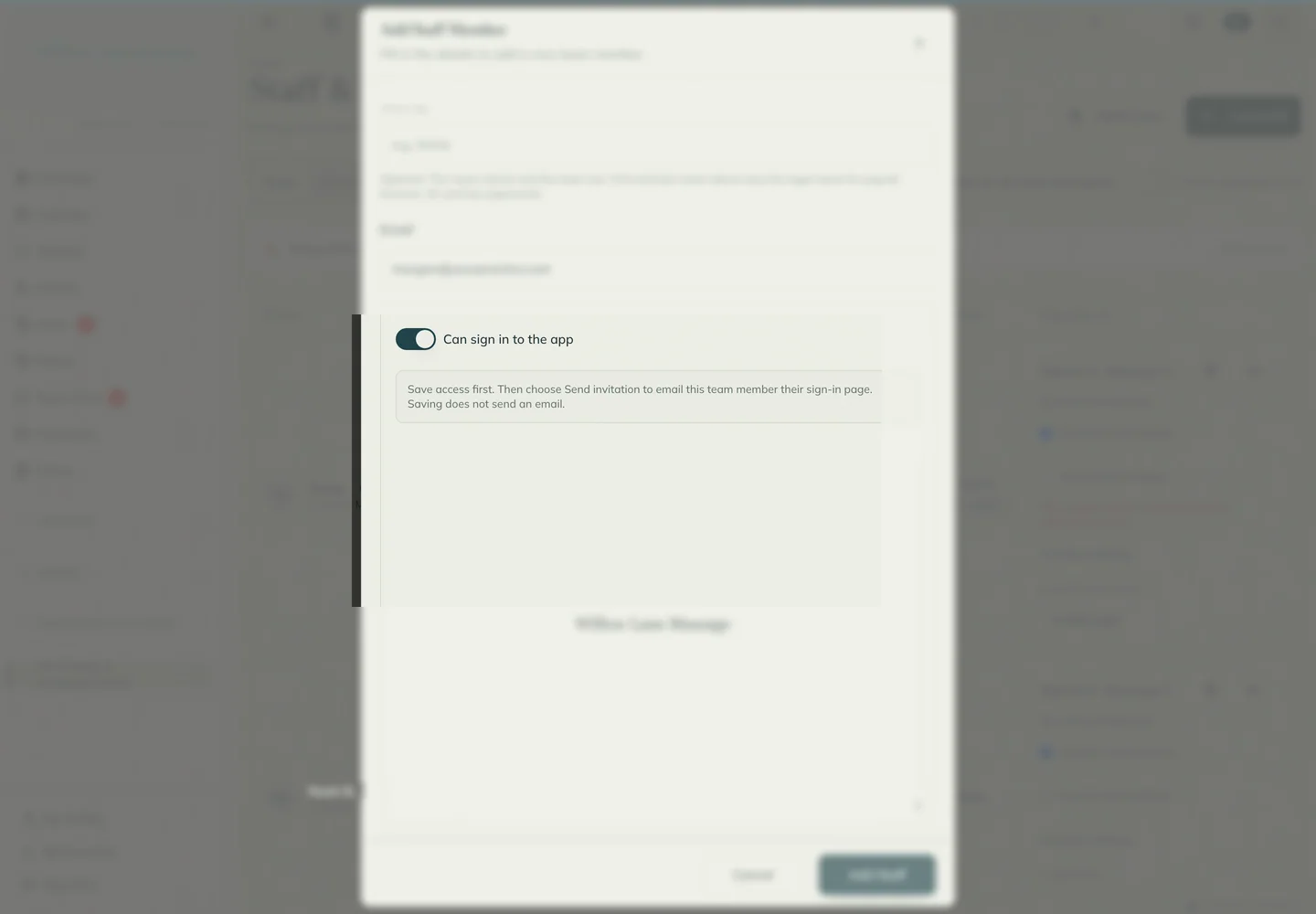
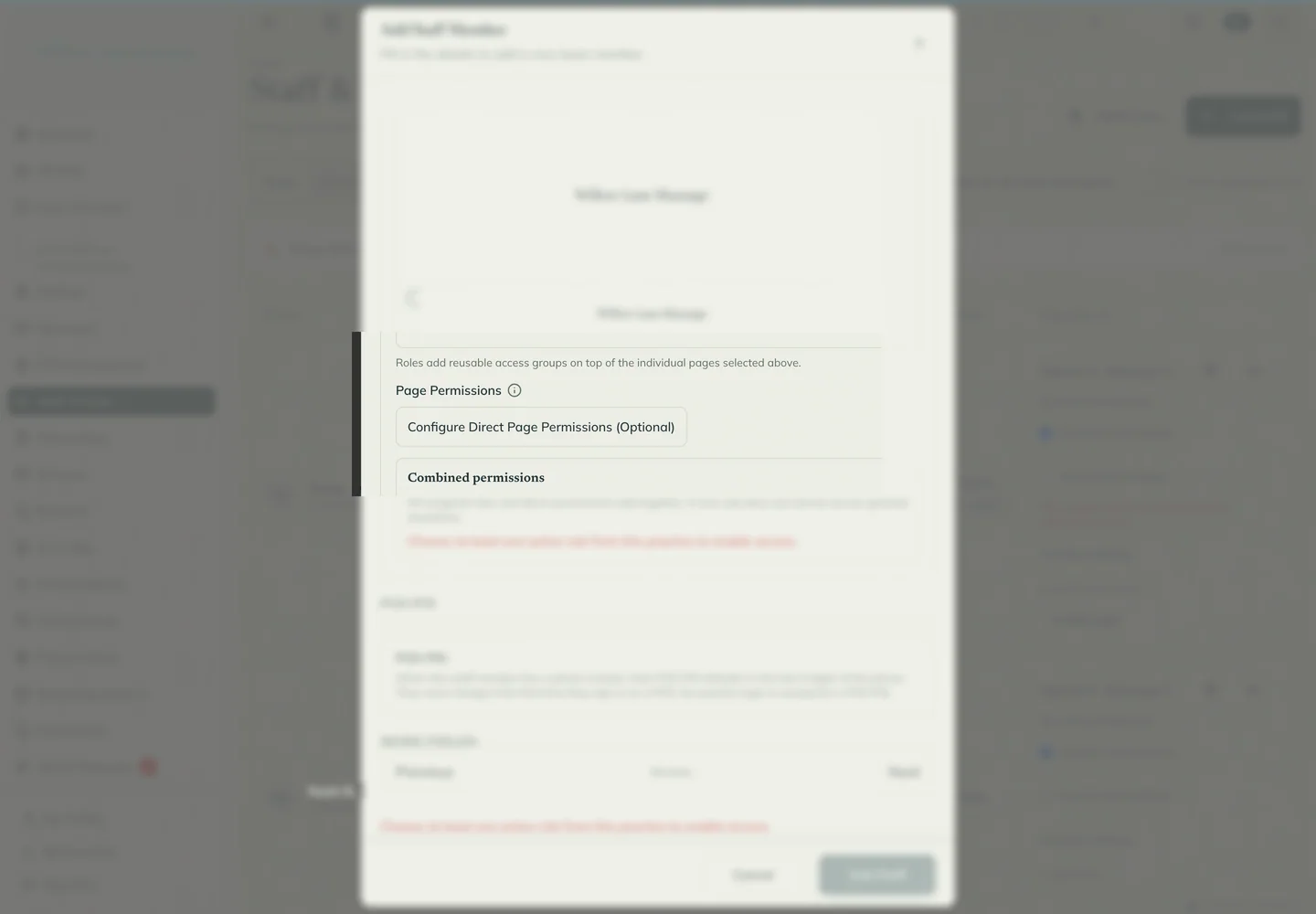
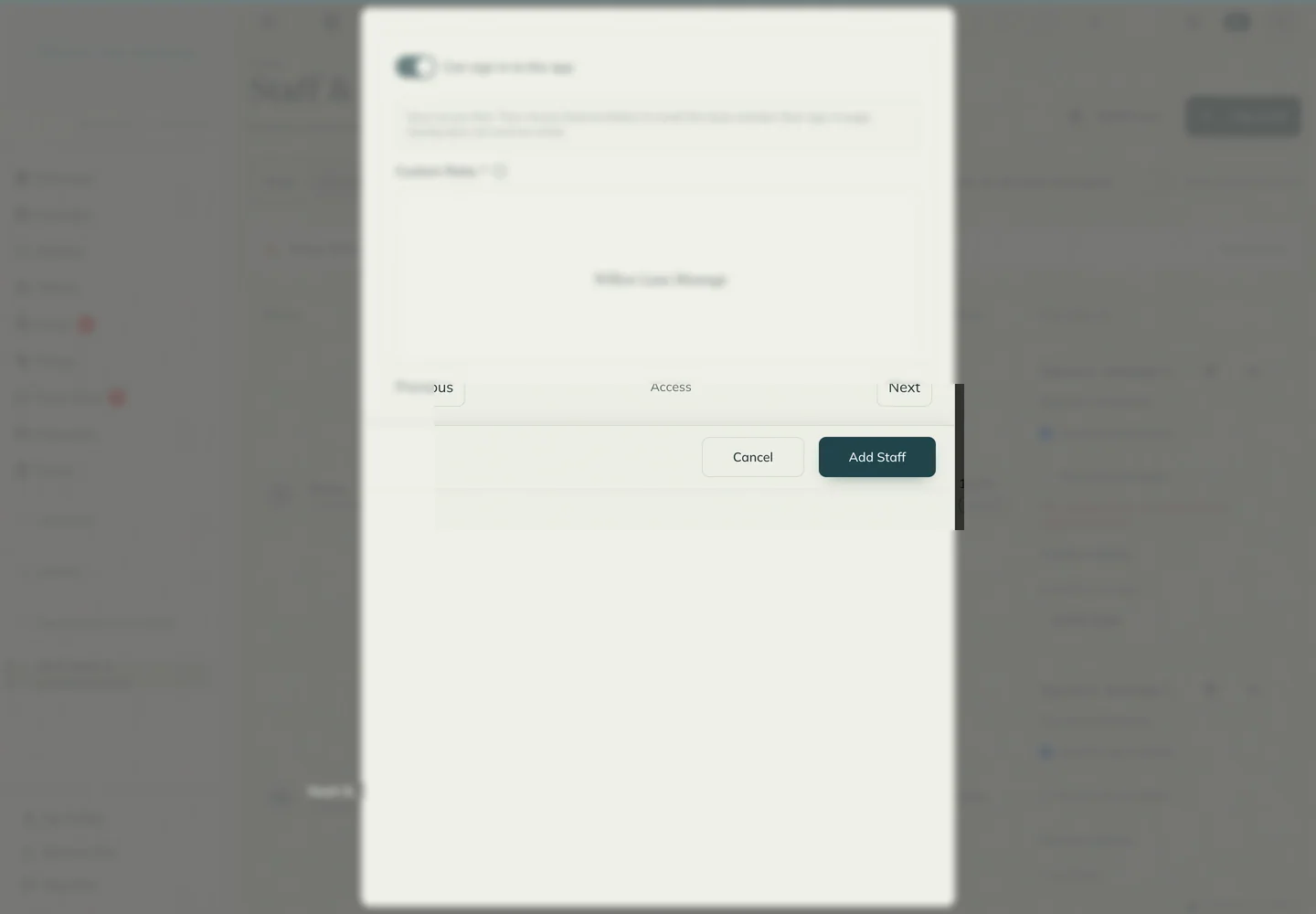
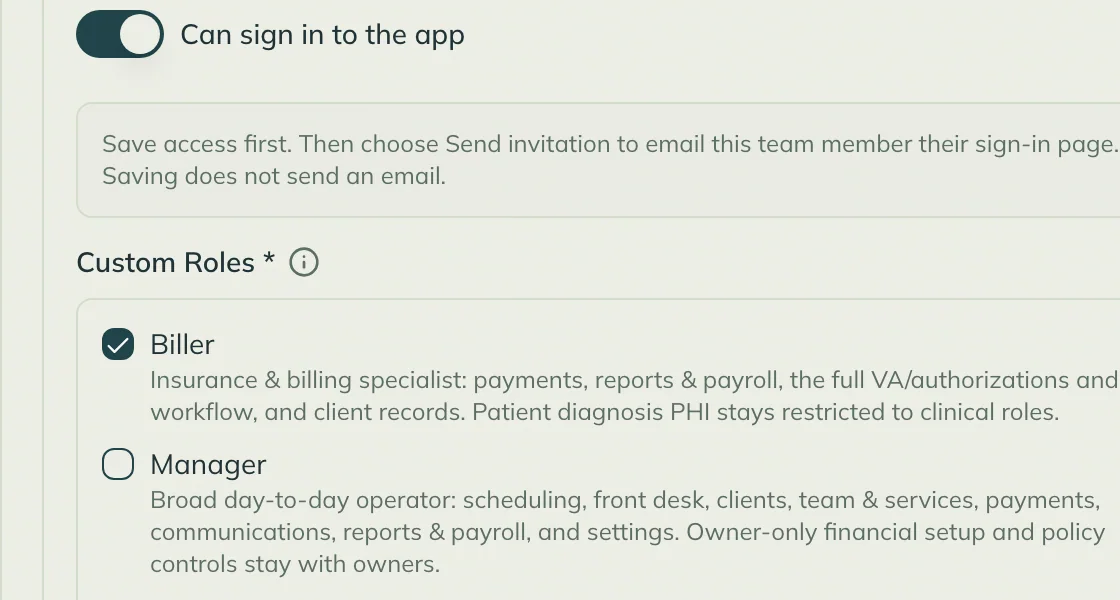
Turn on Can sign in to the app. Then tick a role under Custom Roles, like front desk or manager. The role decides which pages they can open.
Step 5: Add pages one by one (optional)
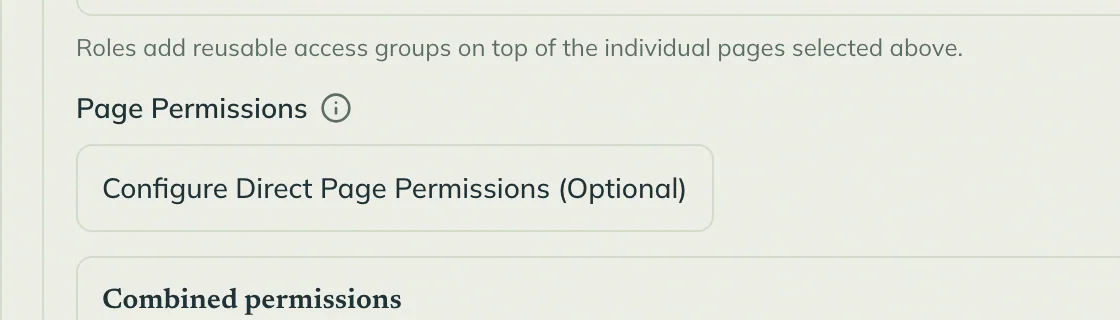
To give one extra page without changing the role, press Configure Direct Page Permissions (Optional) and tick it.
Step 6: Save, then send the invitation
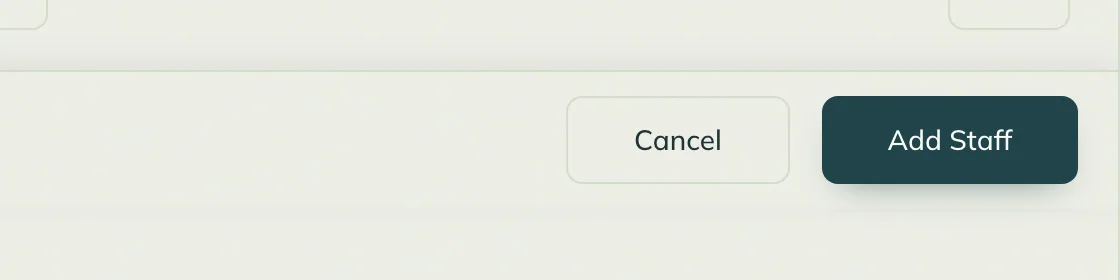
Press Add Staff at the bottom of the form. Saving doesn't email anyone: next, choose email, text or both under Send this invitation by and press Send invitation now. They set their own password from the link.
Step 7: Change what a role can do
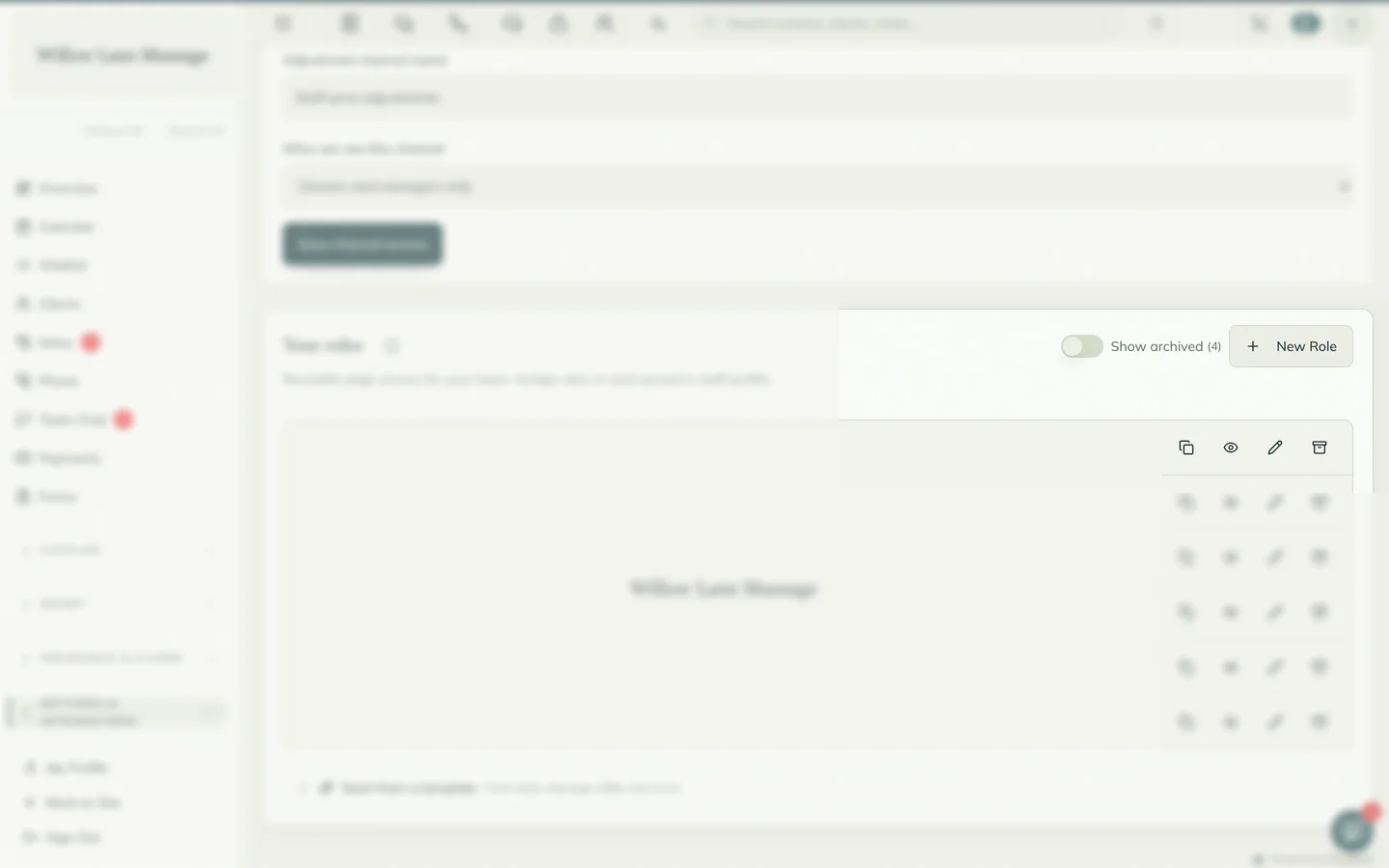
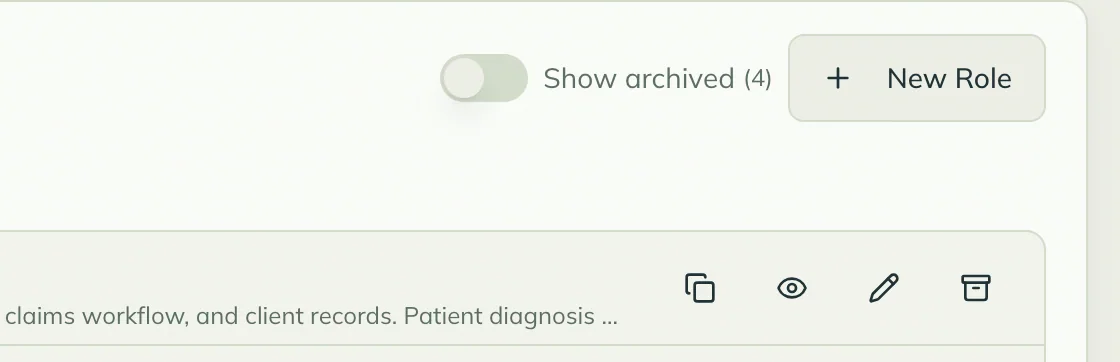
Open the Roles tab and press the pencil (Edit role) at the right of a role's row to choose its pages. Everyone with that role gets the change.
Still stuck?
Ask Kneadle from the chat button in your practice app. It can walk you through this screen or do it with you.