Add a client, change their details, or merge two records
Add a new client from the client list, update their phone, email or address later, and combine two records for the same person.
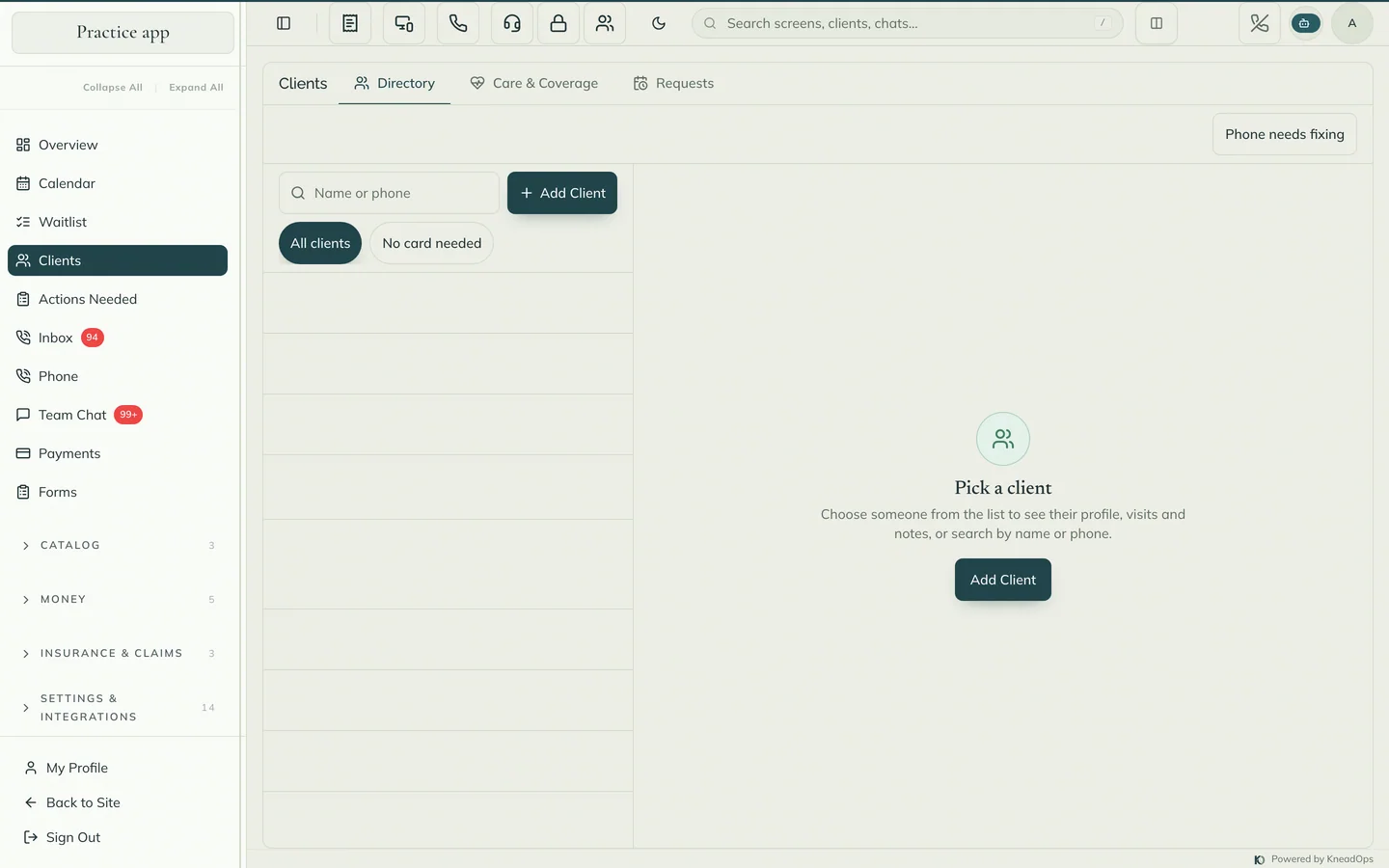
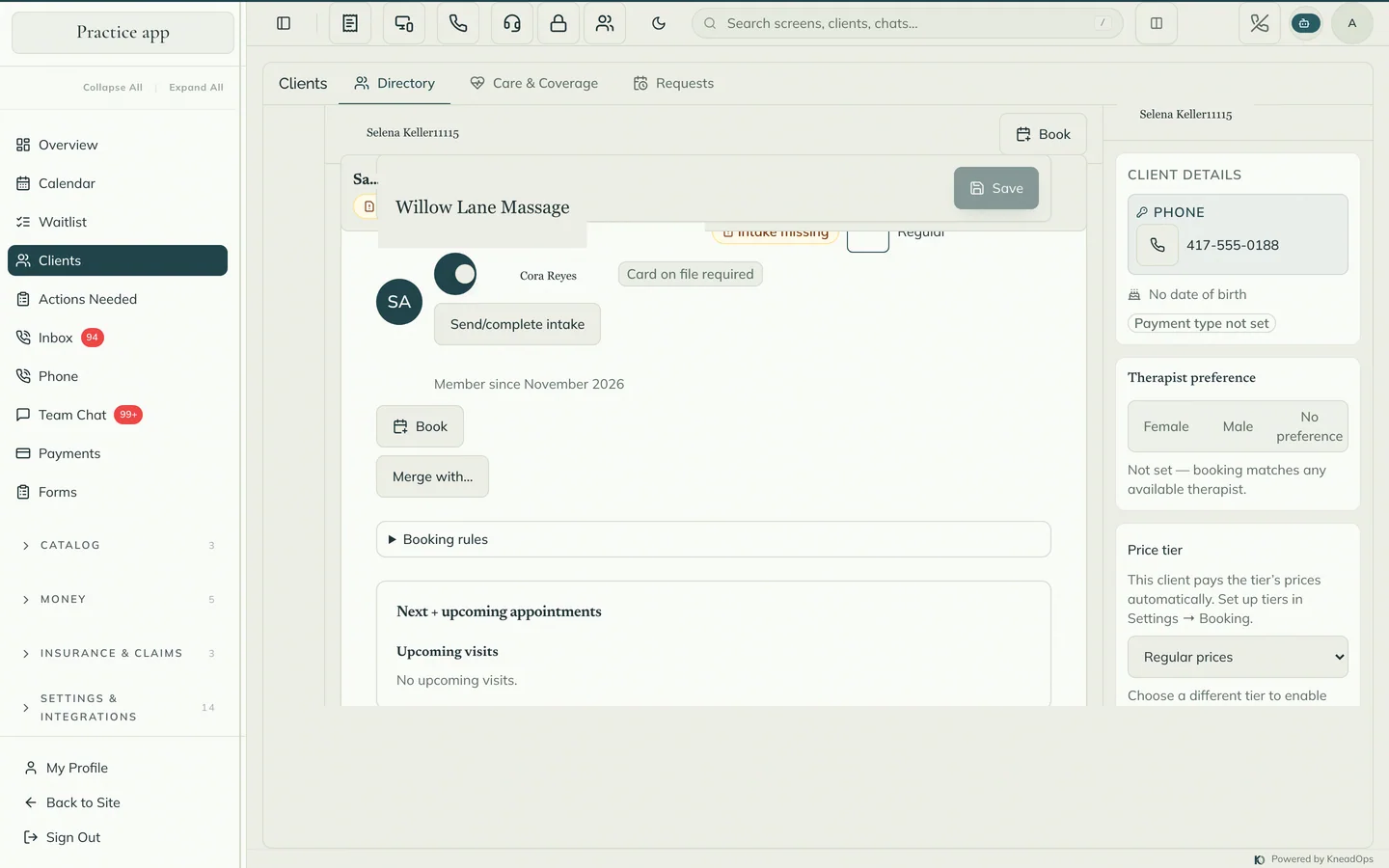
Step 1: Press Add Client
Open Clients and press Add Client next to the search box.

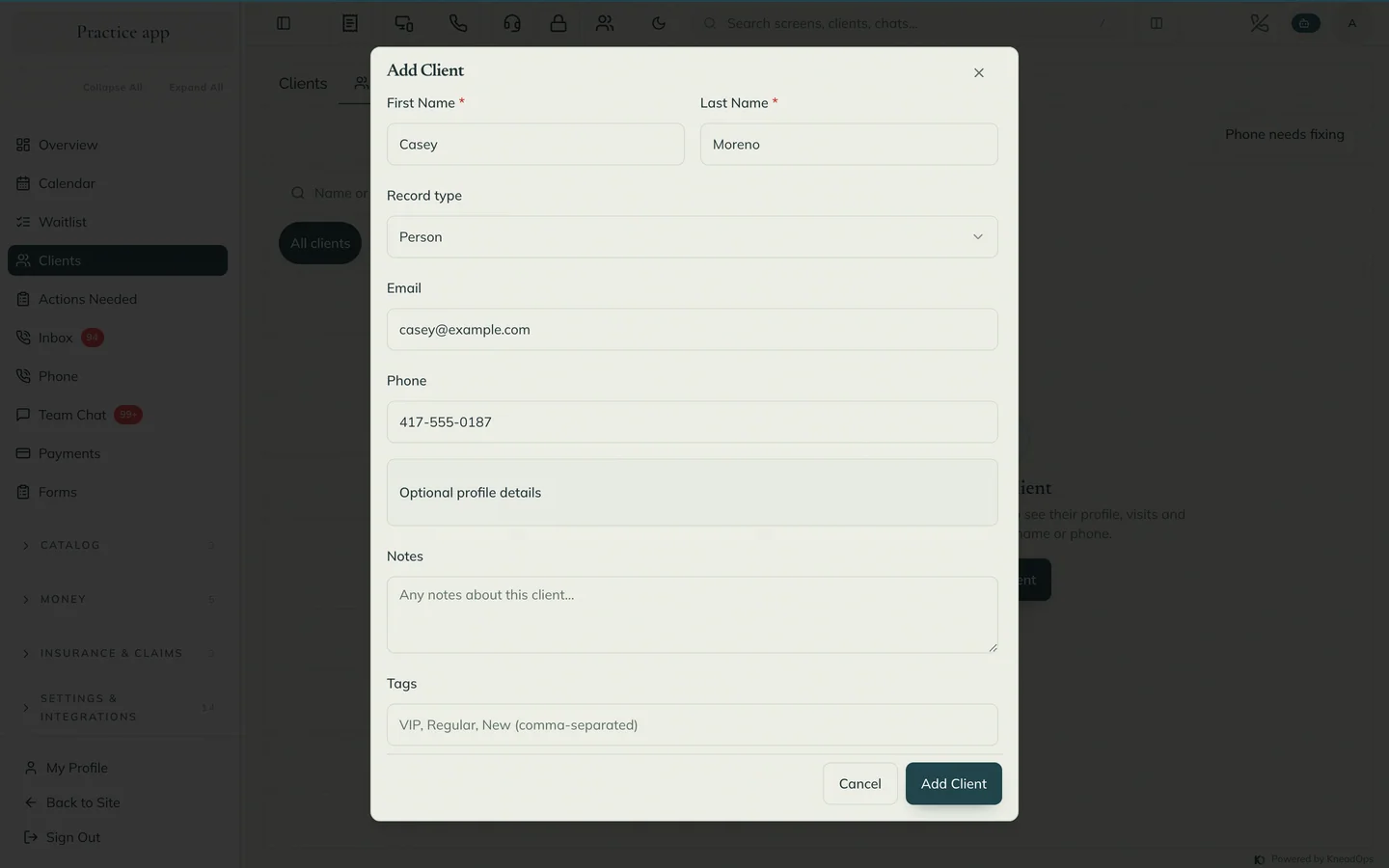
Step 2: Type their name and how to reach them
Fill in First Name and Last Name, then their Email and Phone. The rest (birthday, address, preferred therapist, notes) can wait.
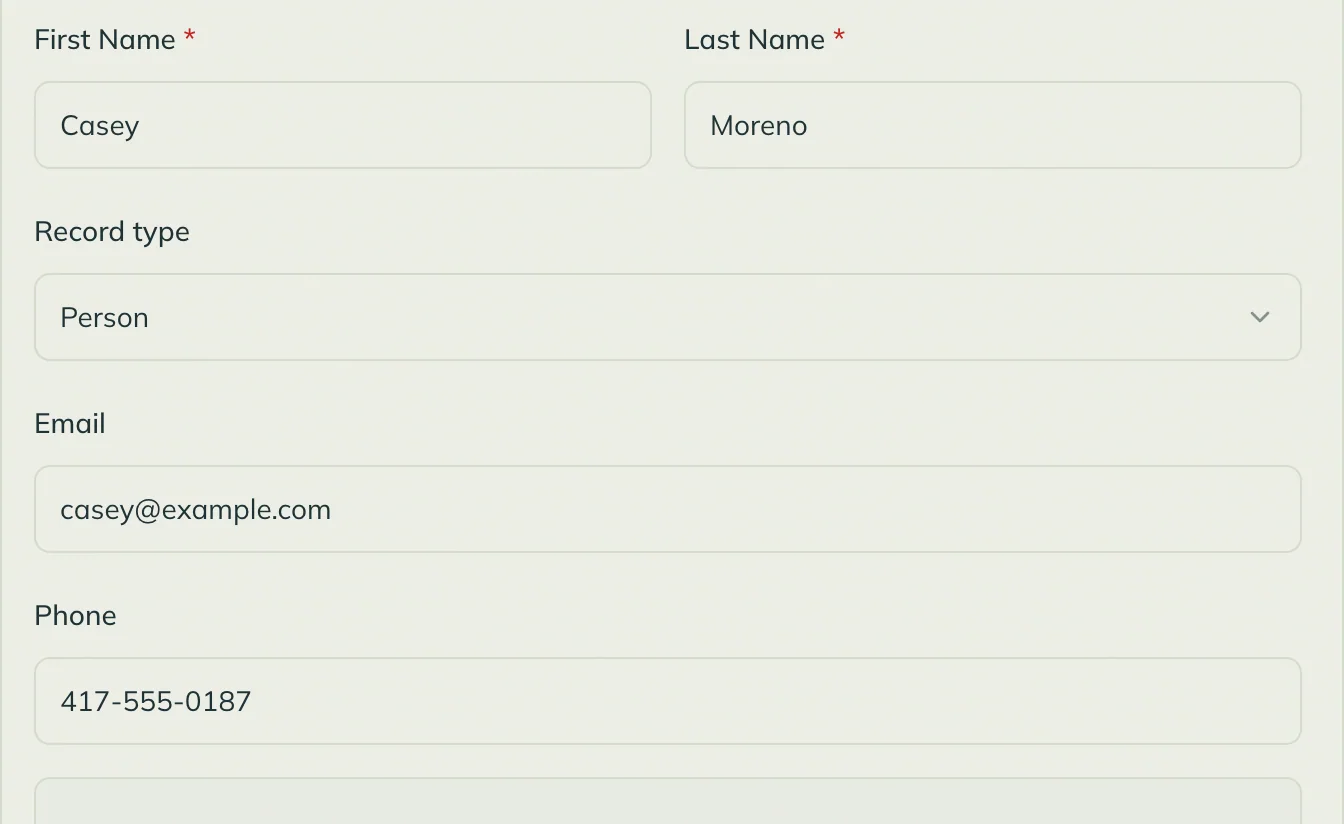
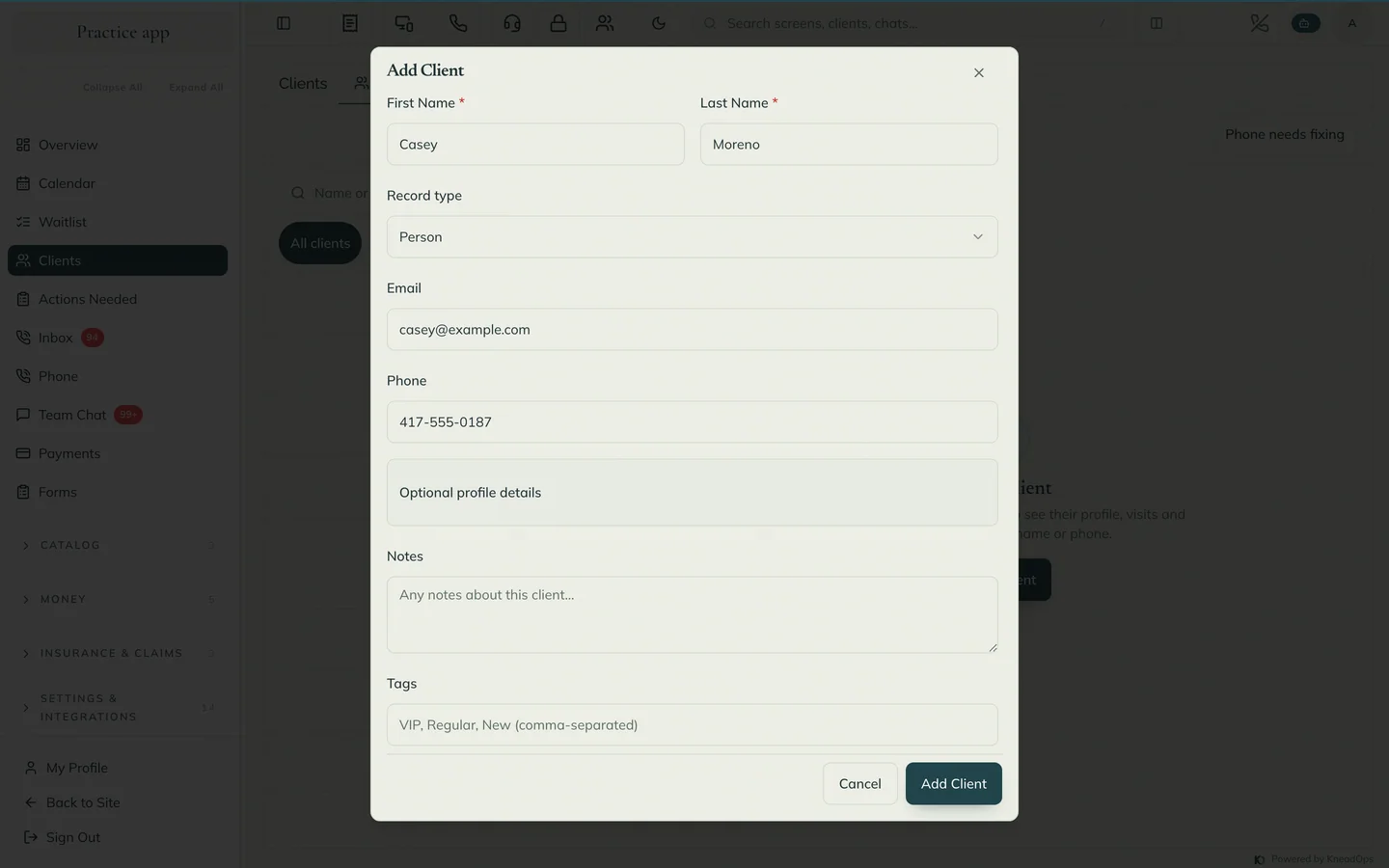
Step 3: Press Add Client to save
Press Add Client at the bottom of the form. If the phone number is already on another client, you're asked whether it's the same person before anything is saved.

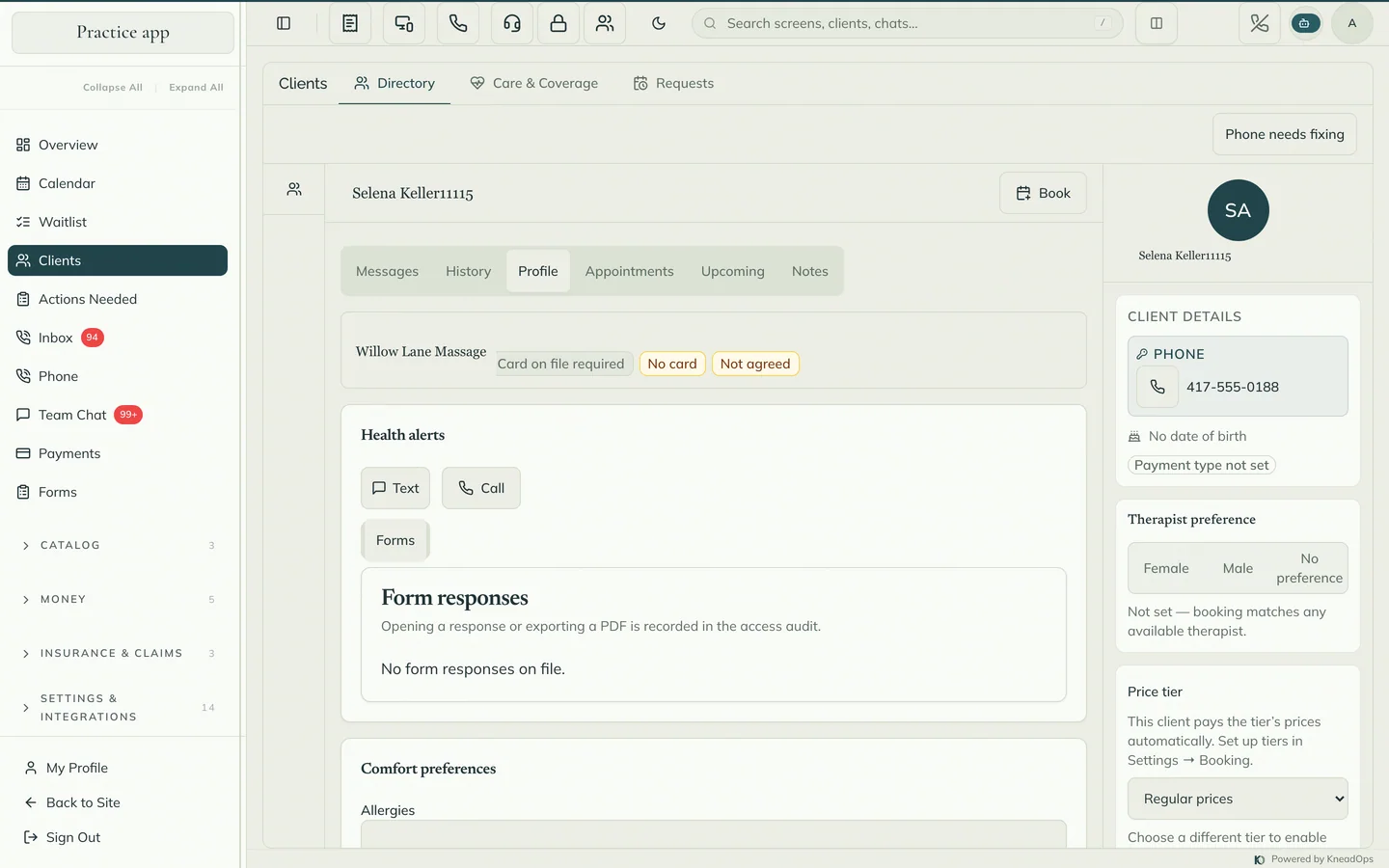
Step 4: Change a client's details
Open the client from the list and choose the Profile tab. Change their name, phone, email or address, then press Save at the top of the tab. (Front desk staff see Save contact details under the fields instead.)

Step 5: Two records for one person? Press Merge with…
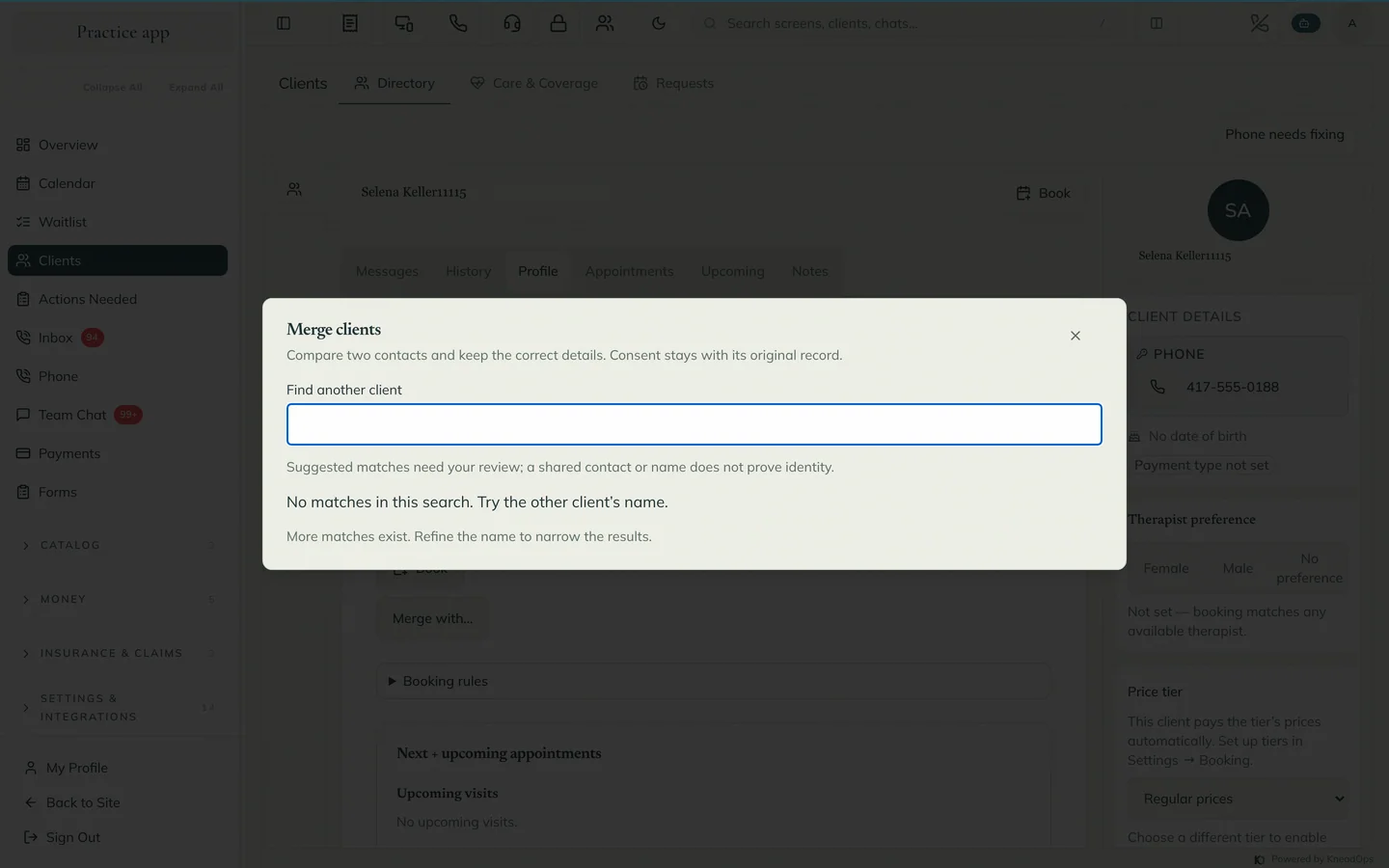
On the profile of the record you want to keep, press Merge with…. If KneadOps already spotted a likely duplicate, the button says Possible duplicate — Merge.

Step 6: Pick the other record, compare, then merge
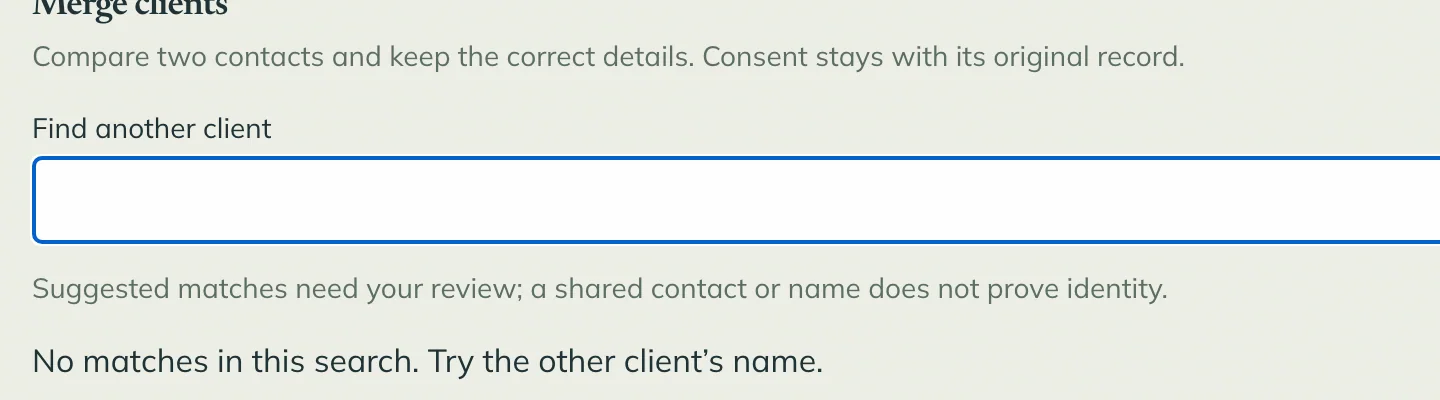
Search for the other record under Find another client and choose it. Pick which details to keep where they differ, tick the box to confirm they are the same person, then press Merge into kept client. You can undo a merge for a while afterwards.
Still stuck?
Ask Kneadle from the chat button in your practice app. It can walk you through this screen or do it with you.
More in Clients, texts and forms
 Find a client and see their visits, notes and balanceLook up any client by name or phone, then see their upcoming and past visits, their notes and what they owe.
 Reply to a client's textAnswer texts from clients in the Inbox, including a text from a number that isn't a client yet.
 Send intake forms and see the answersEmail a client a secure link to fill in your intake form, then see what they answered and mark it reviewed.