Find a client and see their visits, notes and balance
Look up any client by name or phone, then see their upcoming and past visits, their notes and what they owe.
Step 1: Open Clients
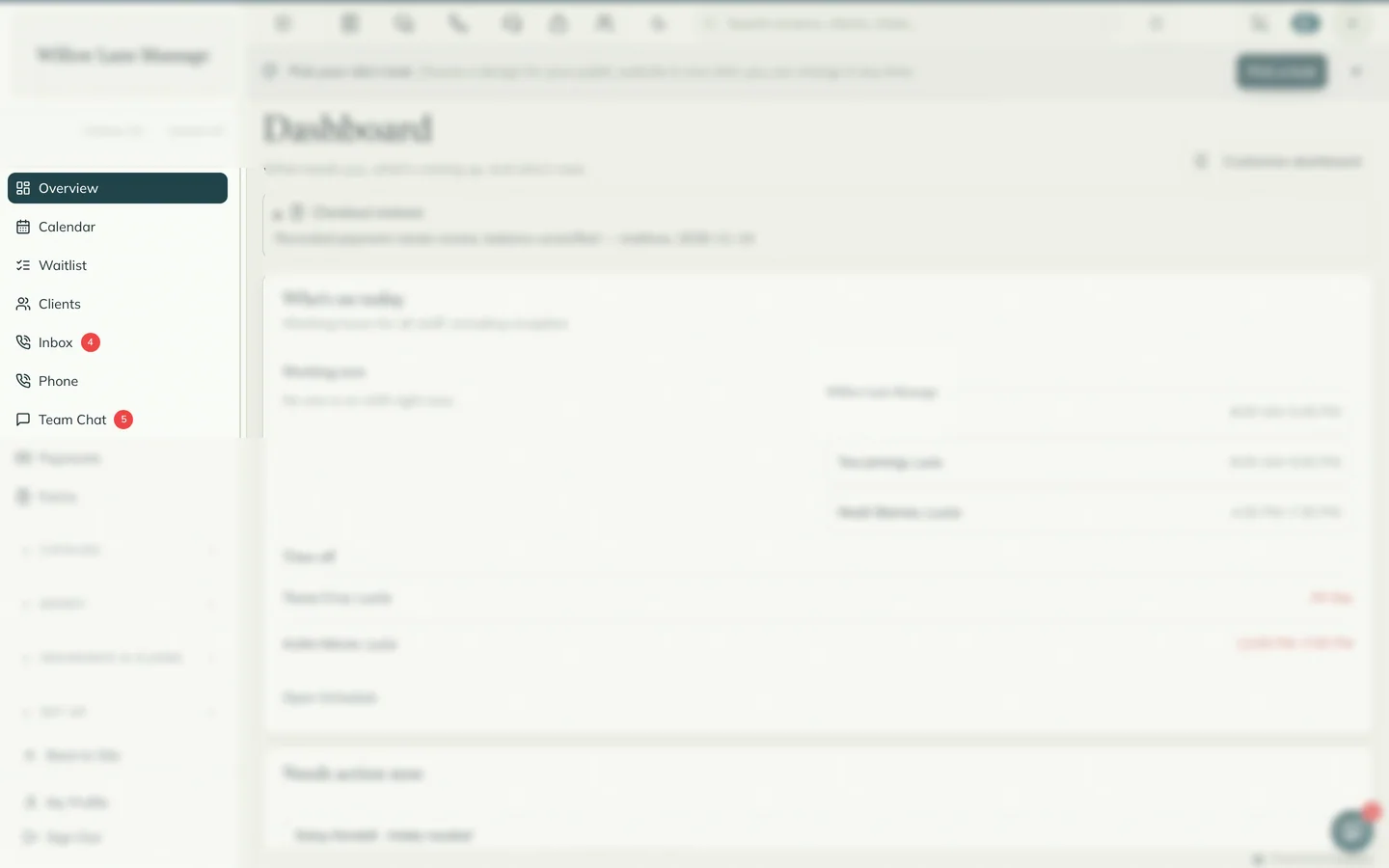
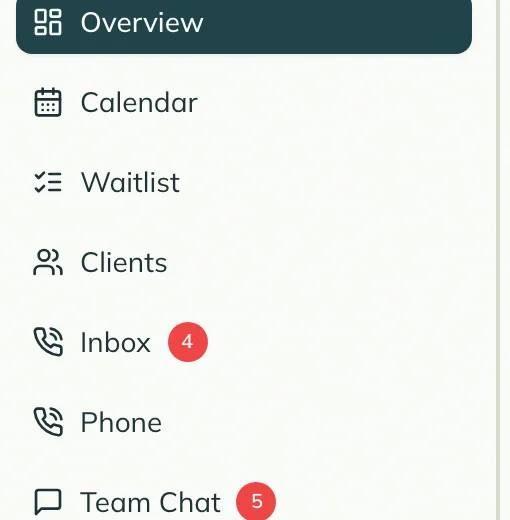
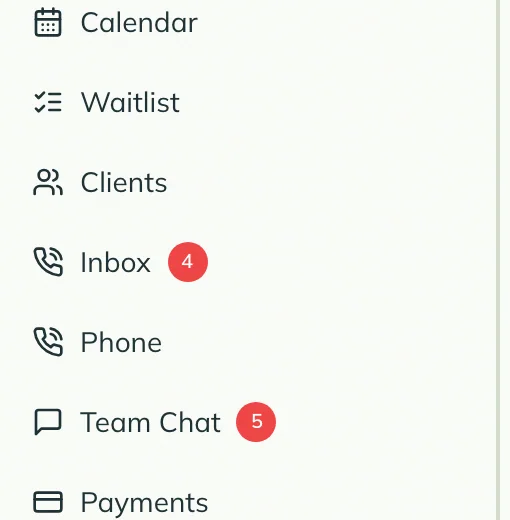
In the menu on the left, choose Clients.
Step 2: Search by name or phone
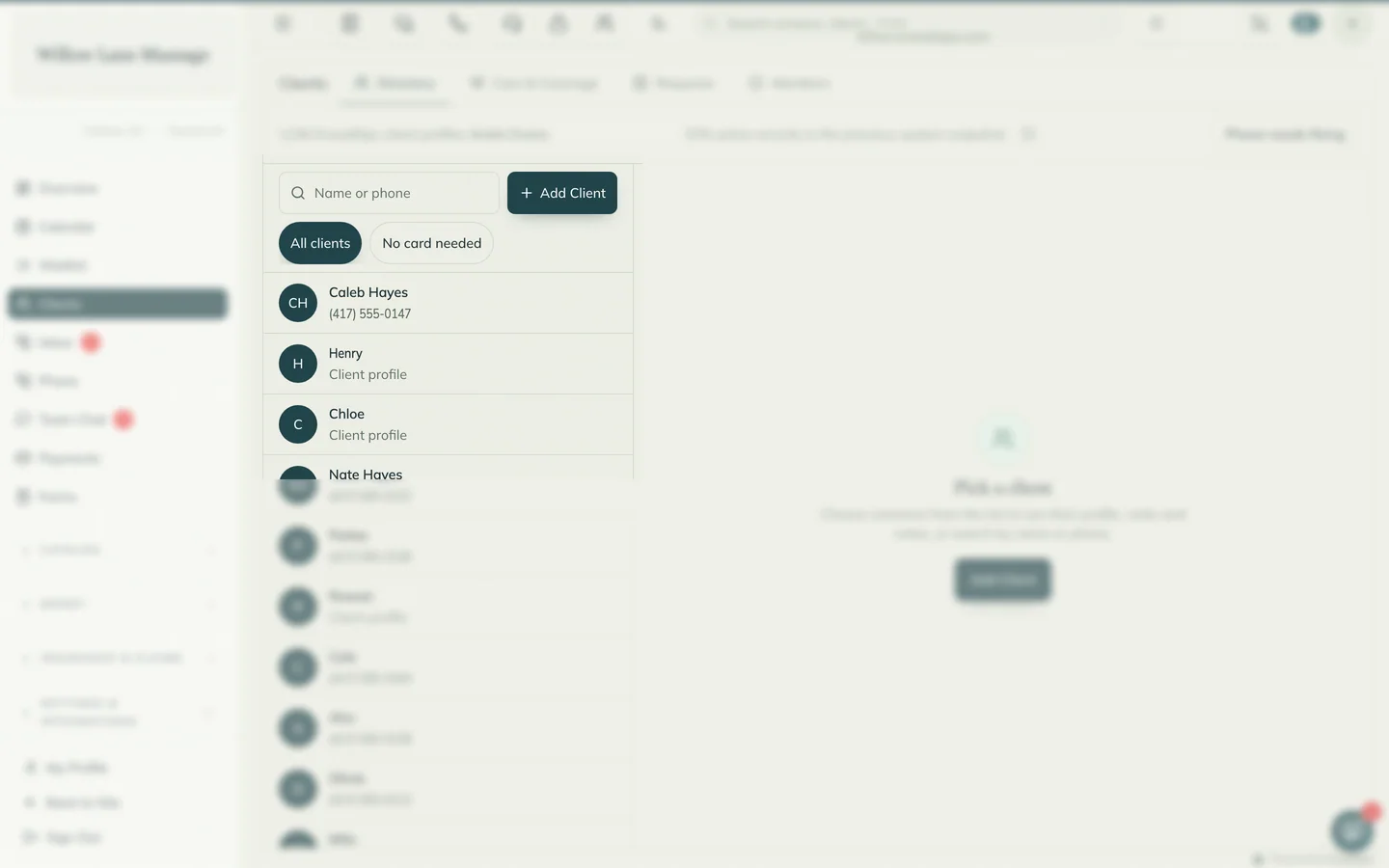
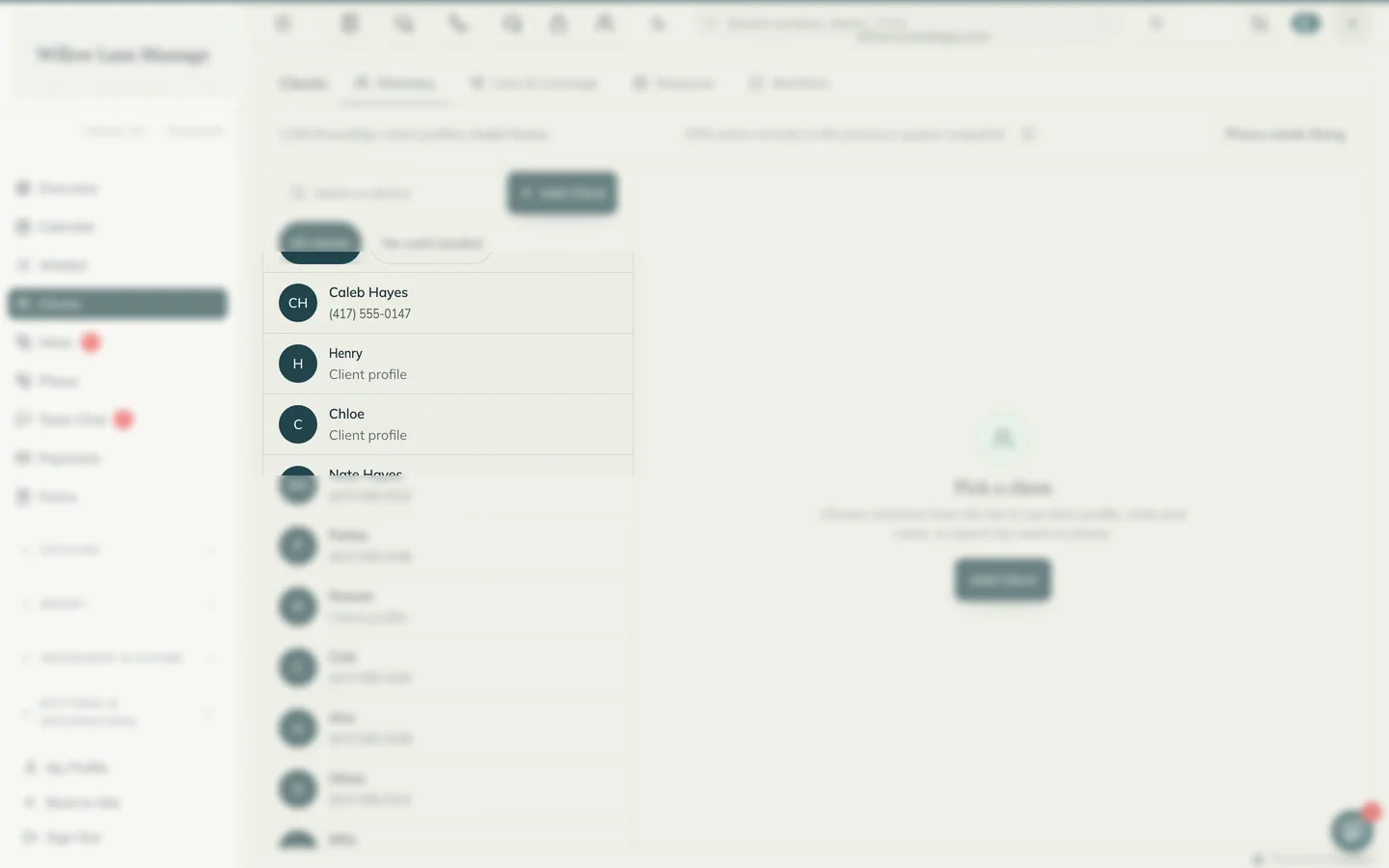
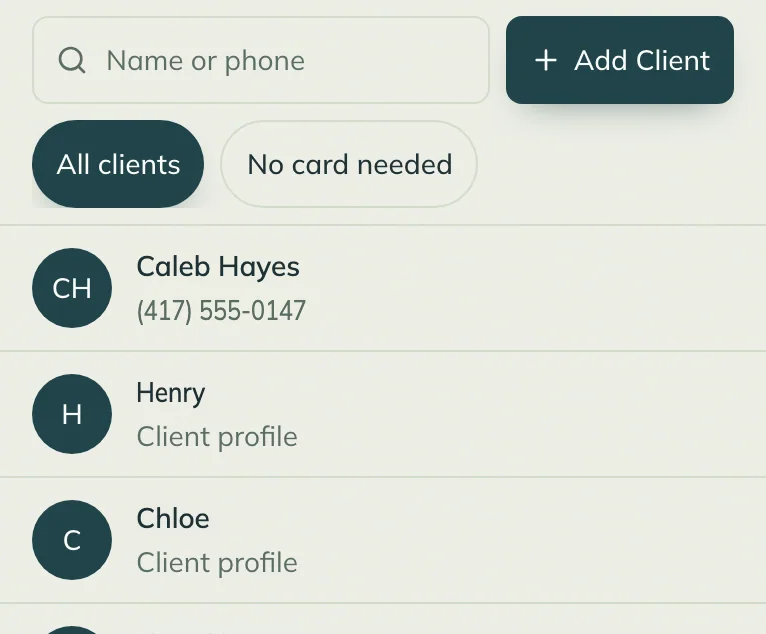
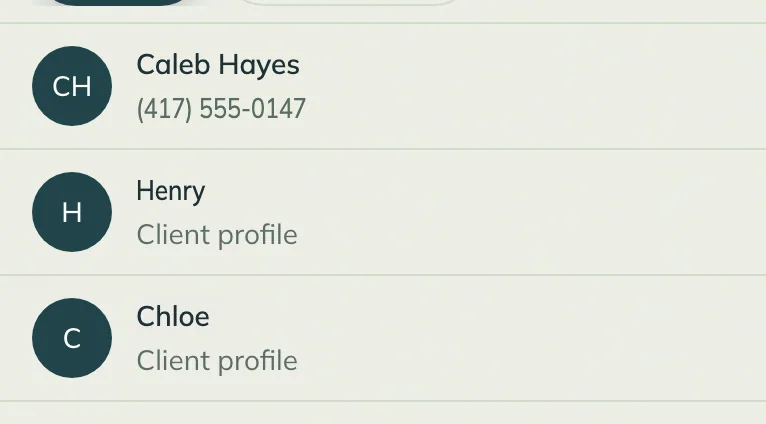
Type part of the client's name or phone number in the Name or phone box. The list narrows as you type.
Step 3: Open the client
Press the client's name in the list. Their profile opens with their contact details, alerts and the visits coming up.
Step 4: Check what they owe
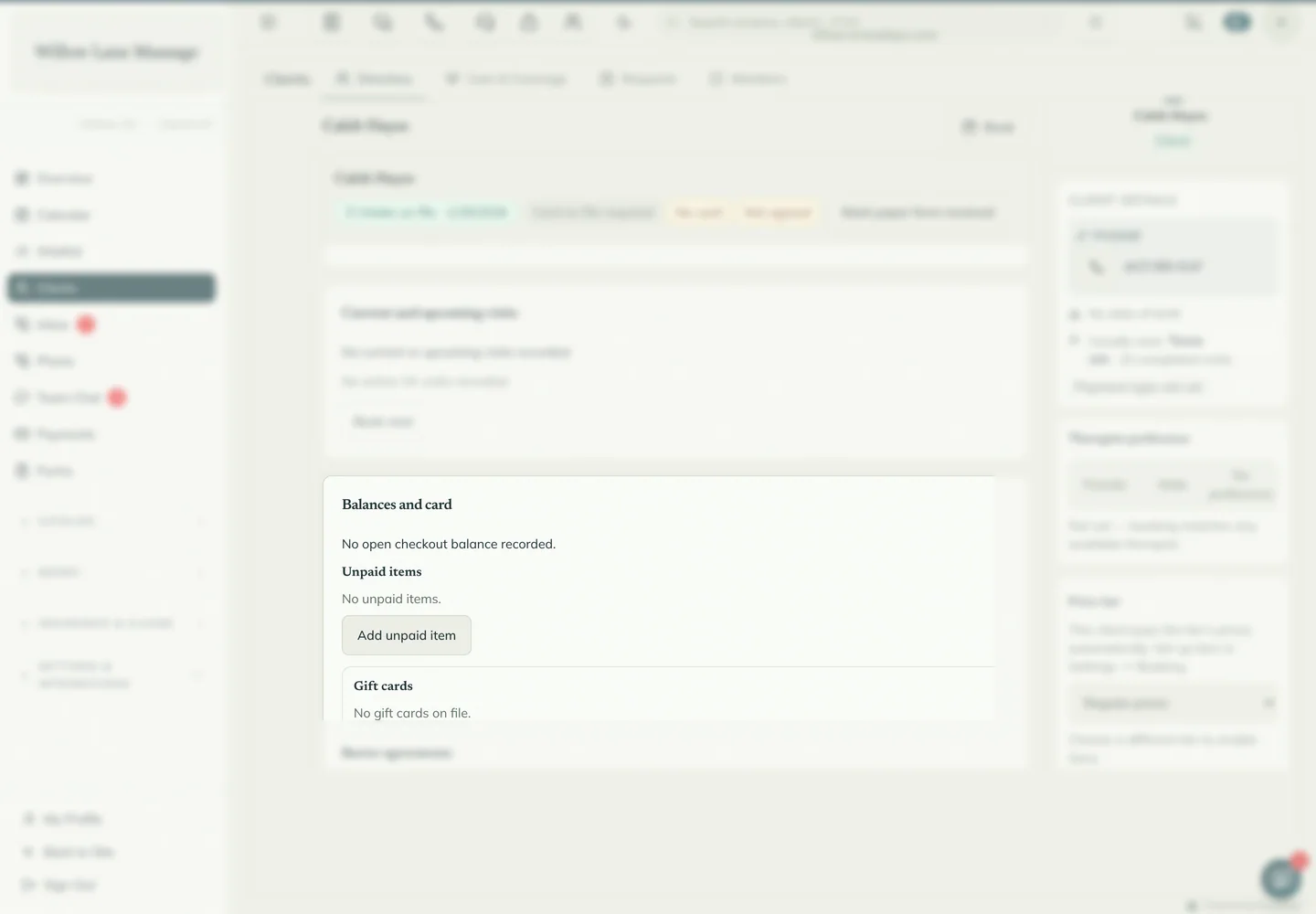
On the Profile tab, scroll to Balances and card. It shows anything they owe, account credit, gift cards and the card on file.

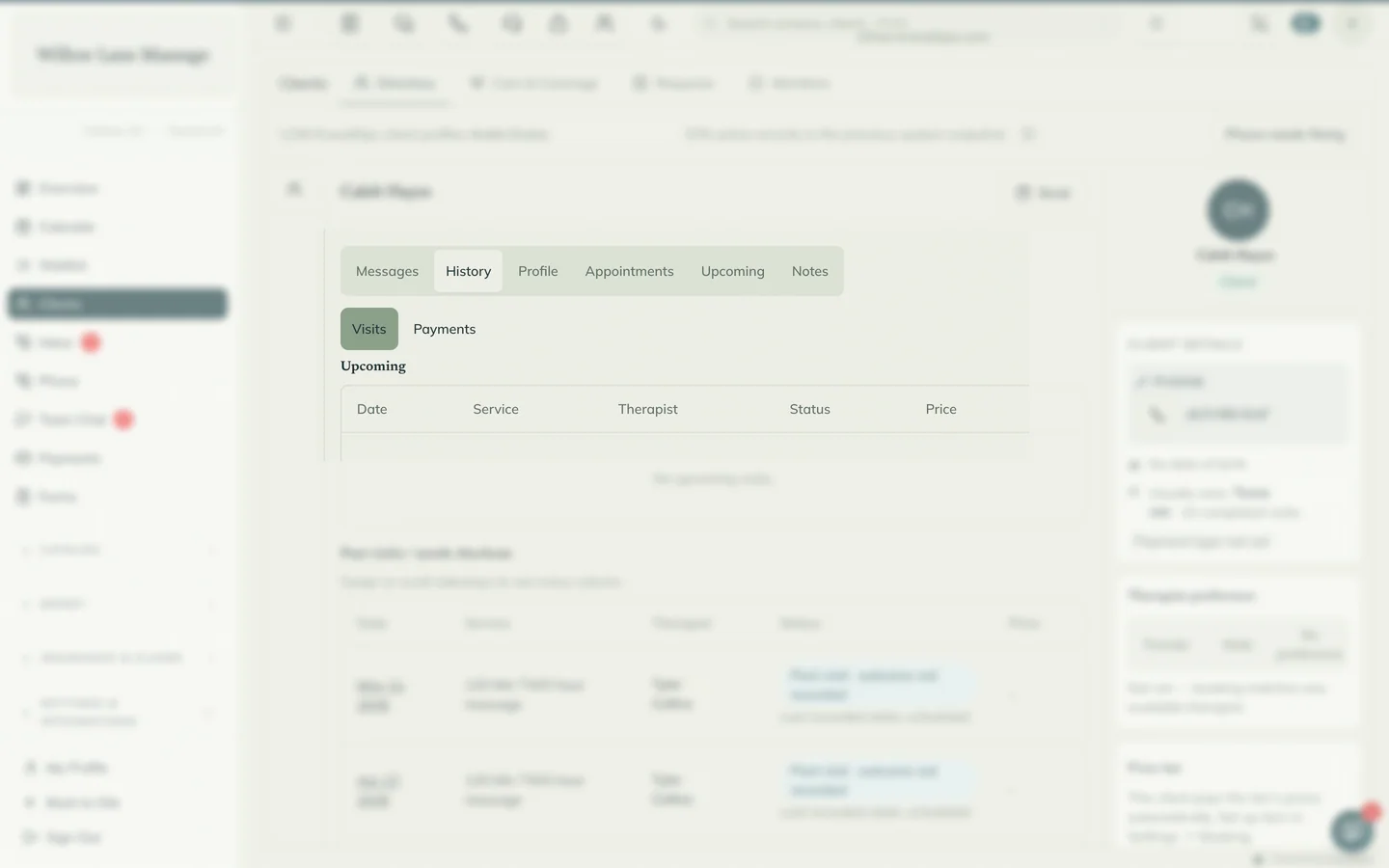
Step 5: See their visits
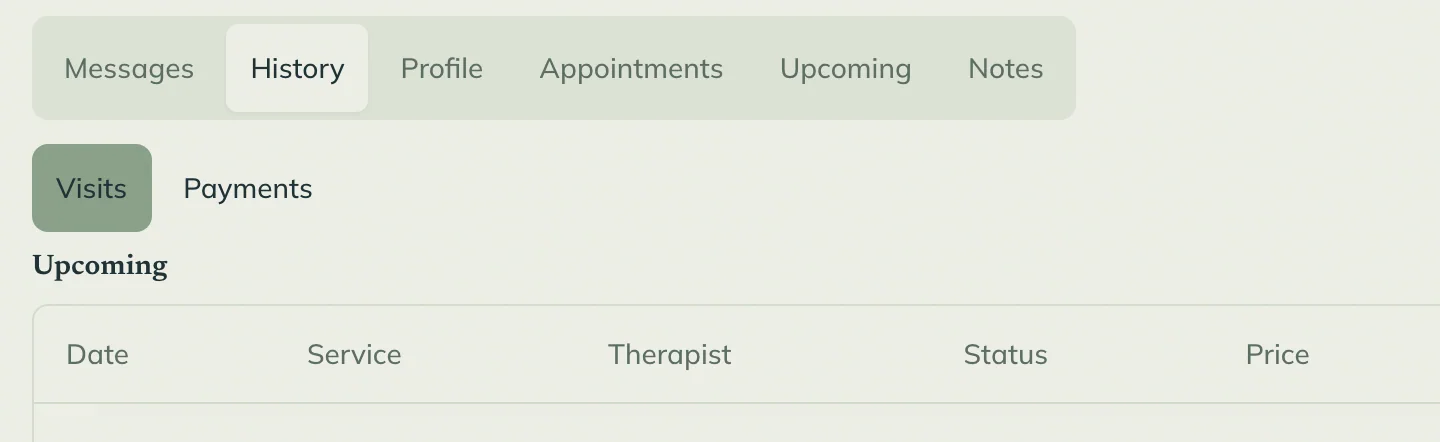
Open History. Visits lists their upcoming and past visits, and Payments shows what they paid.
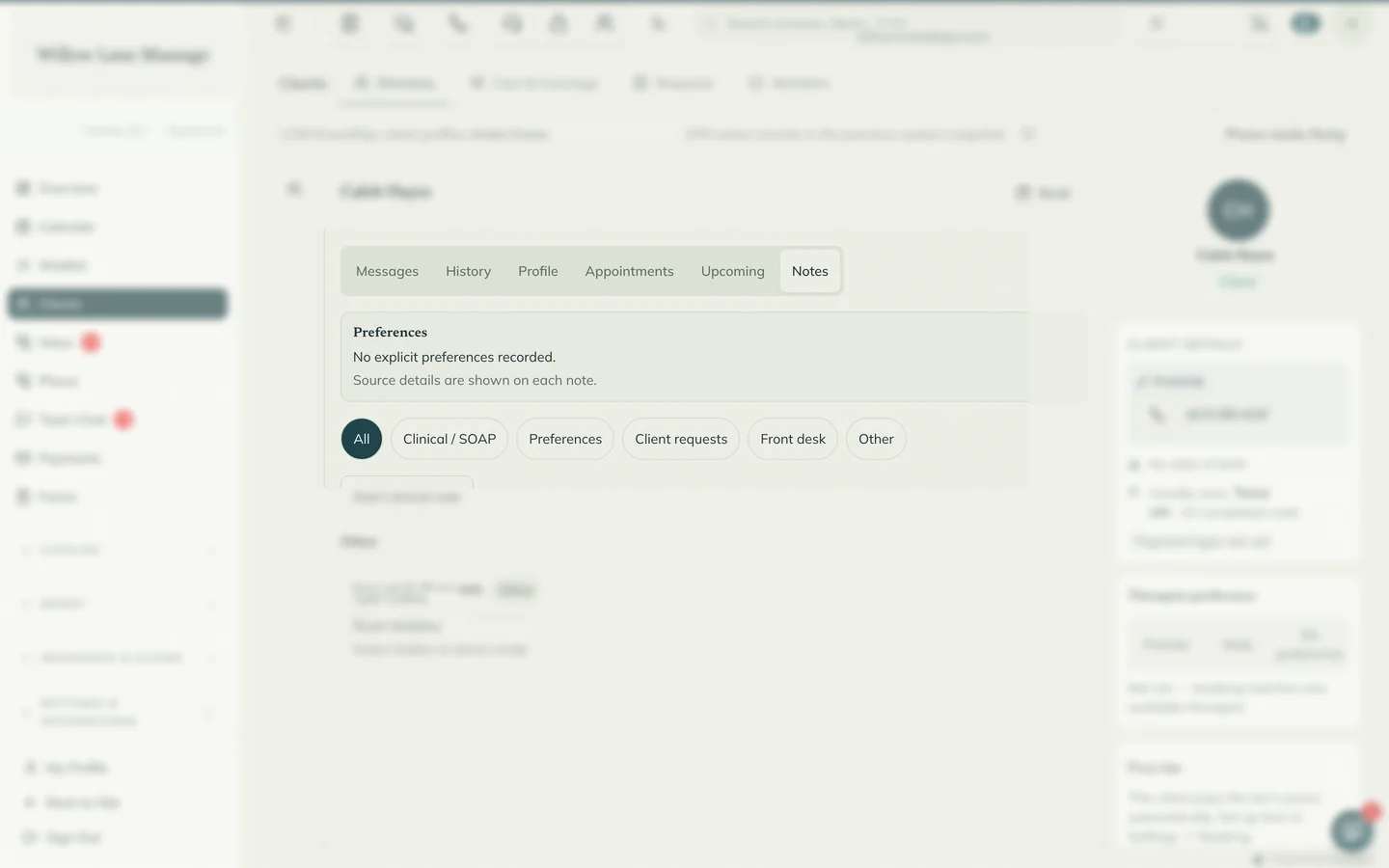
Step 6: Read their notes
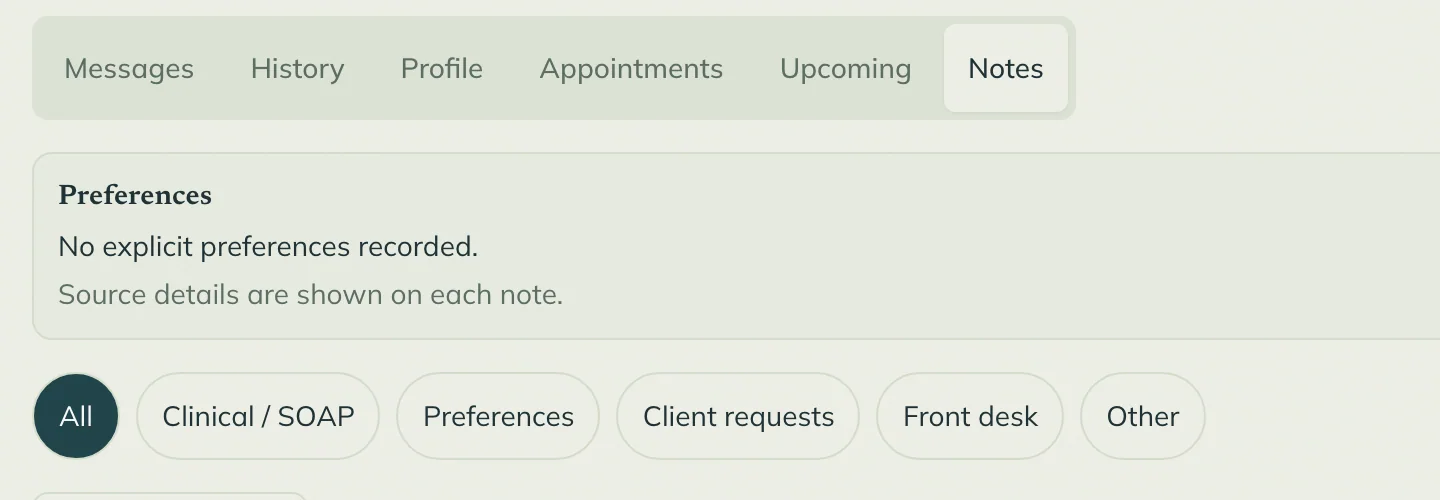
Open Notes to see their preferences and every note the team has written. Tap a chip to show one kind of note.
Still stuck?
Ask Kneadle from the chat button in your practice app. It can walk you through this screen or do it with you.
More in Clients, texts and forms
 Add a client, change their details, or merge two recordsAdd a new client from the client list, update their phone, email or address later, and combine two records for the same person.
 Reply to a client's textAnswer texts from clients in the Inbox, including a text from a number that isn't a client yet.
 Send intake forms and see the answersEmail a client a secure link to fill in your intake form, then see what they answered and mark it reviewed.