Add-on groups and free choices
Group a service's add-ons so clients choose from a set, with how many they can pick and how many are free. For example, a 90-minute massage that includes up to 2 add-ons.
Step 1: Open the service
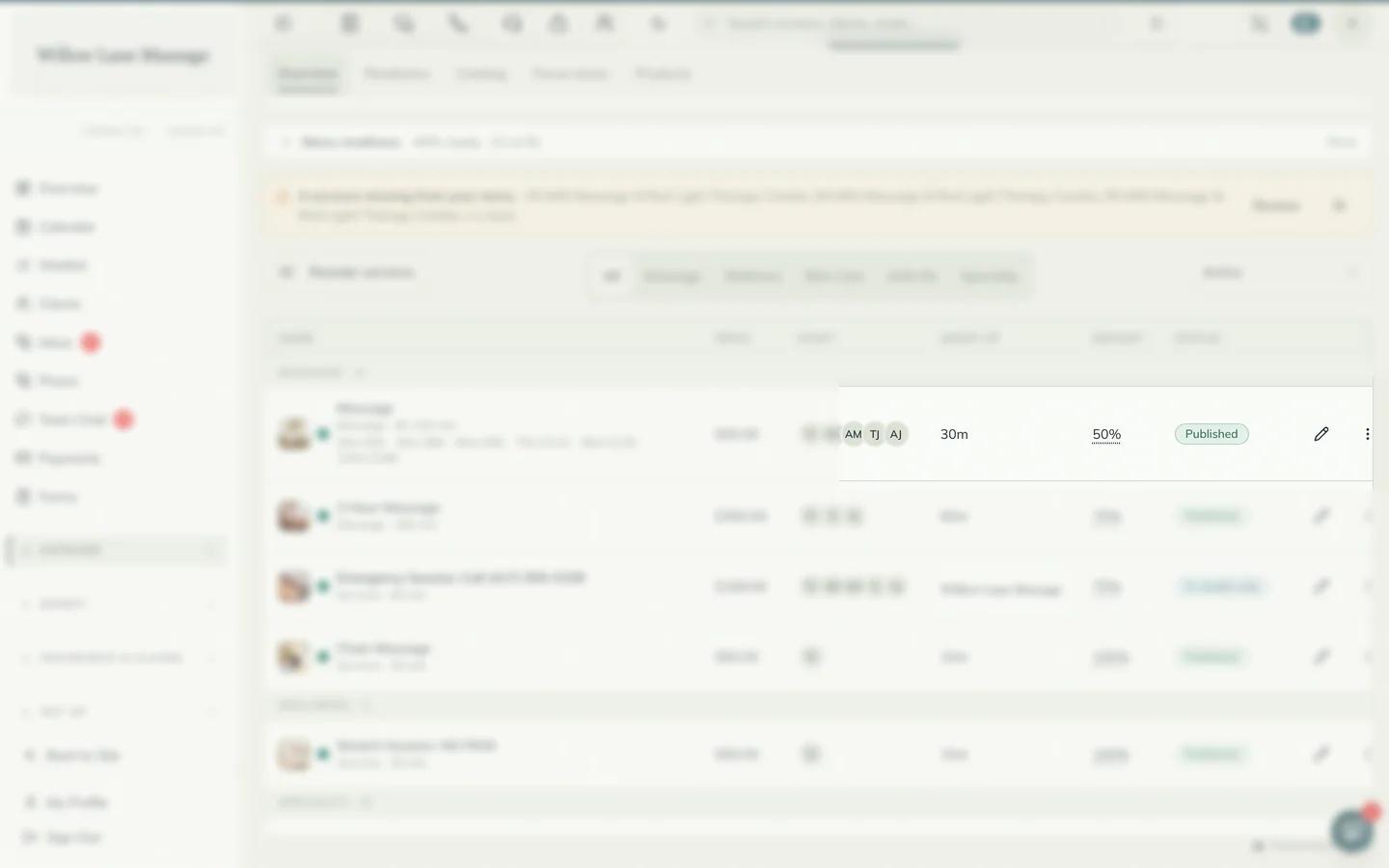
Open Services and find the main service, for example your massage. Press the pencil (Edit service) at the end of its row.

Step 2: Press Add group
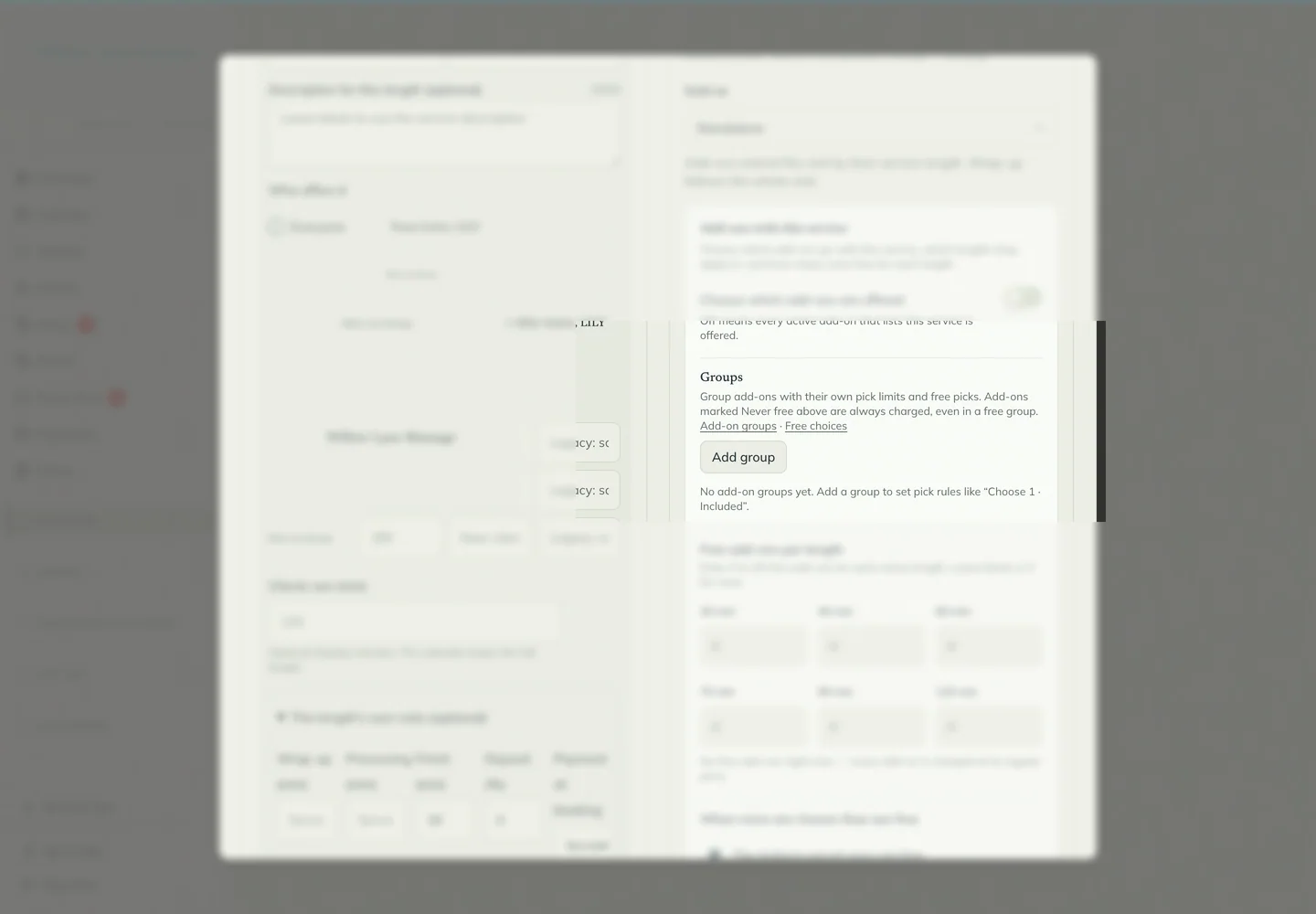
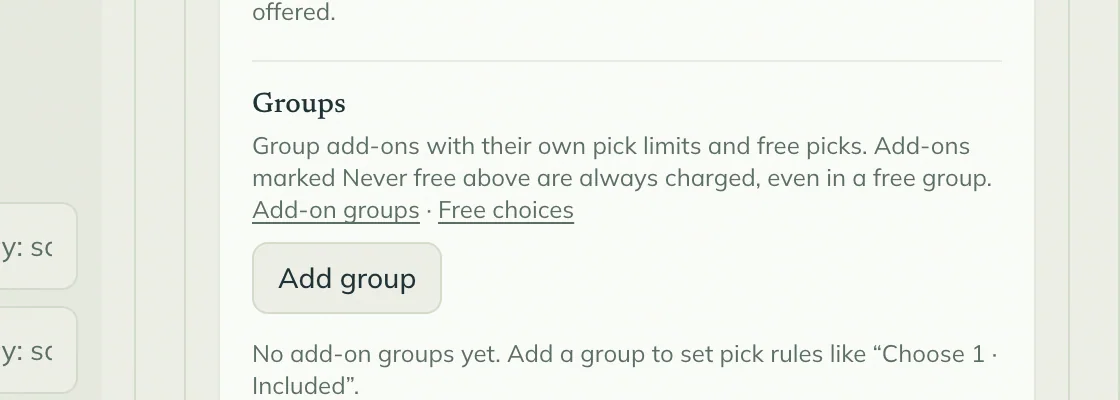
Open Advanced if it is closed, scroll down to Add-ons with this service, and under Groups, press Add group.
Step 3: Name the group and pick its lengths
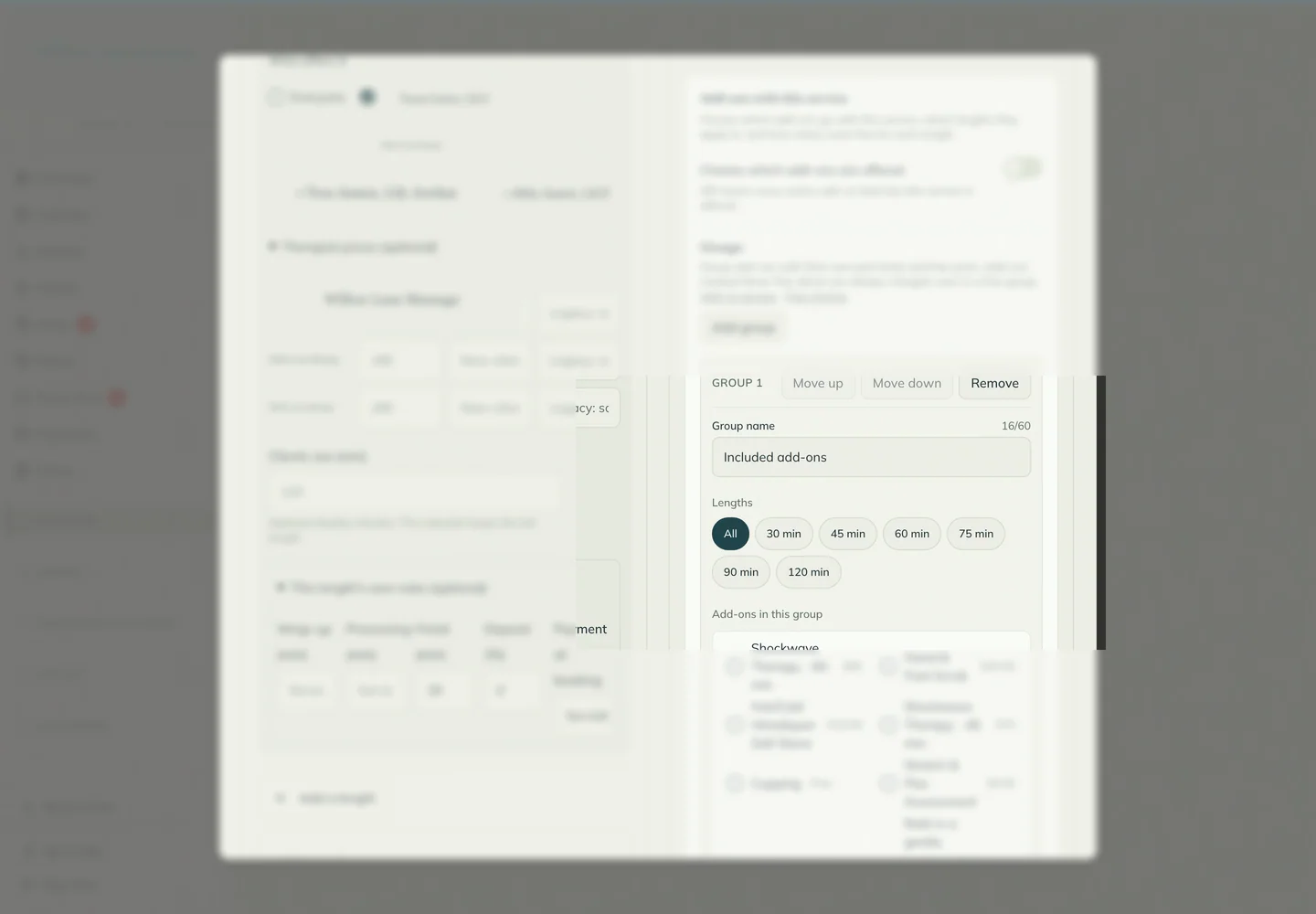
Give the group a name clients will understand, like Included add-ons or Scent. Under Lengths, leave on only the lengths it applies to, for example just 90 minutes.
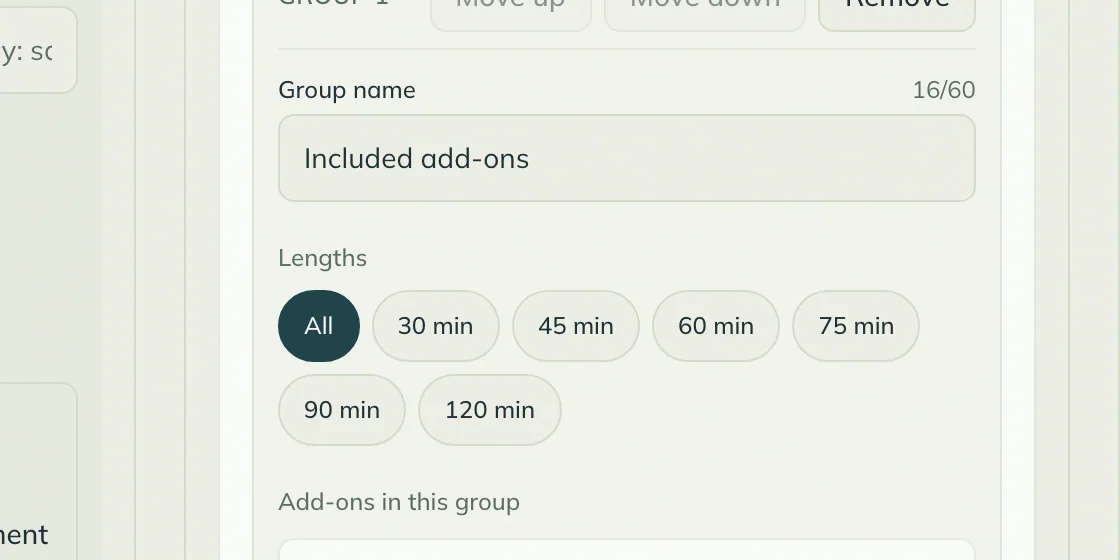
Step 4: Tick the add-ons in the group
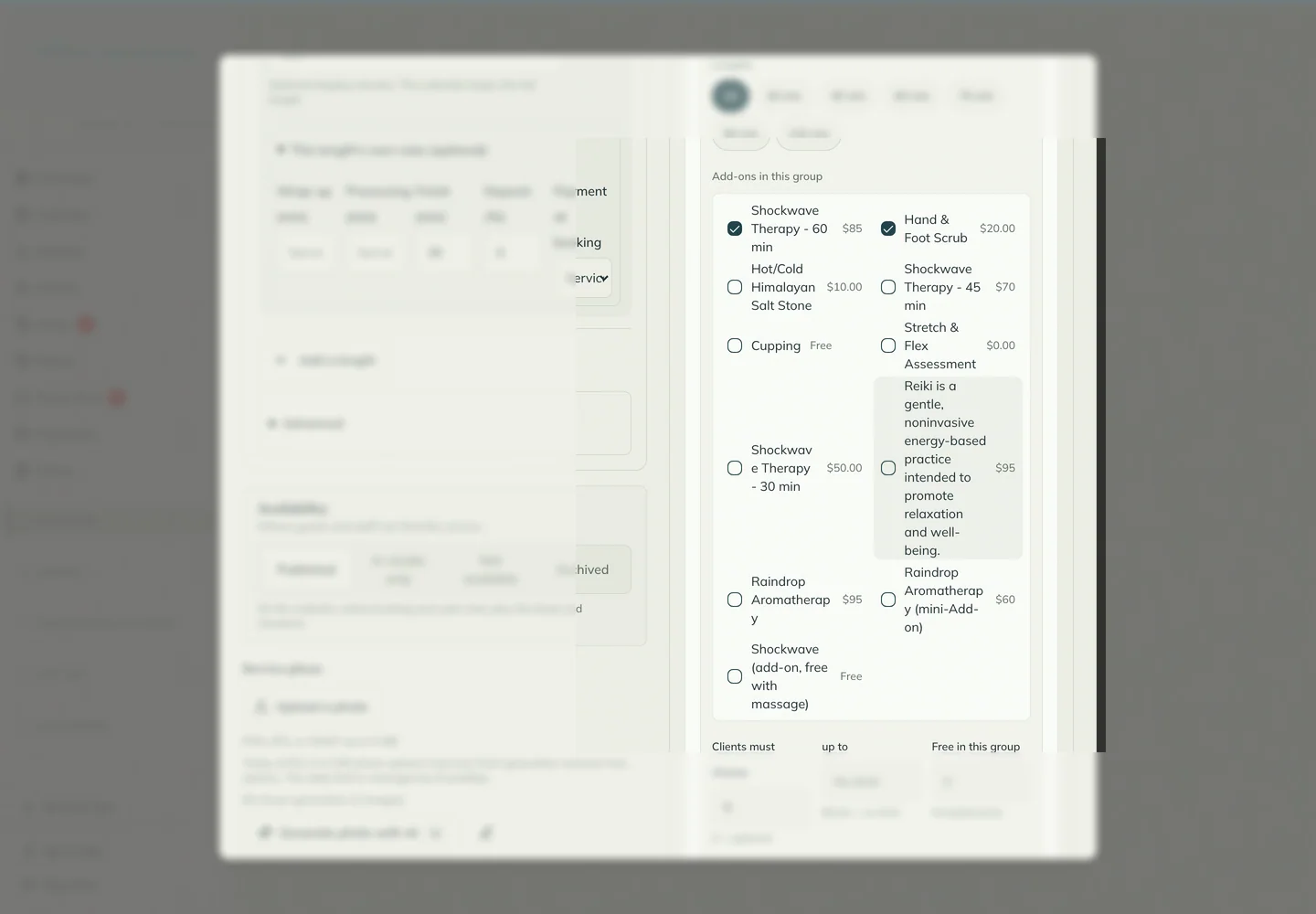
Under Add-ons in this group, tick each add-on clients can choose from.
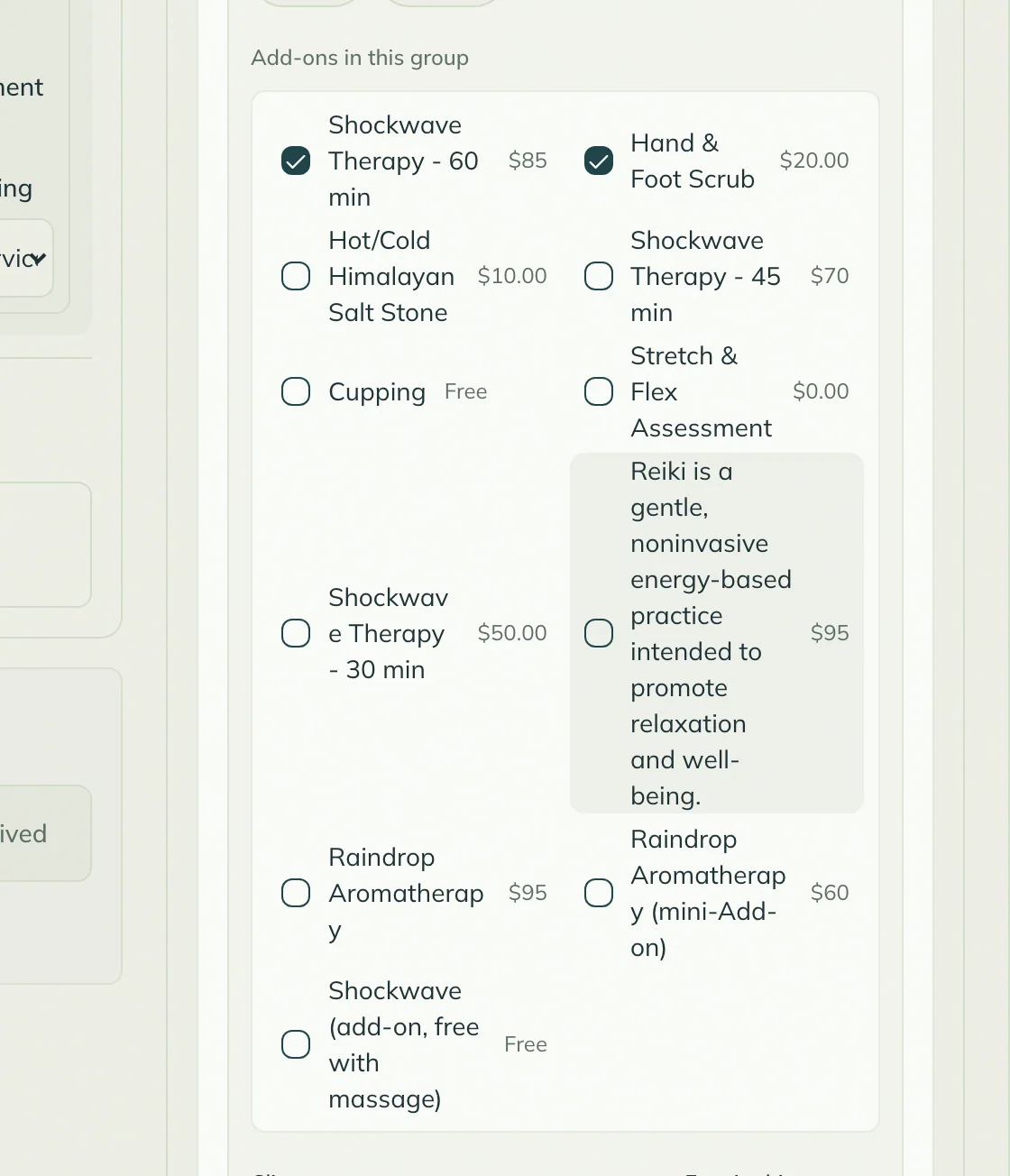
Step 5: Set how many they choose and how many are free
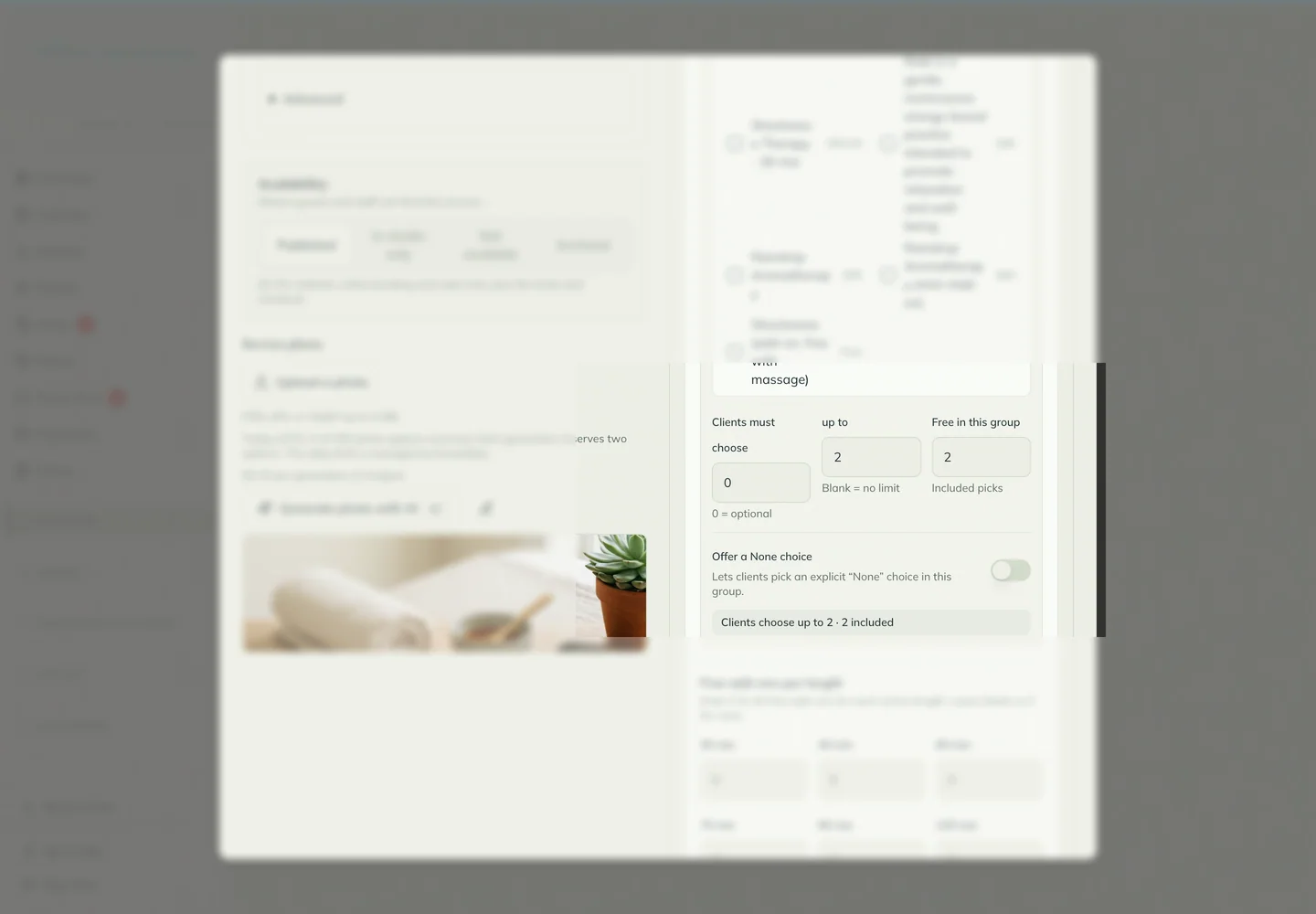
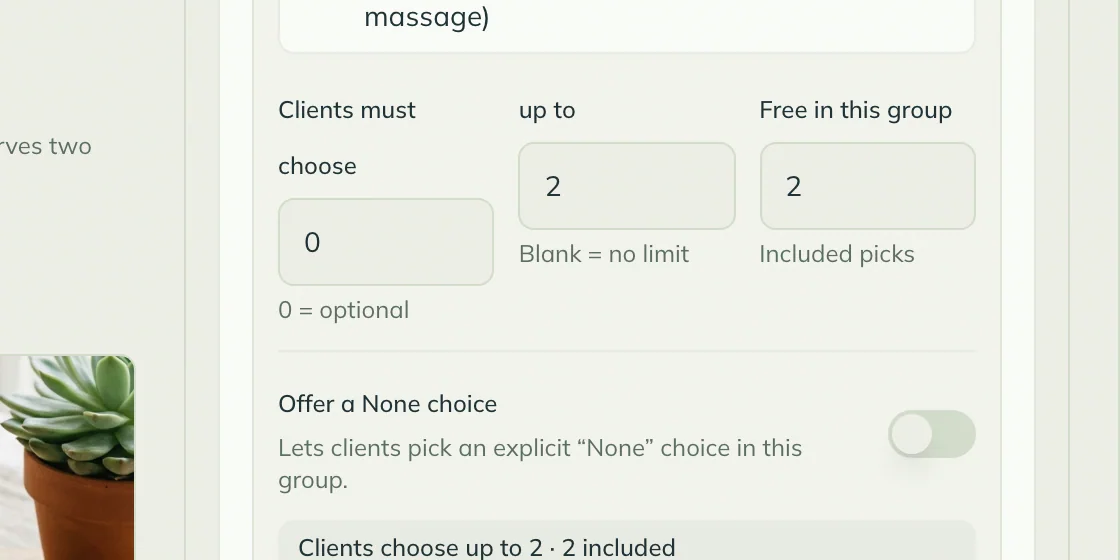
Clients must choose is how many picks are required (0 makes it optional). up to is the most they can pick. Free in this group is how many picks cost nothing. For "includes up to 2 add-ons", set 0, 2 and 2. To let clients say no, turn on Offer a None choice.
Step 6: Save the service
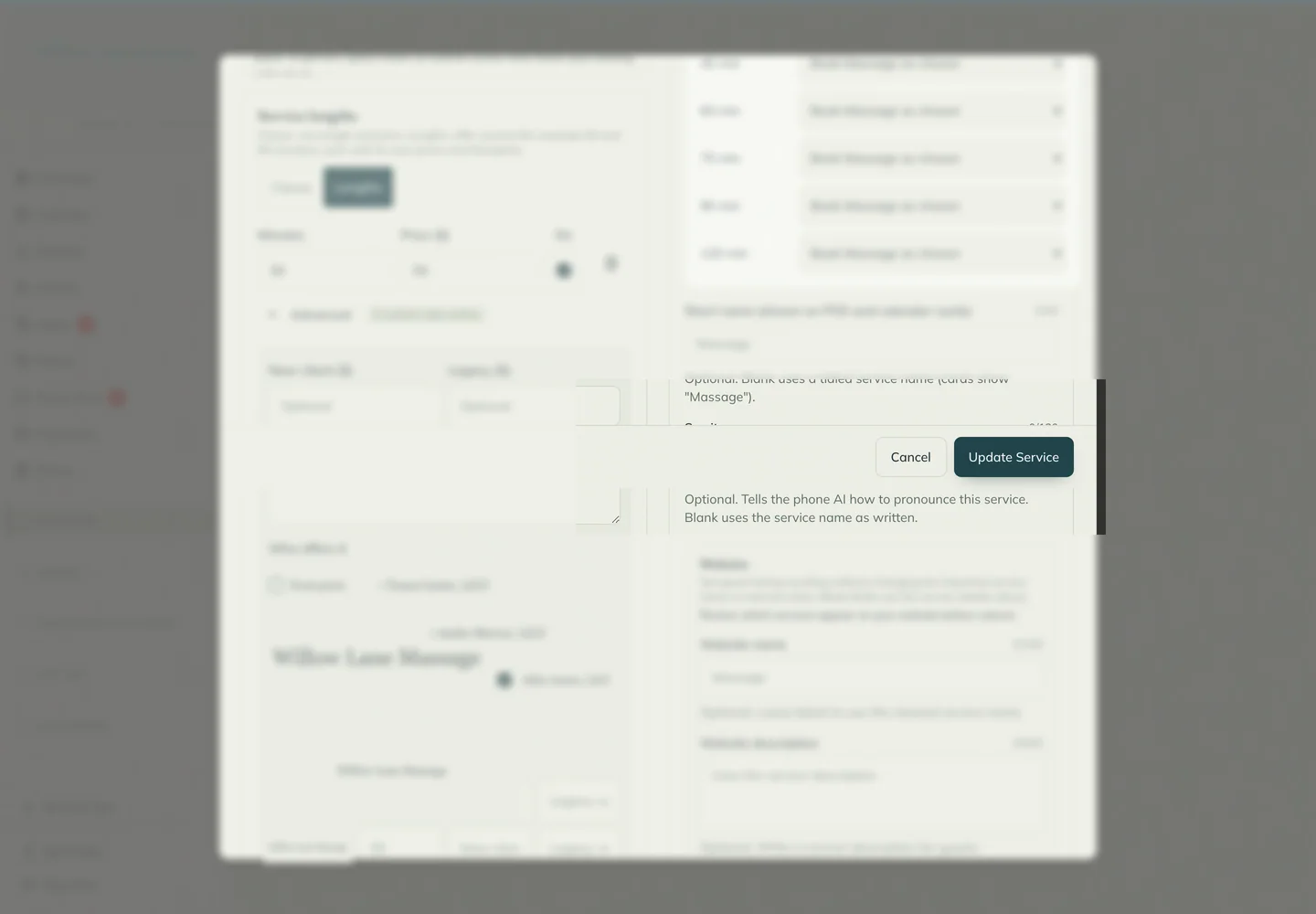
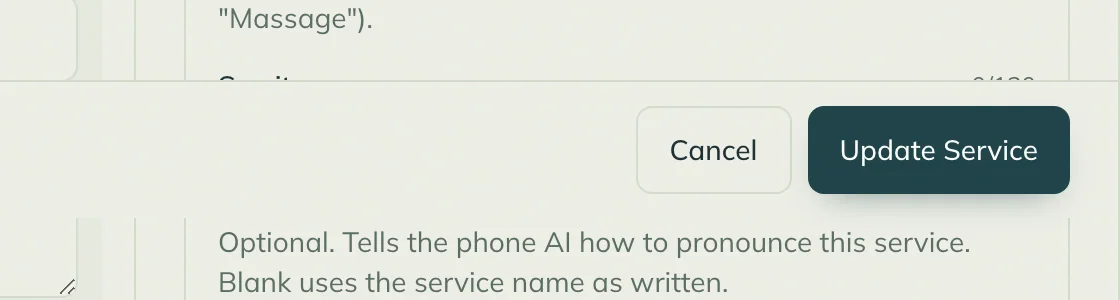
Press Update Service. Clients see the group when they book online, and staff and phone booking follow the same rules.
Step 7: Optional: show "Price at visit" for an add-on
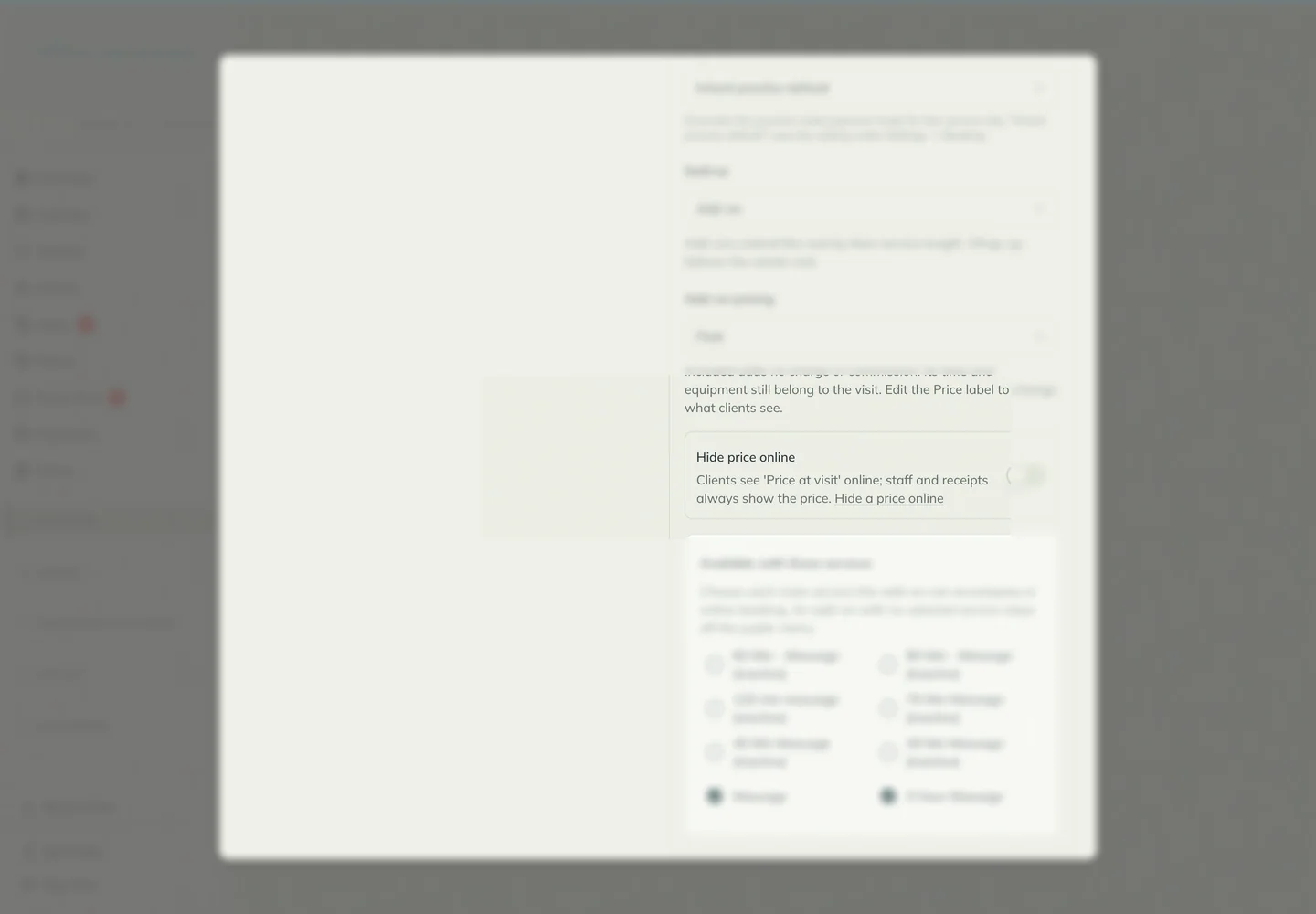
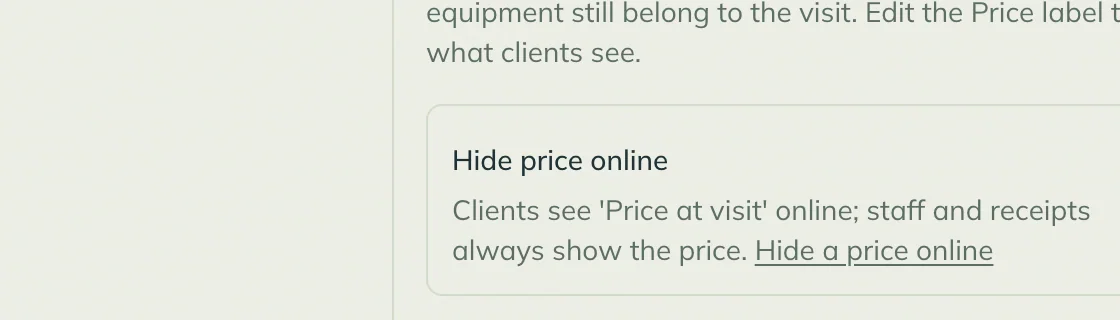
To hide an add-on's price on your booking page, open that add-on with its pencil, open Advanced if it is closed, turn on the Hide price online switch, and press Update Service. Clients see Price at visit; staff, checkout and receipts still show the price.
Still stuck?
Ask Kneadle from the chat button in your practice app. It can walk you through this screen or do it with you.
More in Your menu and prices
 Add a service to your menuPut a new treatment on your menu with its length, price and who does it, so clients can book it online.
 Combine lengths into one serviceTurn separate 30, 60 and 90-minute services into one service with a length choice, so clients see one listing and pick how long.
 Create a membership planSet up a monthly membership with its price, the visits it covers, and where clients can buy it.