Turn on the AI receptionist and give it a name
Let the AI receptionist answer your calls, choose when it picks up, pick its voice, and set the name and greeting clients hear.
Step 1: Open the AI receptionist
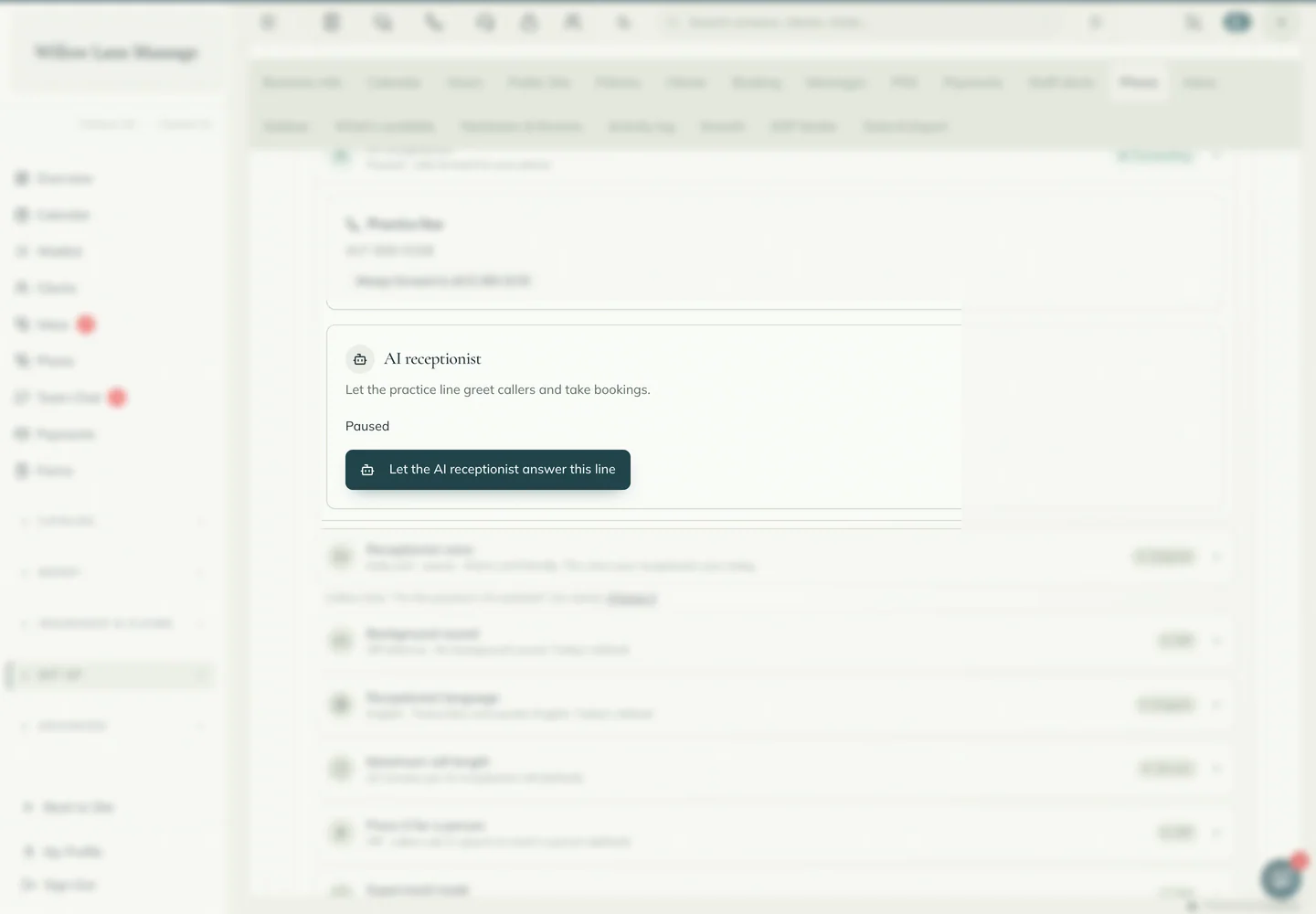
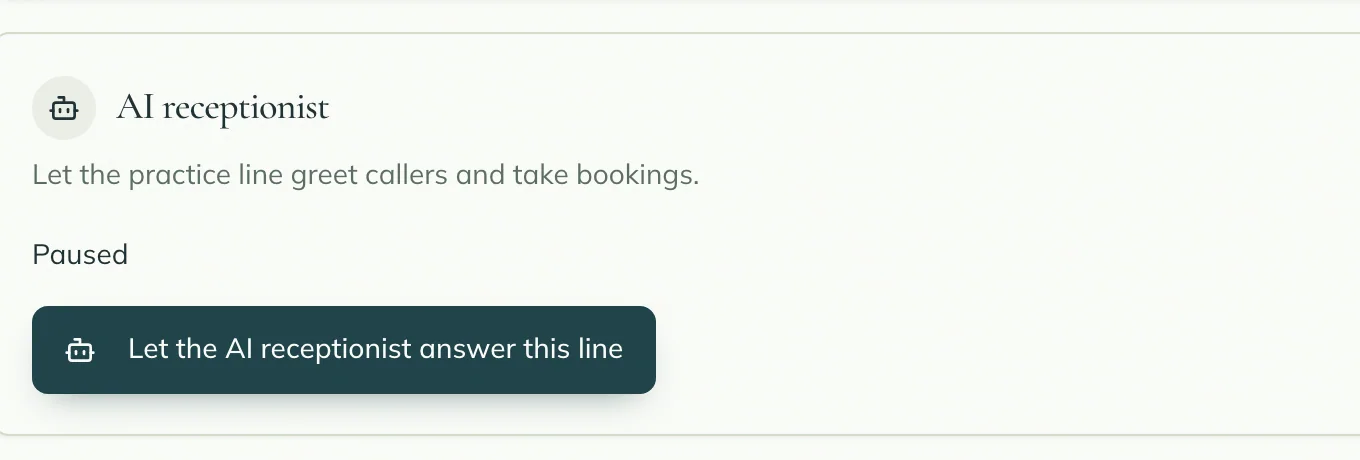
Open Settings, choose Phone, then press Advanced under your practice number and open AI receptionist. Press Let the AI receptionist answer this line. If the button says Pause the AI receptionist, it is already on.
Step 2: Choose when it answers
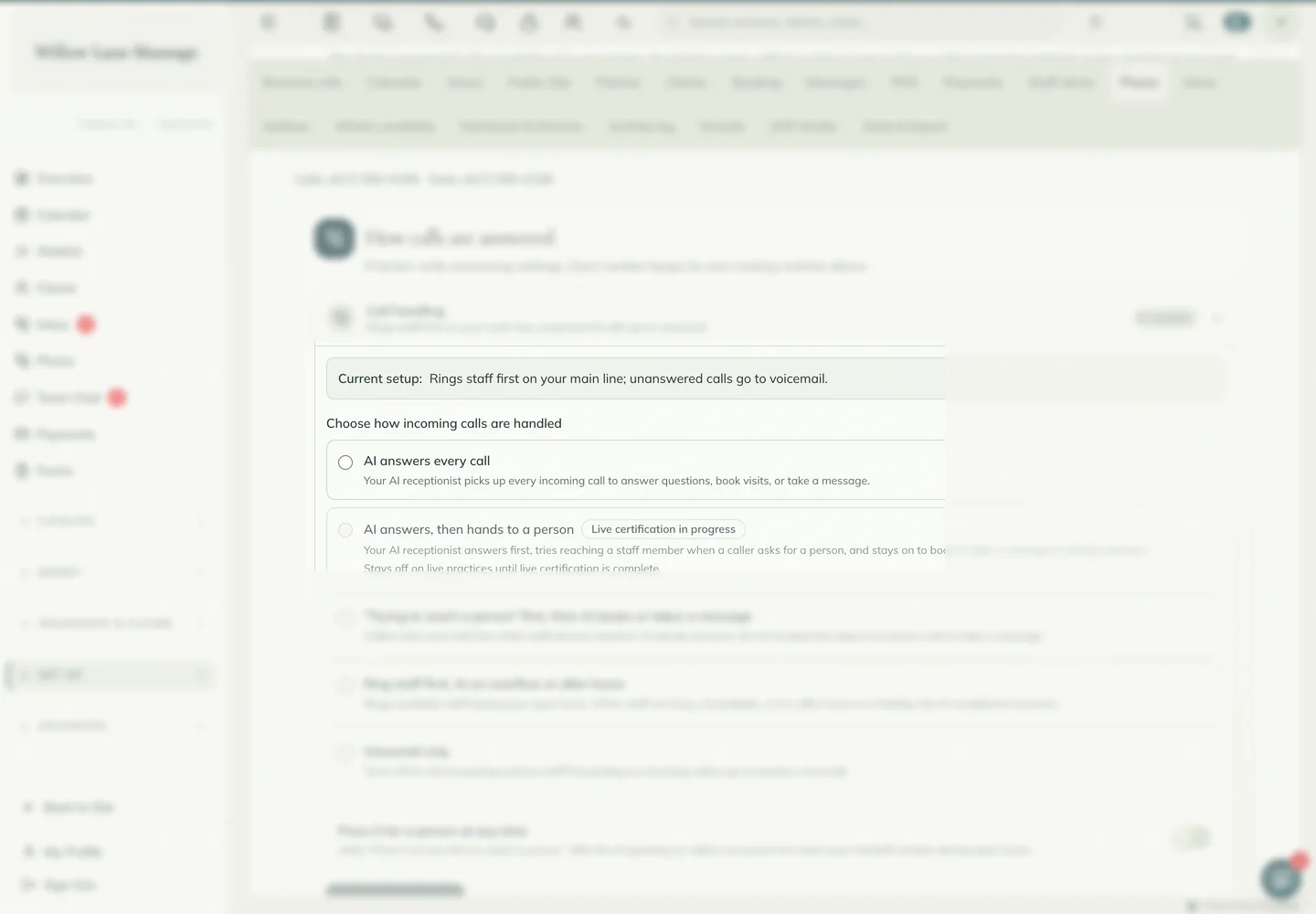
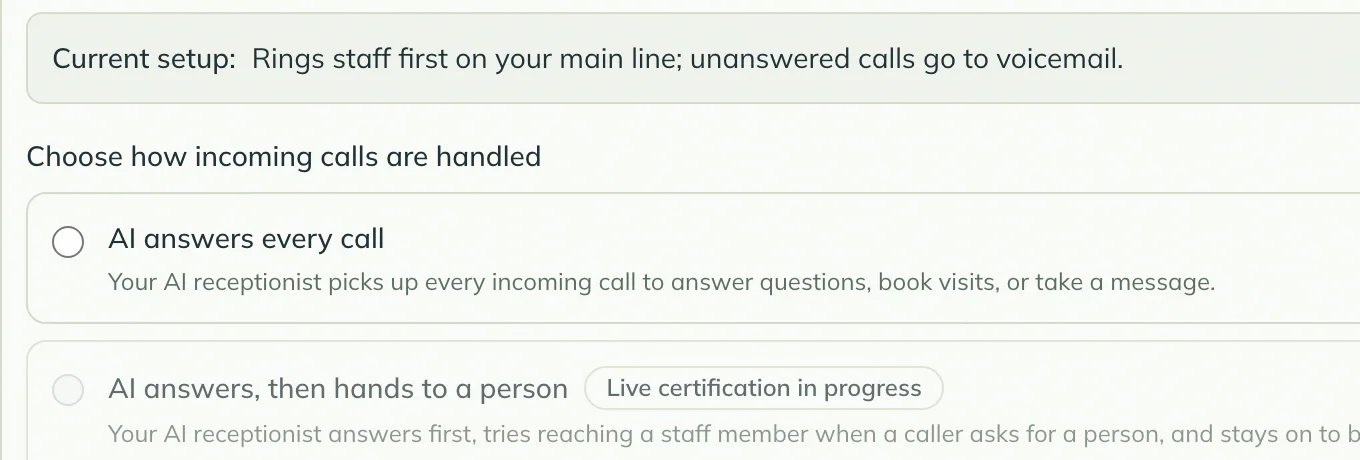
Open Call handling just above it. Pick AI answers every call, or one of the choices where staff phones ring first and the AI picks up when nobody answers. Press Save call handling.
Step 3: Pick its voice
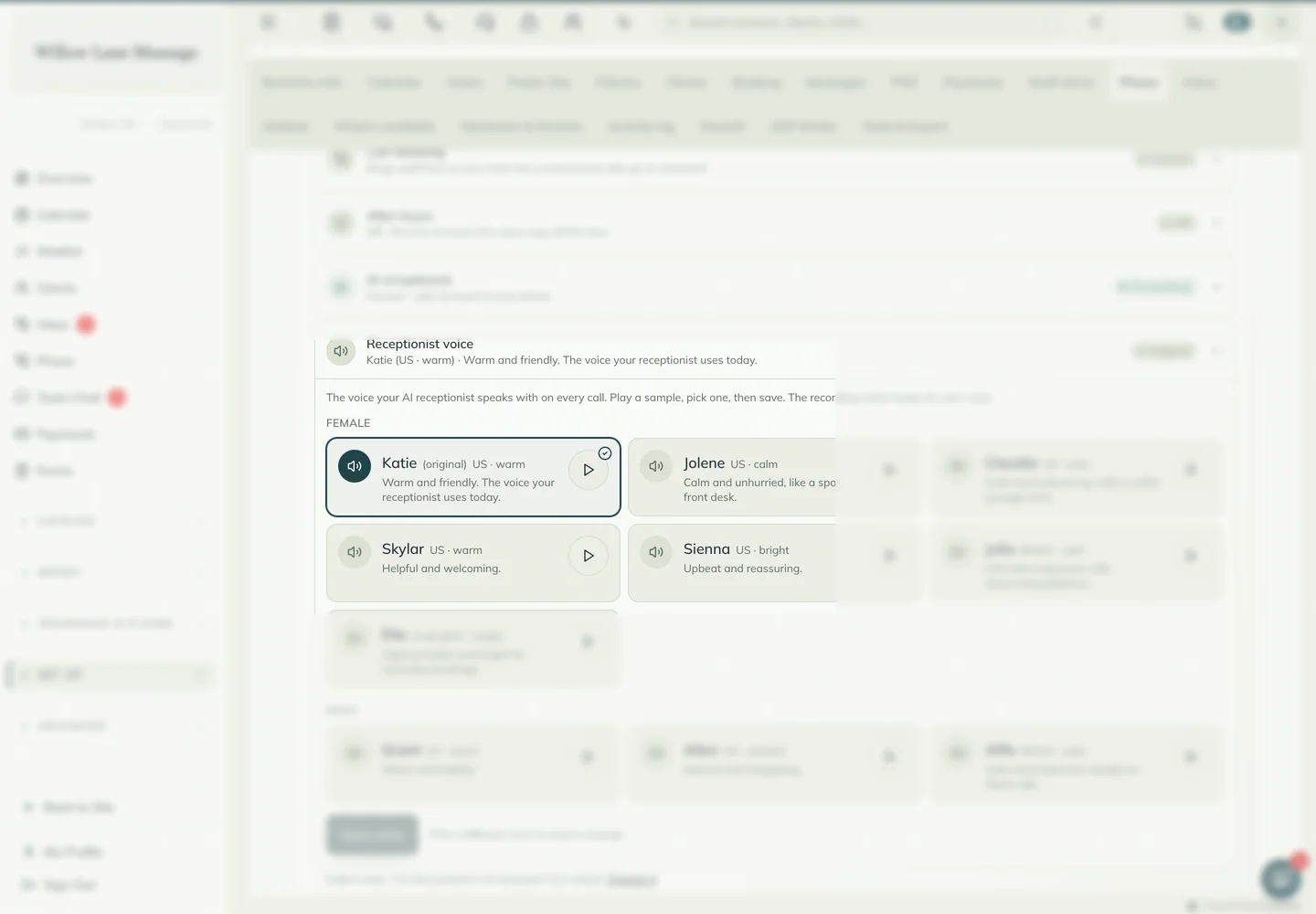
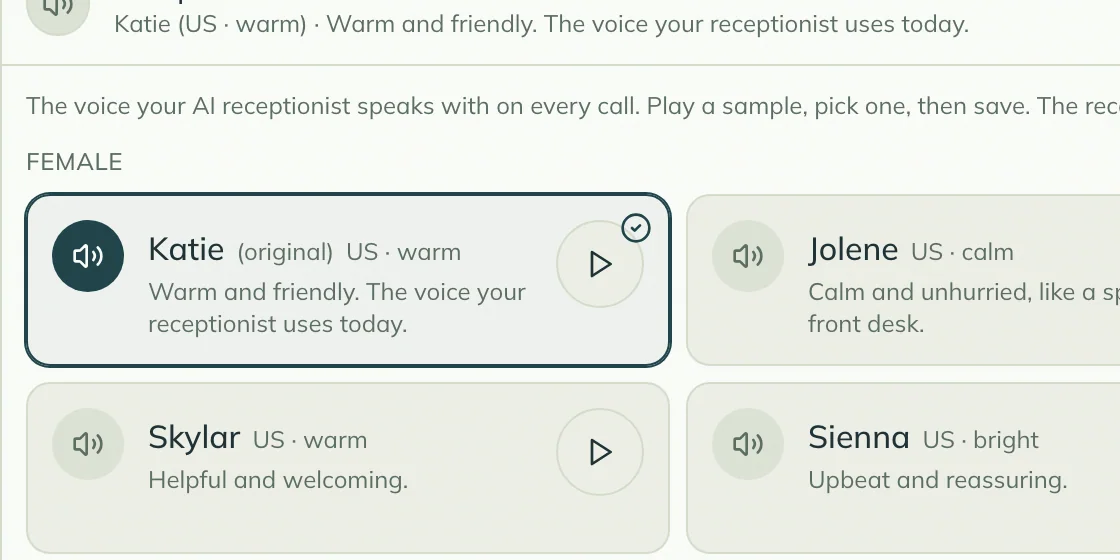
Open Receptionist voice. Press the play button beside a voice to hear a sample, pick the one you like and press Save voice. The line under the row shows the name callers hear.
Step 4: Give it a name
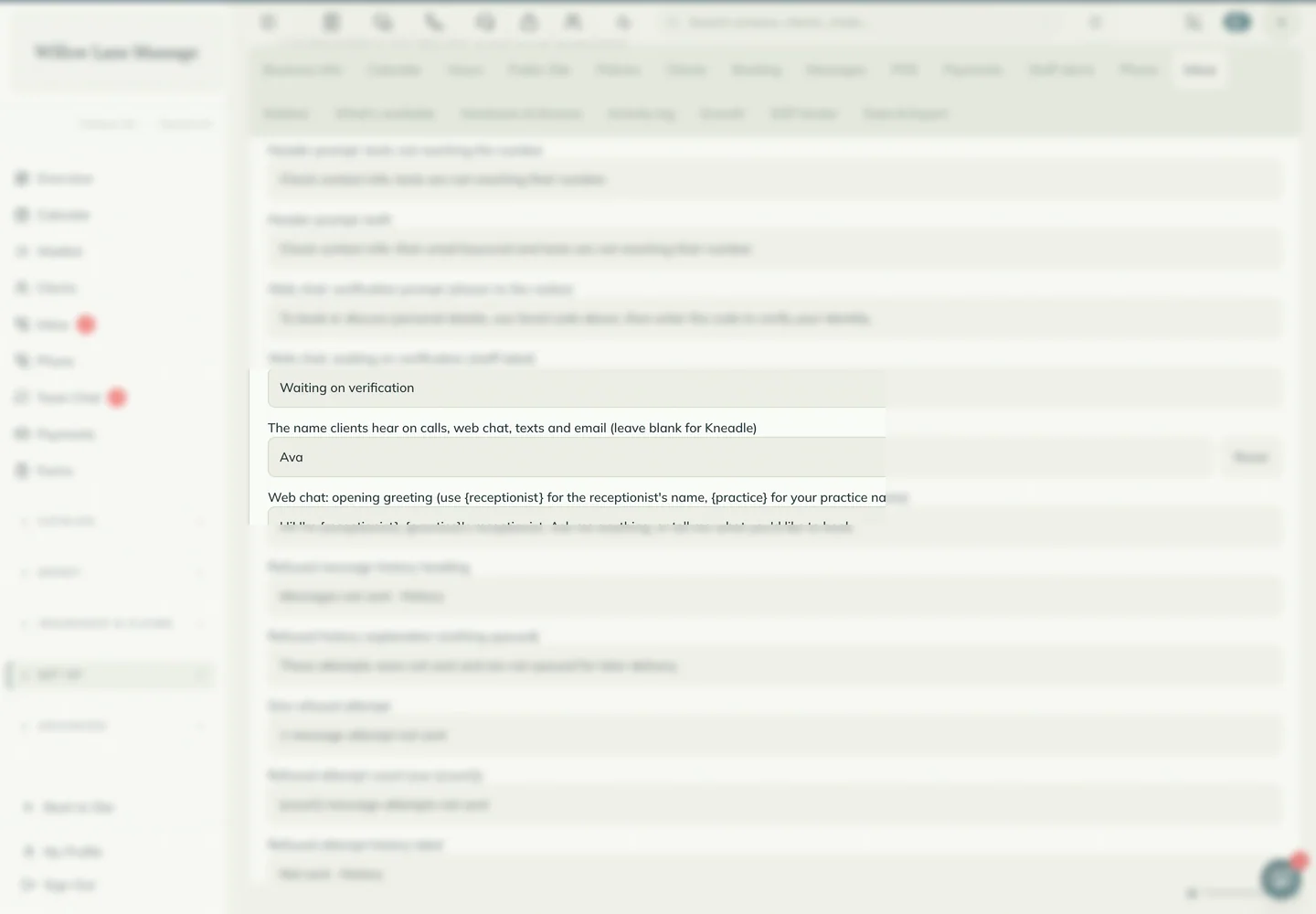
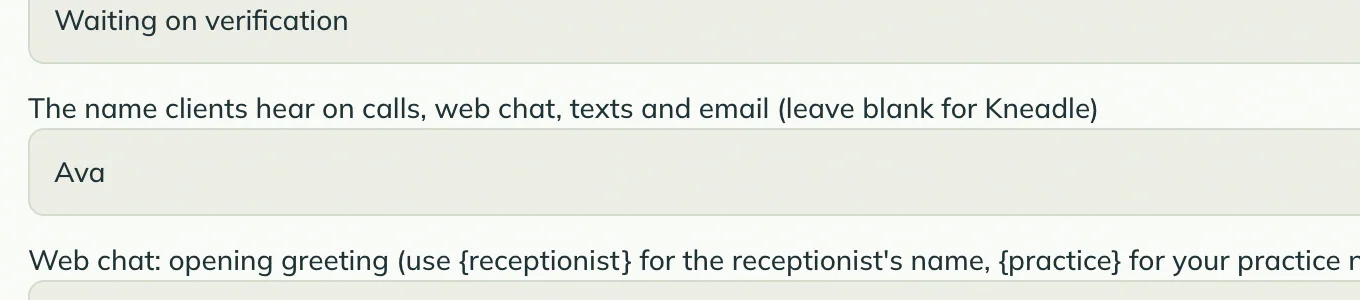
Open Settings, choose Inbox, and find Delivery problem wording. In The name clients hear on calls, web chat, texts and email, type a first name, like Ava. Leave it blank to use Kneadle.
Step 5: Write its chat greeting
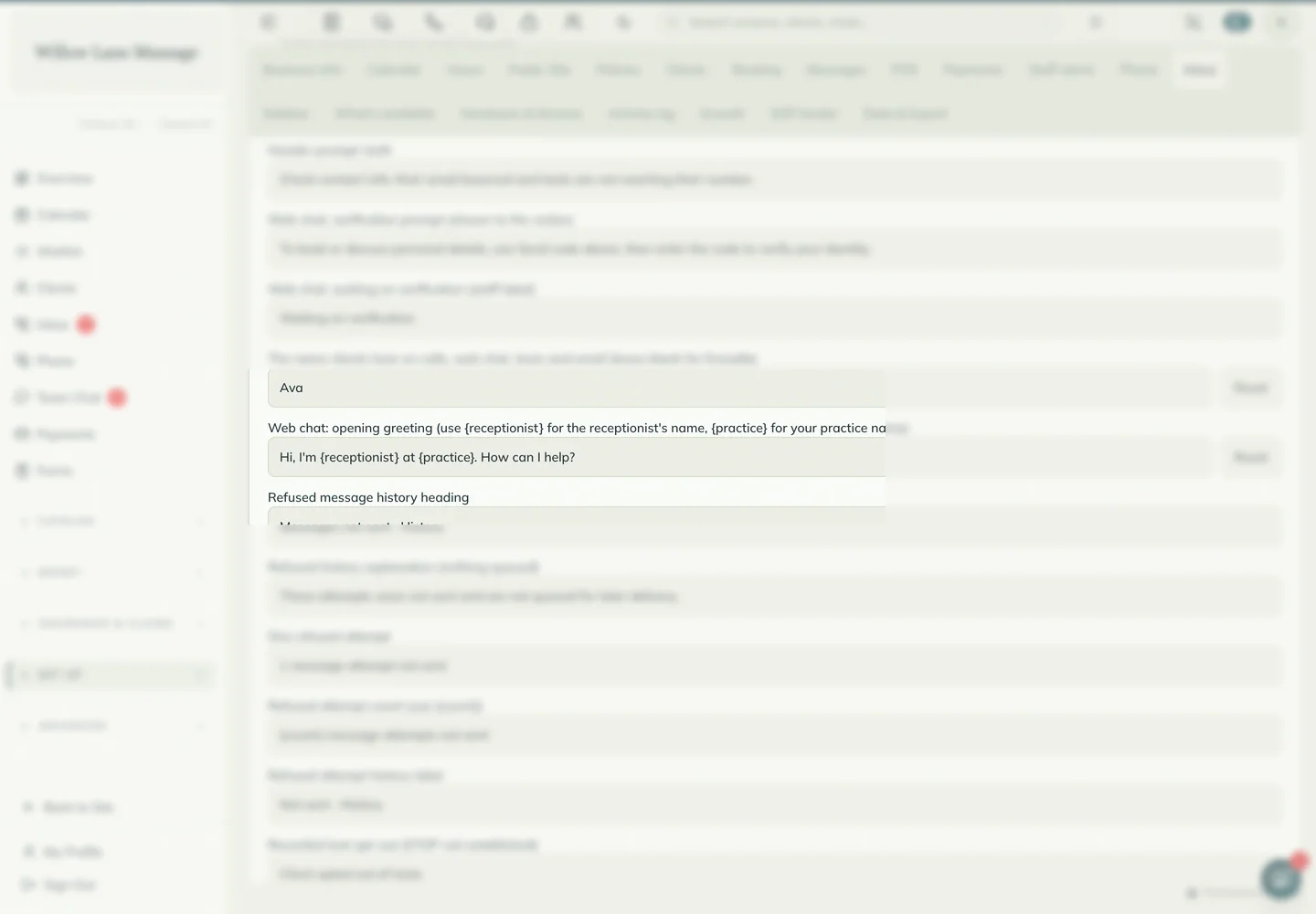
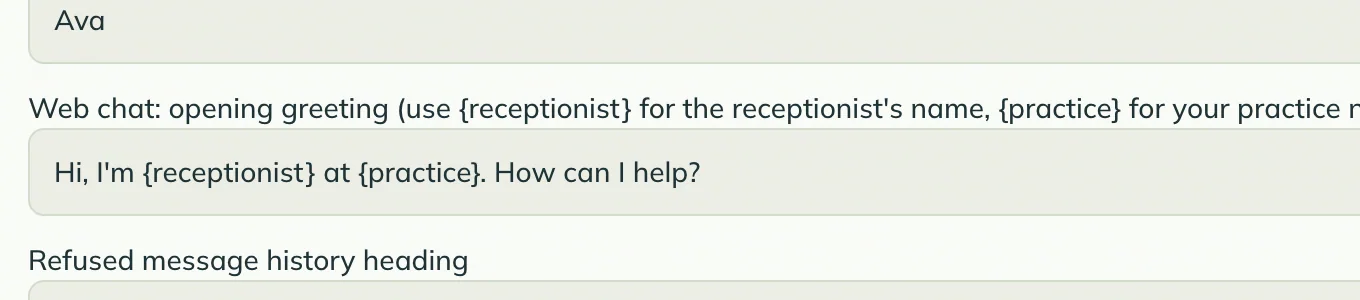
Just below, Web chat: opening greeting is the first thing it says in your website chat. Write {receptionist} for its name and {practice} for your practice name. On calls it says "This is" and its name, then the recording notice, which never changes.
Step 6: Save it
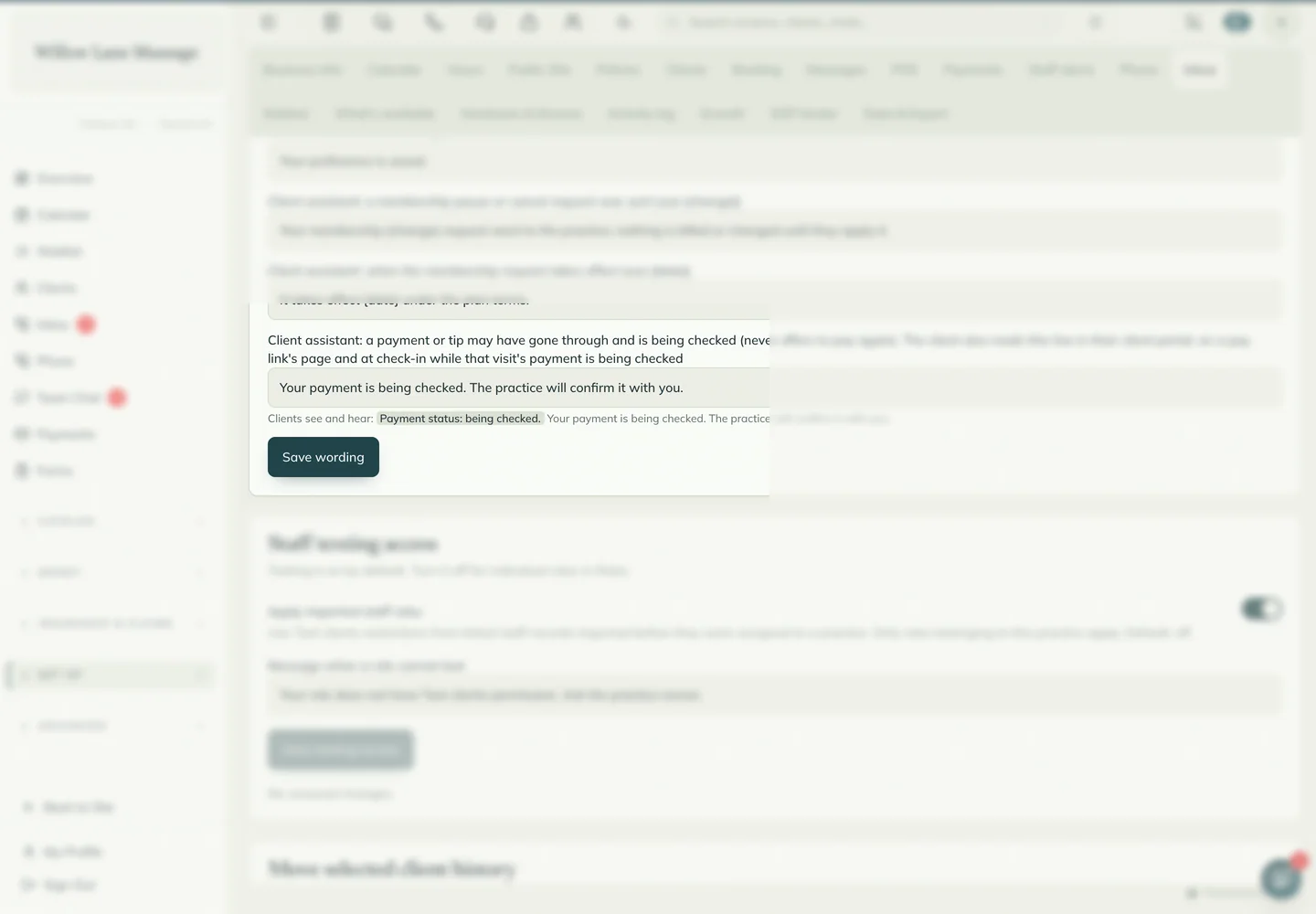
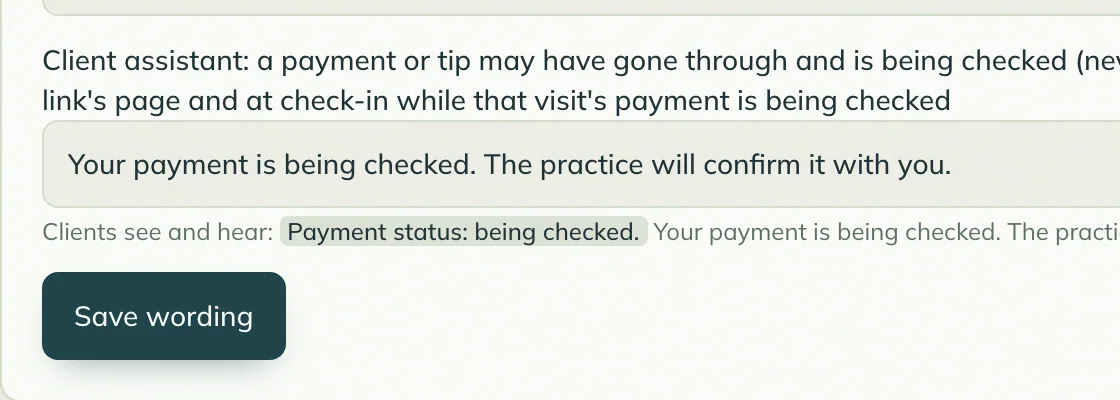
Press Save wording at the bottom of the card. The new name is used on your next calls, chats, texts and emails.
Still stuck?
Ask Kneadle from the chat button in your practice app. It can walk you through this screen or do it with you.