Choose where your calls ring
See your practice phone line, choose how calls are answered, and set the phone that rings when a caller wants a person.
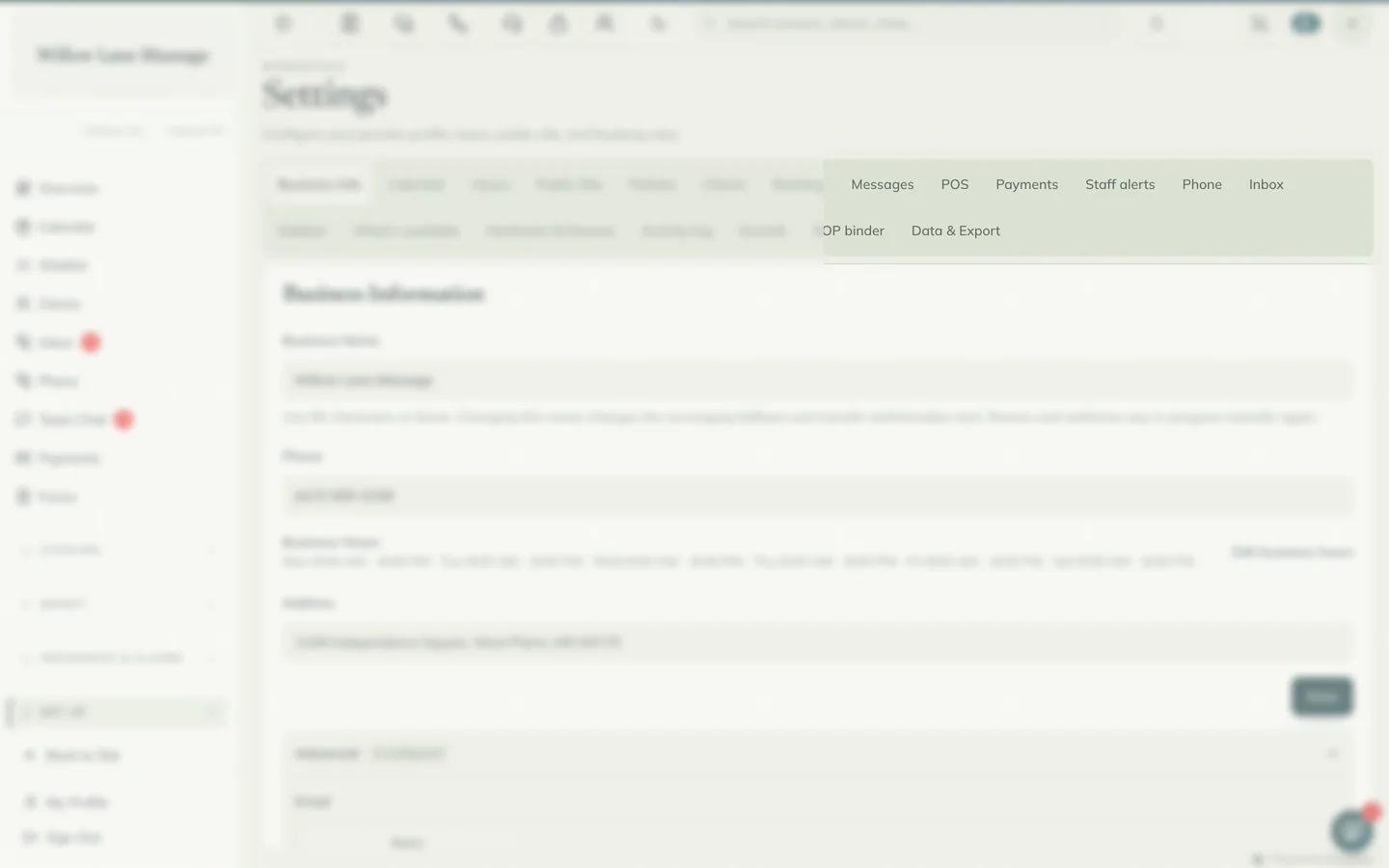
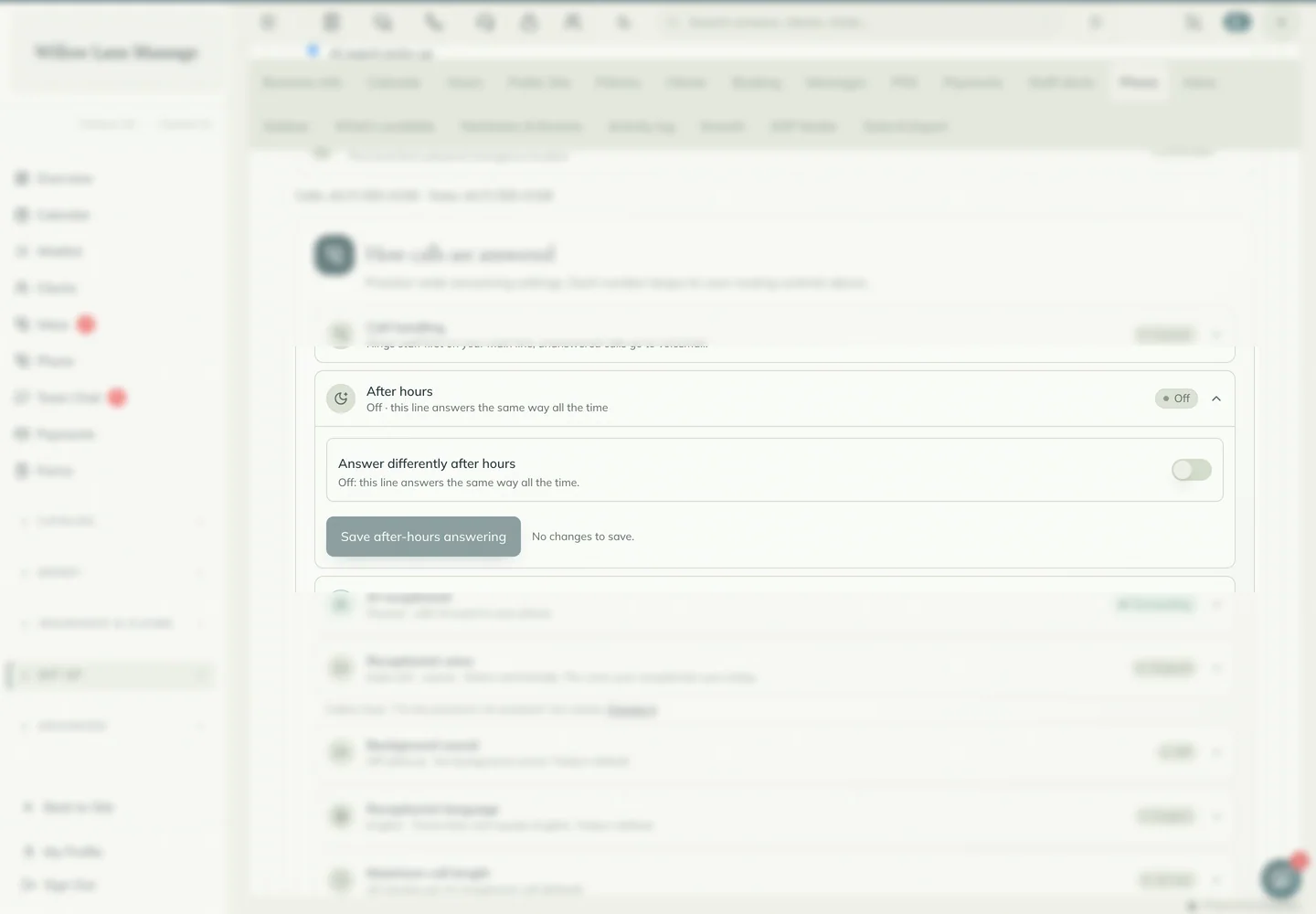
Step 1: Open the Phone settings
Open Settings, then choose Phone along the top.

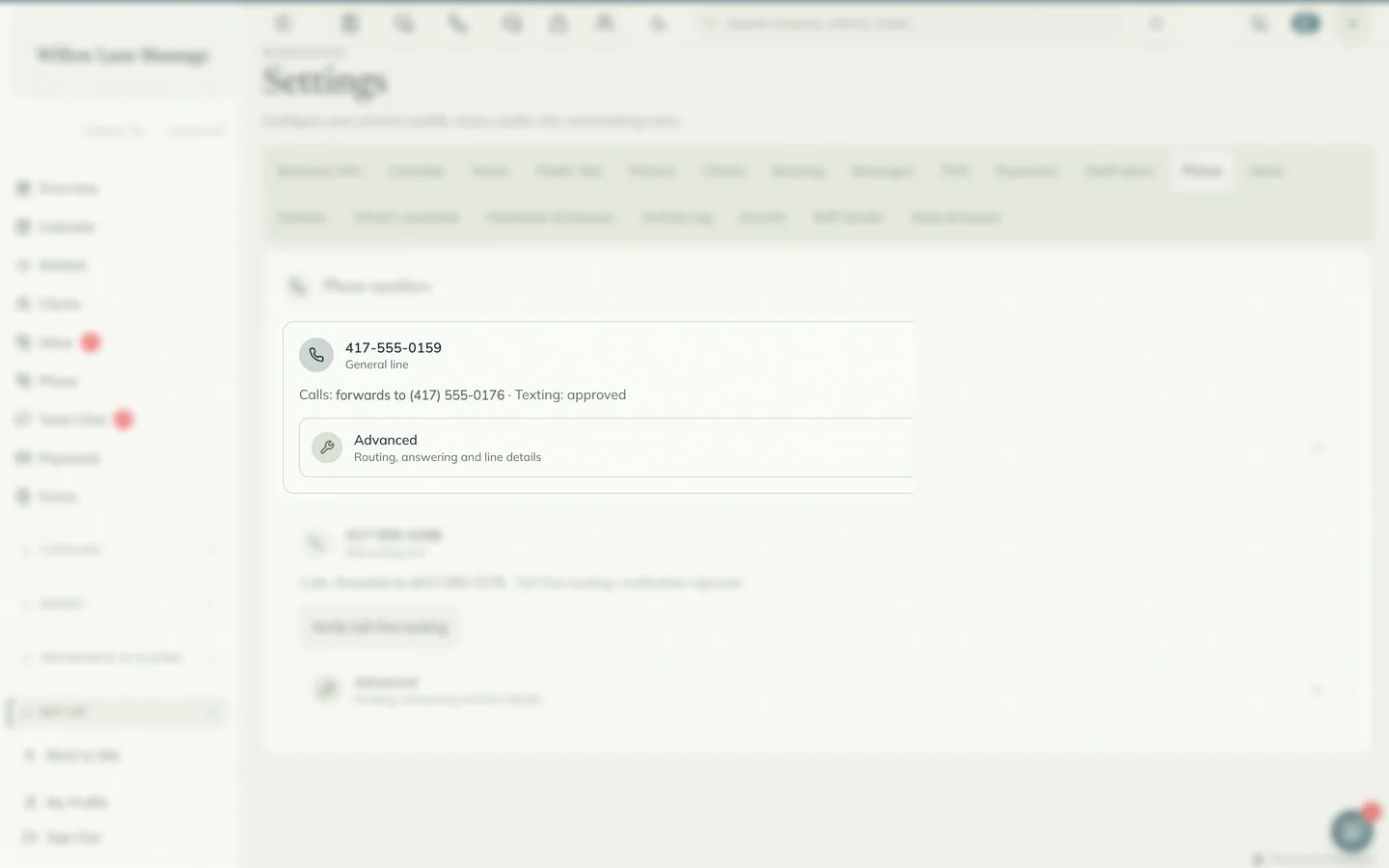
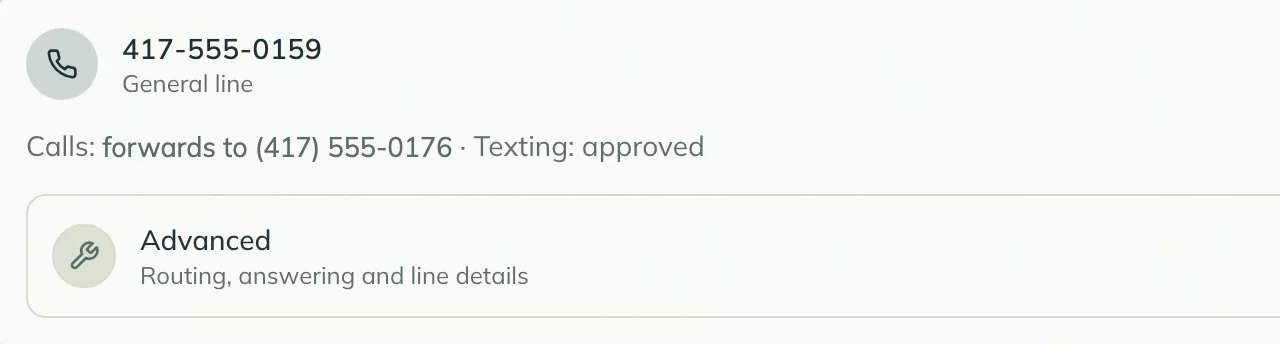
Step 2: Find your practice line
Under Phone numbers you see your practice number. The line under it says where its calls go right now. Press Advanced under that number to change how its calls are answered.
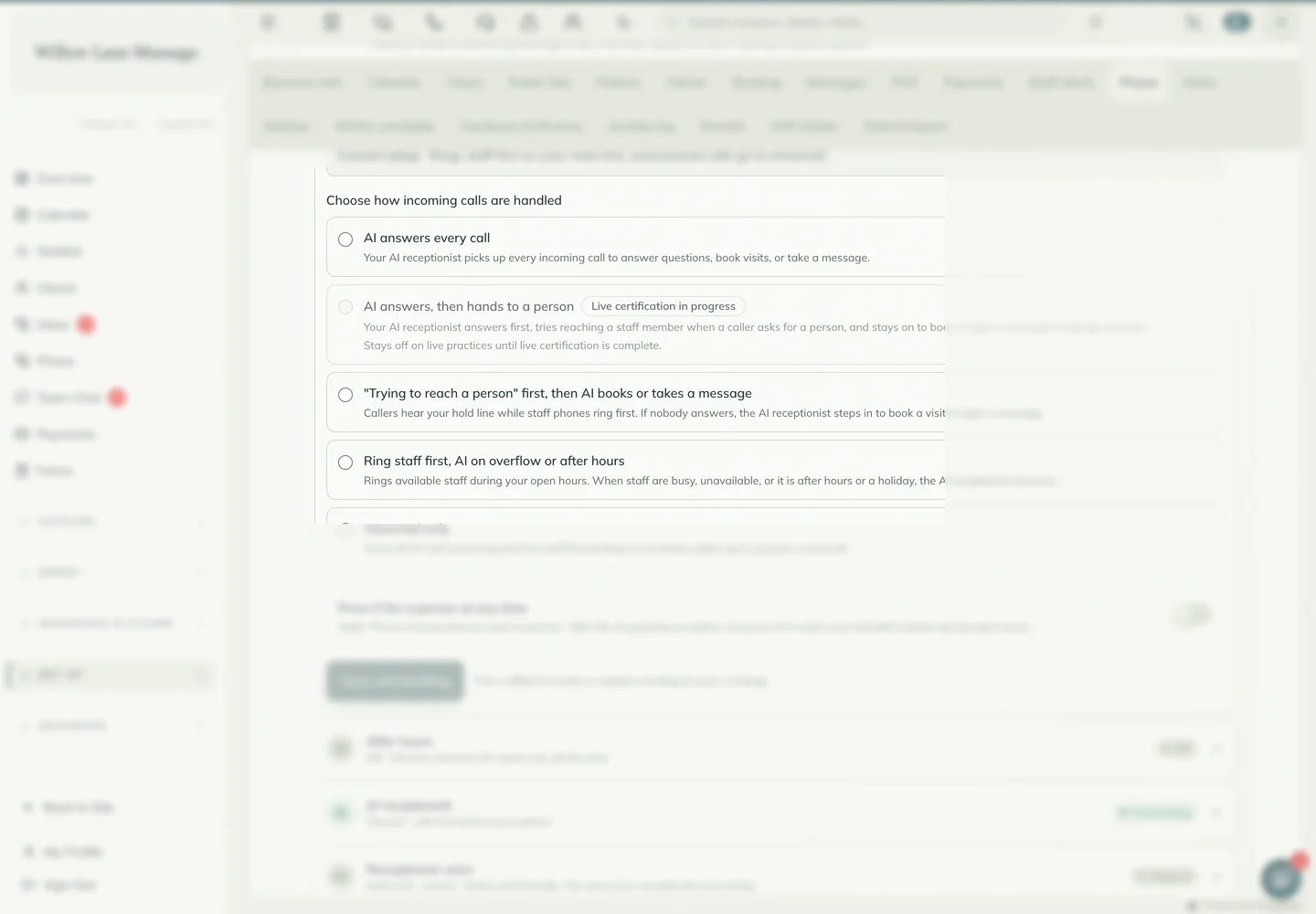
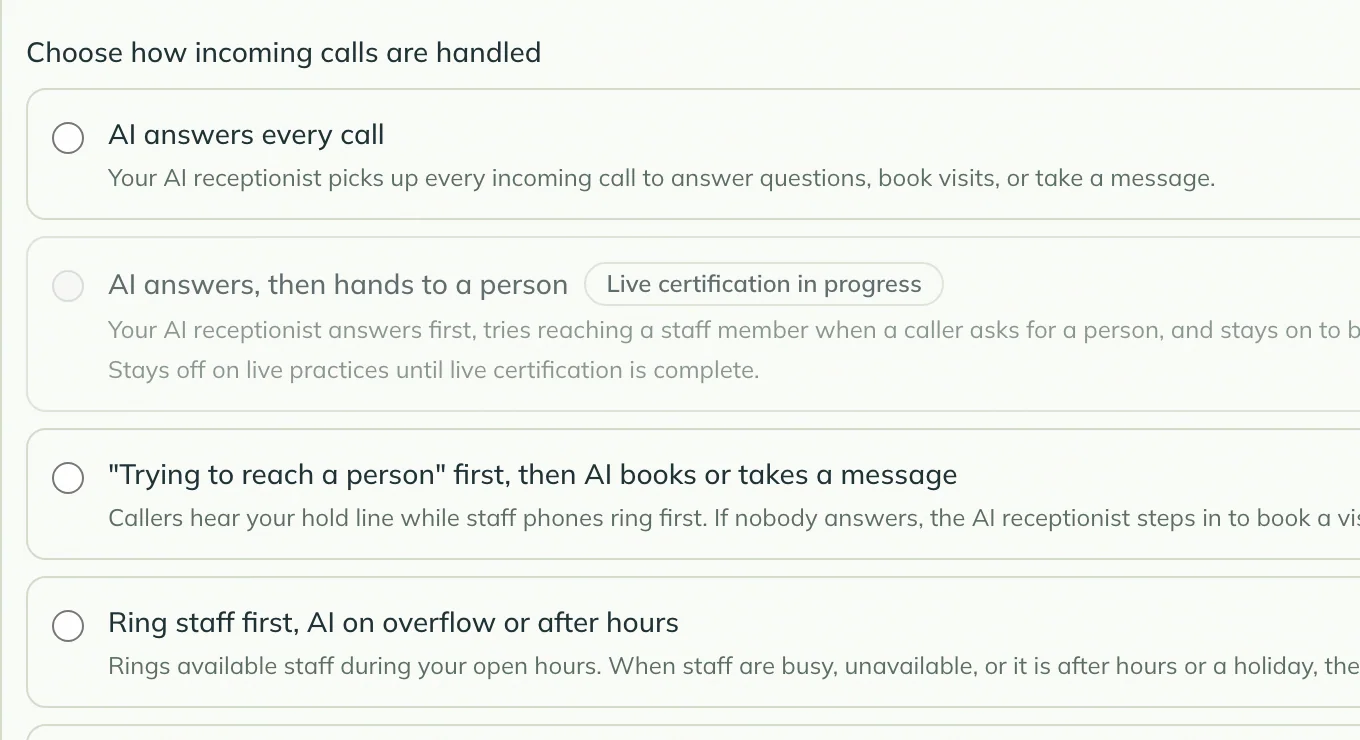
Step 3: Choose how calls are answered
Open Call handling and pick one choice, for example Ring staff first, AI on overflow or after hours. Then press Save call handling at the bottom.
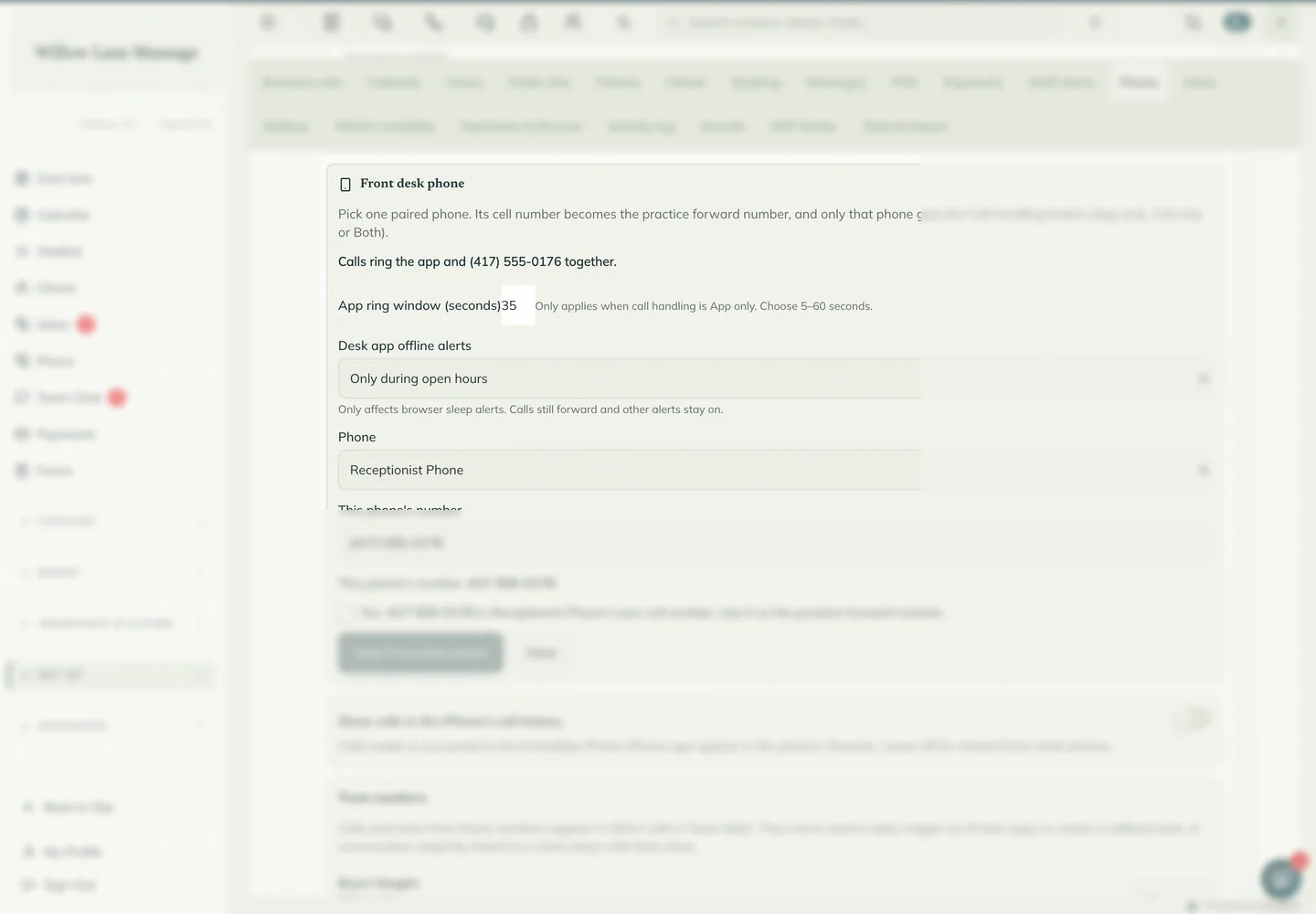
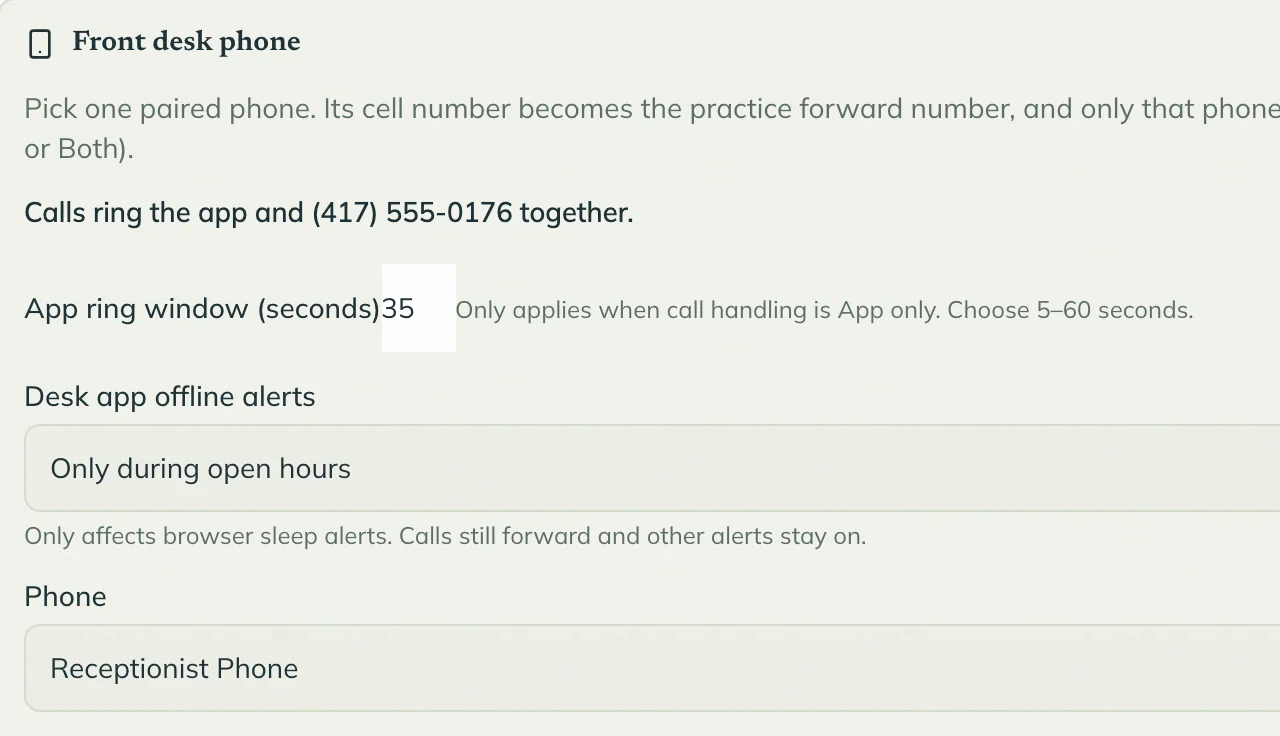
Step 4: Set where calls ring
Open Forward-to numbers. Under Front desk phone, pick the phone at your desk in Phone. Its own number becomes the number your calls forward to, and only that phone rings.
Step 5: Answer differently after hours
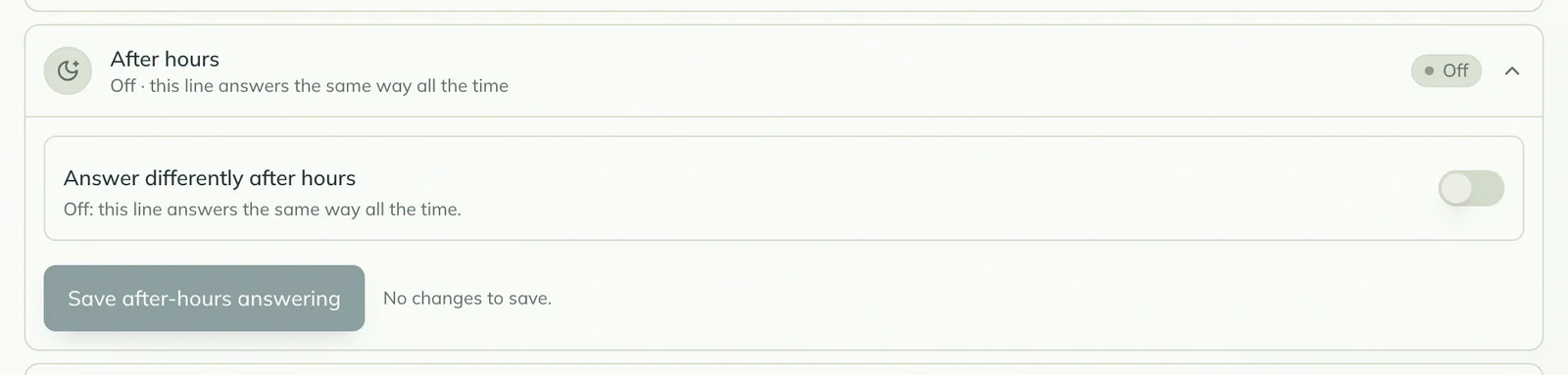
Open After hours if you want calls handled another way when you're closed, for example ringing your desk by day and letting the AI receptionist answer at night. It stays off until you turn it on.
Still stuck?
Ask Kneadle from the chat button in your practice app. It can walk you through this screen or do it with you.
More in Phone and Kneadle
 Ask Kneadle to do it for youOpen the Kneadle chat from any screen, ask in plain words, and let it answer or do the task with you.
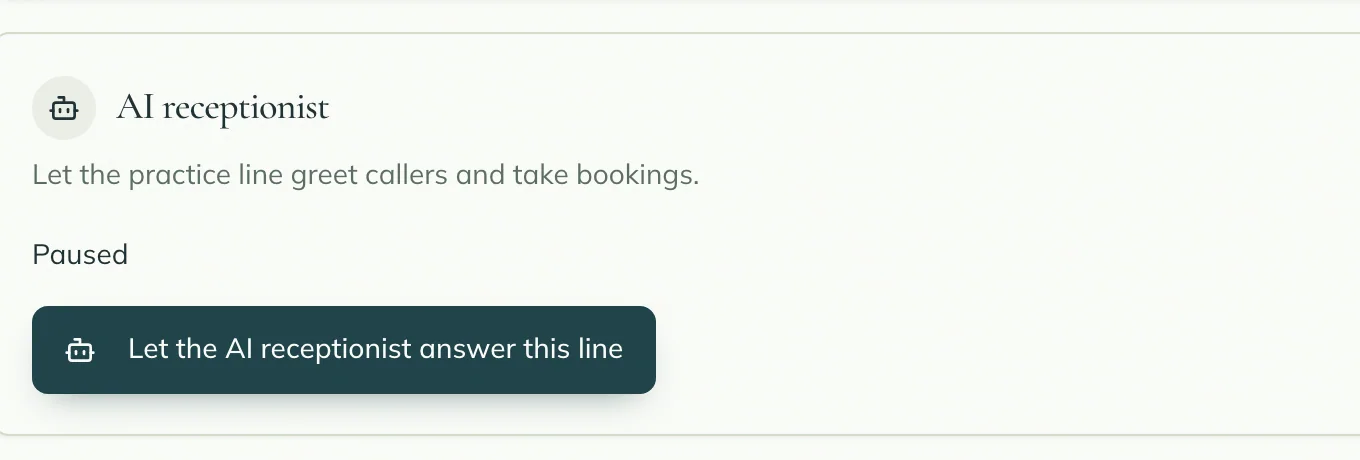 Turn on the AI receptionist and give it a nameLet the AI receptionist answer your calls, choose when it picks up, pick its voice, and set the name and greeting clients hear.