Book a visit for a client
Put a client on the calendar from the front desk: pick the client, the treatment, the therapist and a time.
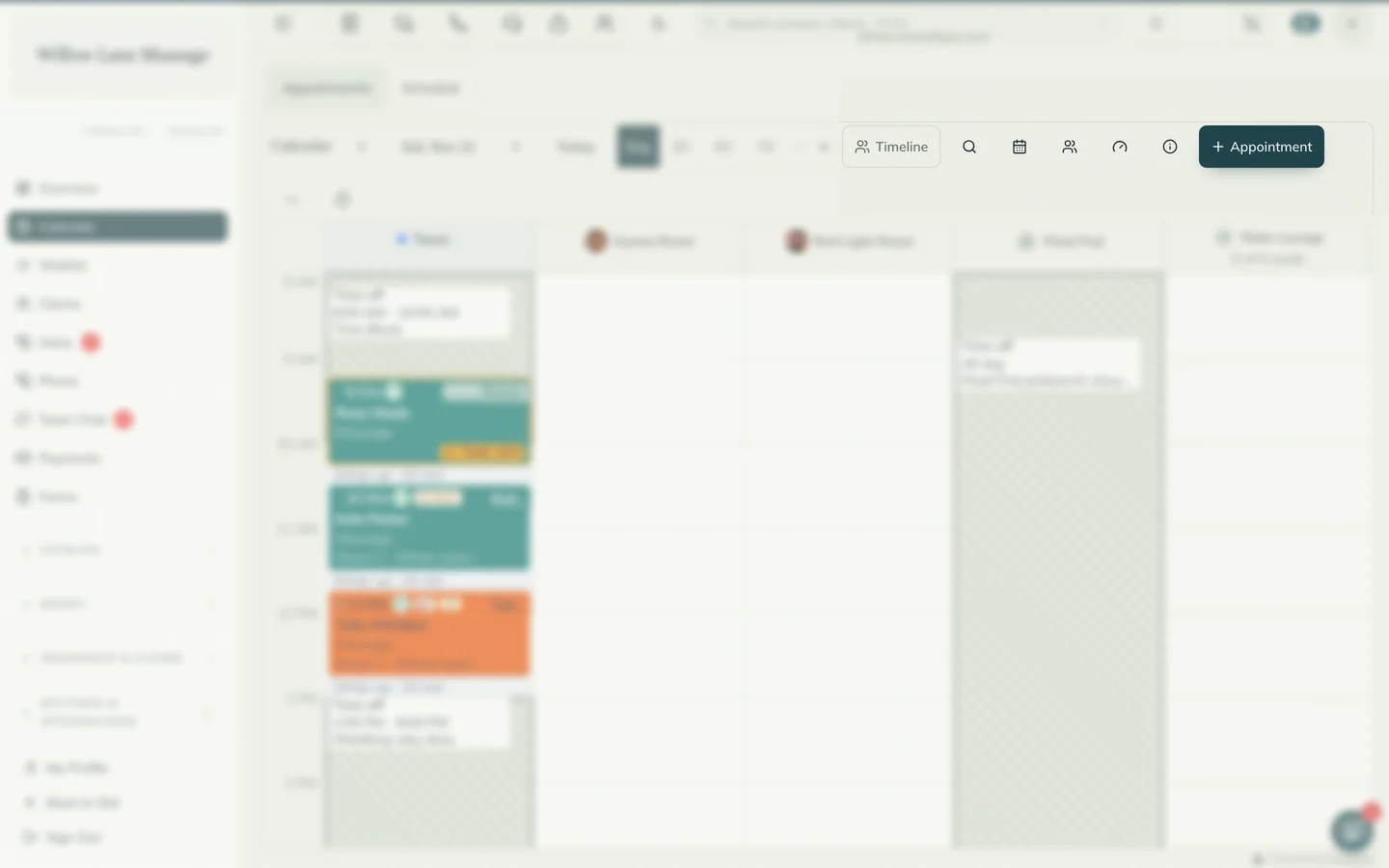
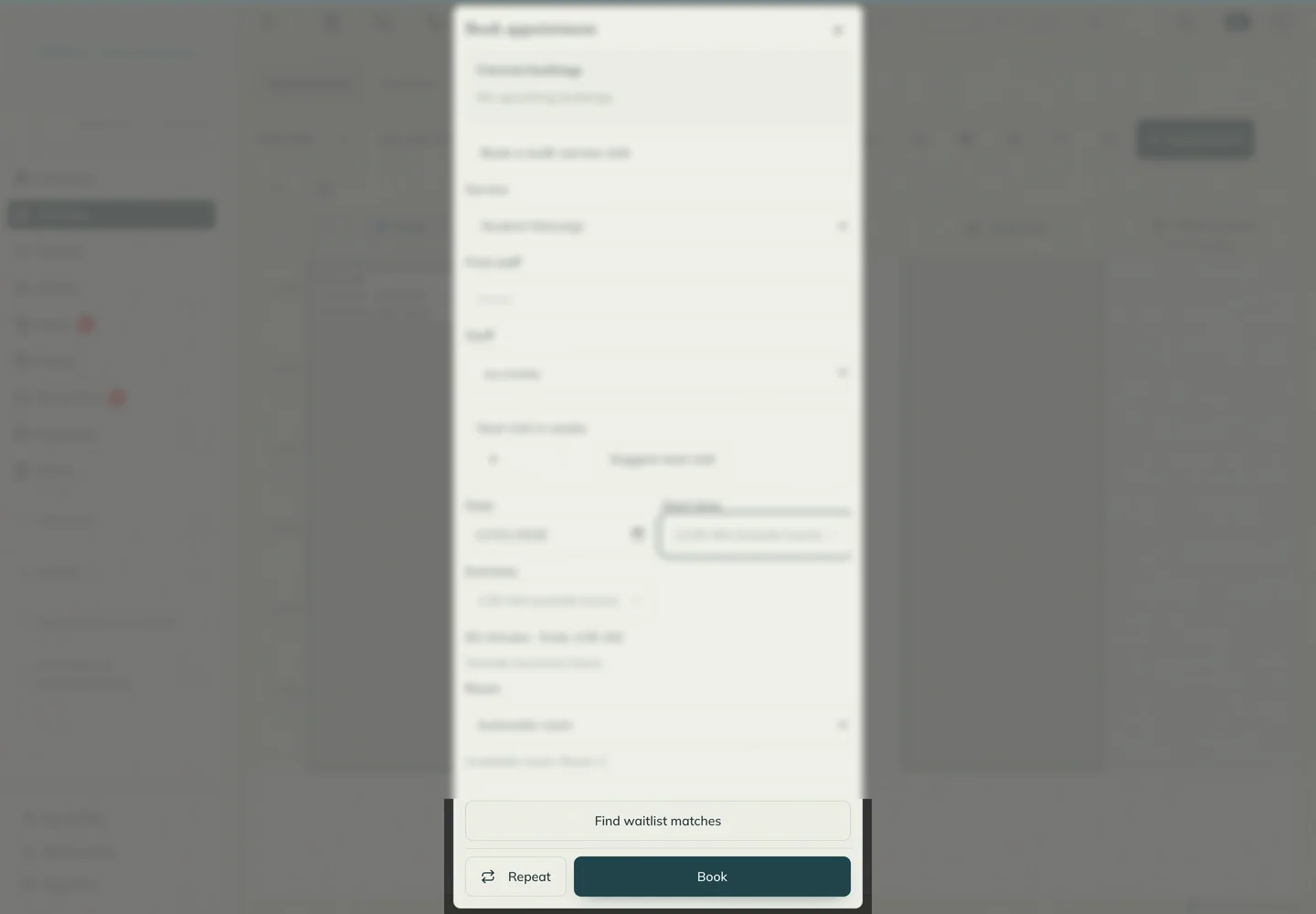
Step 1: Press + Appointment
Open Calendar and press + Appointment at the top right.

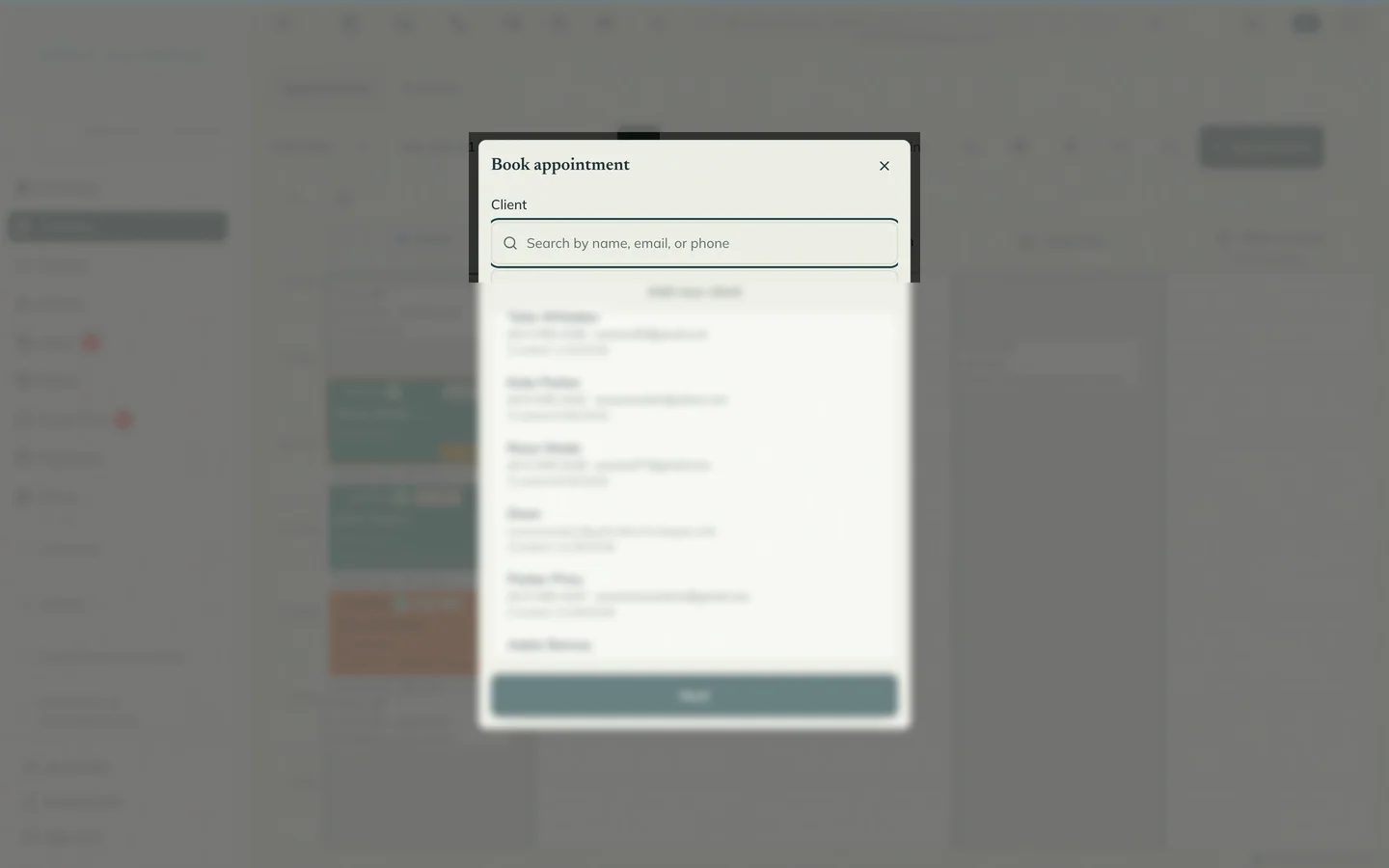
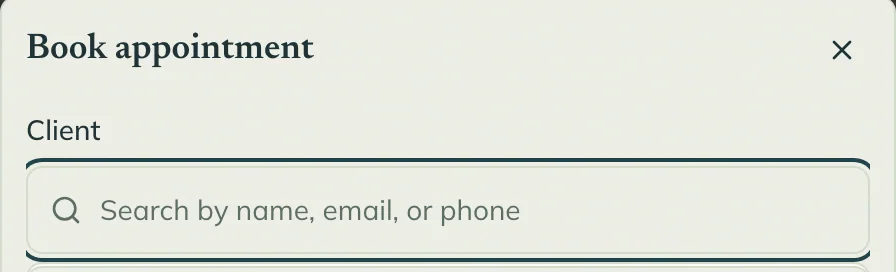
Step 2: Find the client
Type part of the client's name, phone number or email, then choose them from the list. New client? Press Add new client instead.
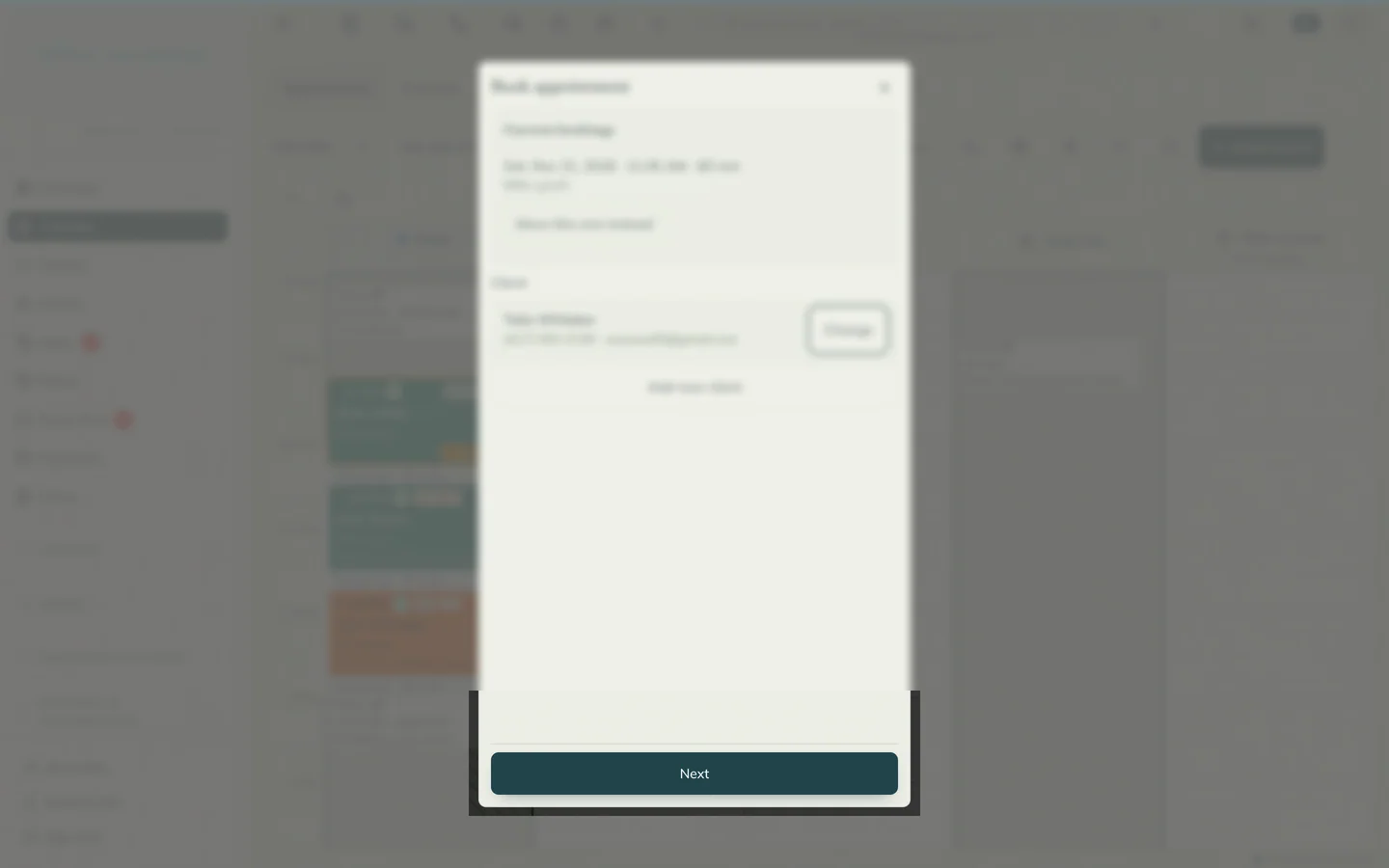
Step 3: Press Next
The client's card shows. If they already have a visit booked, it is listed at the top, so you don't book them twice. Press Next.

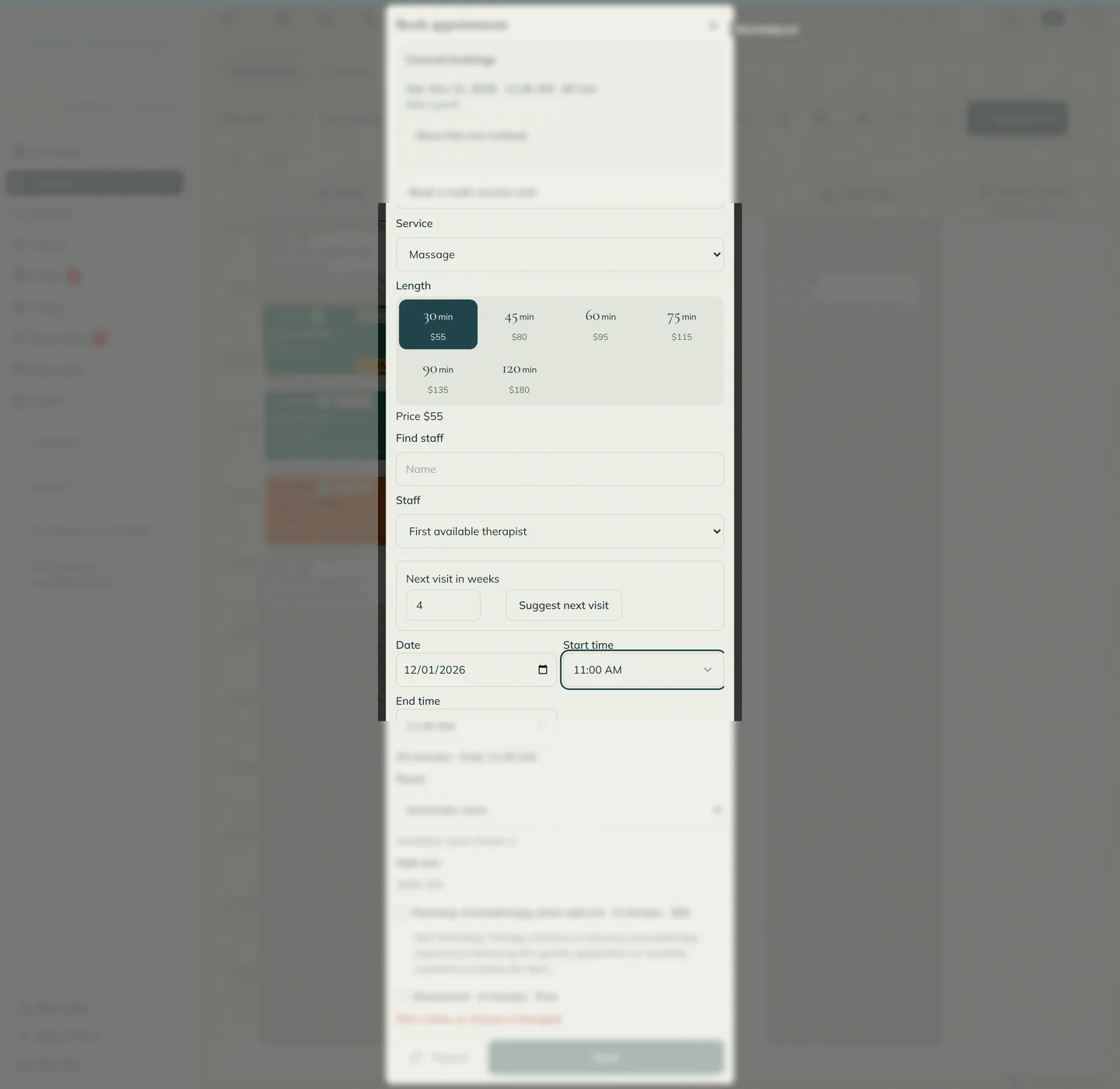
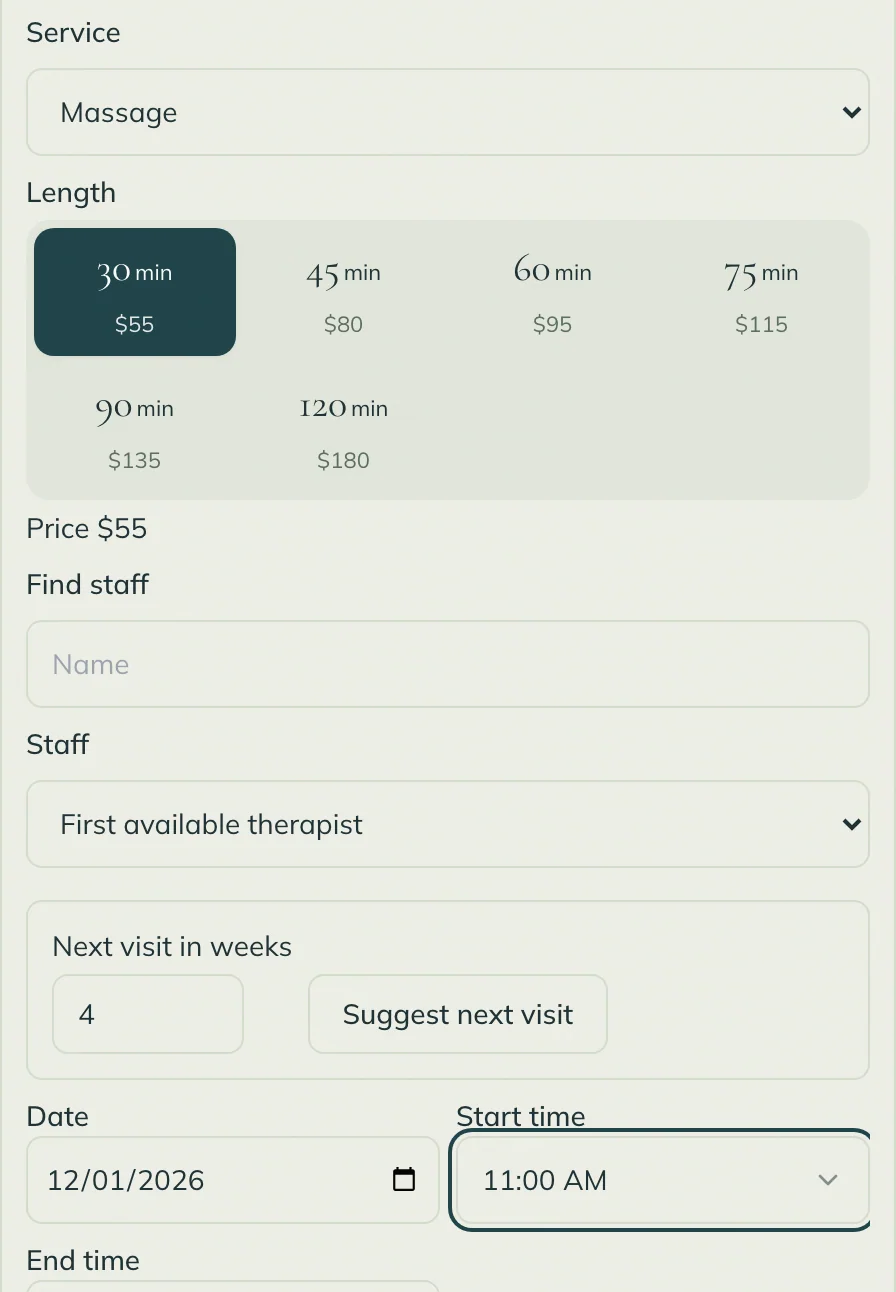
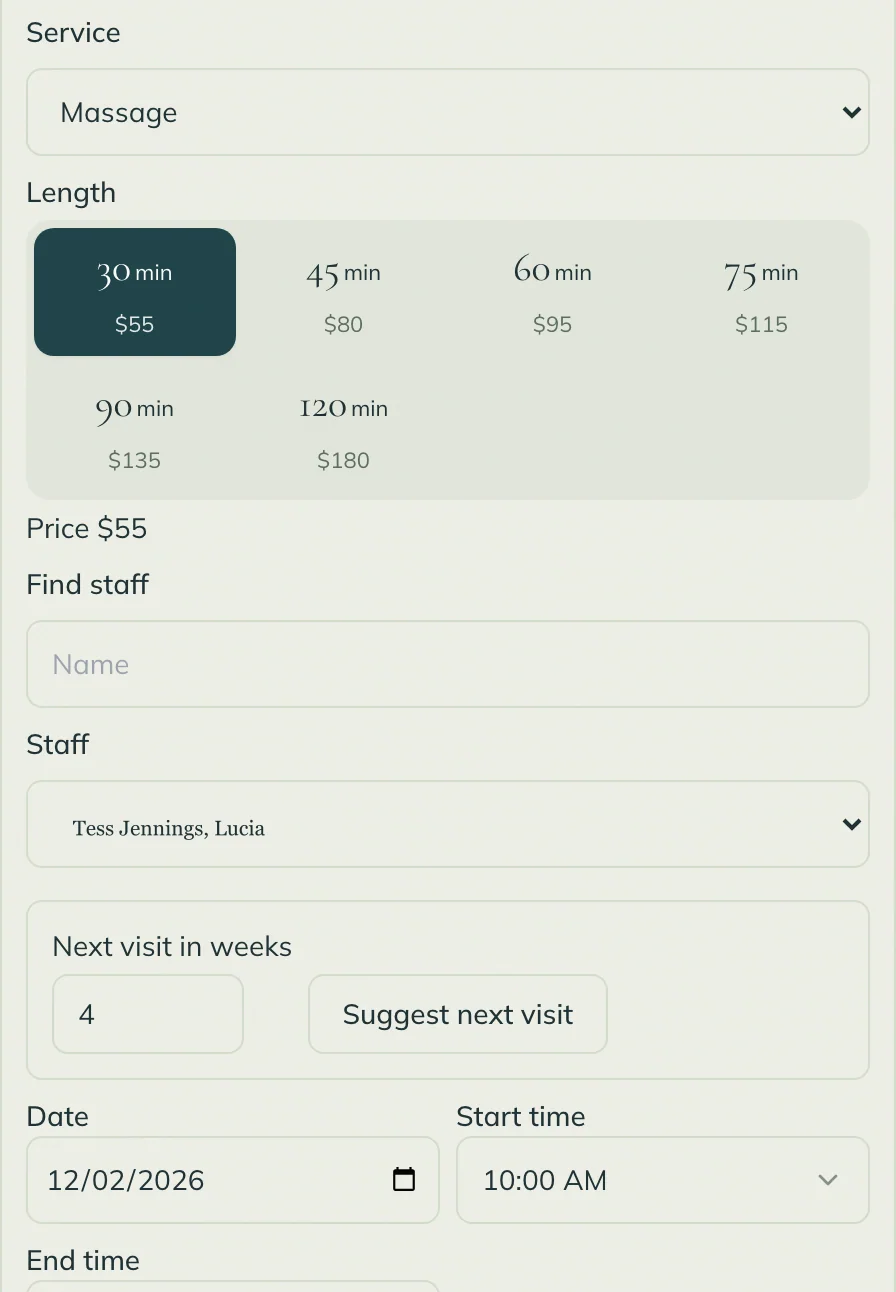
Step 4: Choose the treatment and time
Choose the Service and its length, then a therapist under Staff (or keep First available therapist), the Date and the Start time.
Step 5: Press Book
Check the details and press Book. The visit appears on the calendar straight away. If the time clashes with time off or falls outside the therapist's hours, the times are marked so you can pick another.

Still stuck?
Ask Kneadle from the chat button in your practice app. It can walk you through this screen or do it with you.
More in Calendar and visits
 Add a VA authorization and book against itEnter a VA referral's visits and dates so KneadOps counts each visit and warns you before the visits run out.
 Book a repeating series of visitsBook a client for the same time every week or every few weeks in one go, check each date, and choose what happens when one doesn't fit.
 Finish a visit, or mark a no-show and its feeWhen a client comes, checking out the visit marks it complete. When they don't, mark the visit as a no-show, and your no-show fee is added for you to collect at checkout.