Book a repeating series of visits
Book a client for the same time every week or every few weeks in one go, check each date, and choose what happens when one doesn't fit.
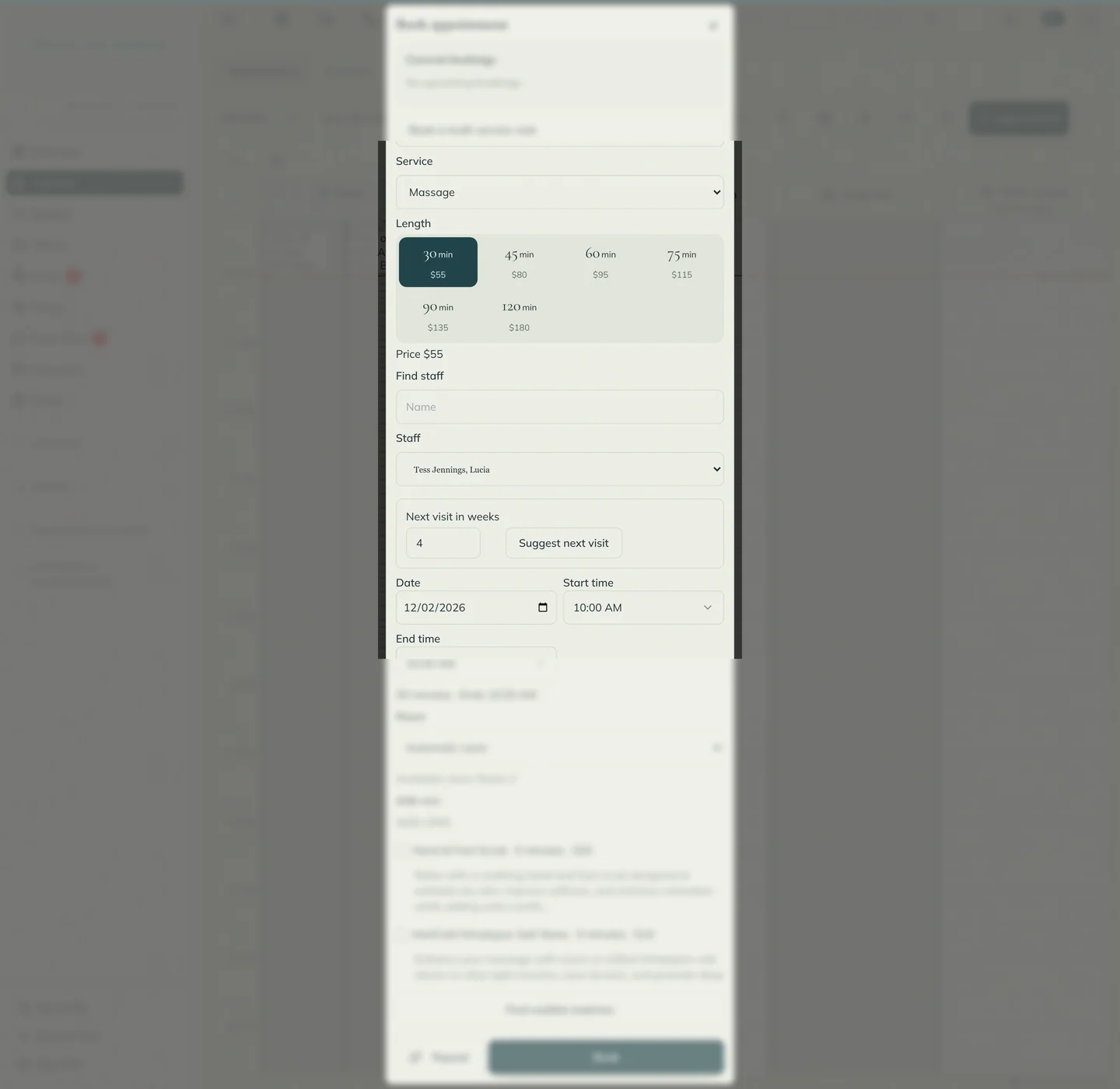
Step 1: Fill in the first visit
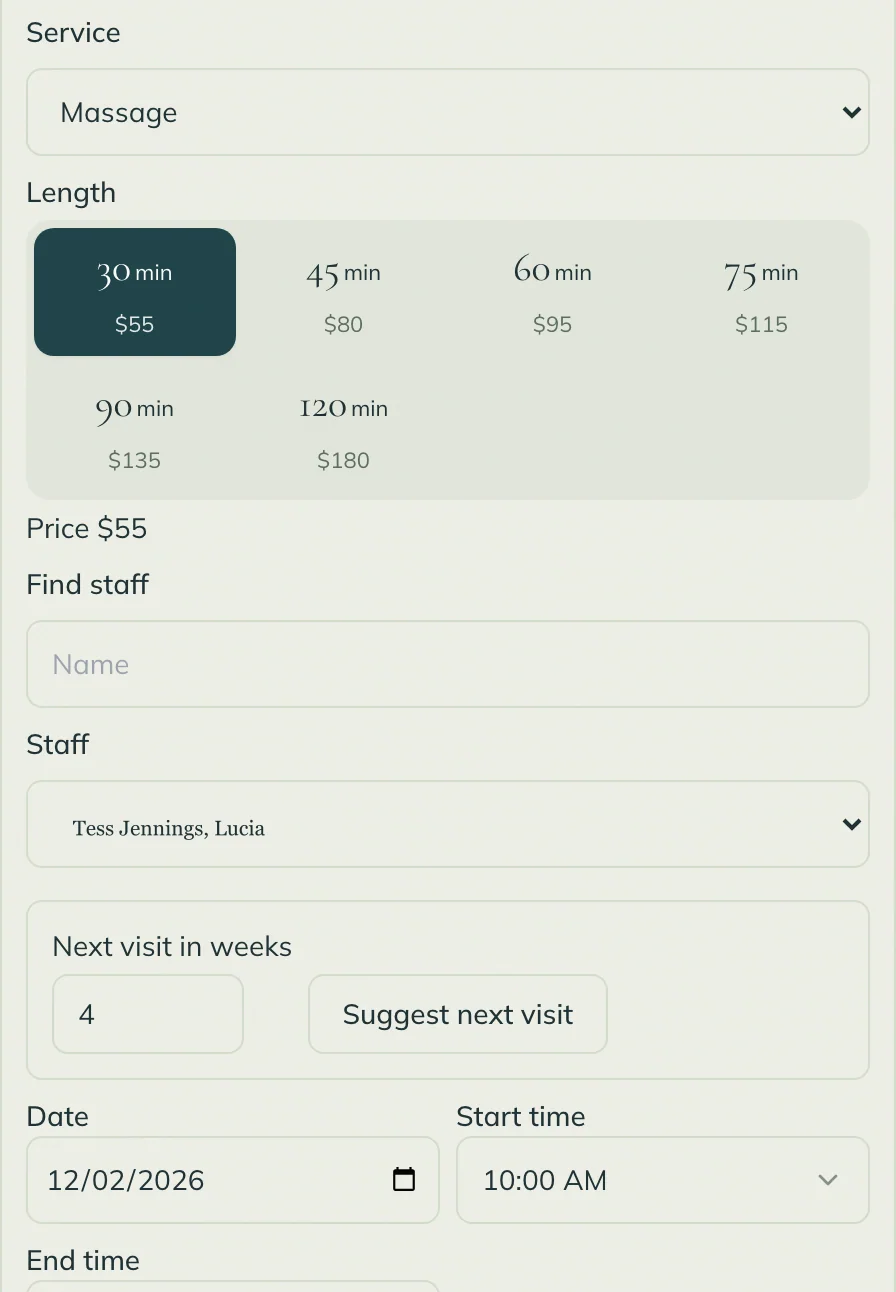
Press + Appointment, choose the client and press Next. Then choose the Service, Staff, Date and Start time for the first visit of the series.
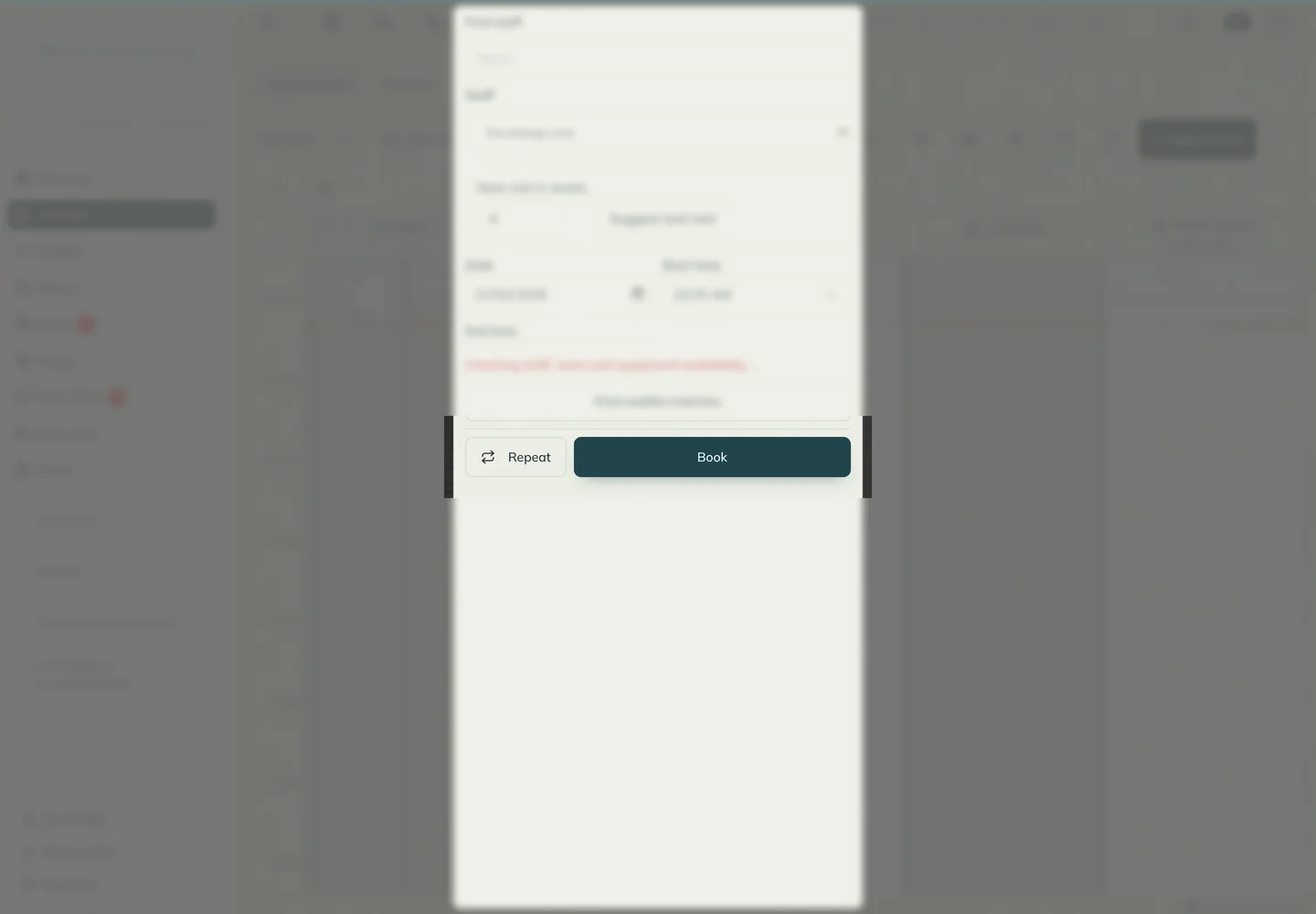
Step 2: Press Repeat
Instead of Book, press Repeat at the bottom of the form.

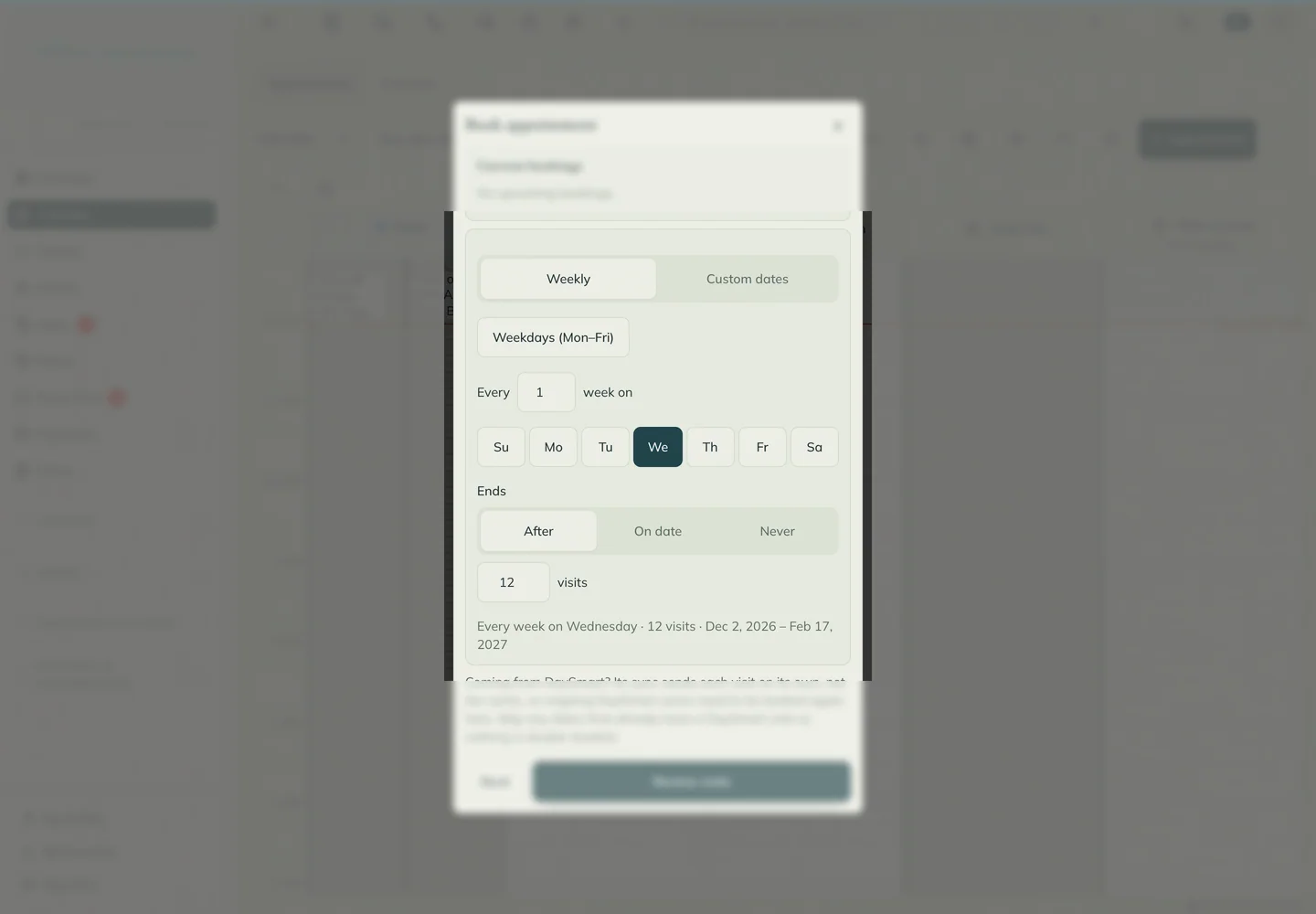
Step 3: Choose how often and how many
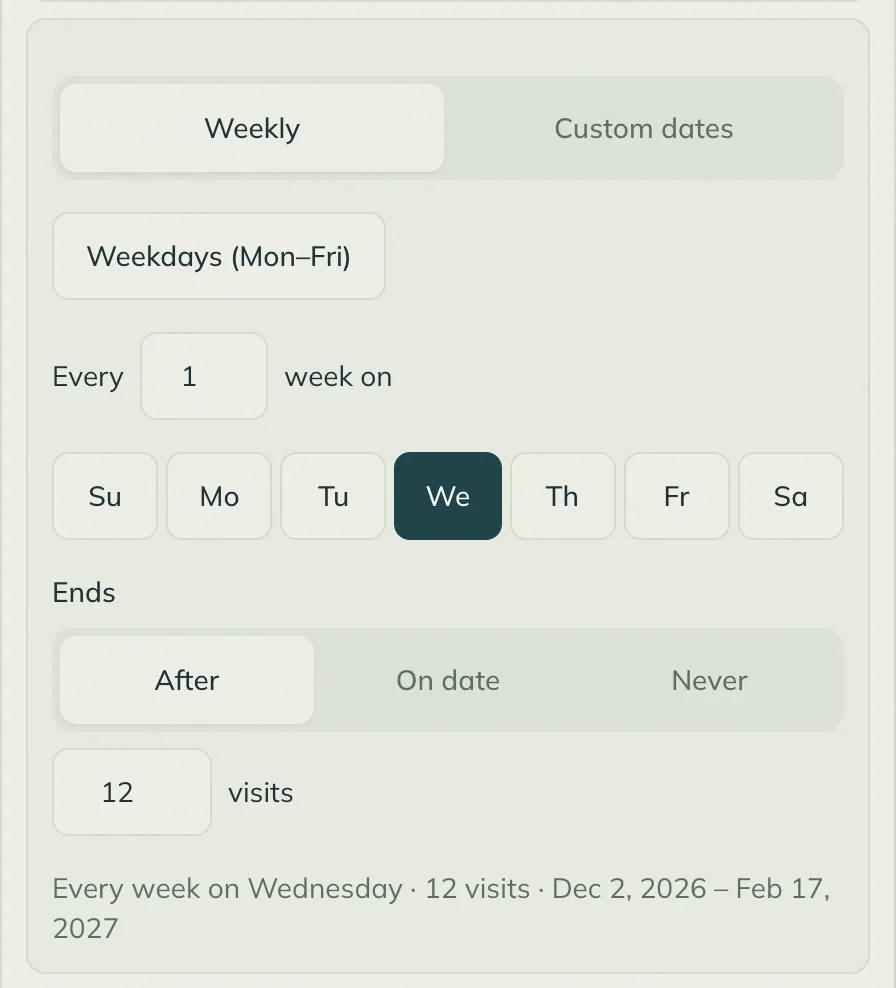
Set Every to the number of weeks between visits (2 for every other week) and press the day of the week. Under Ends, choose After and the number of visits, On date, or Never.
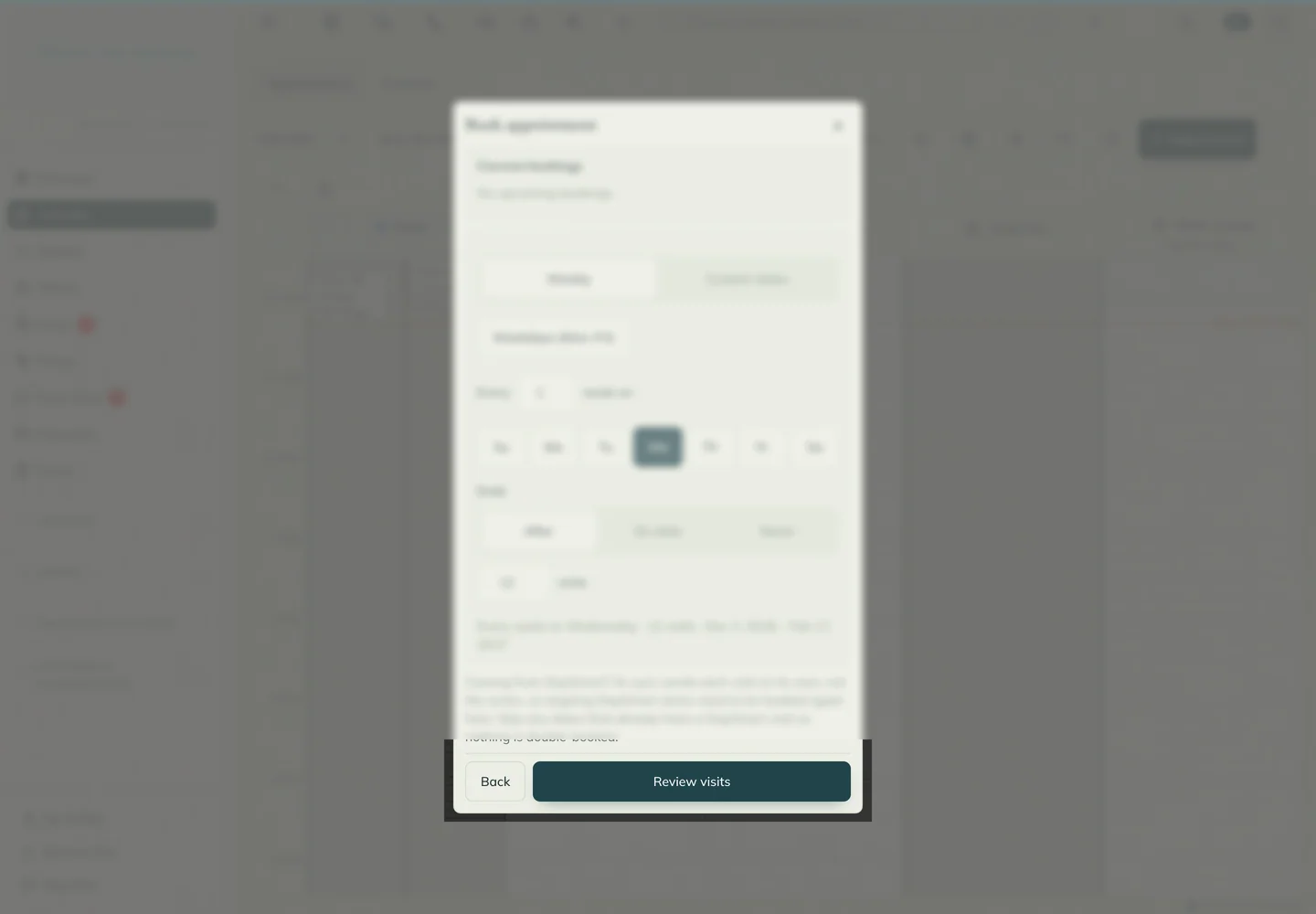
Step 4: Press Review visits
Press Review visits. Nothing is booked yet.

Step 5: Check each date
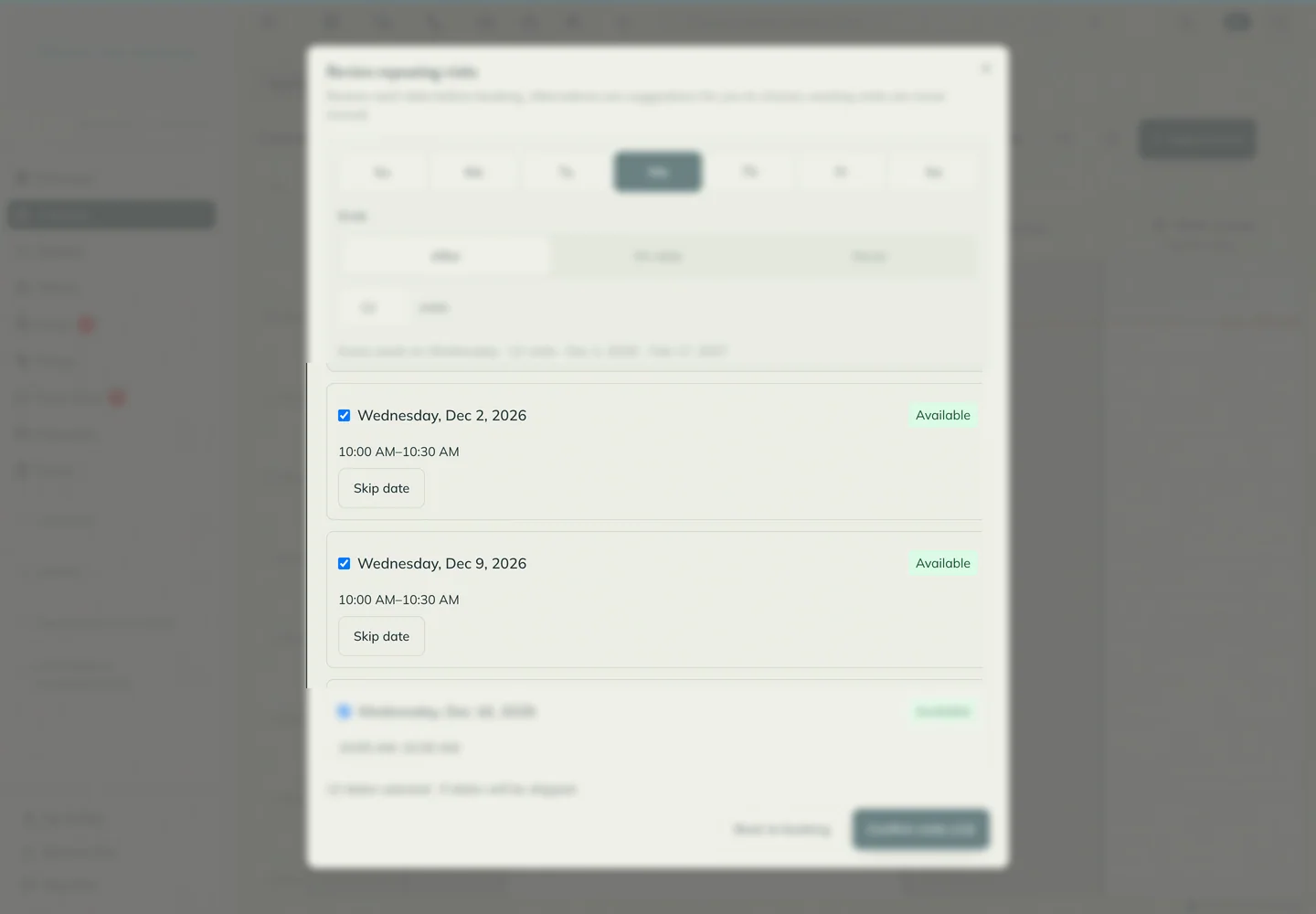
Every date in the series is listed with a tick if it fits. If one clashes with another visit or time off, choose one of the suggested times or therapists, or press Skip date. Visits already on the calendar are never moved.
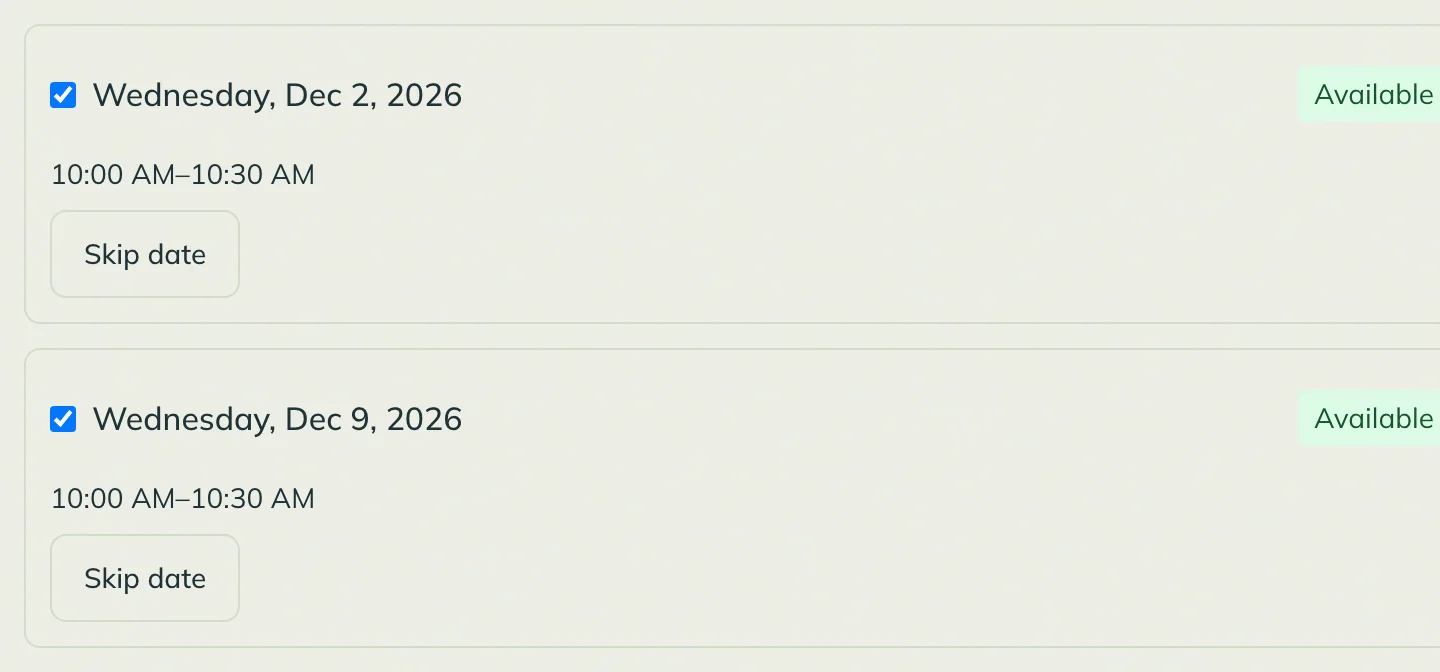
Step 6: Press Confirm visits
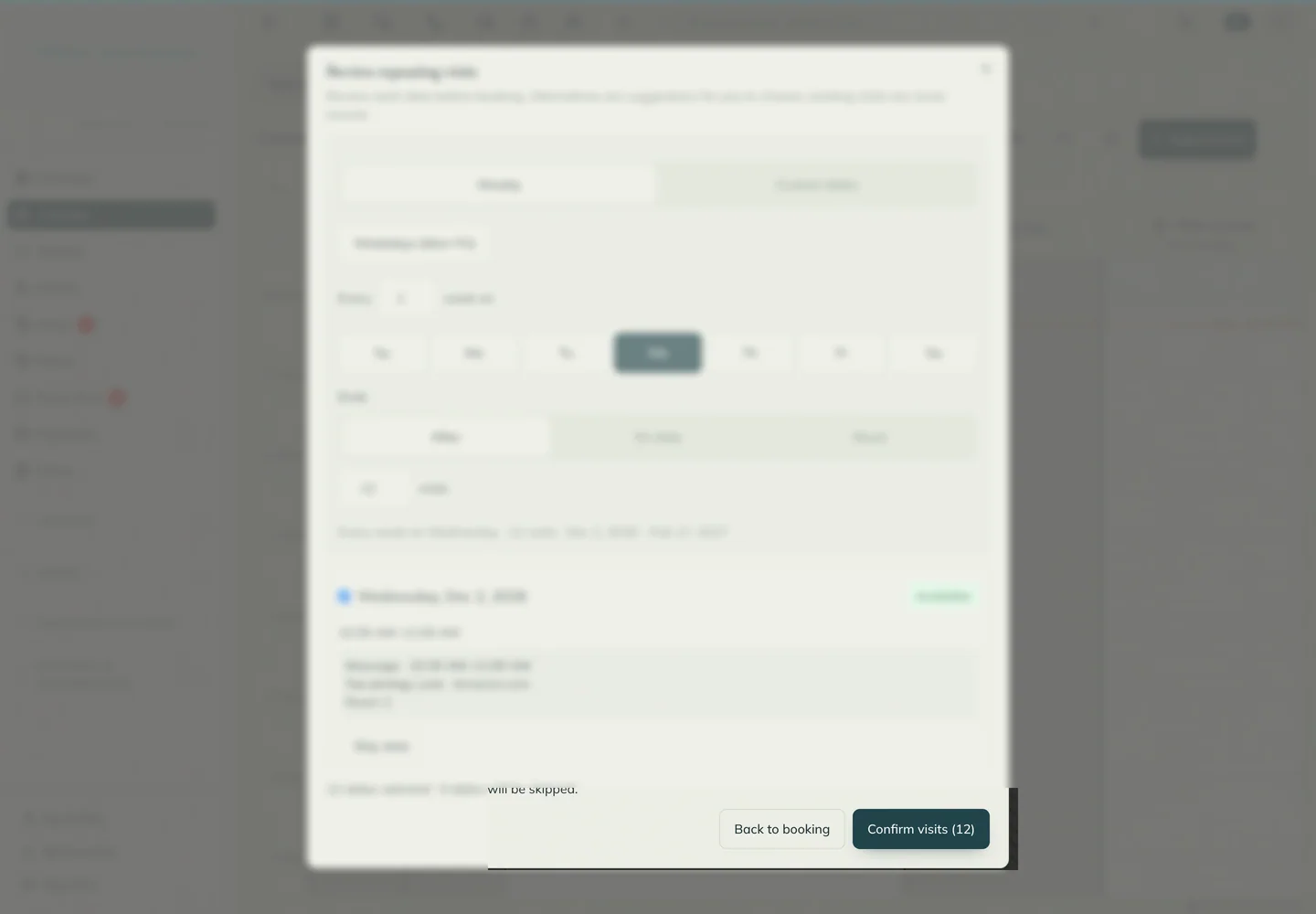
When the dates look right, press Confirm visits. The number on the button is how many visits will be booked. Each date is checked again as it is booked.

Still stuck?
Ask Kneadle from the chat button in your practice app. It can walk you through this screen or do it with you.
More in Calendar and visits
 Add a VA authorization and book against itEnter a VA referral's visits and dates so KneadOps counts each visit and warns you before the visits run out.
 Book a visit for a clientPut a client on the calendar from the front desk: pick the client, the treatment, the therapist and a time.
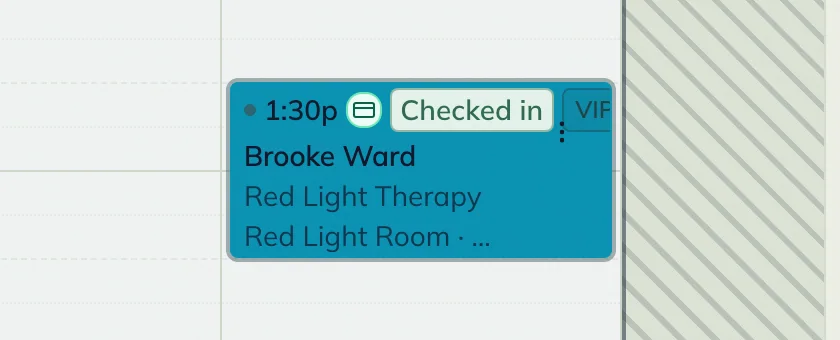 Finish a visit, or mark a no-show and its feeWhen a client comes, checking out the visit marks it complete. When they don't, mark the visit as a no-show, and your no-show fee is added for you to collect at checkout.