Add a VA authorization and book against it
Enter a VA referral's visits and dates so KneadOps counts each visit and warns you before the visits run out.
Step 1: Open the VA board
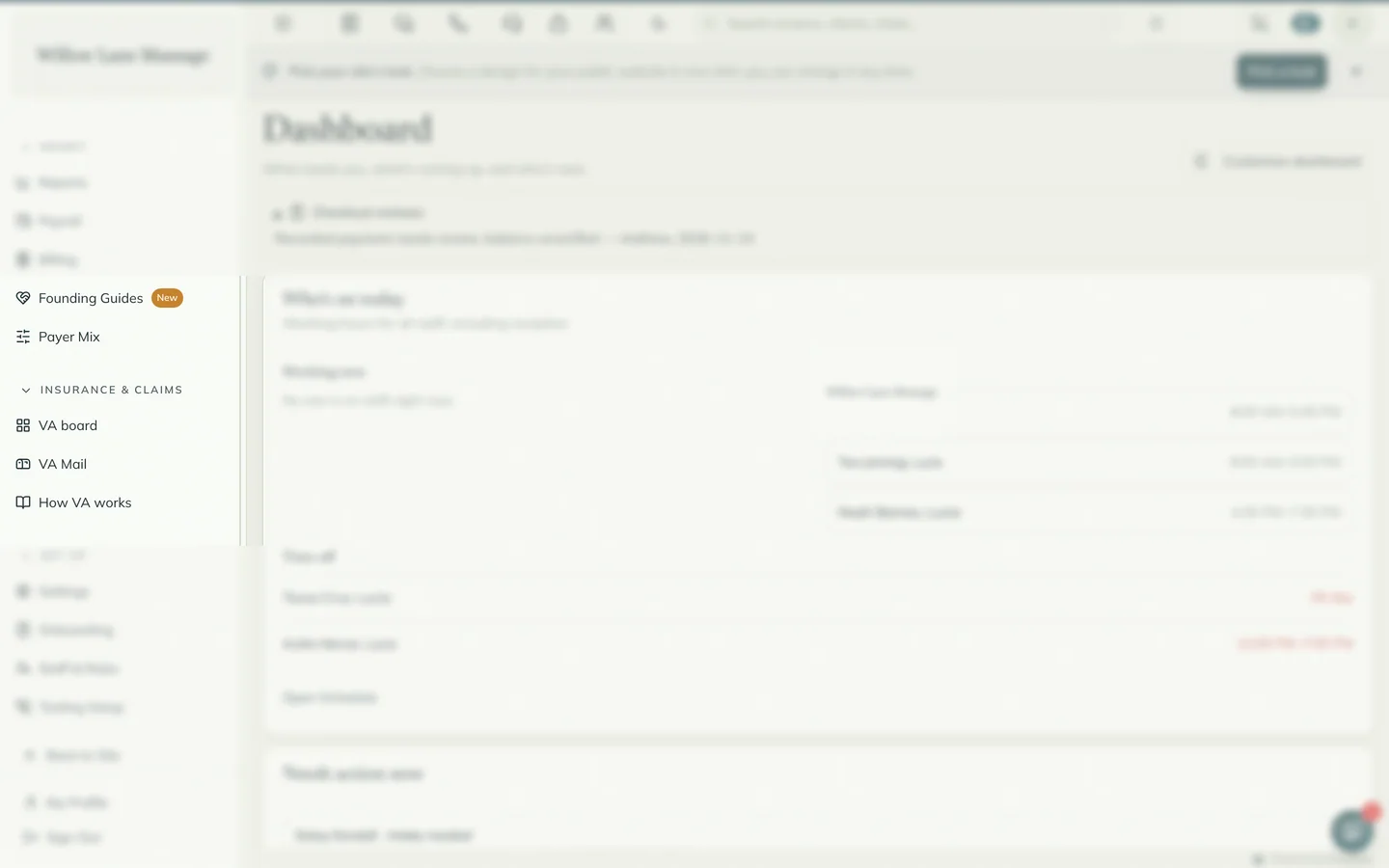
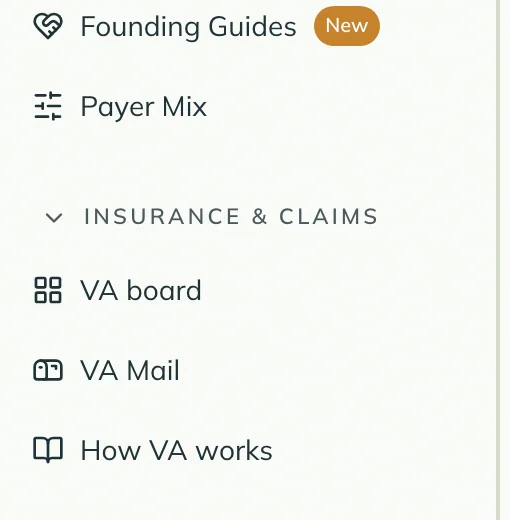
In the menu on the left, open Insurance & Claims and choose VA board.
Step 2: Open VA & Auth
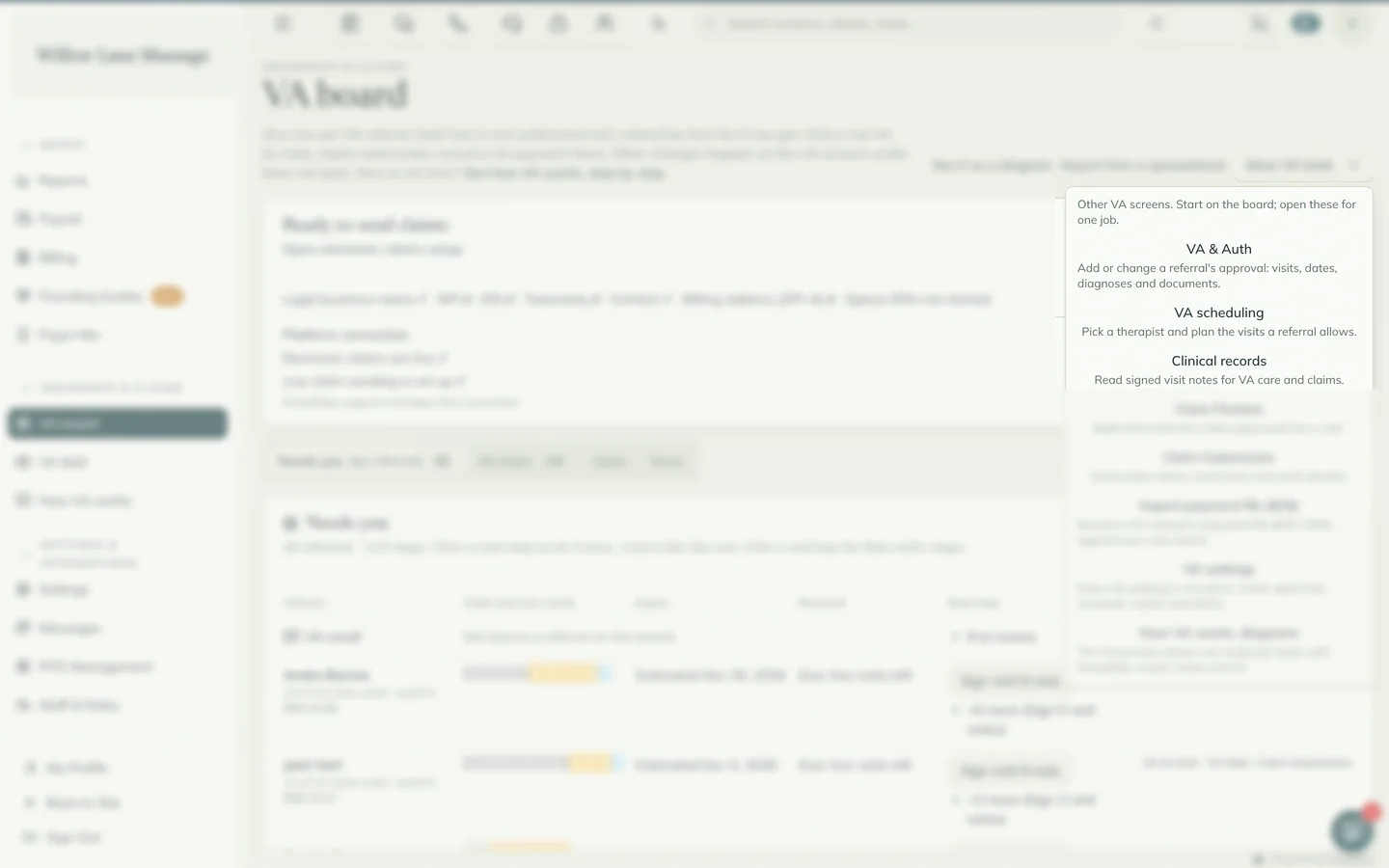
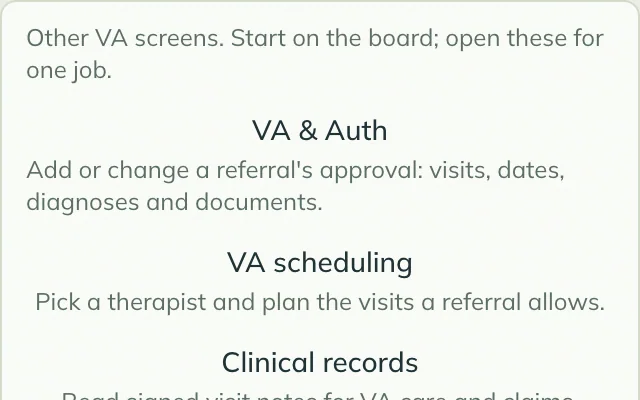
Press More VA tools at the top of the board and choose VA & Auth.
Step 3: Press Add authorizations
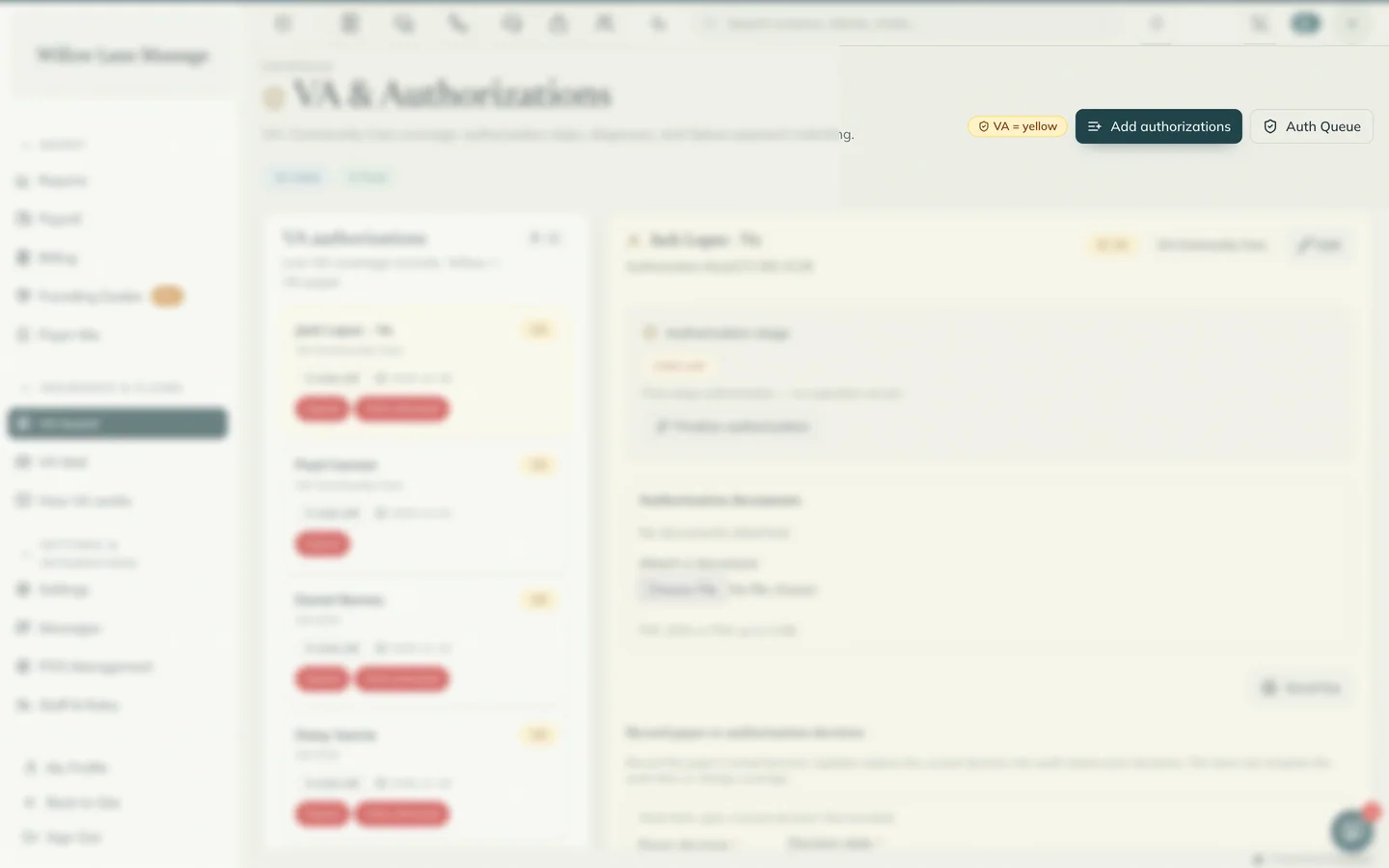
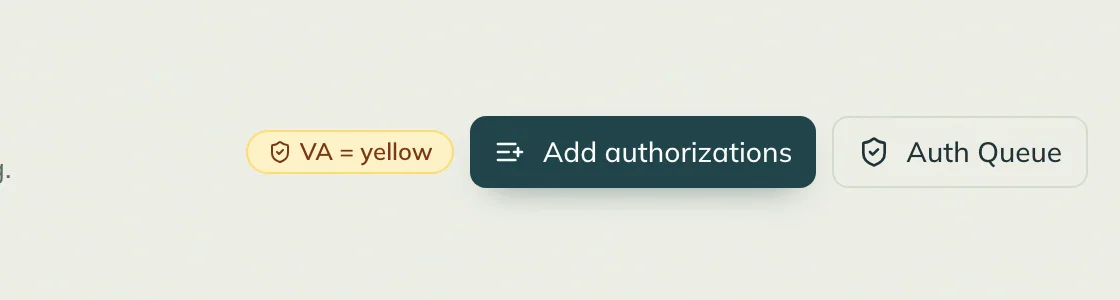
Press Add authorizations at the top of the page.
Step 4: Start a row by hand
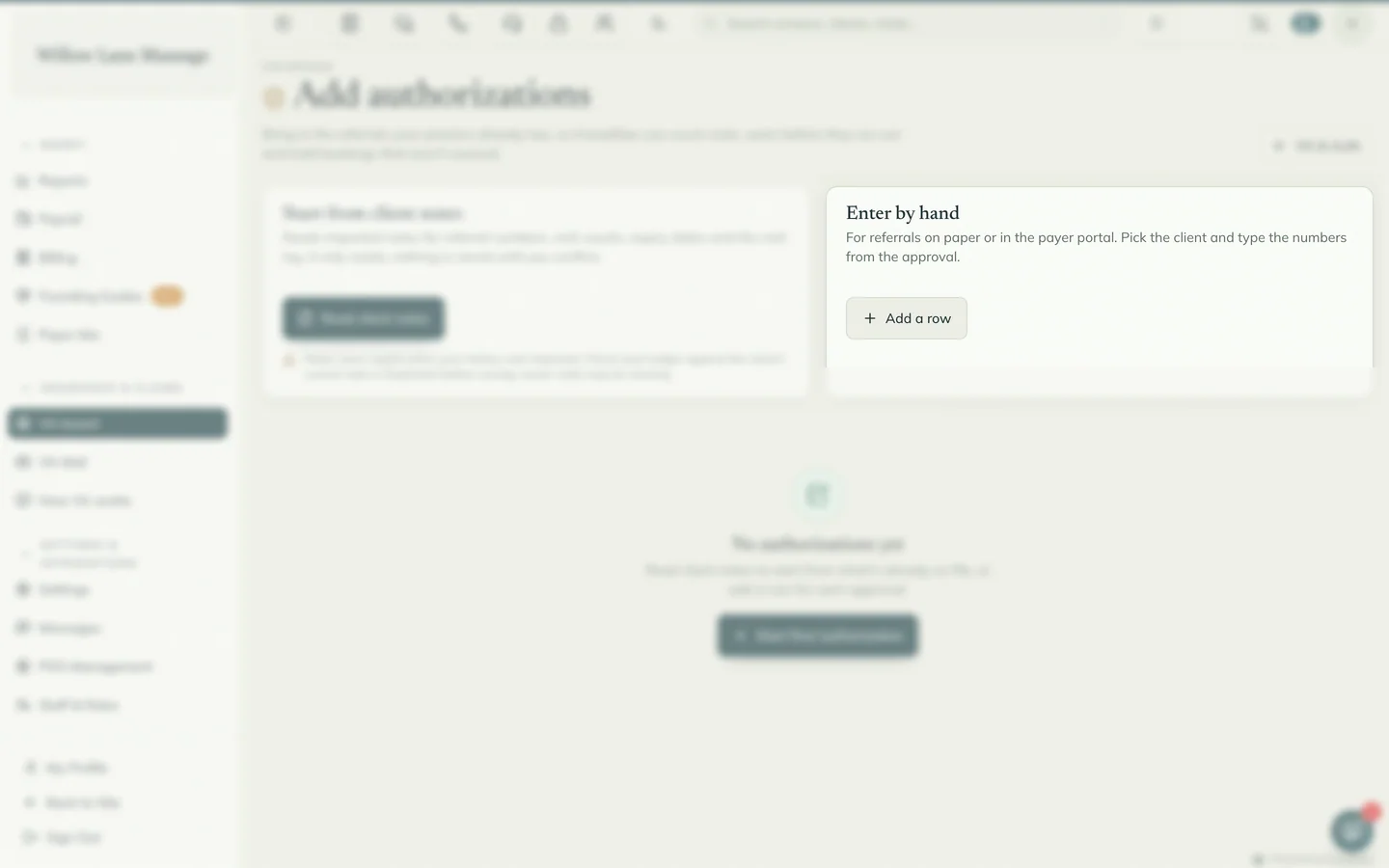
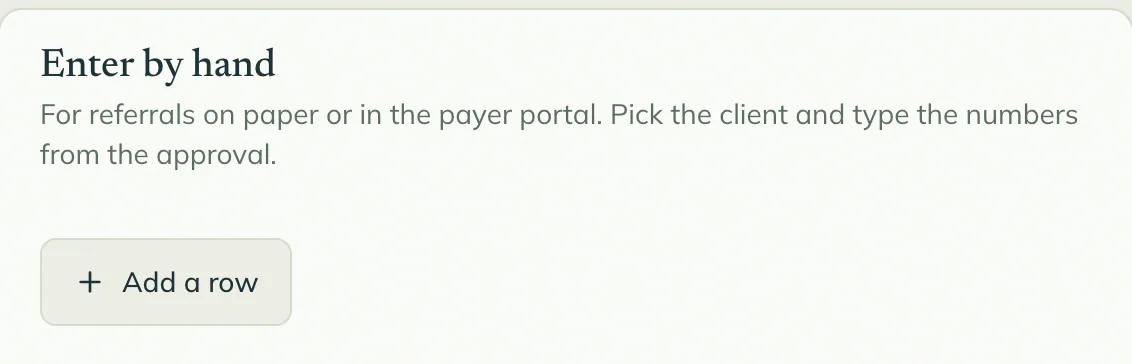
Under Enter by hand, press Add a row. One row is one referral; add another row for each extra one.
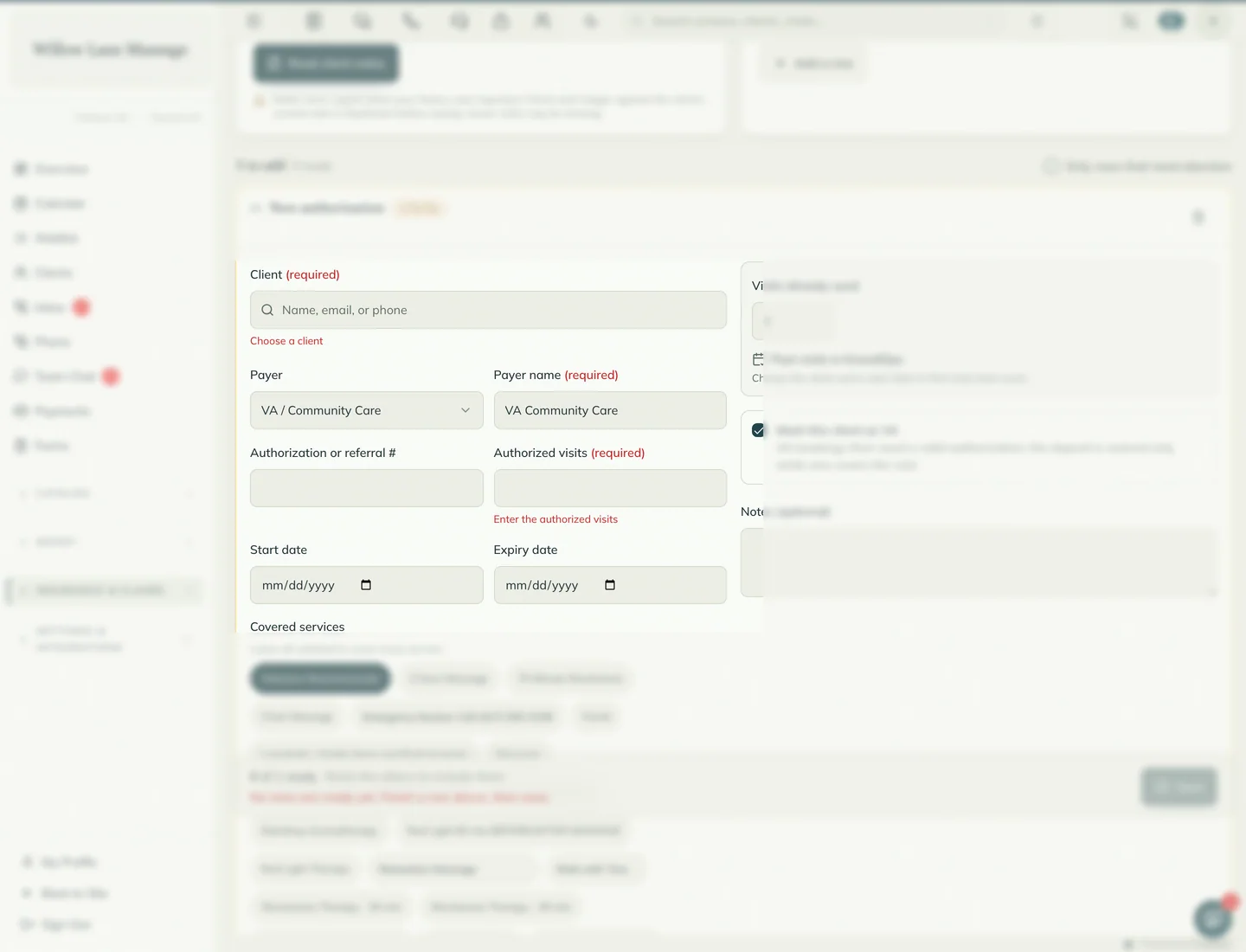
Step 5: Fill in the referral
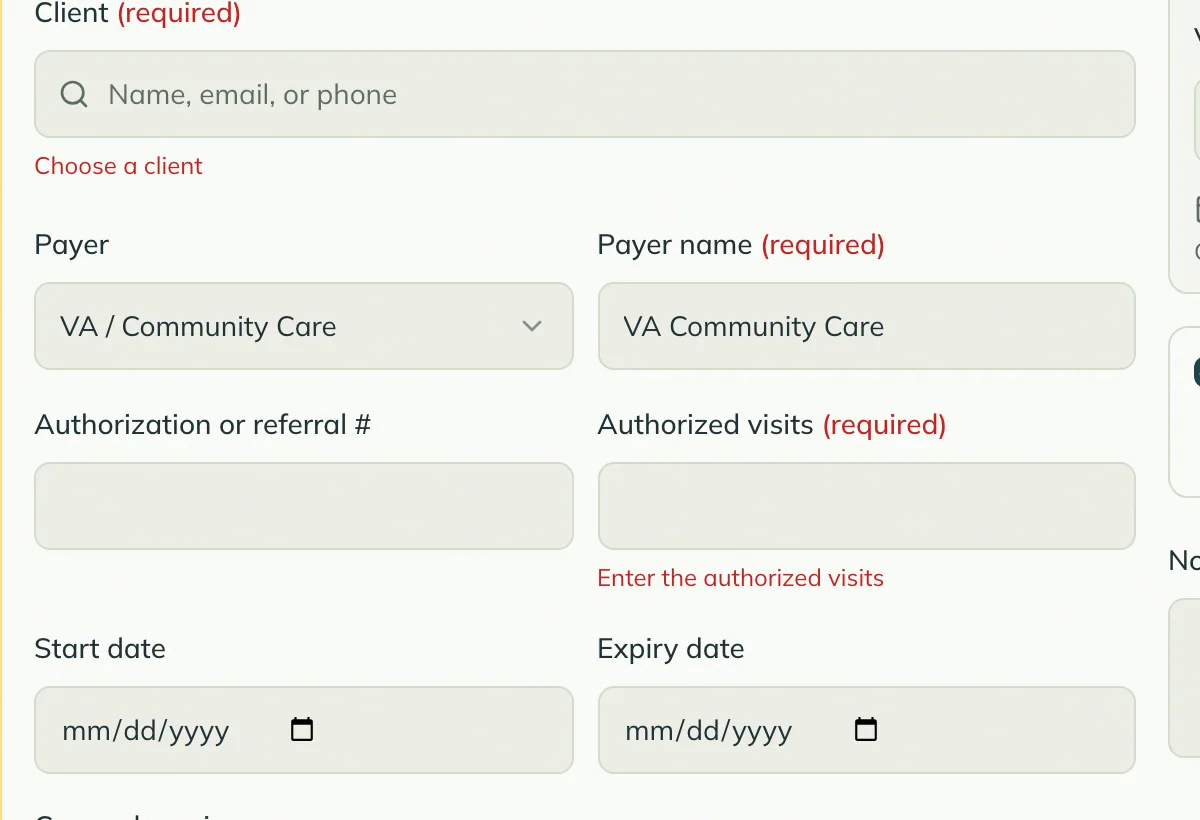
Choose the Client, set Payer to VA, and copy the Authorization or referral #, Authorized visits, Start date and Expiry date from the approval letter.
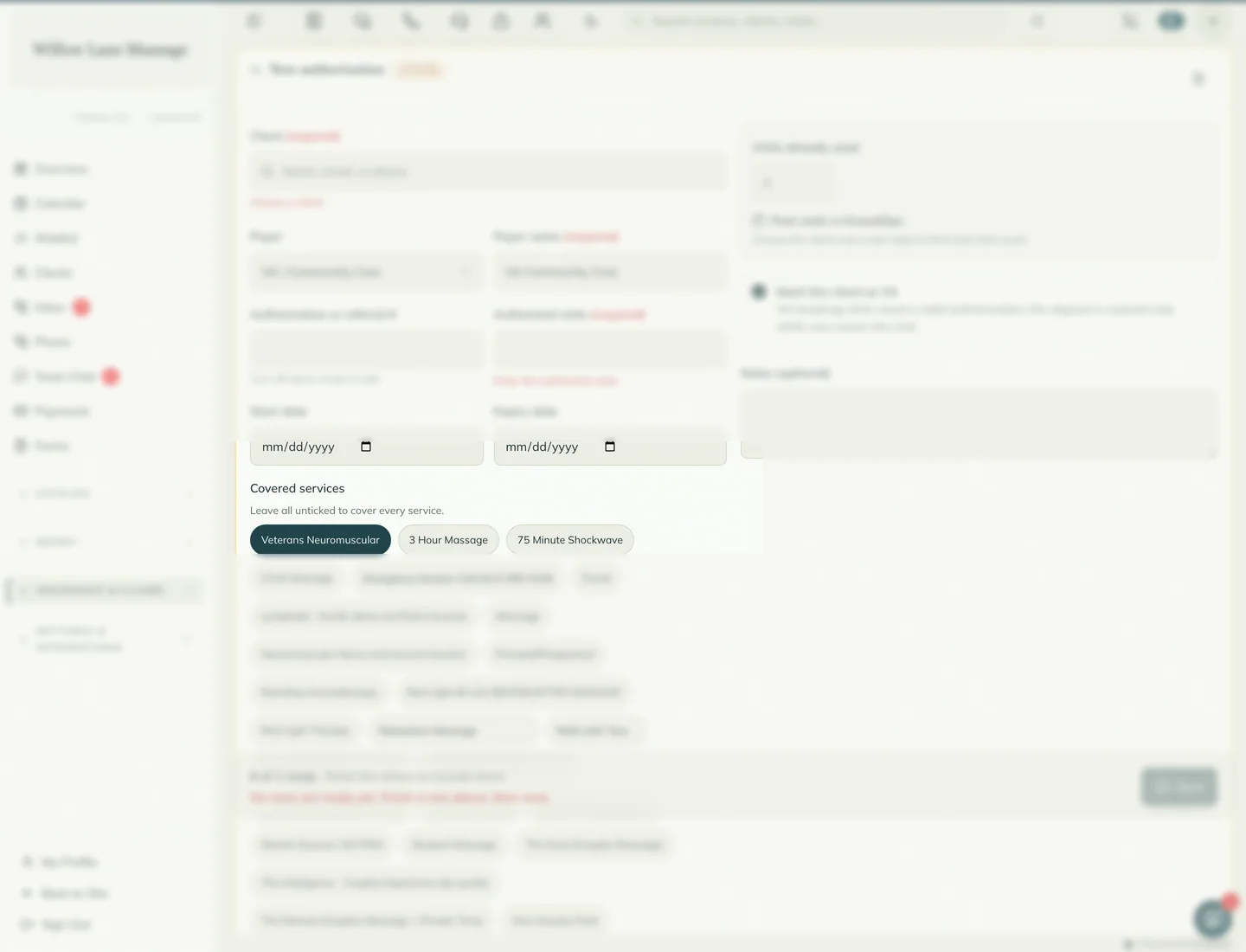
Step 6: Pick the covered services
Under Covered services, tap the treatments the referral covers so they turn dark, or leave them all off to cover every service. Keep Mark this client as VA ticked so their bookings check for cover.

Step 7: Save, then book as usual
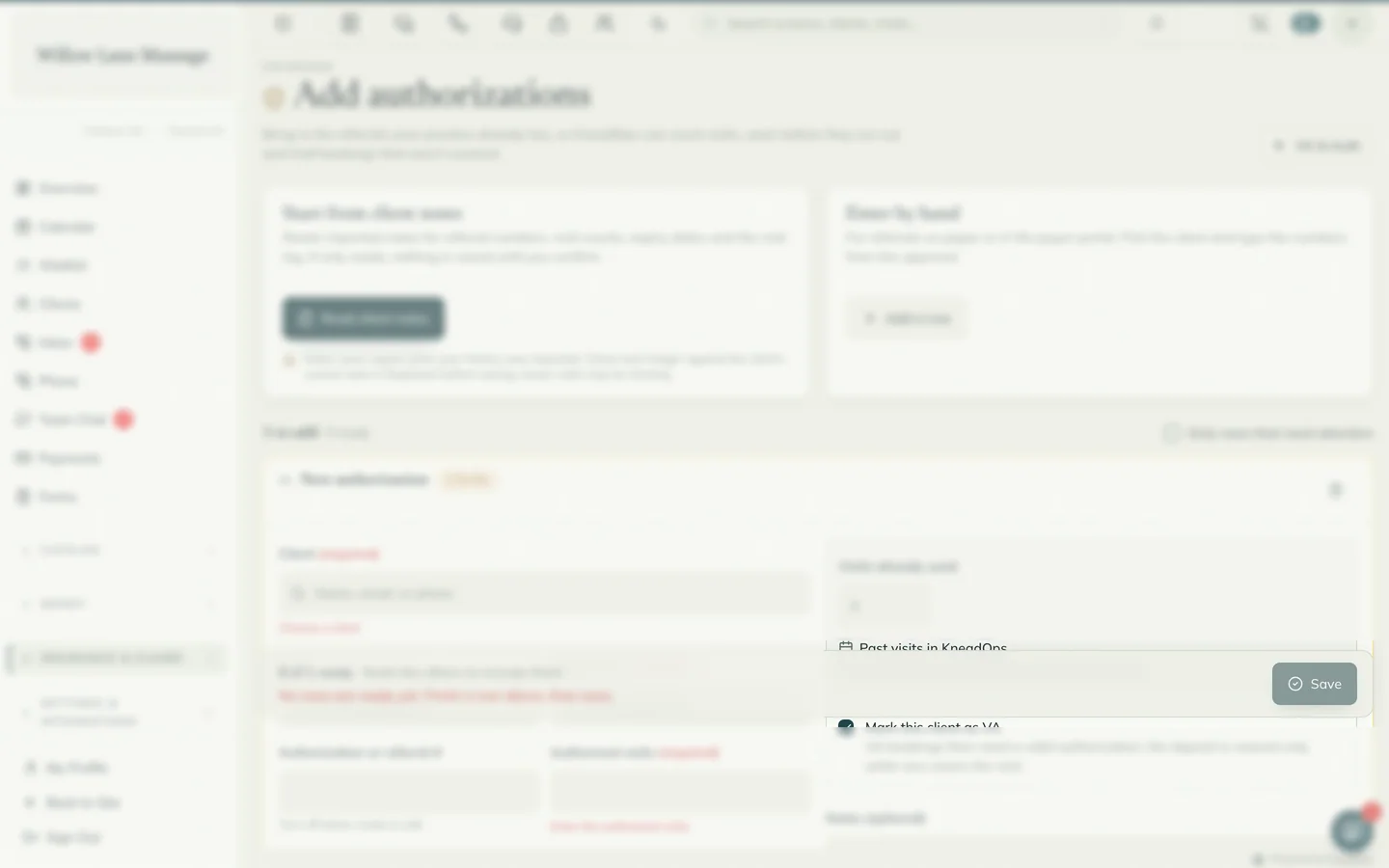
When the row says Ready, press Save at the bottom. Then book the client's visit as usual: choose their VA service (or tick VA visit) and the Authorization box shows how many covered visits are left. Each finished visit counts down by one.

Still stuck?
Ask Kneadle from the chat button in your practice app. It can walk you through this screen or do it with you.
More in Calendar and visits
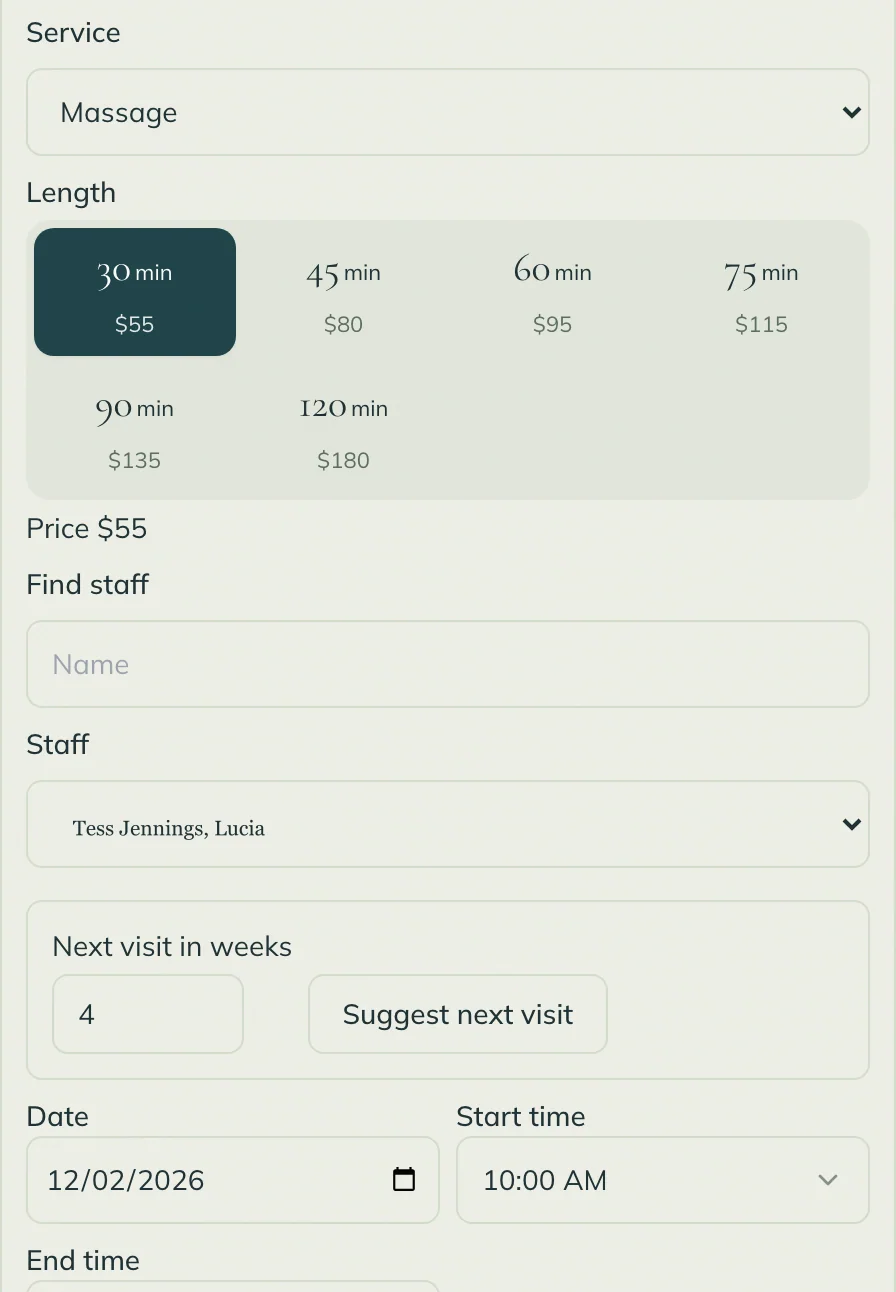 Book a repeating series of visitsBook a client for the same time every week or every few weeks in one go, check each date, and choose what happens when one doesn't fit.
 Book a visit for a clientPut a client on the calendar from the front desk: pick the client, the treatment, the therapist and a time.
 Finish a visit, or mark a no-show and its feeWhen a client comes, checking out the visit marks it complete. When they don't, mark the visit as a no-show, and your no-show fee is added for you to collect at checkout.