Fill in your forms before a visit
Fill in and sign the intake forms your practice asks for, from your client portal or the link they sent. Share this with a client before their first visit.
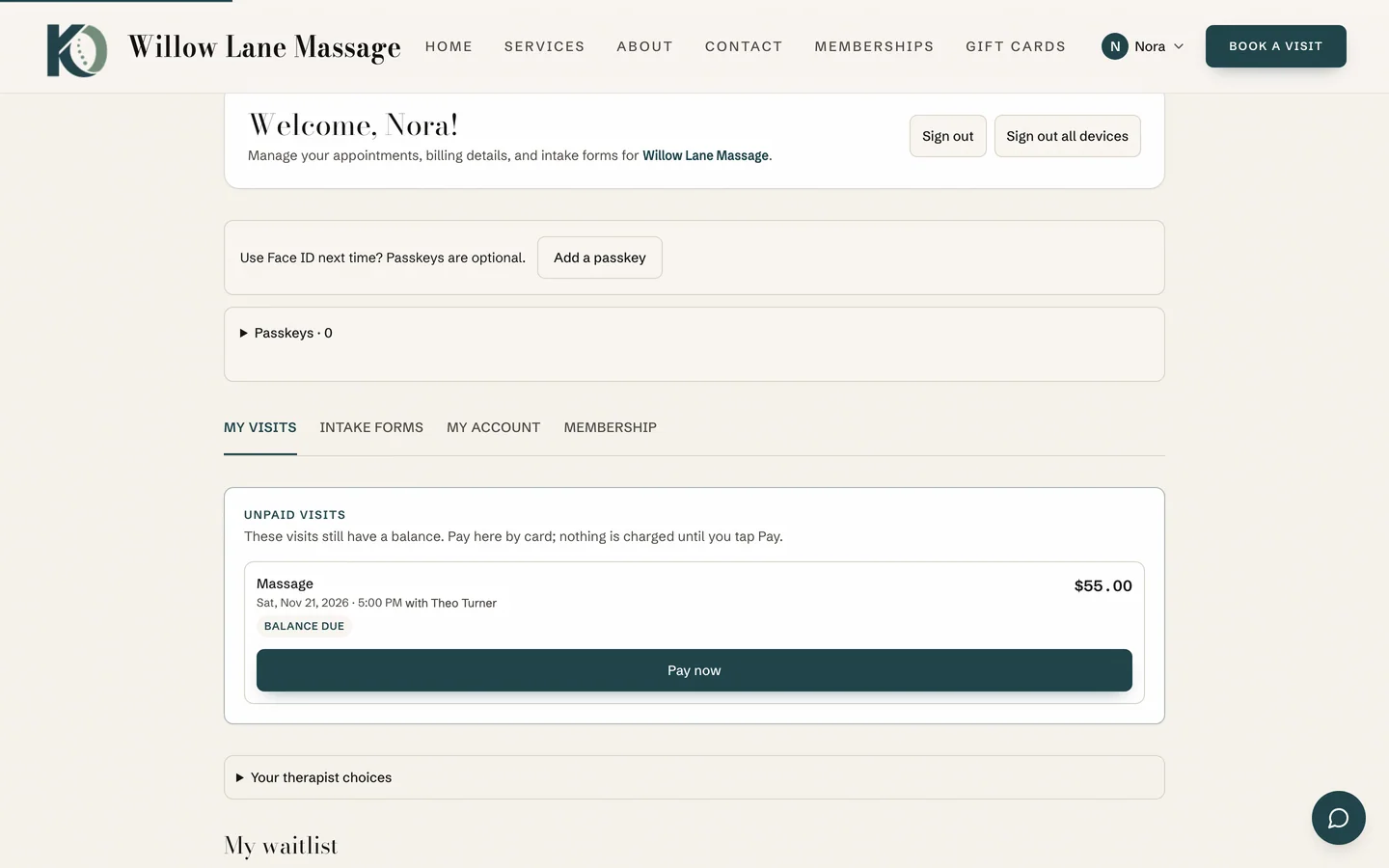
Step 1: Open Intake Forms
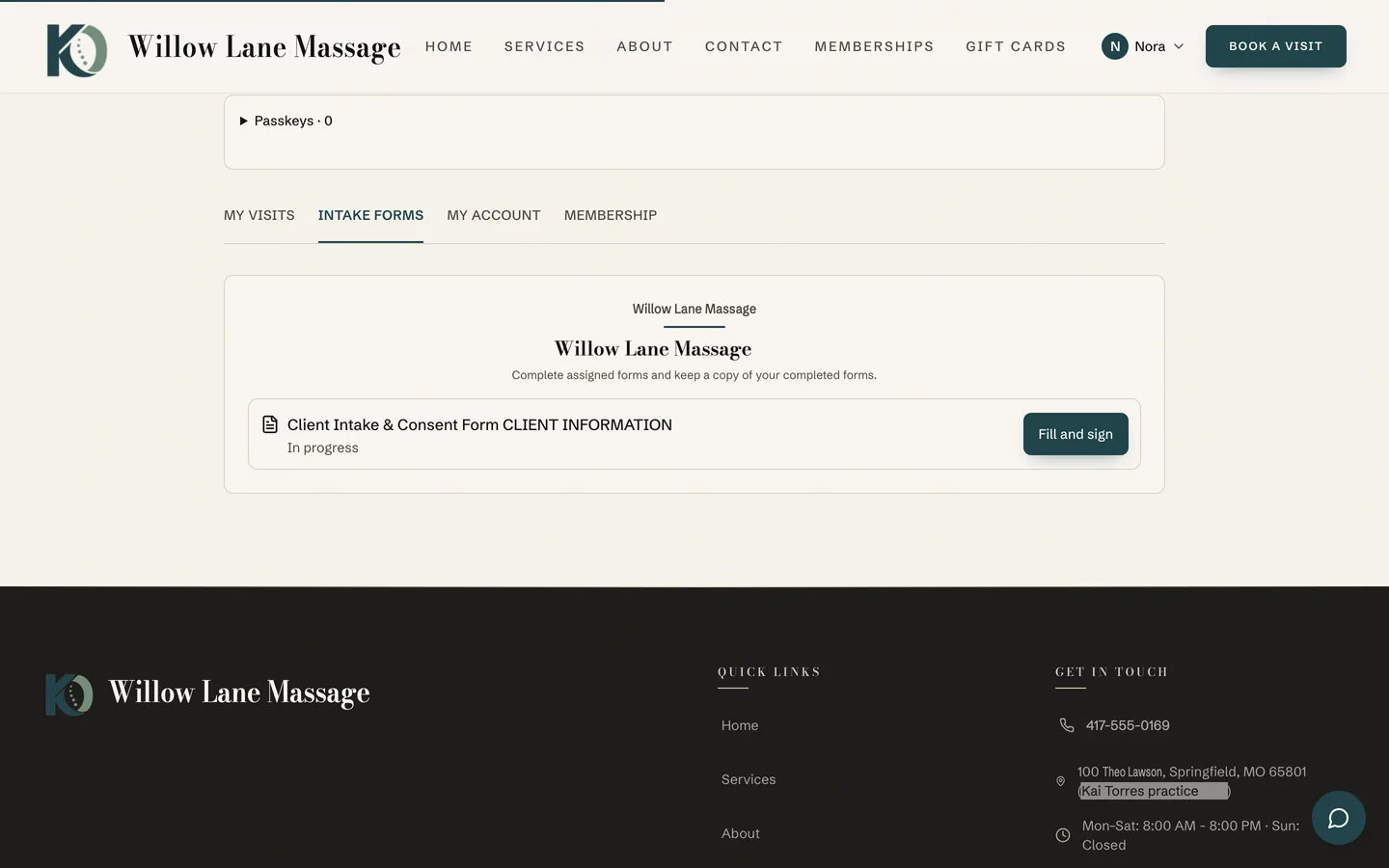
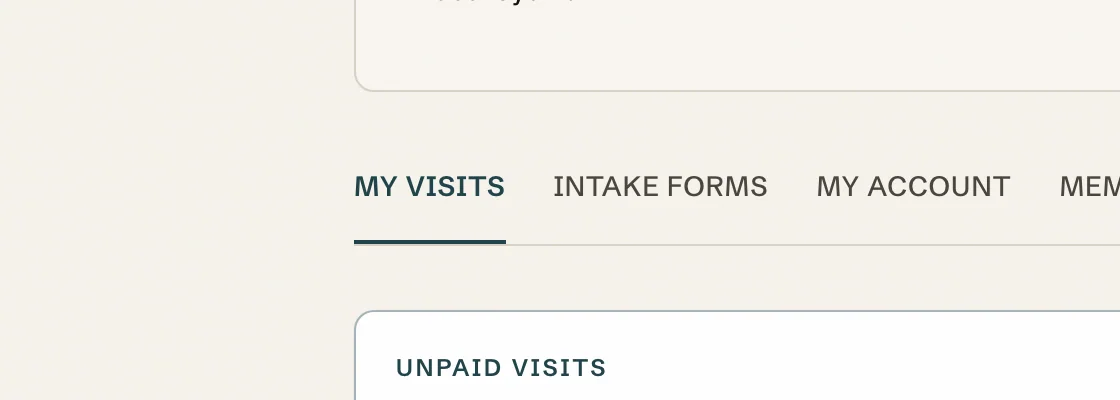
Sign in to your client portal and choose Intake Forms. If the practice texted or emailed you a form link, open it instead and go to step 3.
Step 2: Tap Fill and sign
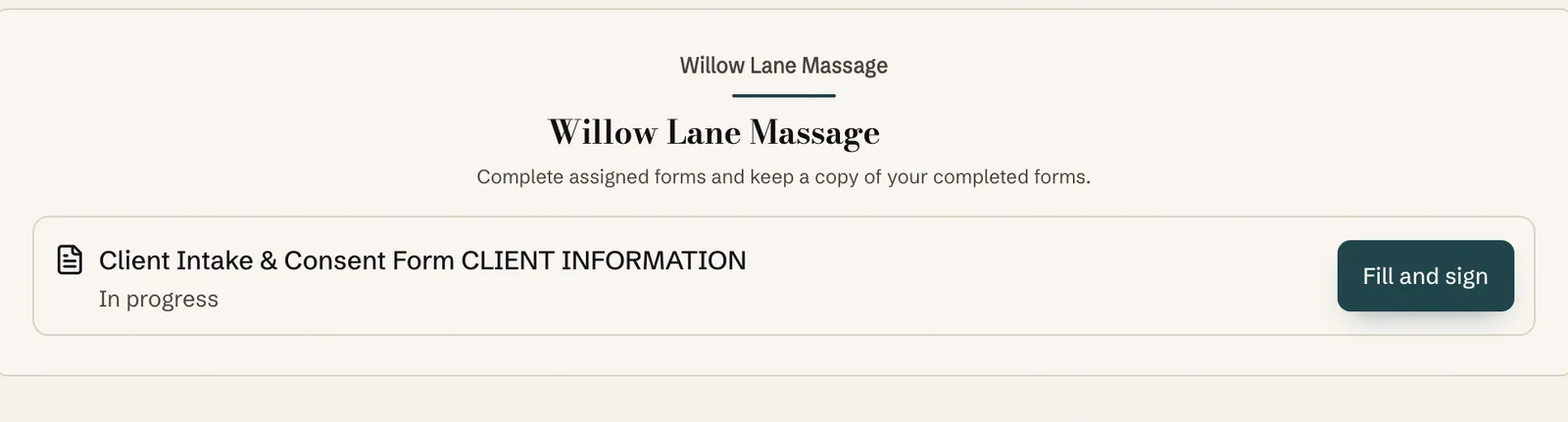
Your forms are listed with what each one needs. Choose Fill and sign next to a form marked Assigned or In progress.
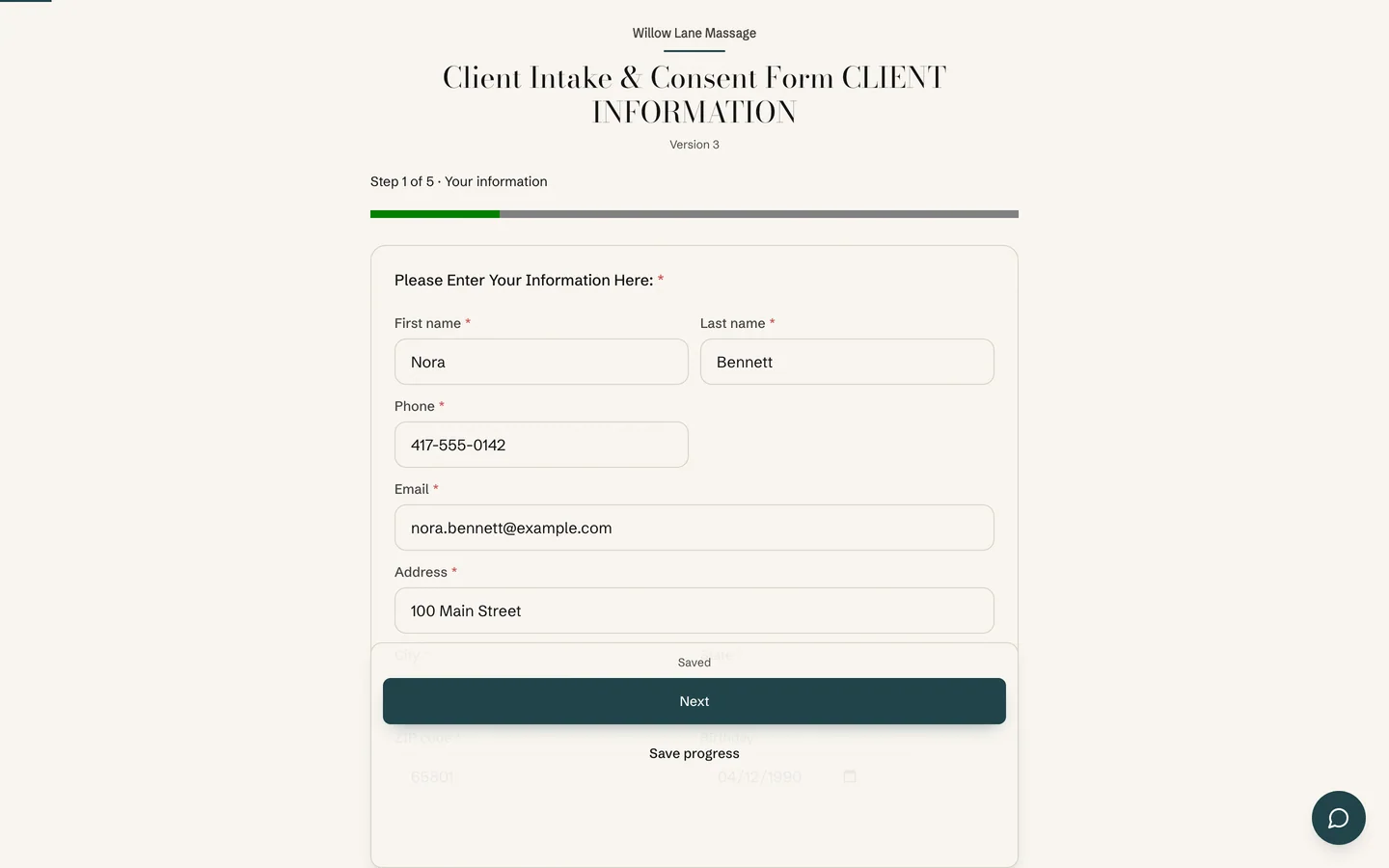
Step 3: Answer each section
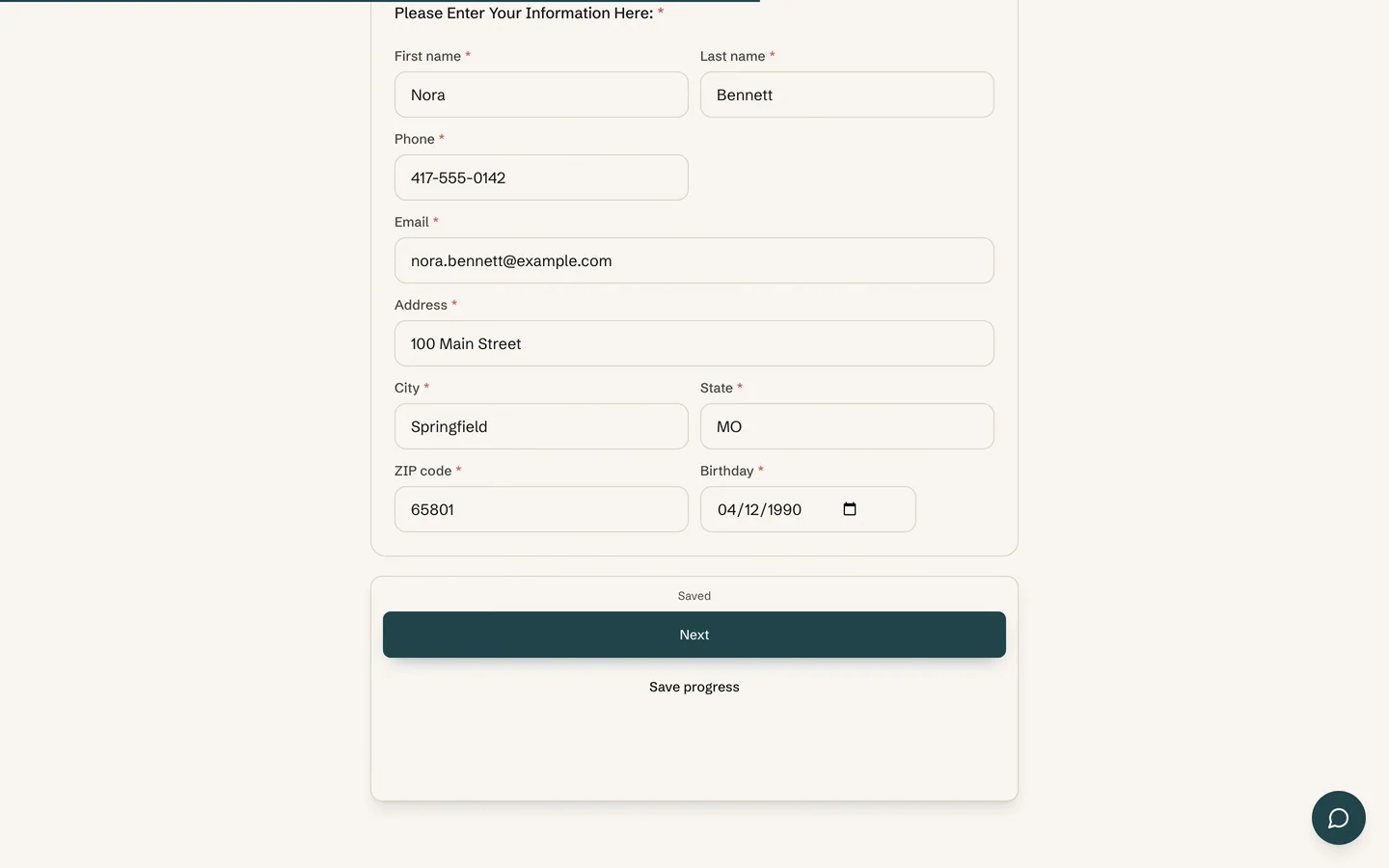
The form opens one section at a time, and the bar at the top shows how far along you are. Some answers may already be filled in from your profile; check them. Your answers save as you go, so you can stop and come back later.
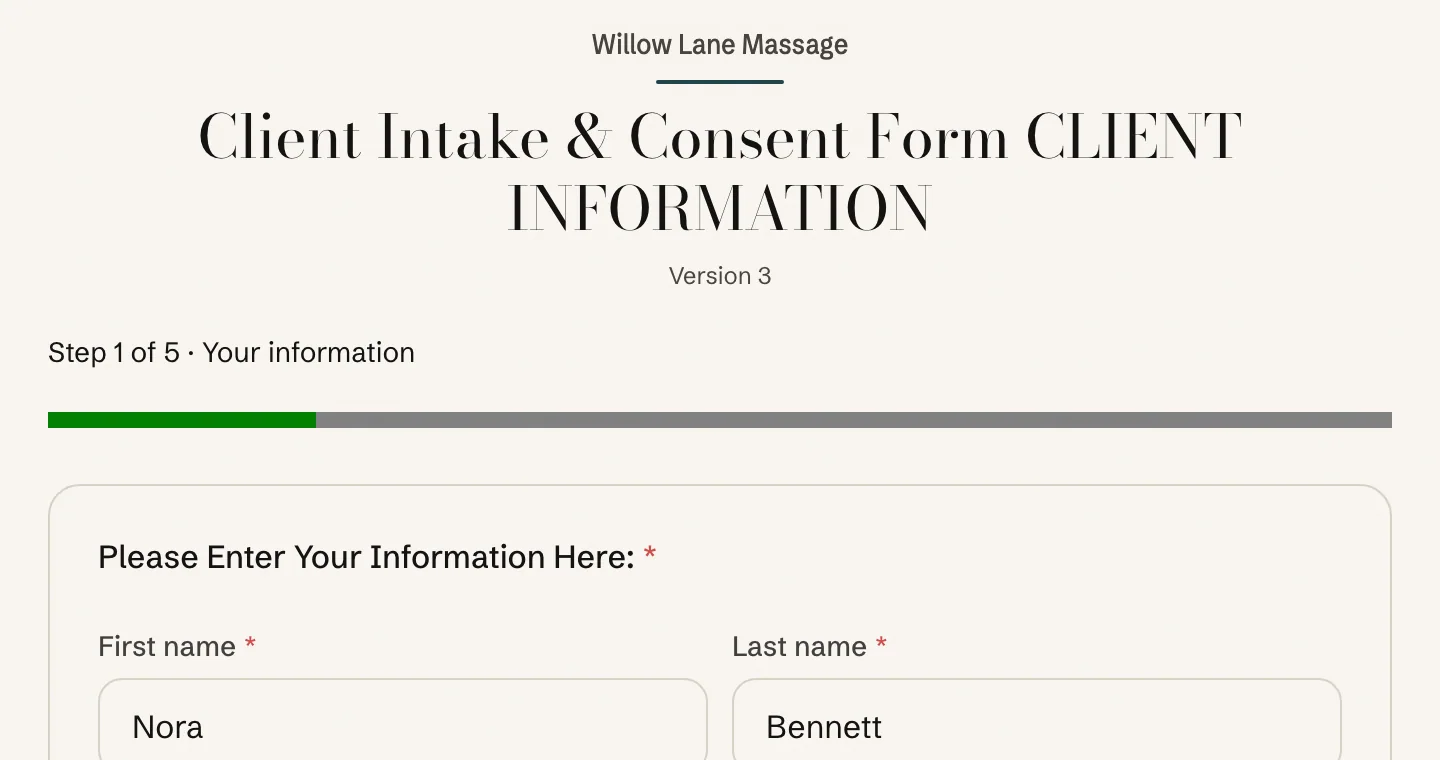
Step 4: Tap Next
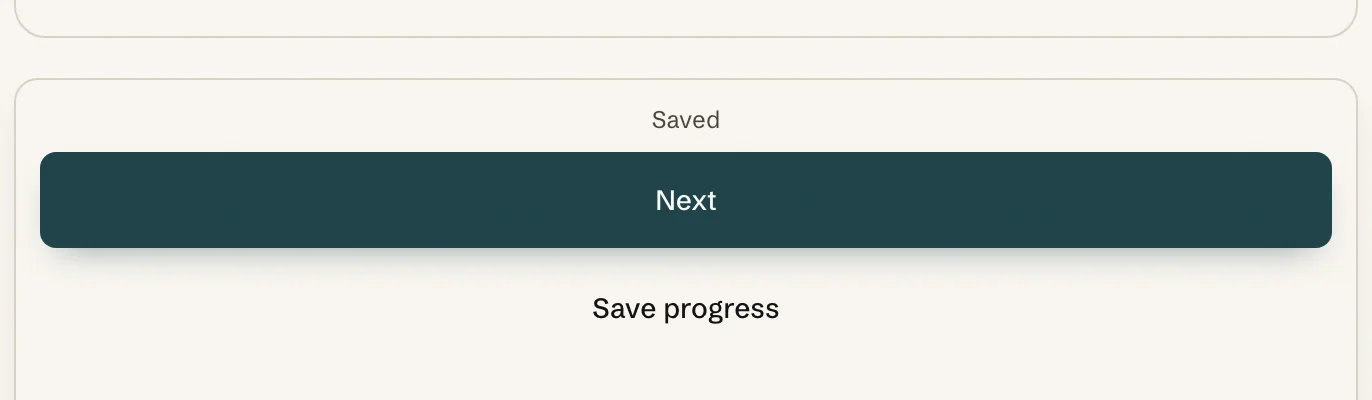
When a section is done, choose Next. If an answer is missing, the form shows which one before it moves on.
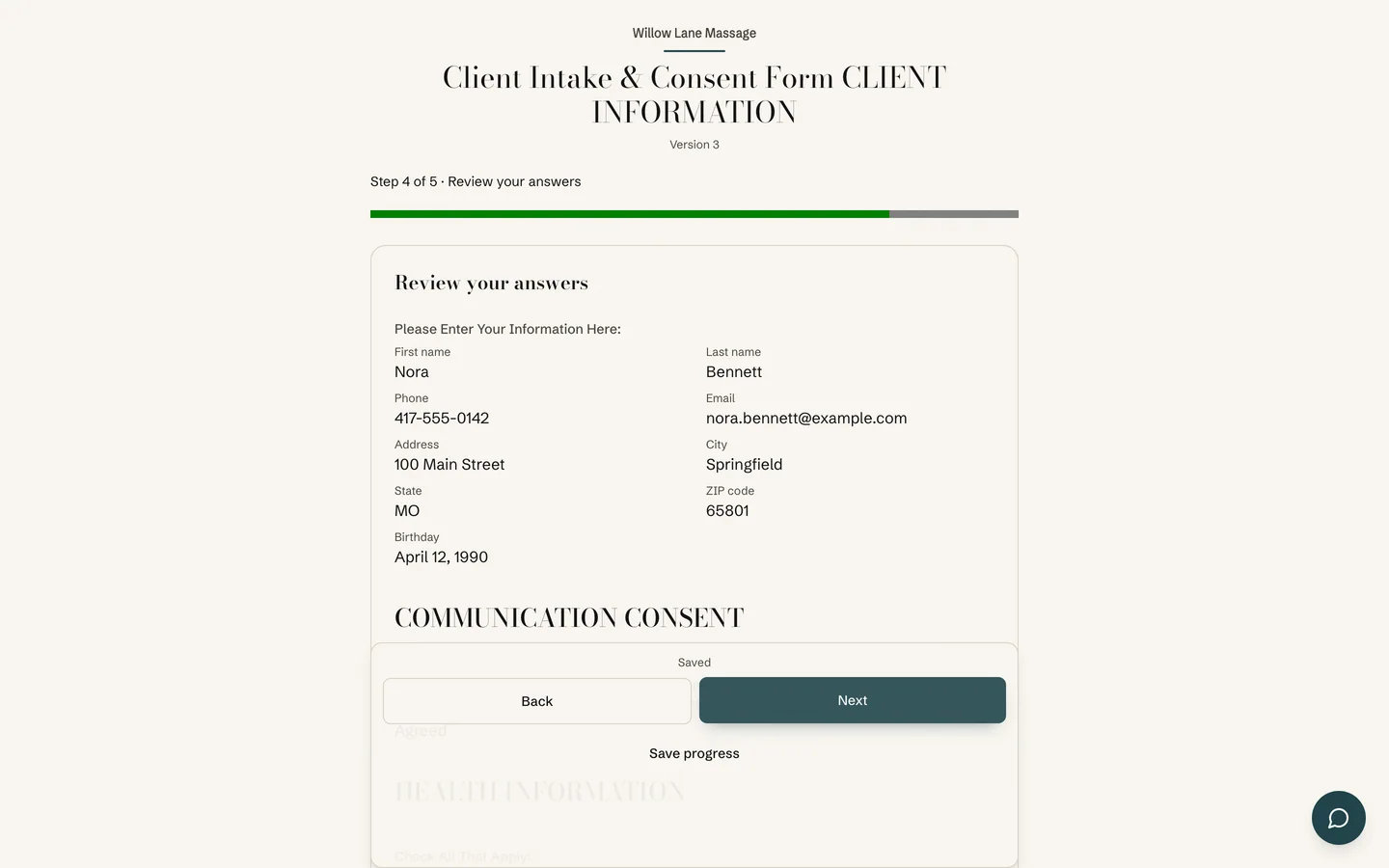
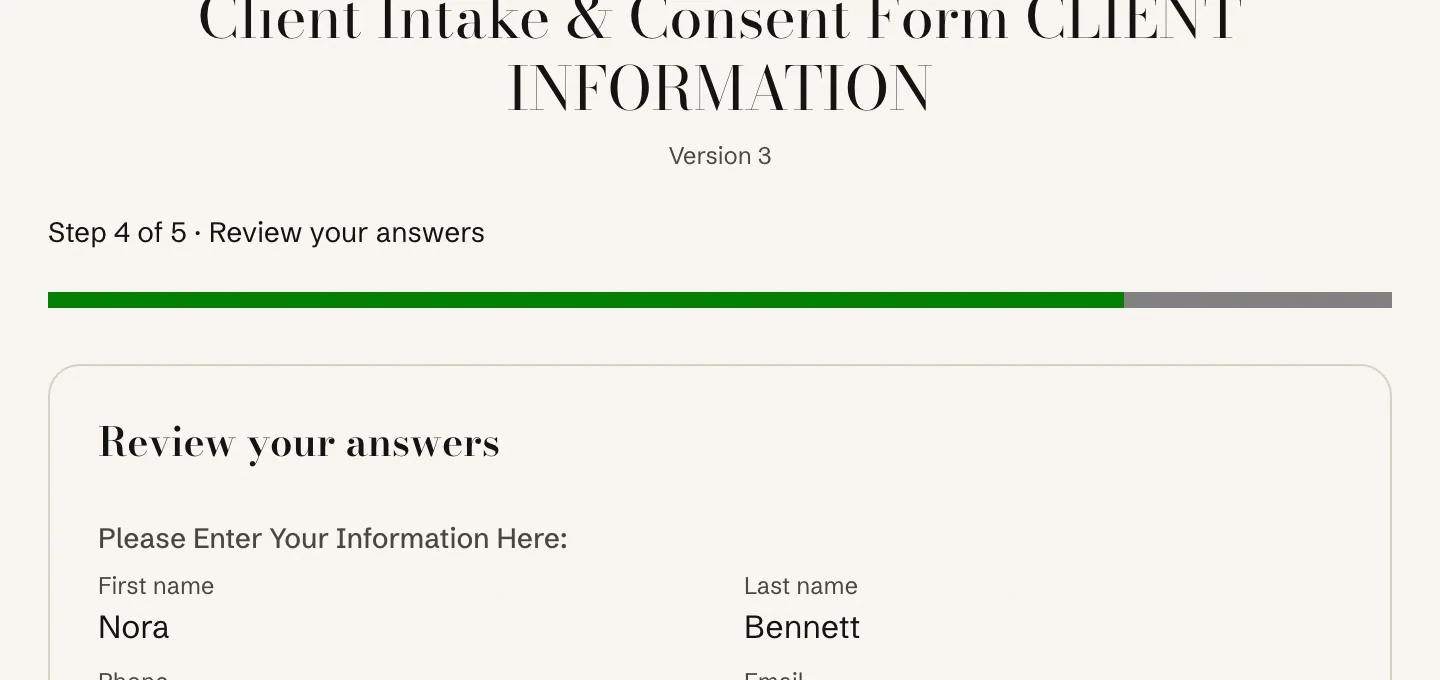
Step 5: Check your answers
When the last section is done, Review your answers shows everything you entered. Use Back to change anything, then choose Next.
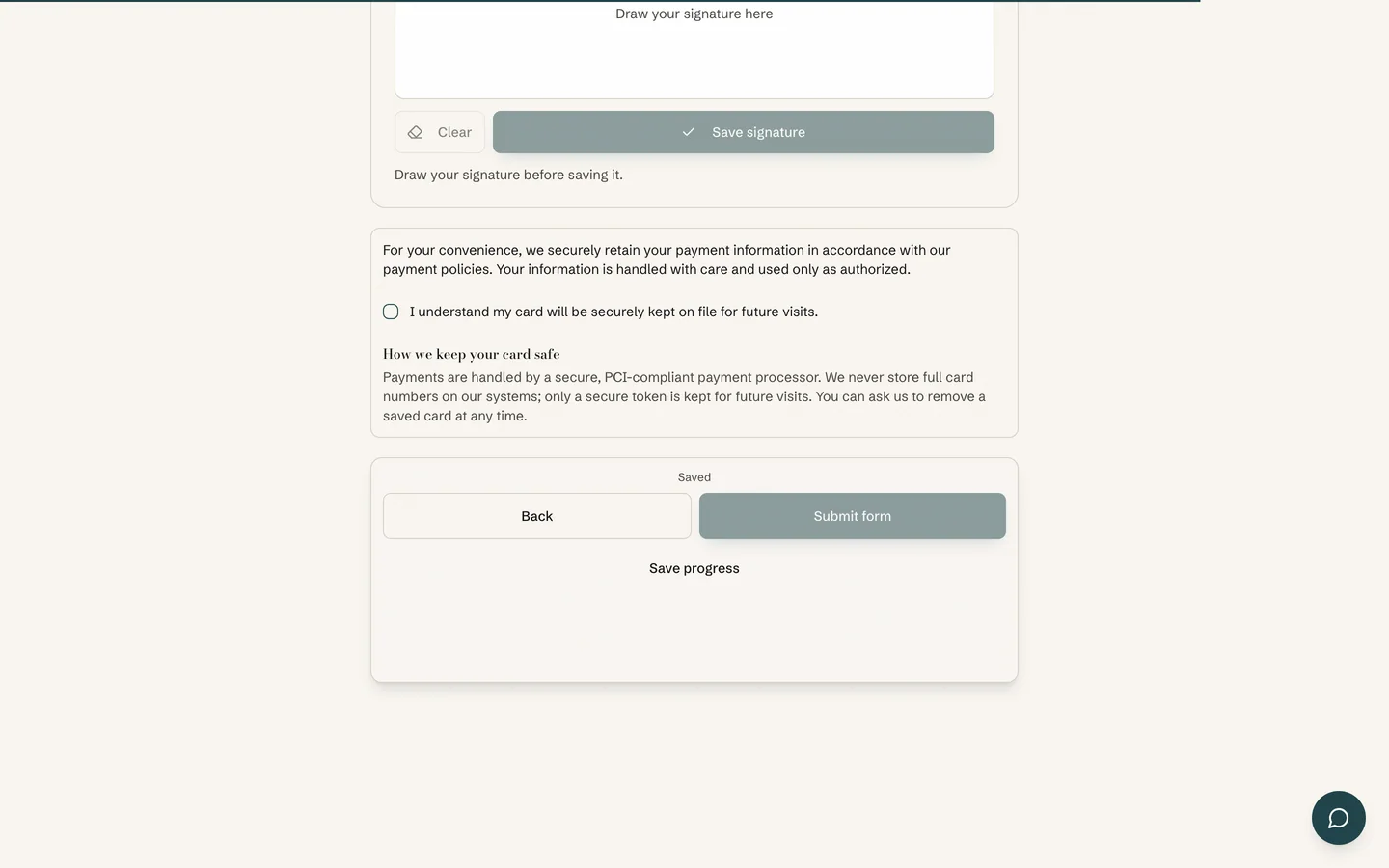
Step 6: Sign and submit
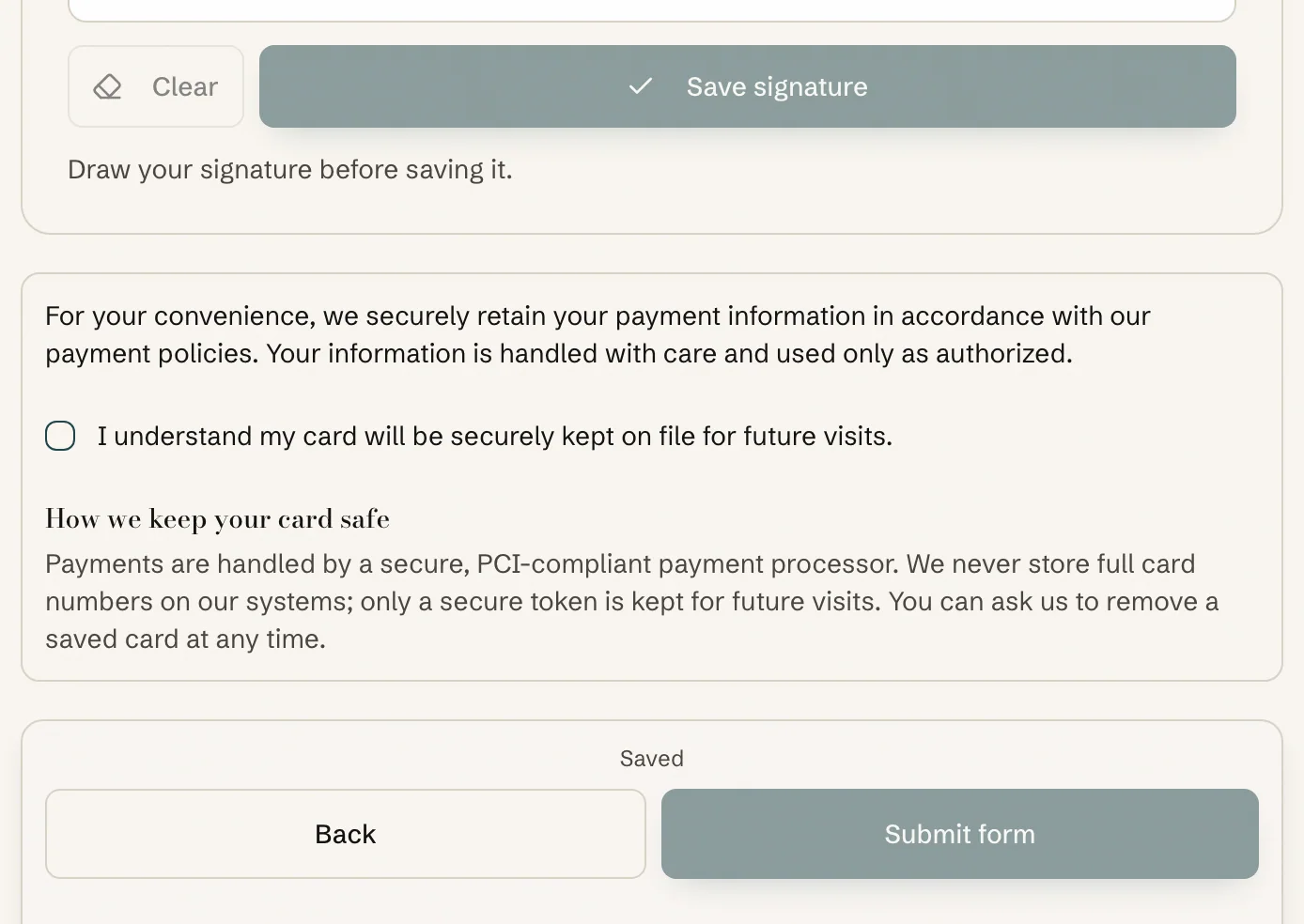
Draw your signature in the box with your mouse and choose Save signature. Tick any boxes the practice asks you to agree to, then press Submit form. The practice gets your form right away, and you can open a copy later under Intake Forms.
Still stuck?
Ask Kneadle from the chat button in your practice app. It can walk you through this screen or do it with you.
More in For your clients
 Buy a gift card onlinePick a design and an amount, choose how it arrives, add a note and pay on the practice's website. Share this with a client who wants to give a gift.
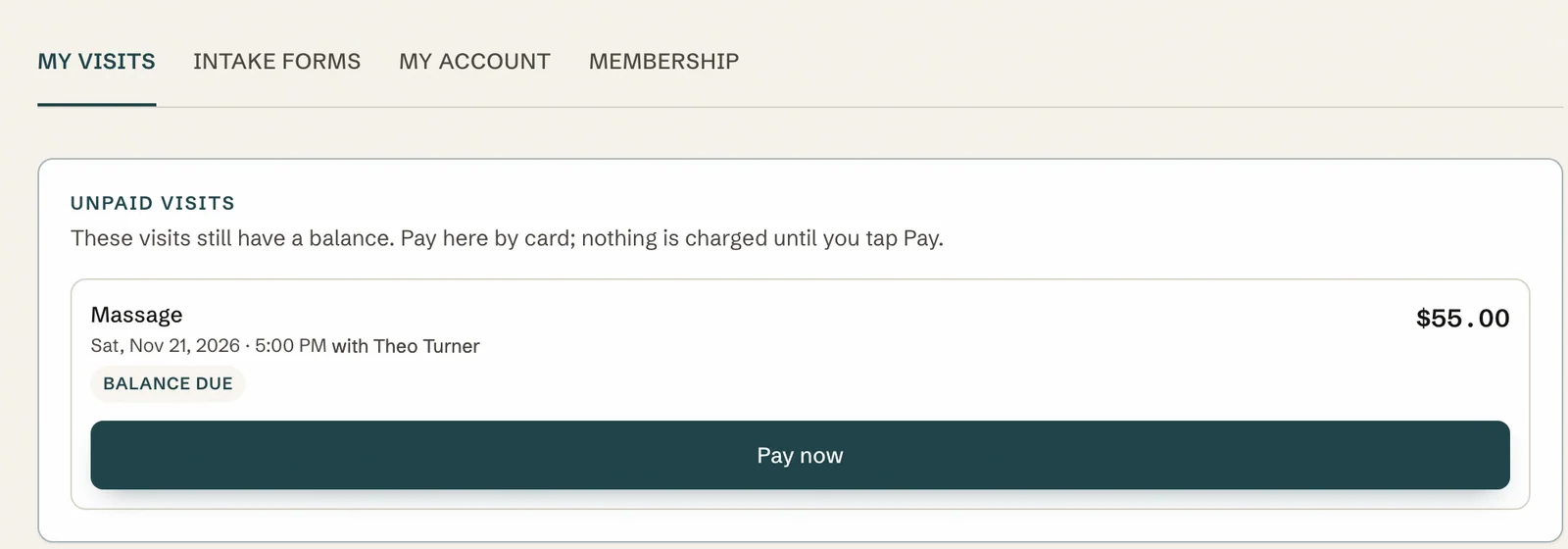 Pay what you owe for a visitPay a visit's balance by card from your client portal, with a tip if you like. Share this with a client who asks how to pay after a visit.