Set your business hours
Choose which days you are open and your opening times, then save them so clients see the right hours on your website.
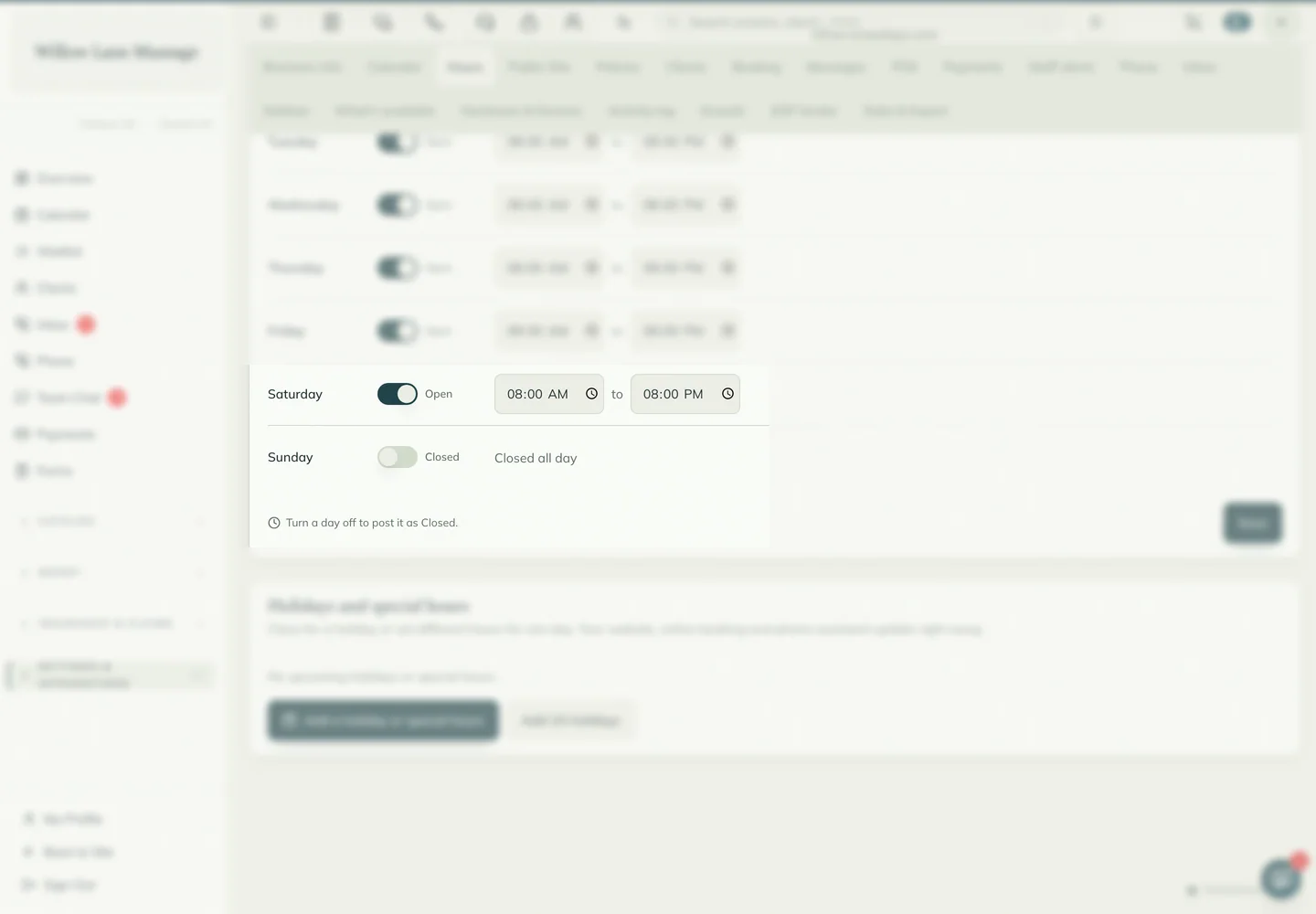
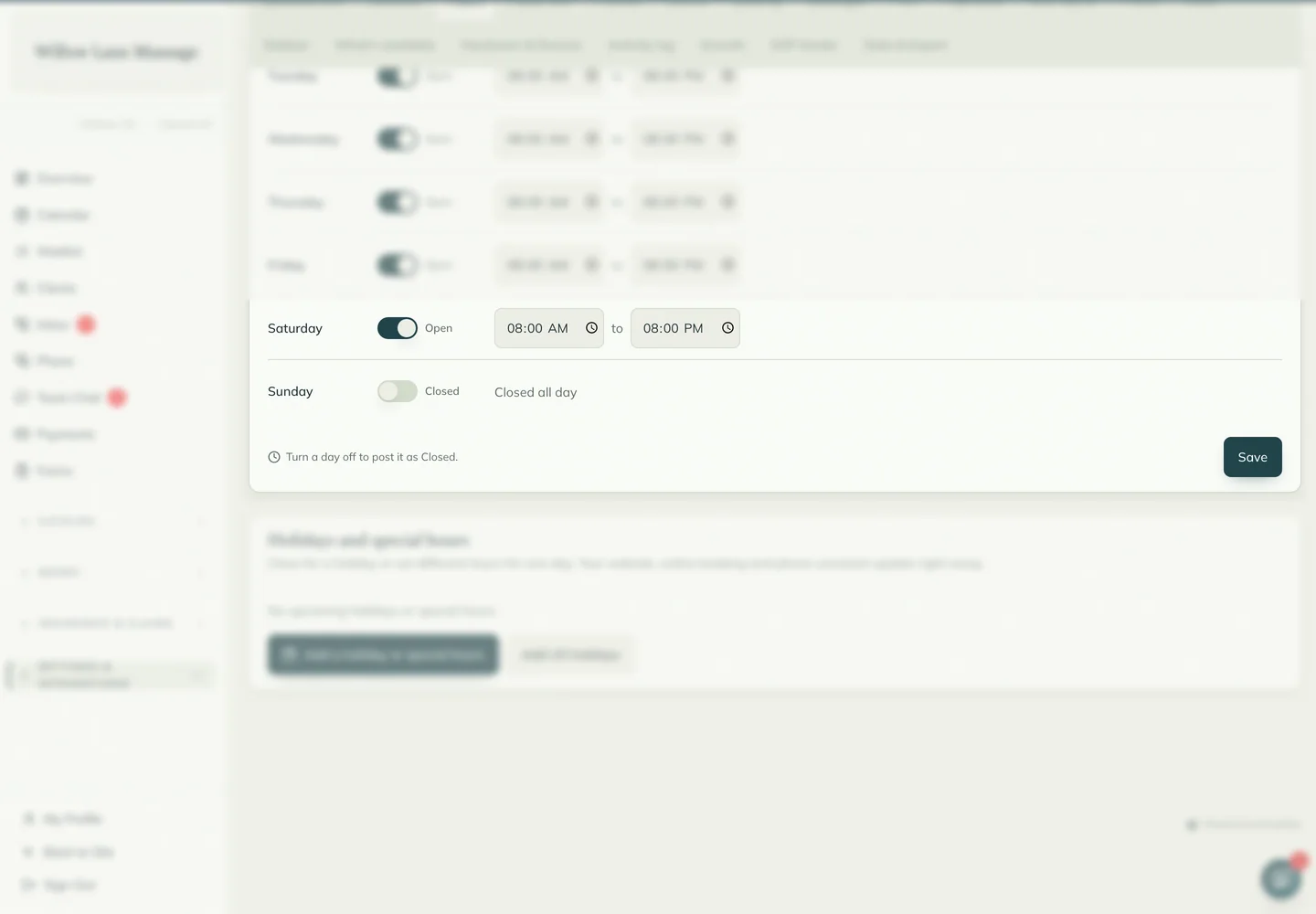
Step 1: Open Settings
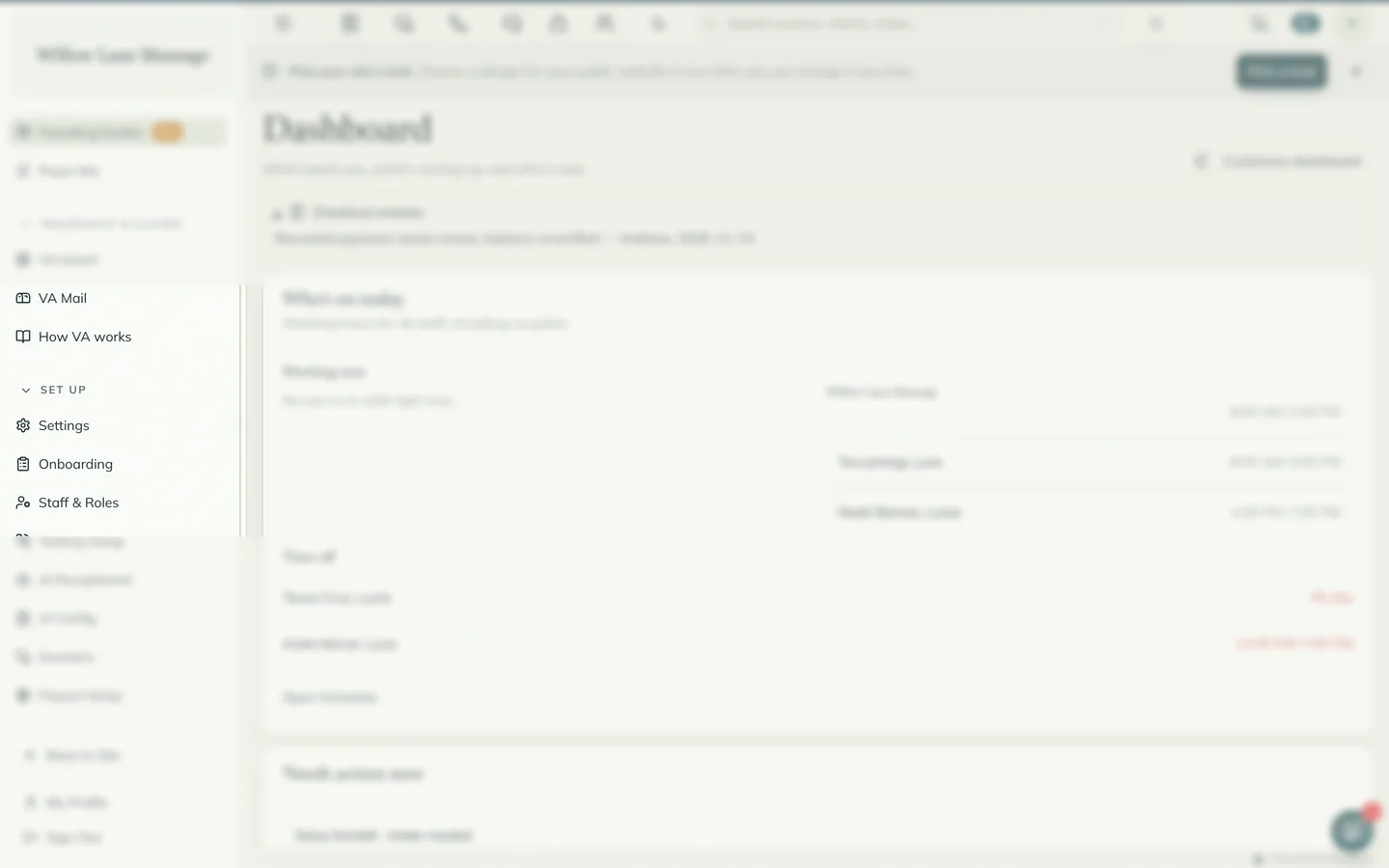
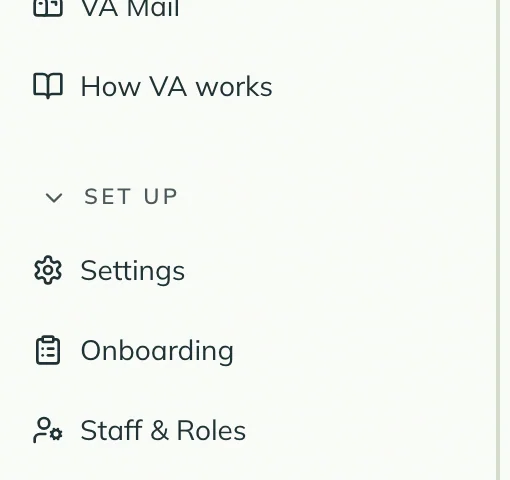
In the menu on the left, open Set up and choose Settings.
Step 2: Choose the Hours tab
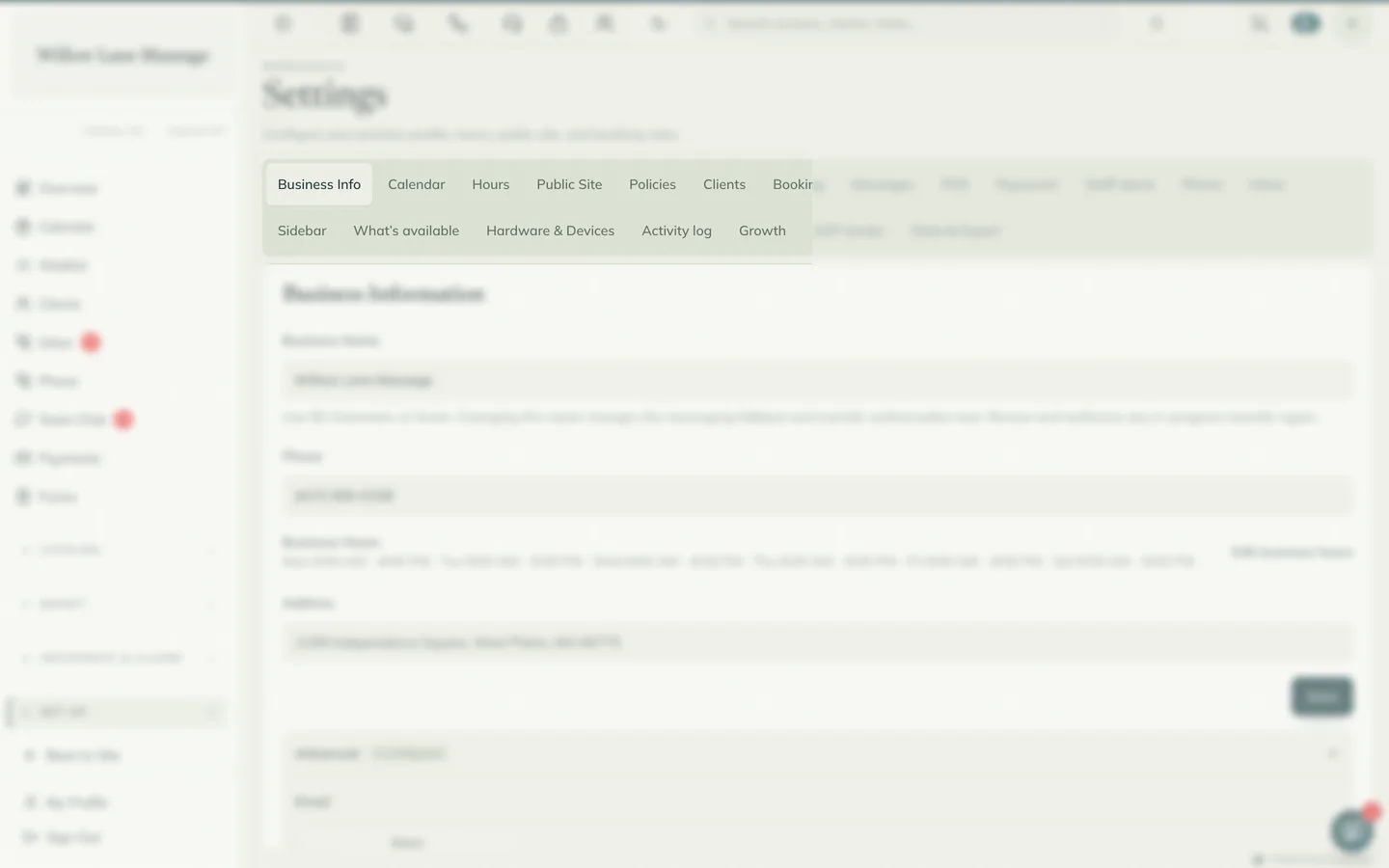
Along the top of Settings, choose Hours.

Step 3: Find Business Hours
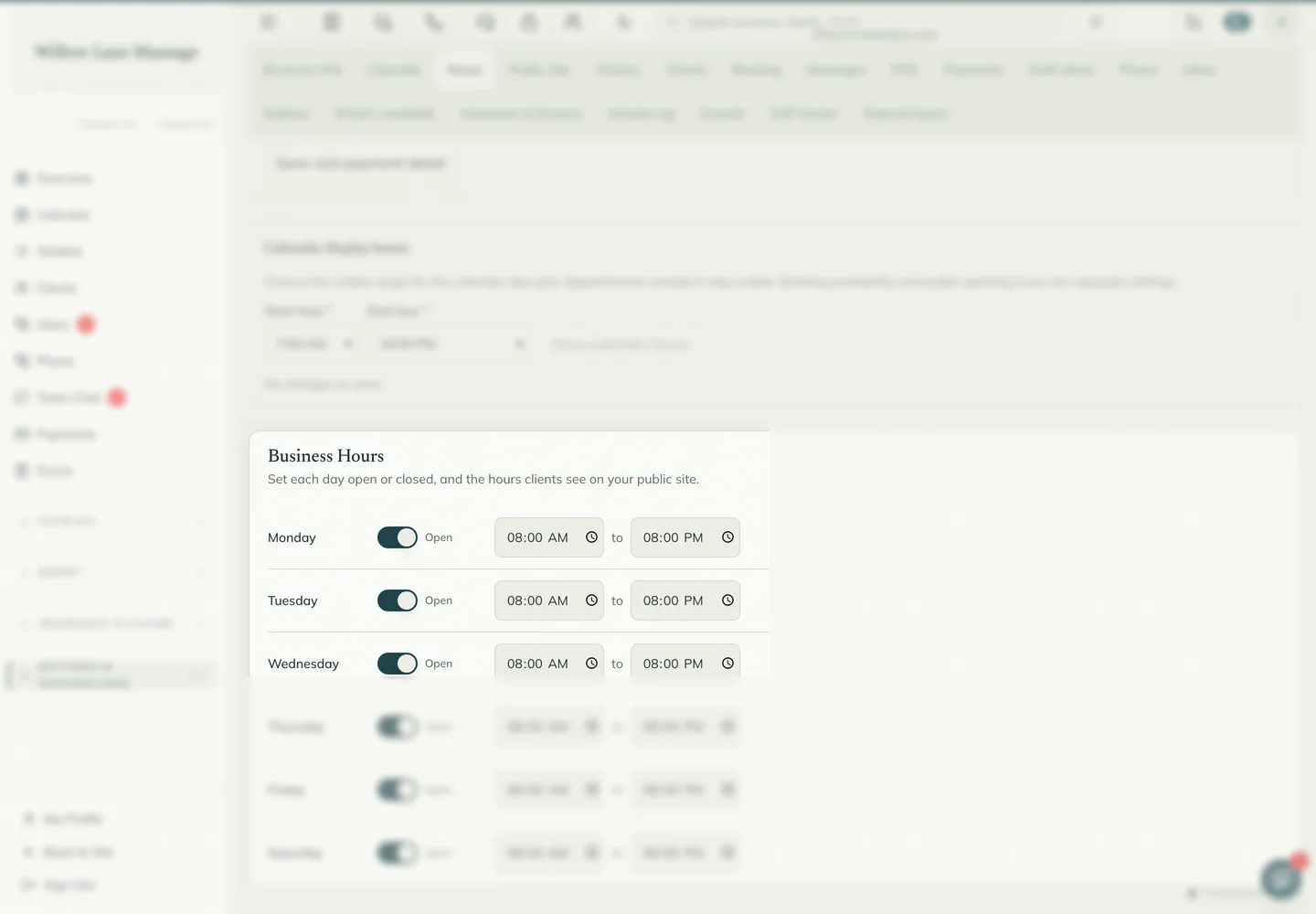
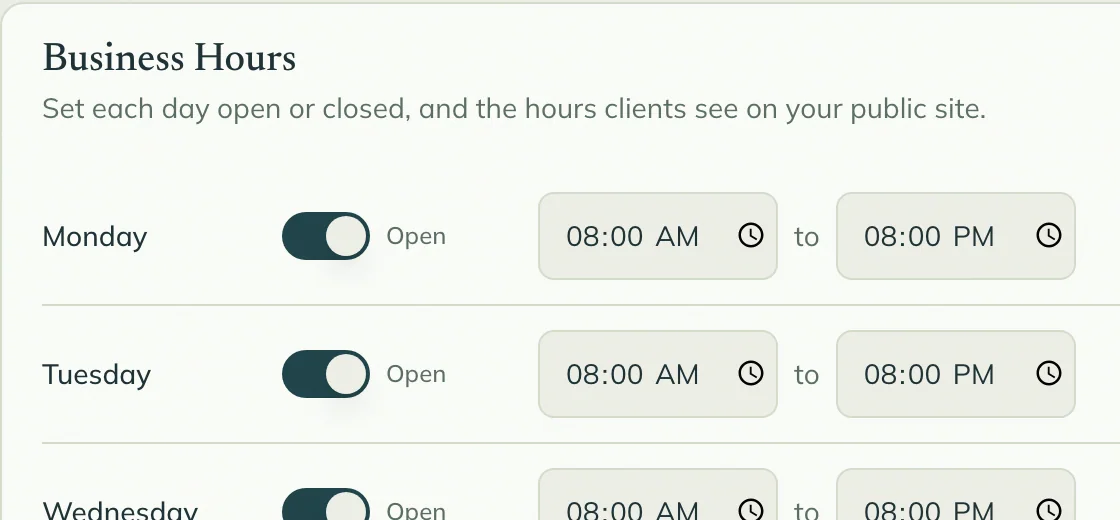
Scroll down to the Business Hours card. Its hours are the ones clients see on your website.
Step 4: Set each day's times
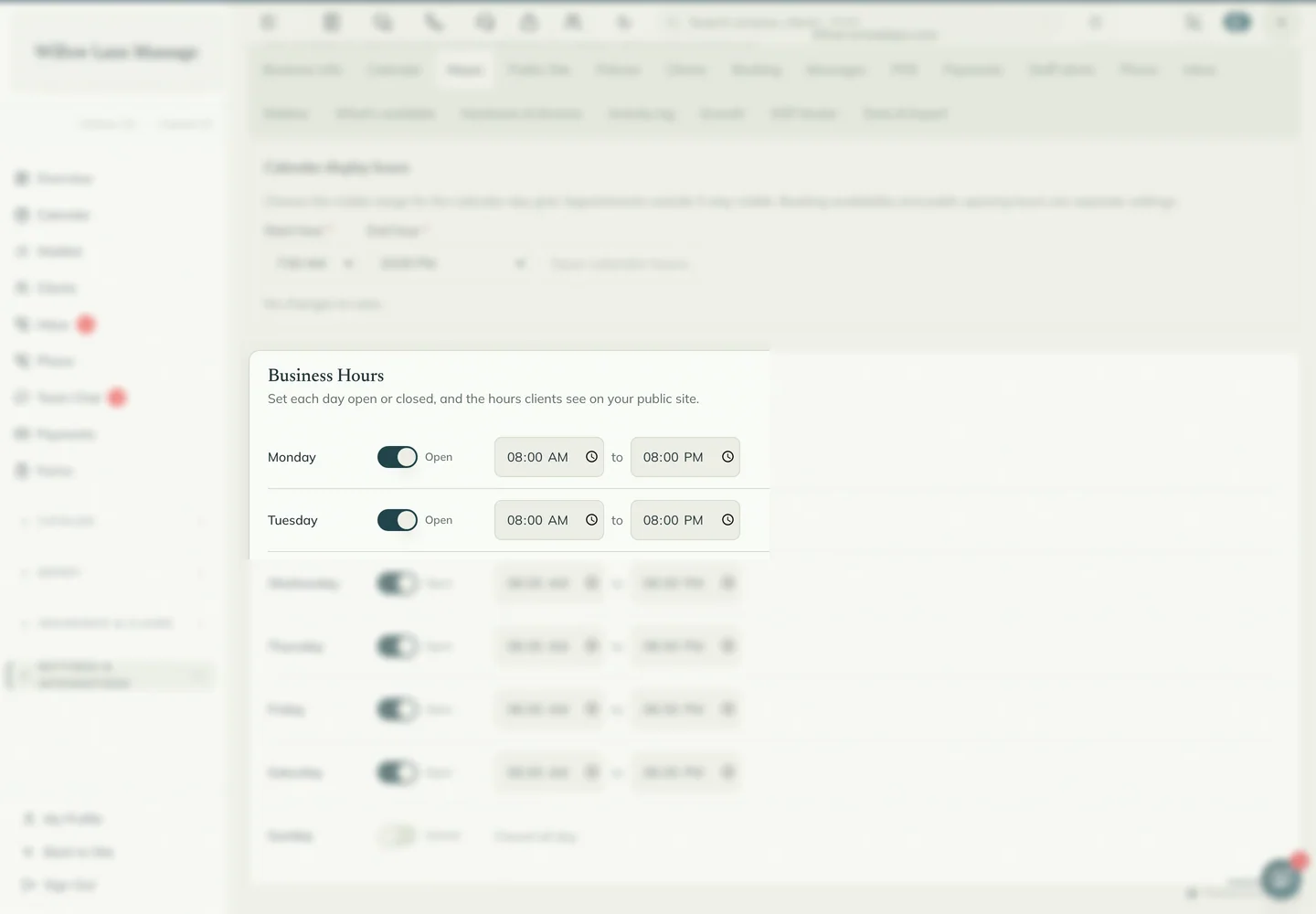
For each day, pick the time you open and the time you close.
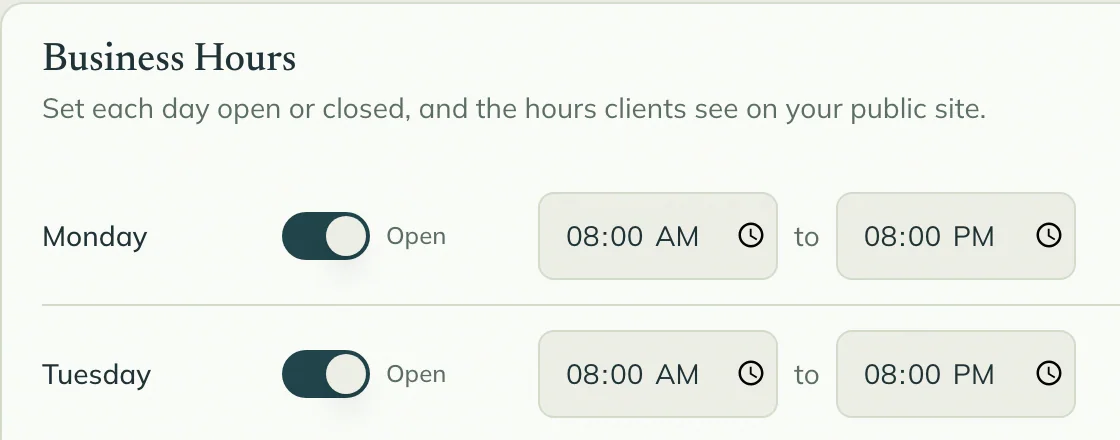
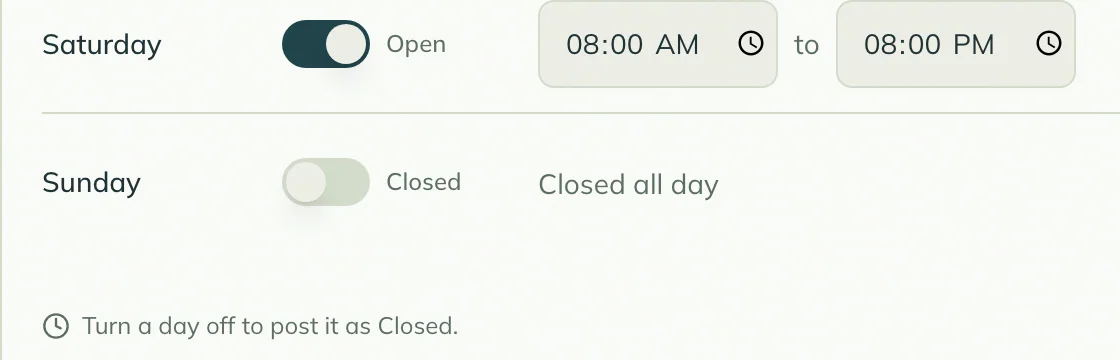
Step 5: Close a day
Turn a day's switch off to show it as Closed. Turn it back on to open that day again.
Step 6: Press Save
Nothing changes until you press Save at the bottom right of the Business Hours card. Other cards on this page have their own Save buttons, so use this one.

Step 7: Check that it saved
A note saying Business hours saved pops up at the bottom of the screen. If you see Failed to save hours or a red line under a day, fix that day and press Save again. To be sure, reload the page: your new hours should still be there.
Still stuck?
Ask Kneadle from the chat button in your practice app. It can walk you through this screen or do it with you.
More in Calendar and visits
 Add a VA authorization and book against itEnter a VA referral's visits and dates so KneadOps counts each visit and warns you before the visits run out.
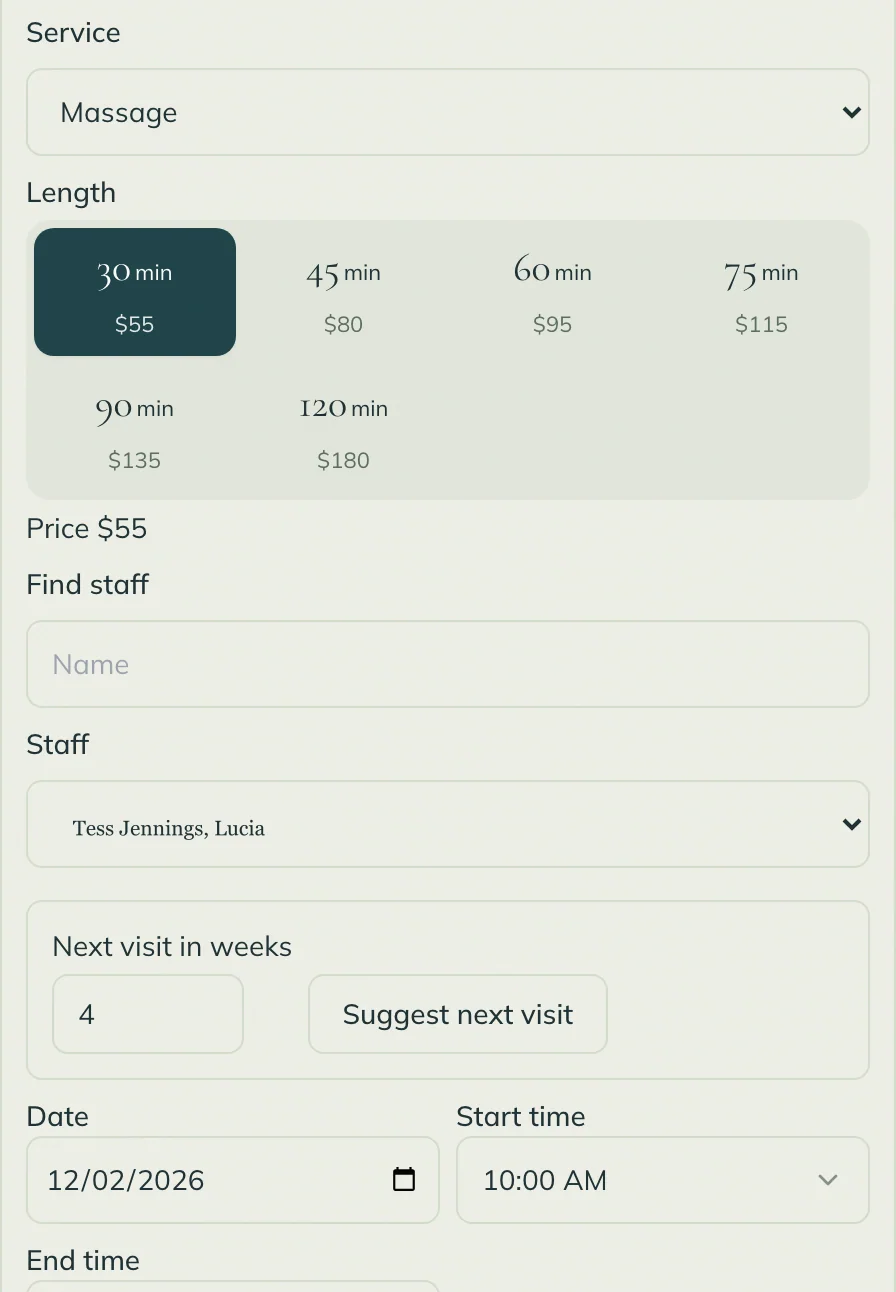 Book a repeating series of visitsBook a client for the same time every week or every few weeks in one go, check each date, and choose what happens when one doesn't fit.
 Book a visit for a clientPut a client on the calendar from the front desk: pick the client, the treatment, the therapist and a time.