Save a card on file and choose a card hold
Get a client's card saved without typing it yourself, and decide which bookings need a card to confirm.
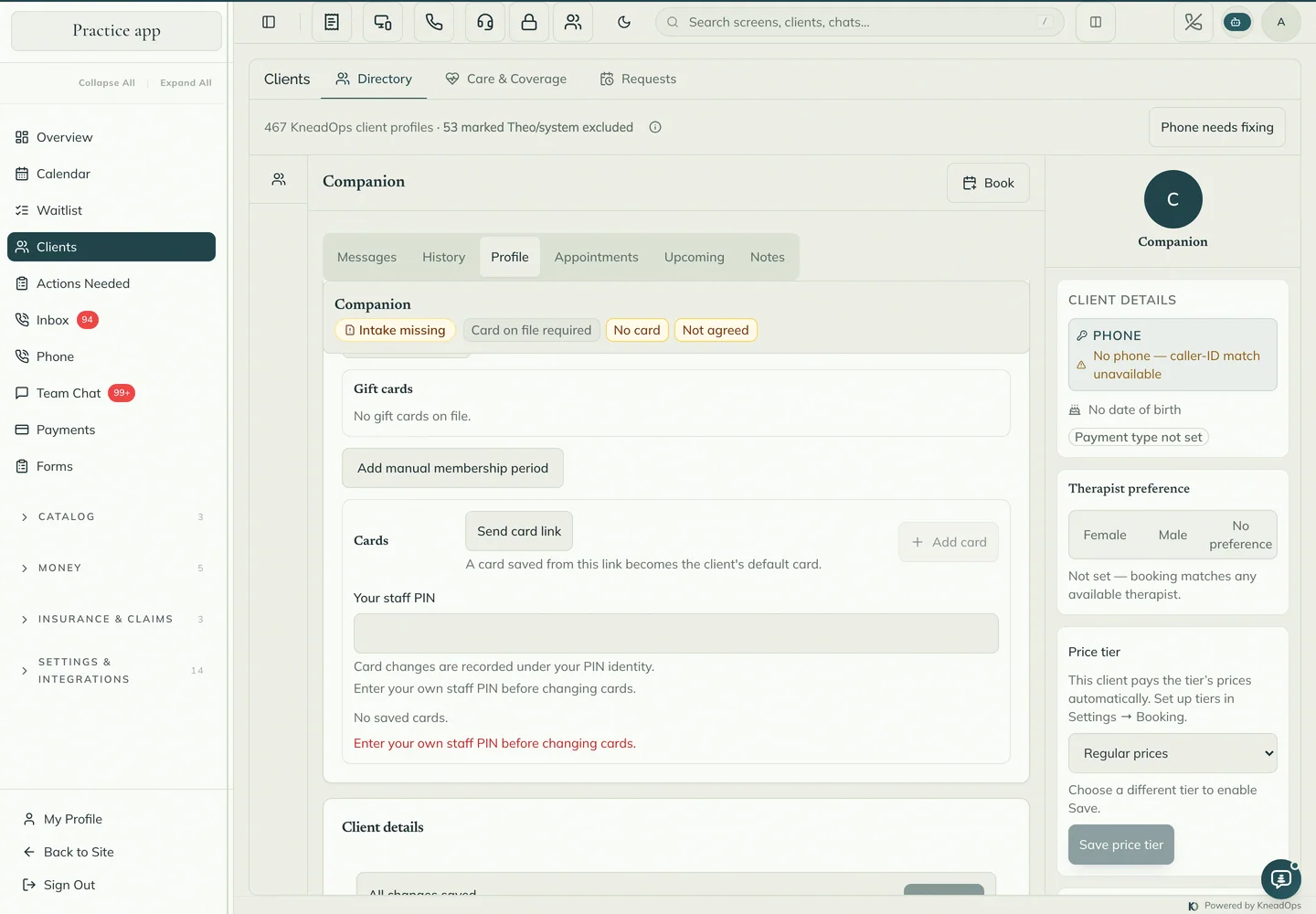
Step 1: Open the client's cards
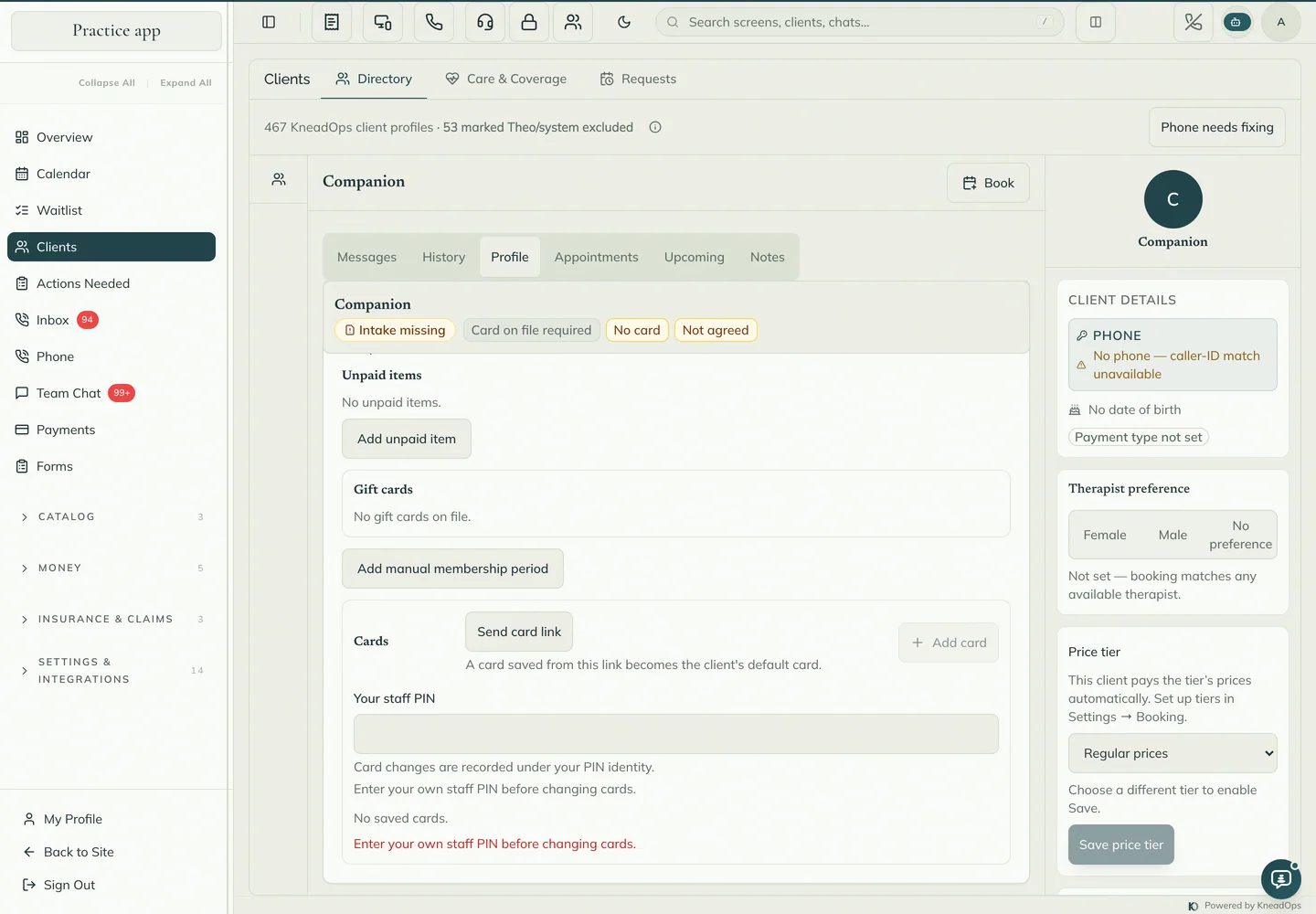
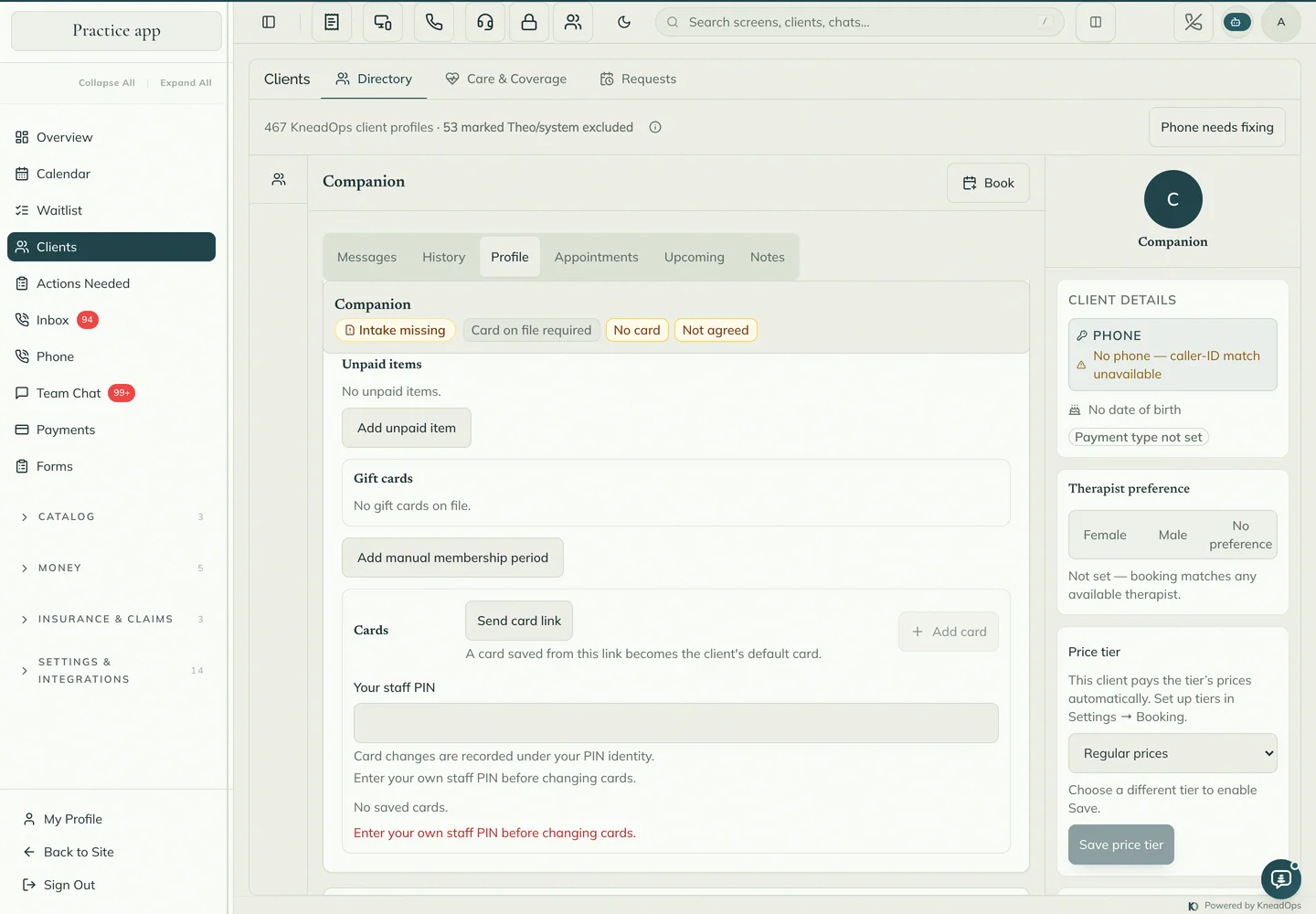
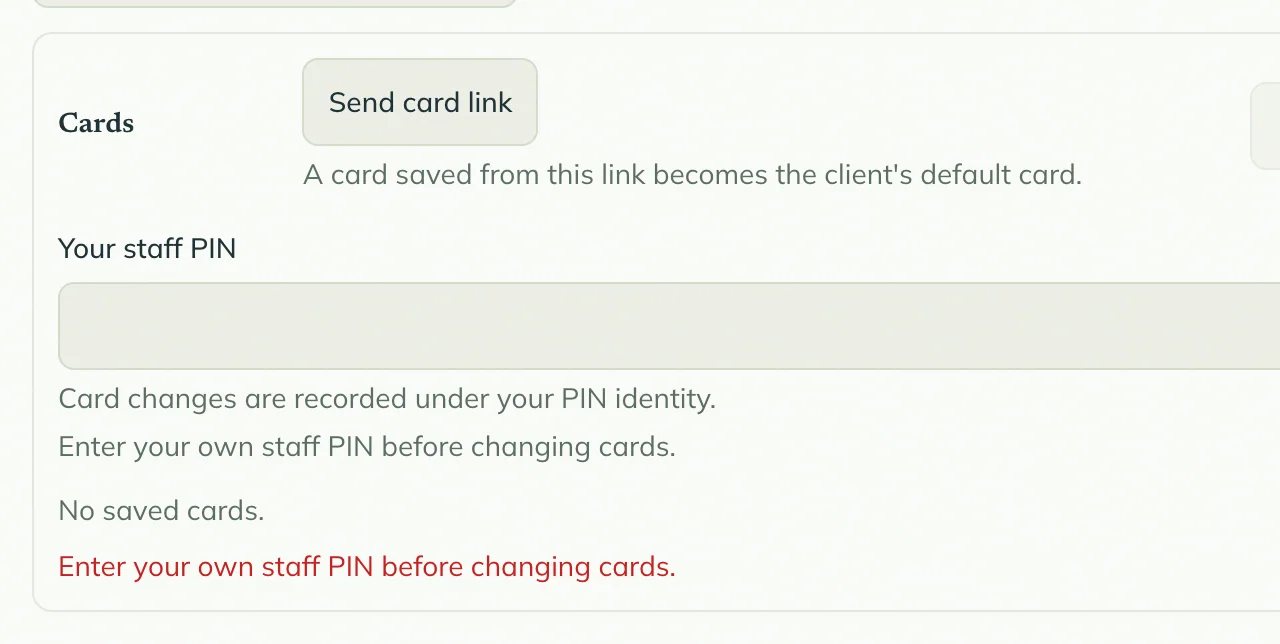
Open Clients, press the client's name, and scroll to Balances and card. The Cards box shows the cards they have saved.
Step 2: Send them a card link
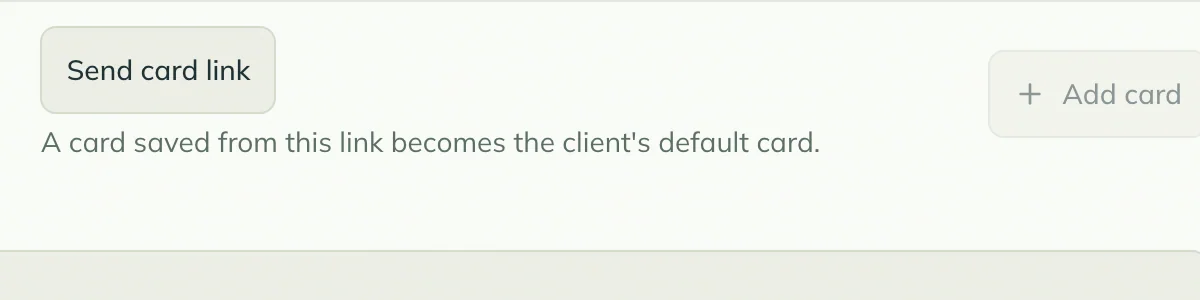
Press Send card link. It drafts a text with a secure, single-use link; check it and send it. The client types their own card on that page, so nobody at the desk sees or writes down the number. Saving a card never charges it.
Step 3: Or add it at the desk
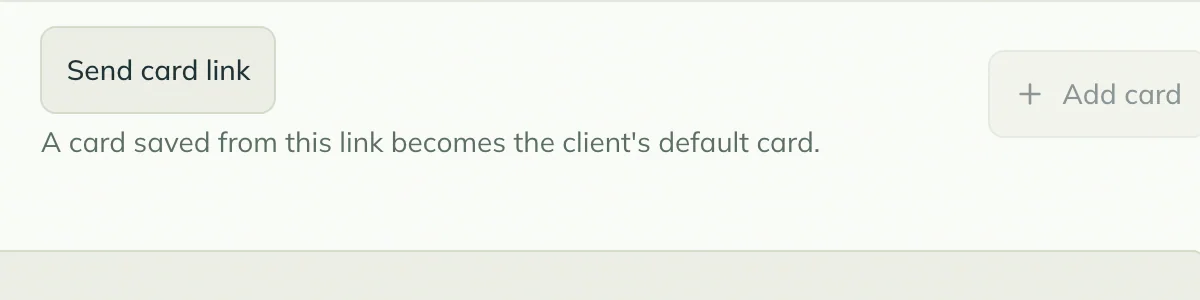
If the client is with you, type your staff PIN if your practice asks for it, press Add card, then choose Card Reader tap / insert so they tap or insert their own card. Tick the consent box, then follow the reader. Type card opens a secure form for a card read out on the phone.
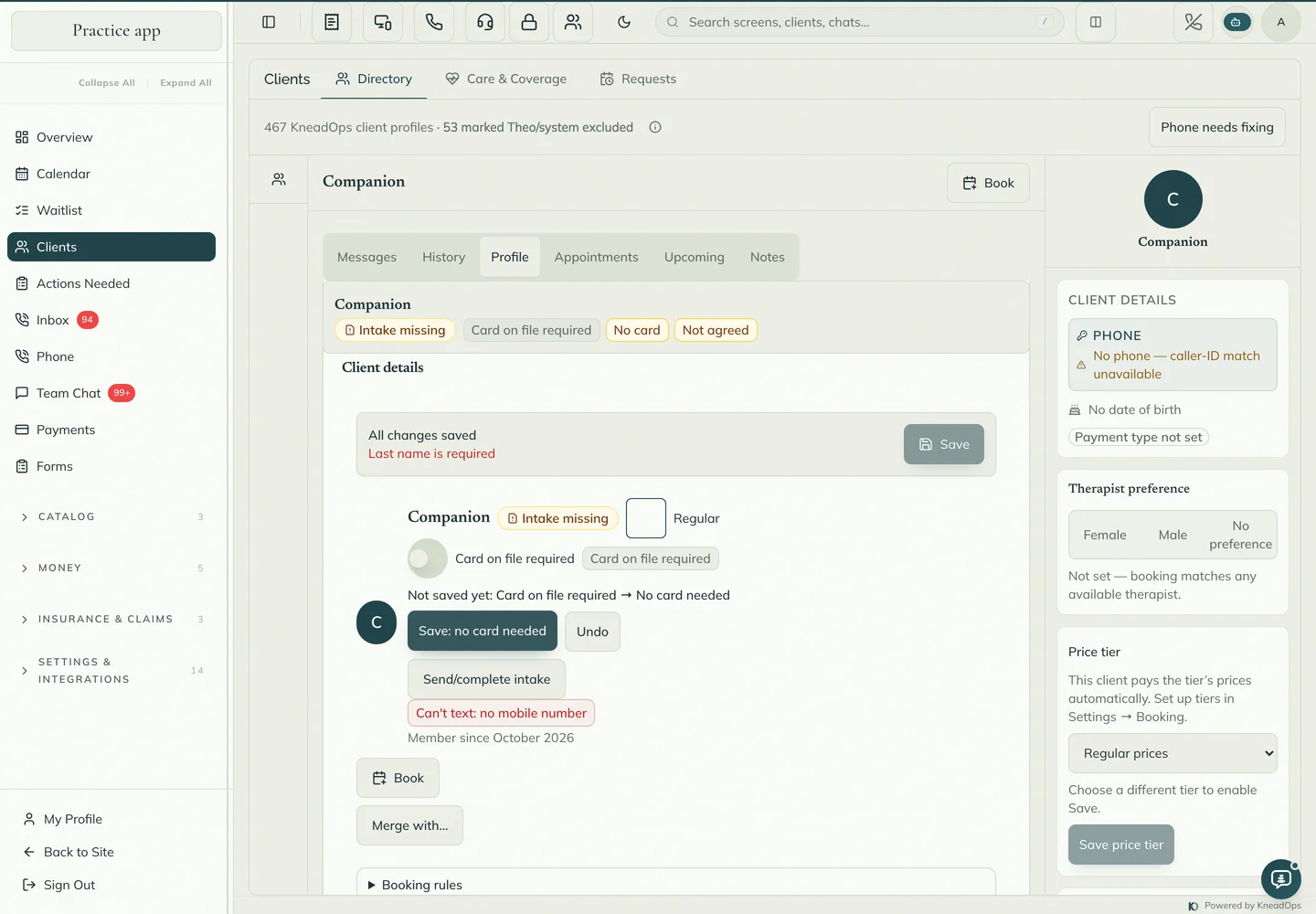
Step 4: No card for a regular
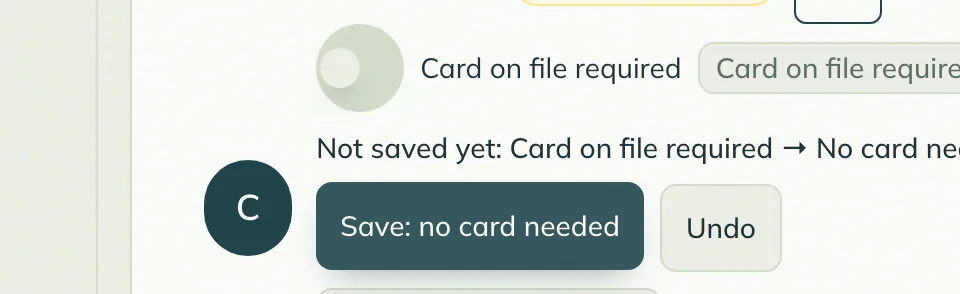
For a client you trust, turn off Card on file required near the top of their profile and press Save: no card needed. Their new bookings then start as Card not required. Only an owner or manager can change it.
Step 5: Choose the card hold on a visit
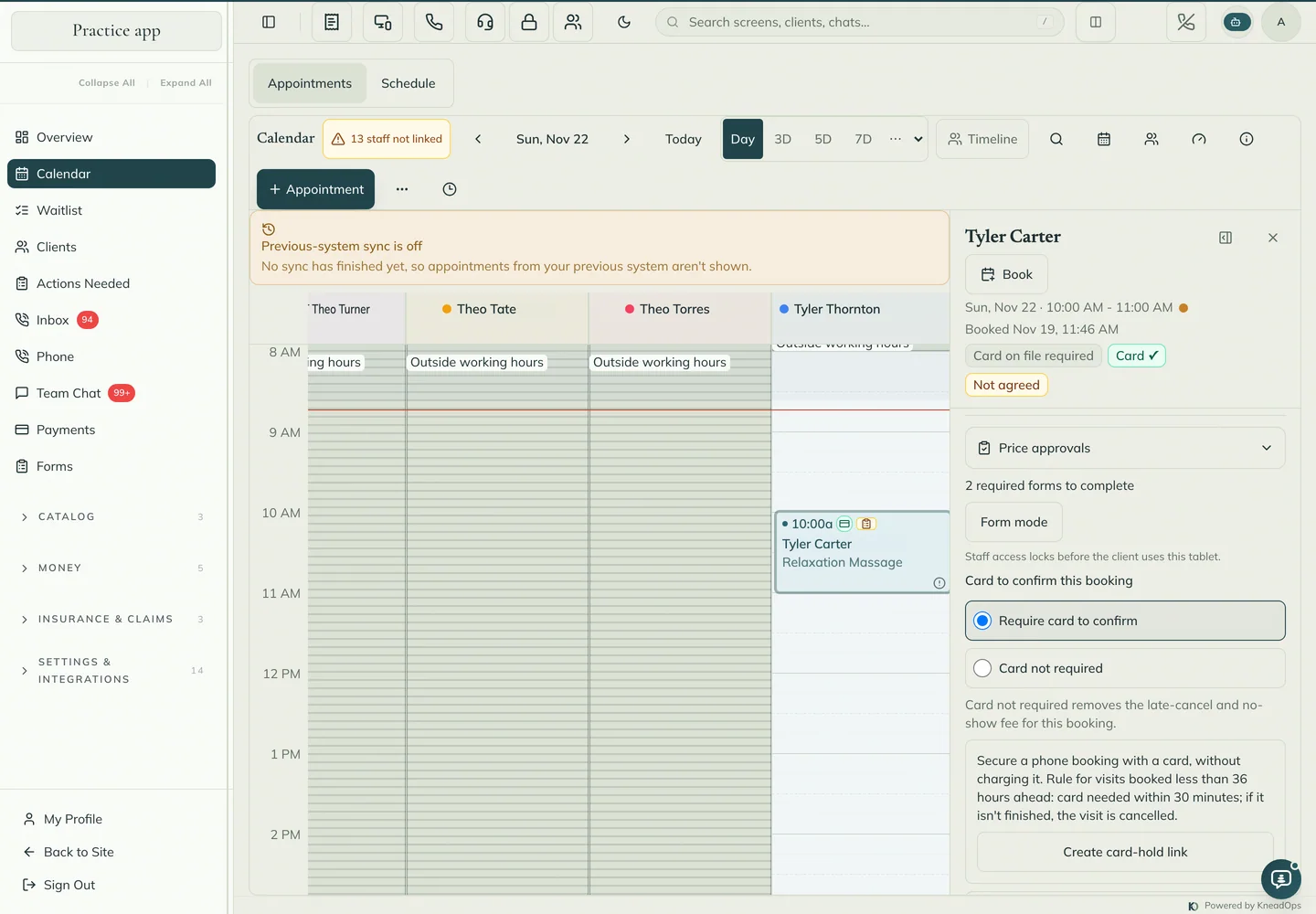
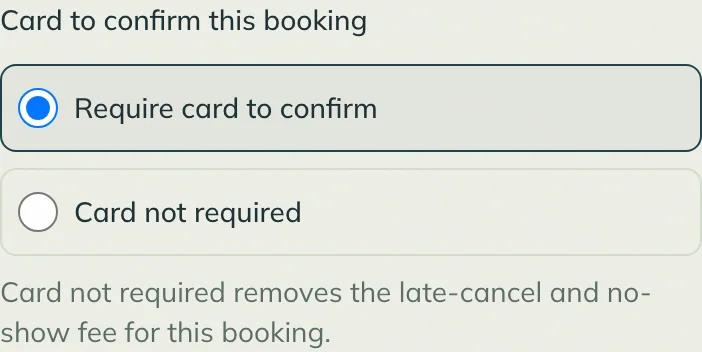
On the Calendar, open the visit. Under Card to confirm this booking, Require card to confirm asks the client for a card before the visit is confirmed.
Step 6: Or mark it Card not required
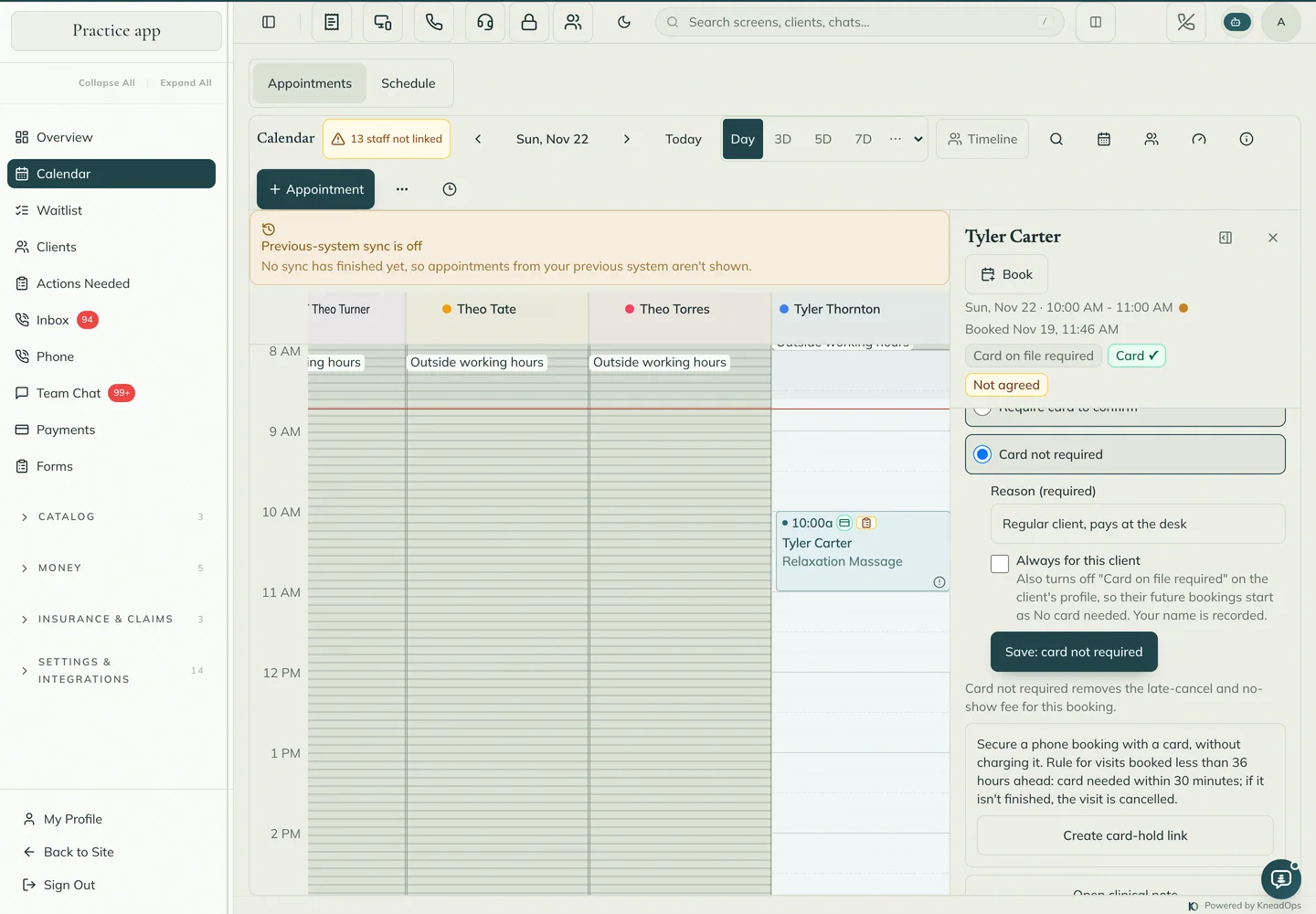
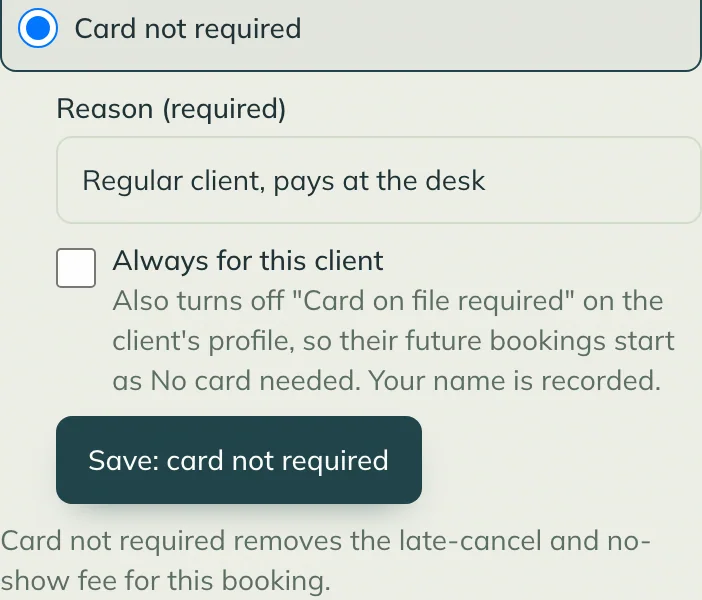
Choose Card not required, type a short reason, tick Always for this client if it should stick, and press Save: card not required. That visit then has no card hold and no late-cancel or no-show fee, and the client isn't messaged.
Still stuck?
Ask Kneadle from the chat button in your practice app. It can walk you through this screen or do it with you.
More in Checkout and payments
 Check out a couples or group visitA couples or group visit checks out once for everyone: open the group, check the package price, then take one payment.
 Check out a member's visitWhen a member comes in, their membership covers the visit at checkout. Check it shows, then finish the checkout.
 Refund a paymentGive a client their money back, all of it or part, from the sale they paid for. Card refunds go back to the card; cash refunds are recorded from the drawer.