Check out a member's visit
When a member comes in, their membership covers the visit at checkout. Check it shows, then finish the checkout.
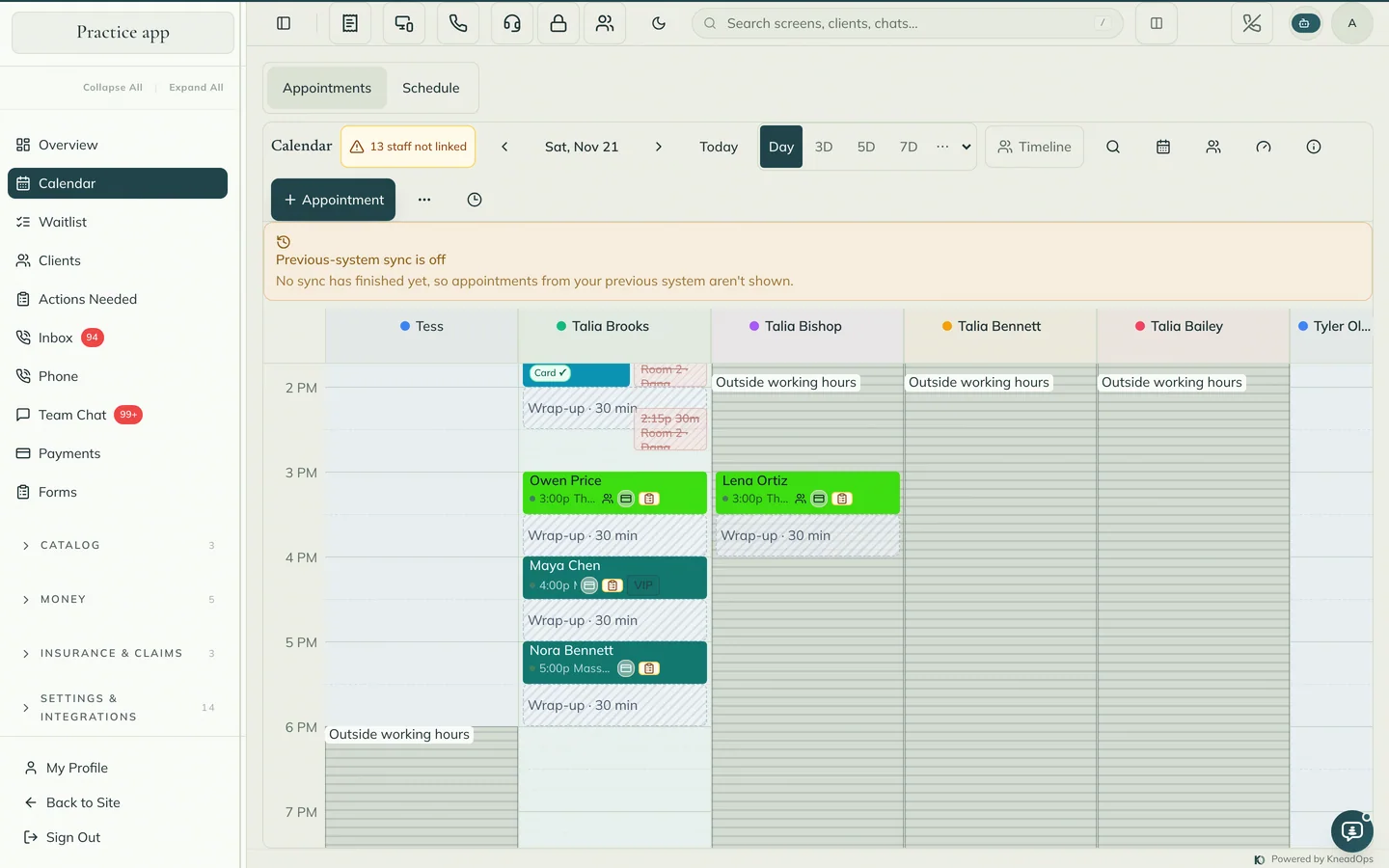
Step 1: Open the member's visit
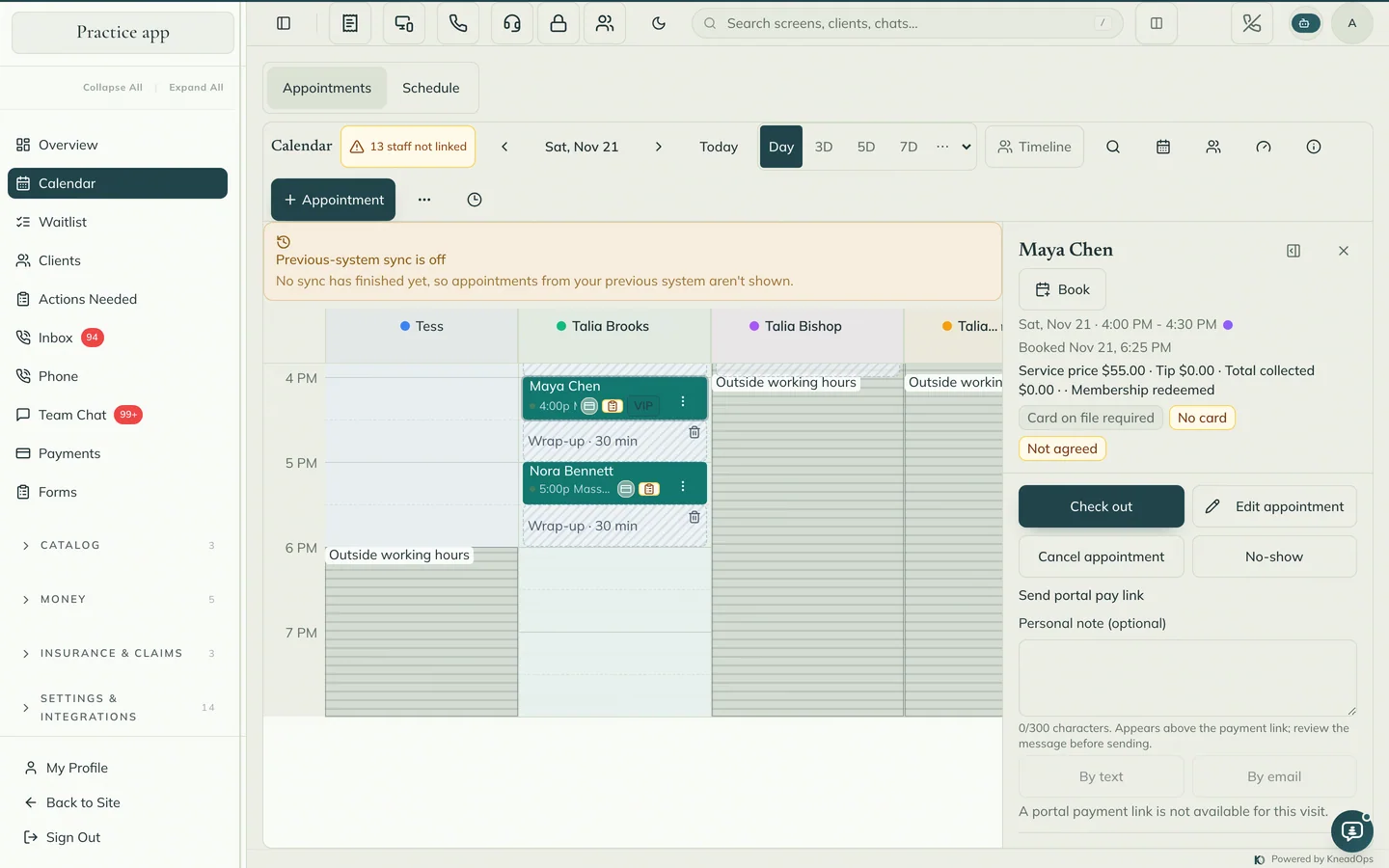
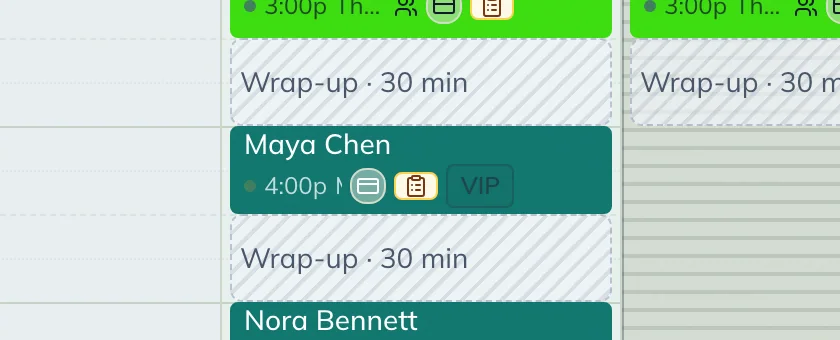
On the Calendar, click the member's visit. Its details open on the right.
Step 2: Check the membership is used
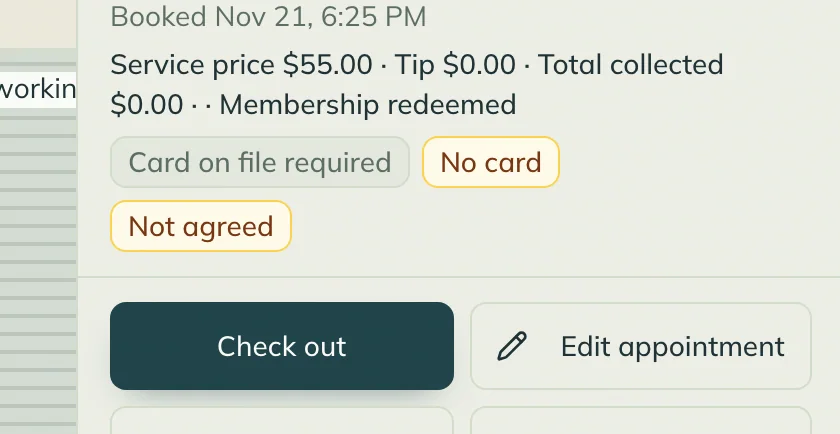
The details say Membership redeemed when the visit is covered by the client's membership. If it doesn't, the client may have no visits left this month, or the service isn't part of their plan.
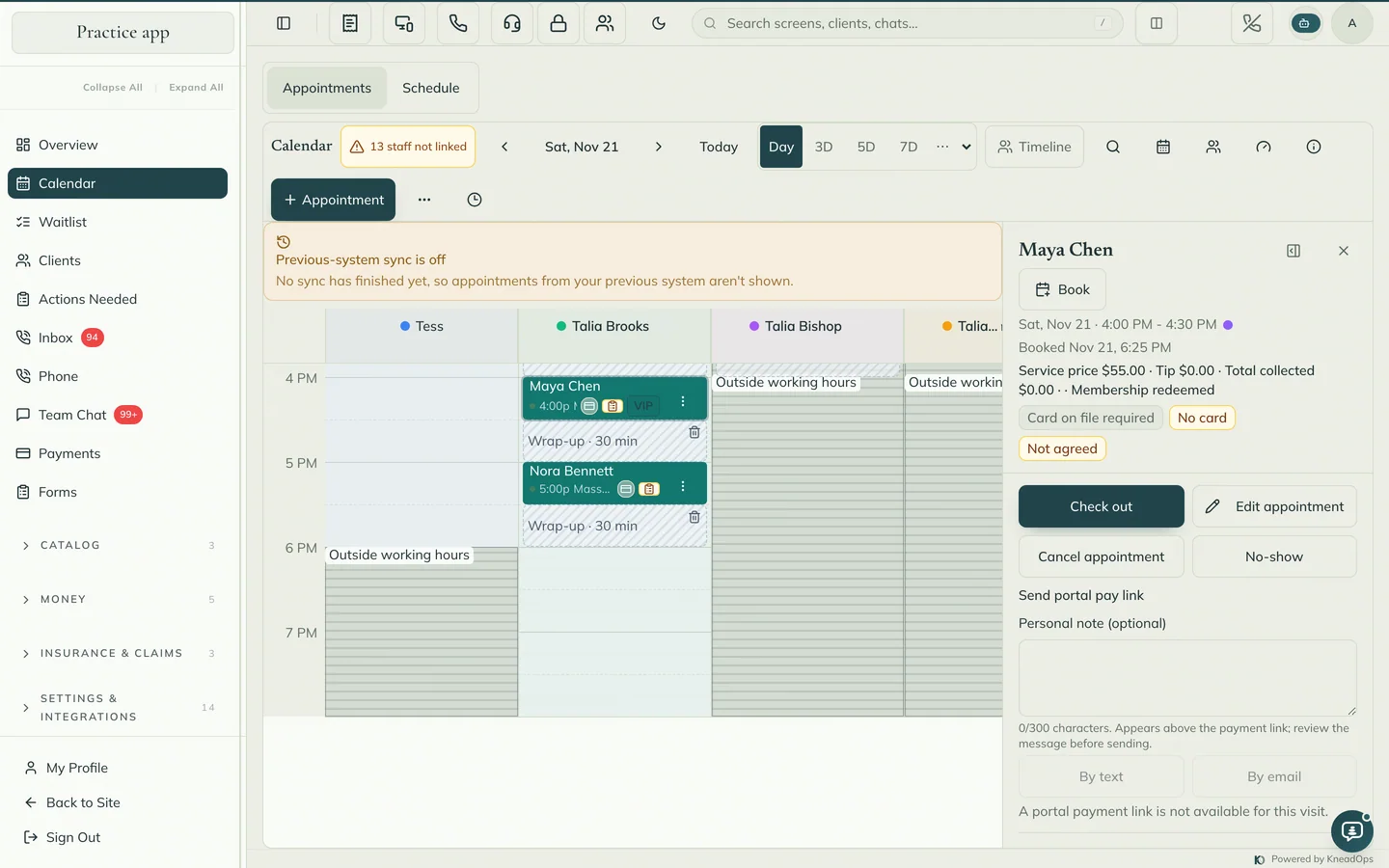
Step 3: Press Check out
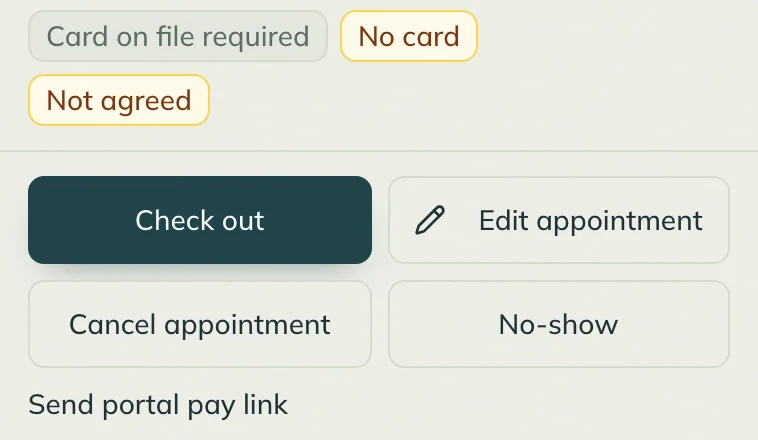
Press Check out at the top of the visit's details.
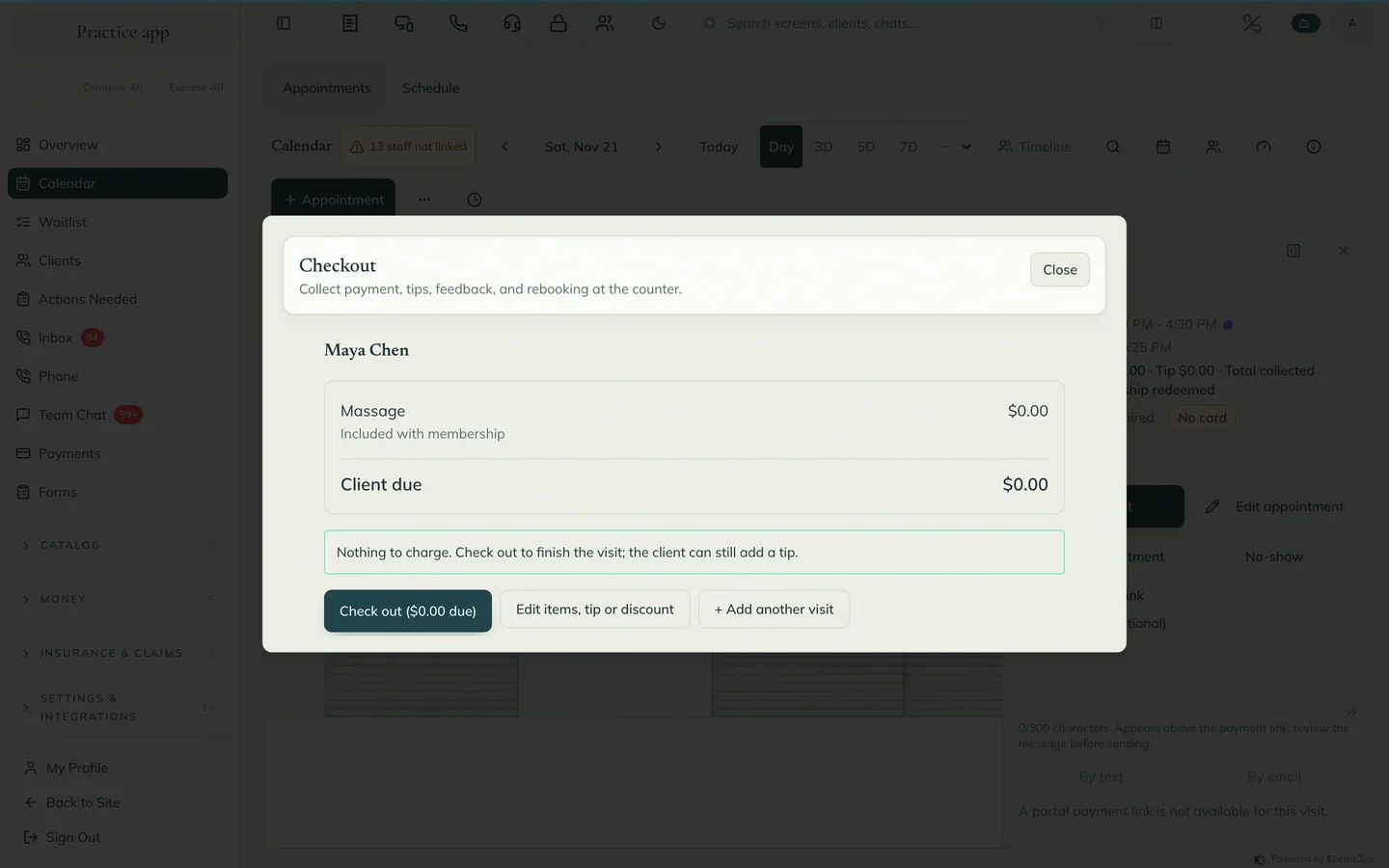
Step 4: See what the membership covers
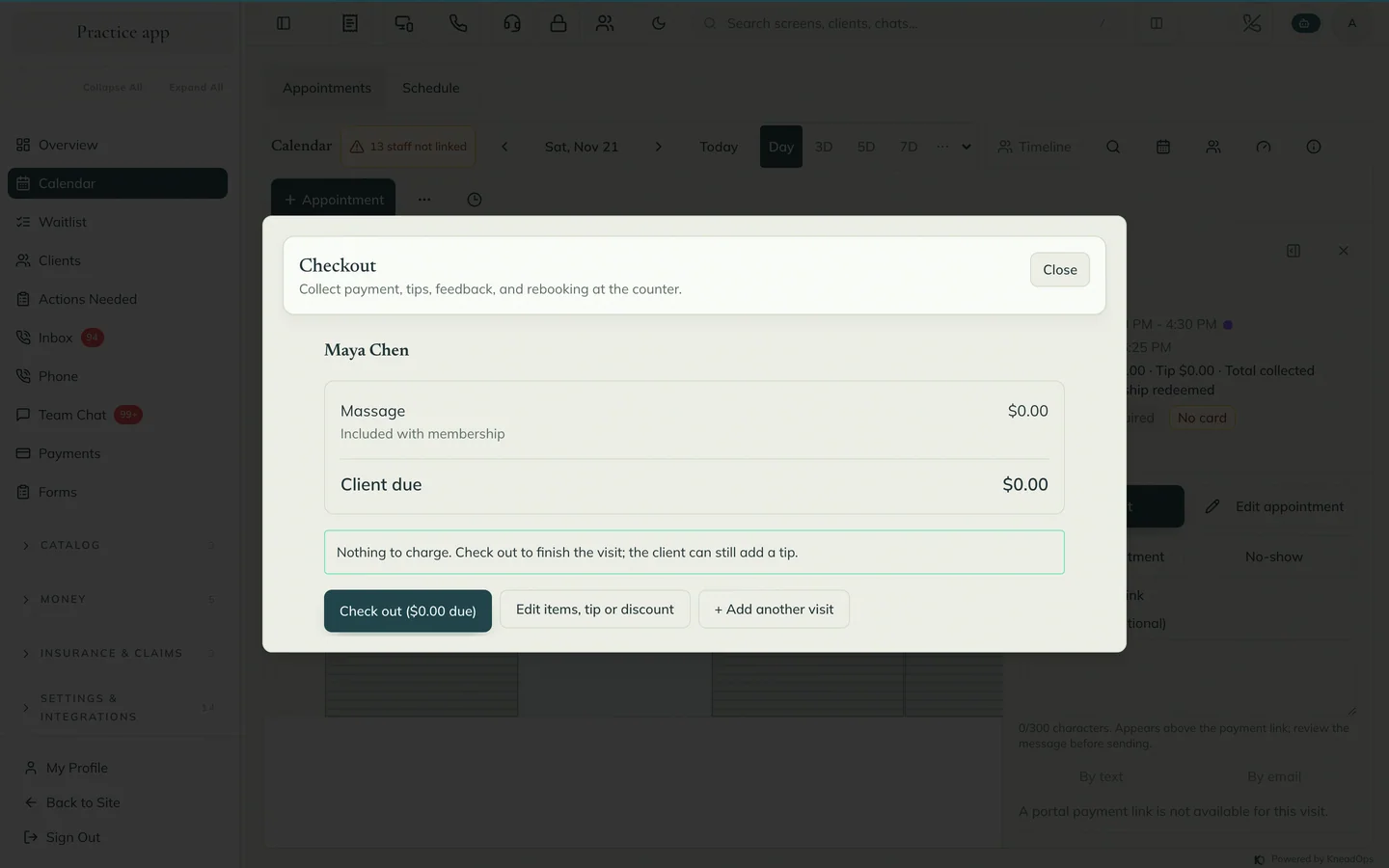
The visit's line says Included with membership, and Client due shows what is left to pay, often $0.00. Nothing is charged yet.
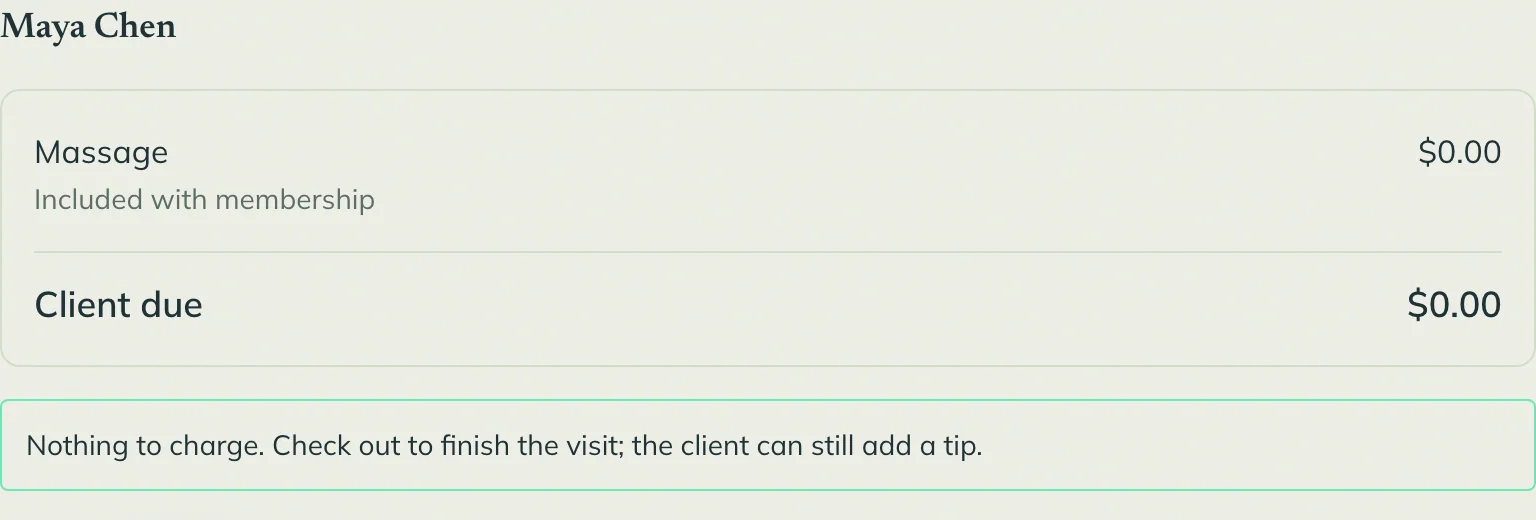
Step 5: Finish the checkout
Nothing left to pay? Press Check out ($0.00 due) to finish the visit. The client can still leave a tip: press Edit items, tip or discount first. If something is still owed (an add-on or a longer visit), take it with cash or card as in a normal checkout.
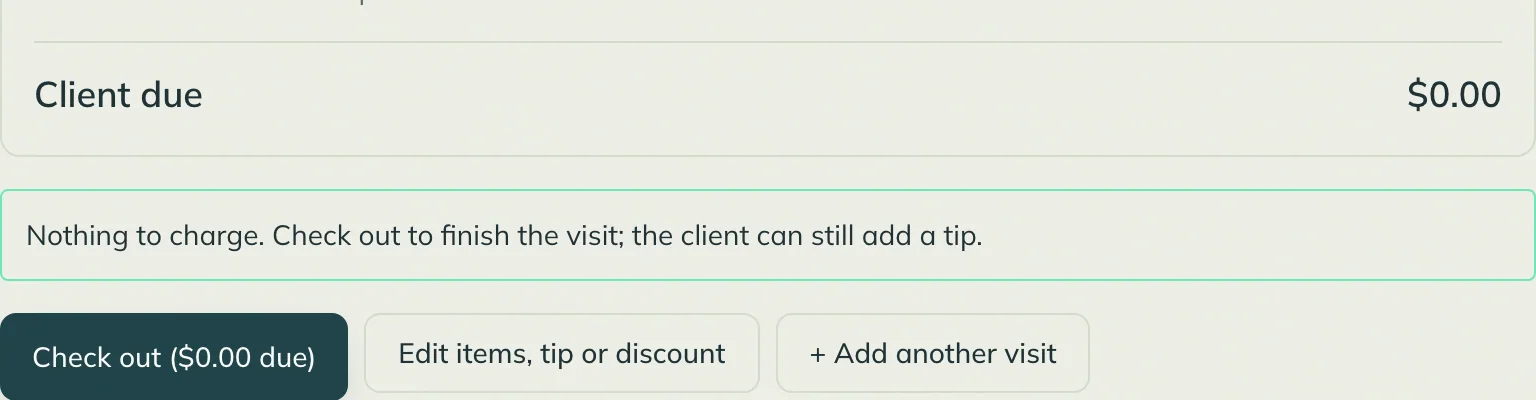
Still stuck?
Ask Kneadle from the chat button in your practice app. It can walk you through this screen or do it with you.
More in Checkout and payments
 Check out a couples or group visitA couples or group visit checks out once for everyone: open the group, check the package price, then take one payment.
 Refund a paymentGive a client their money back, all of it or part, from the sale they paid for. Card refunds go back to the card; cash refunds are recorded from the drawer.
 Save a card on file and choose a card holdGet a client's card saved without typing it yourself, and decide which bookings need a card to confirm.