Refund a payment
Give a client their money back, all of it or part, from the sale they paid for. Card refunds go back to the card; cash refunds are recorded from the drawer.
Step 1: Open Payments
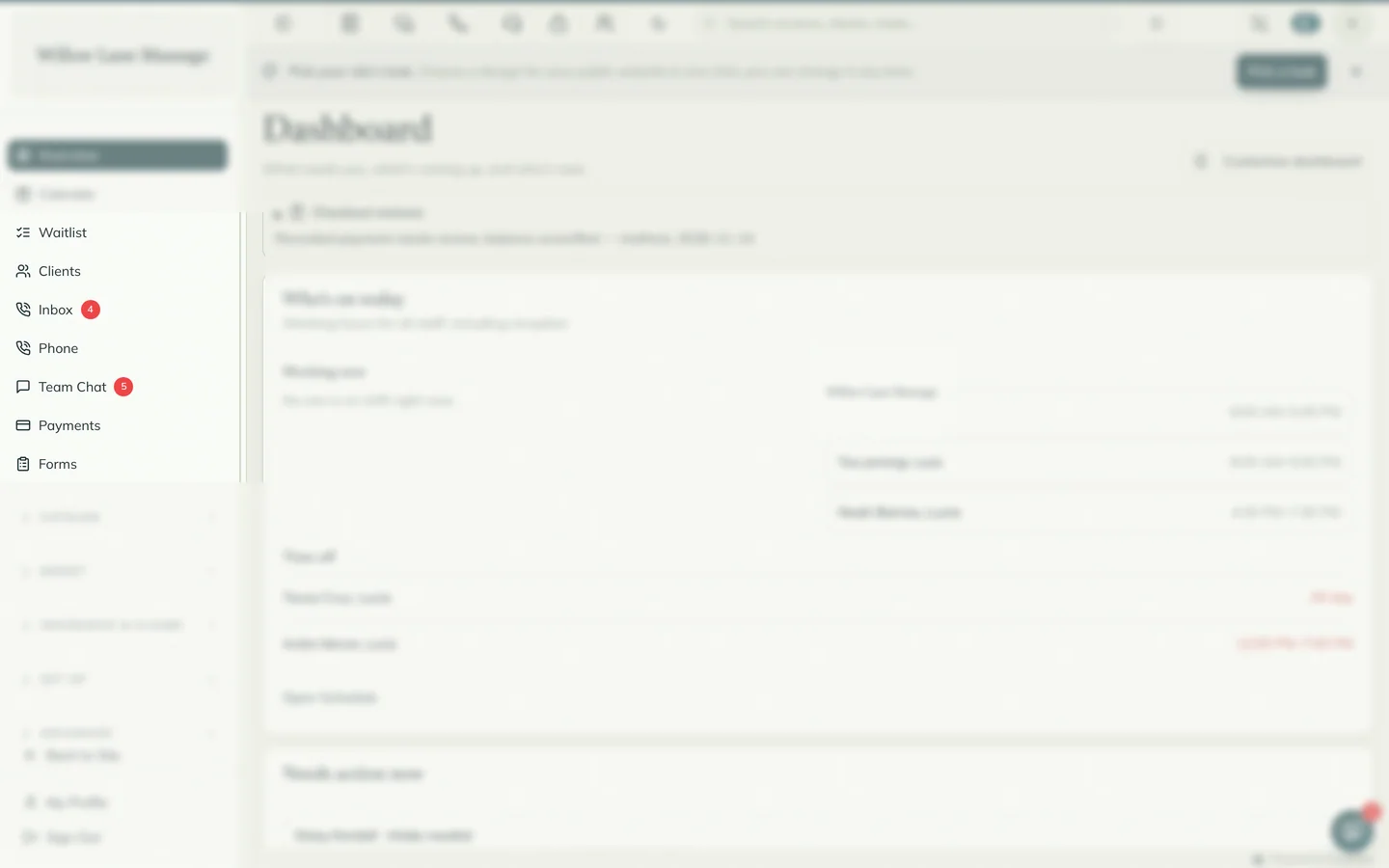
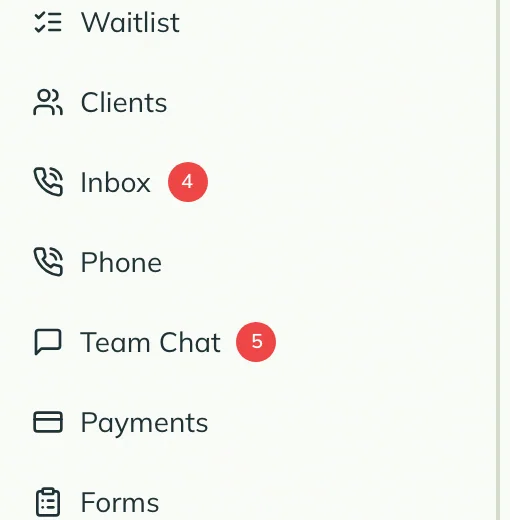
In the menu on the left, open Payments.
Step 2: Find the sale
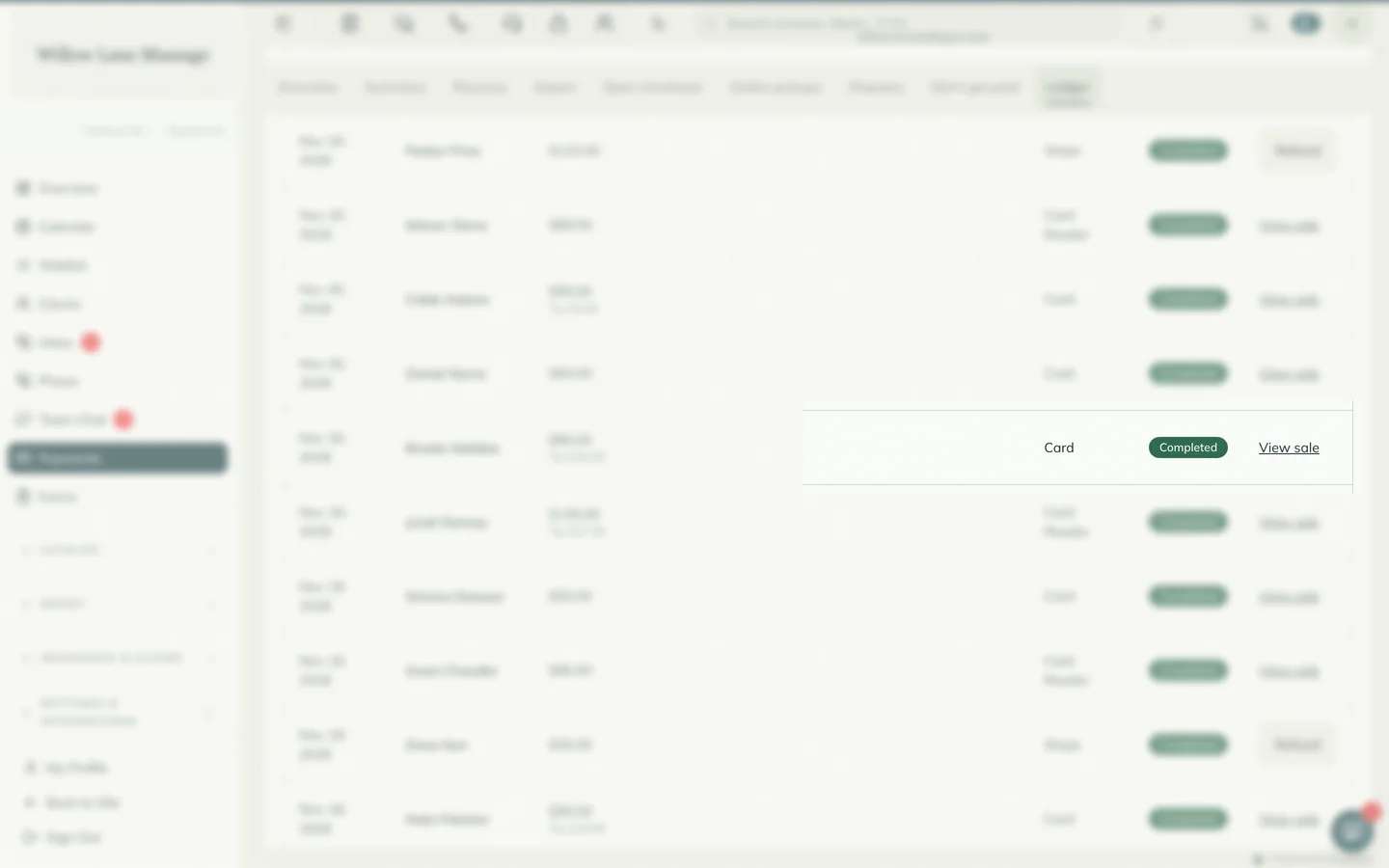
Scroll to the Payment ledger and find the client's payment by its date, name and amount. Press View sale at the end of its row.

Step 3: Preview the refund options
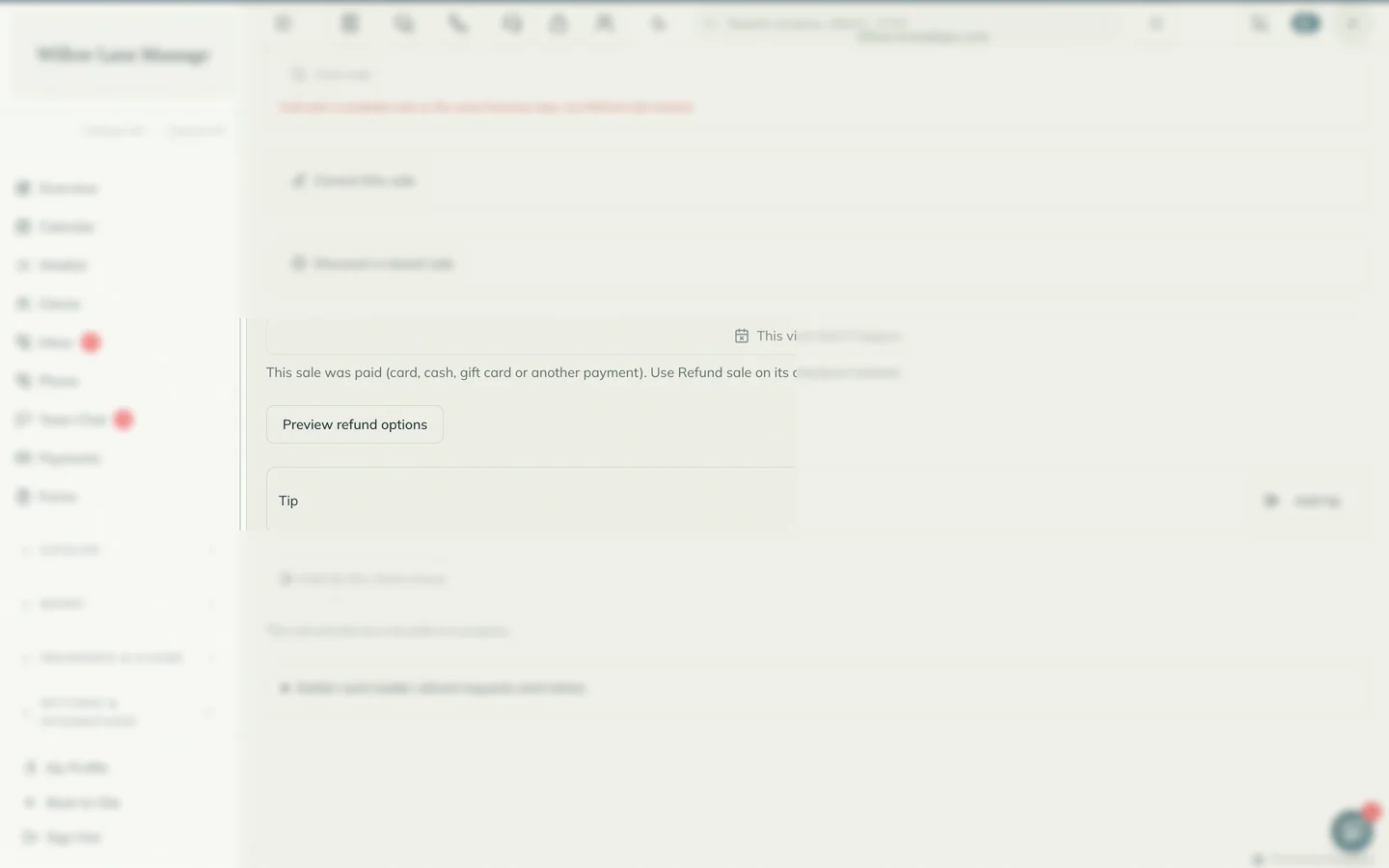
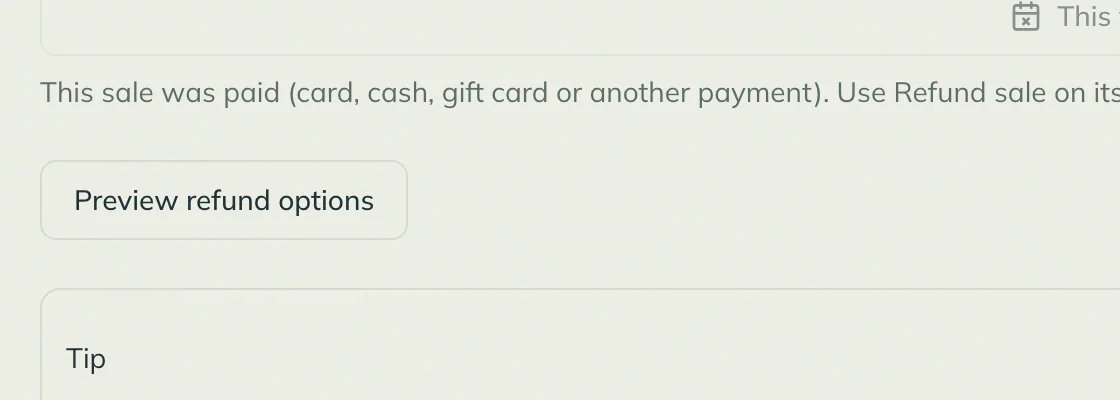
The sale opens. Scroll down and press Preview refund options. Nothing is refunded yet.
Step 4: Choose the payment
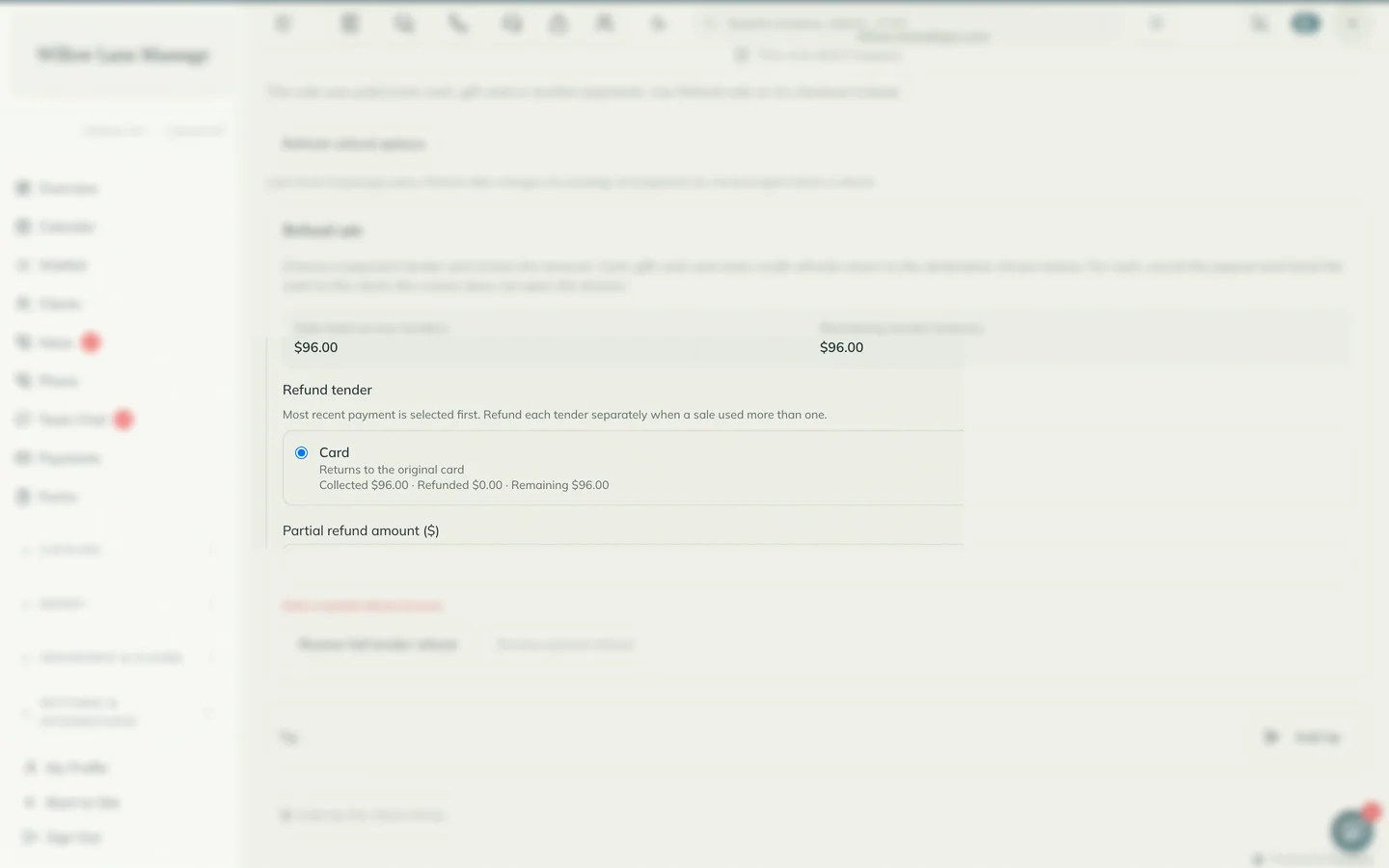
Under Refund tender, pick the payment to refund. Each one says where the money goes back to and how much is left to refund. If the client paid two ways, refund each one on its own.
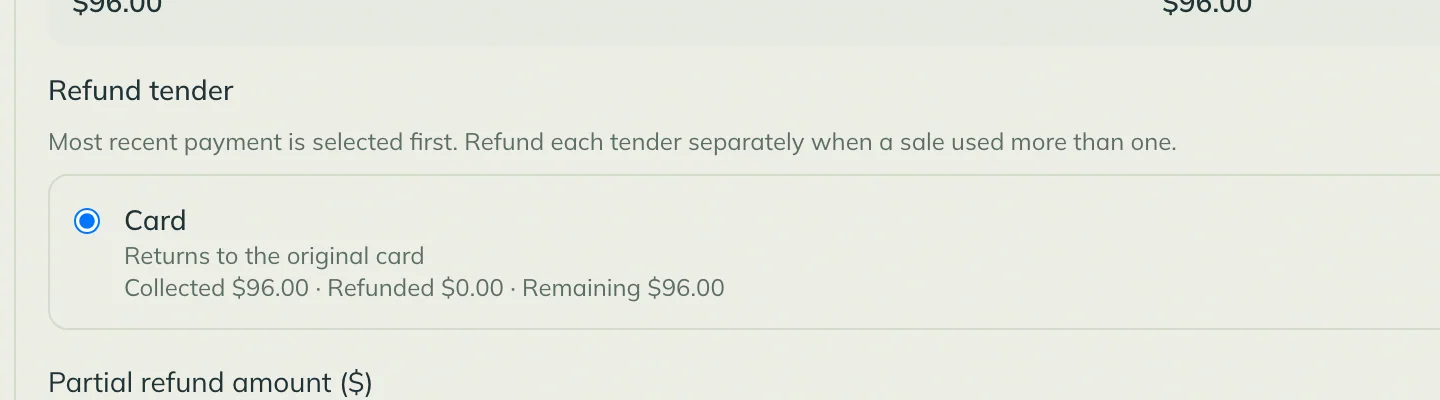
Step 5: Refund all or part
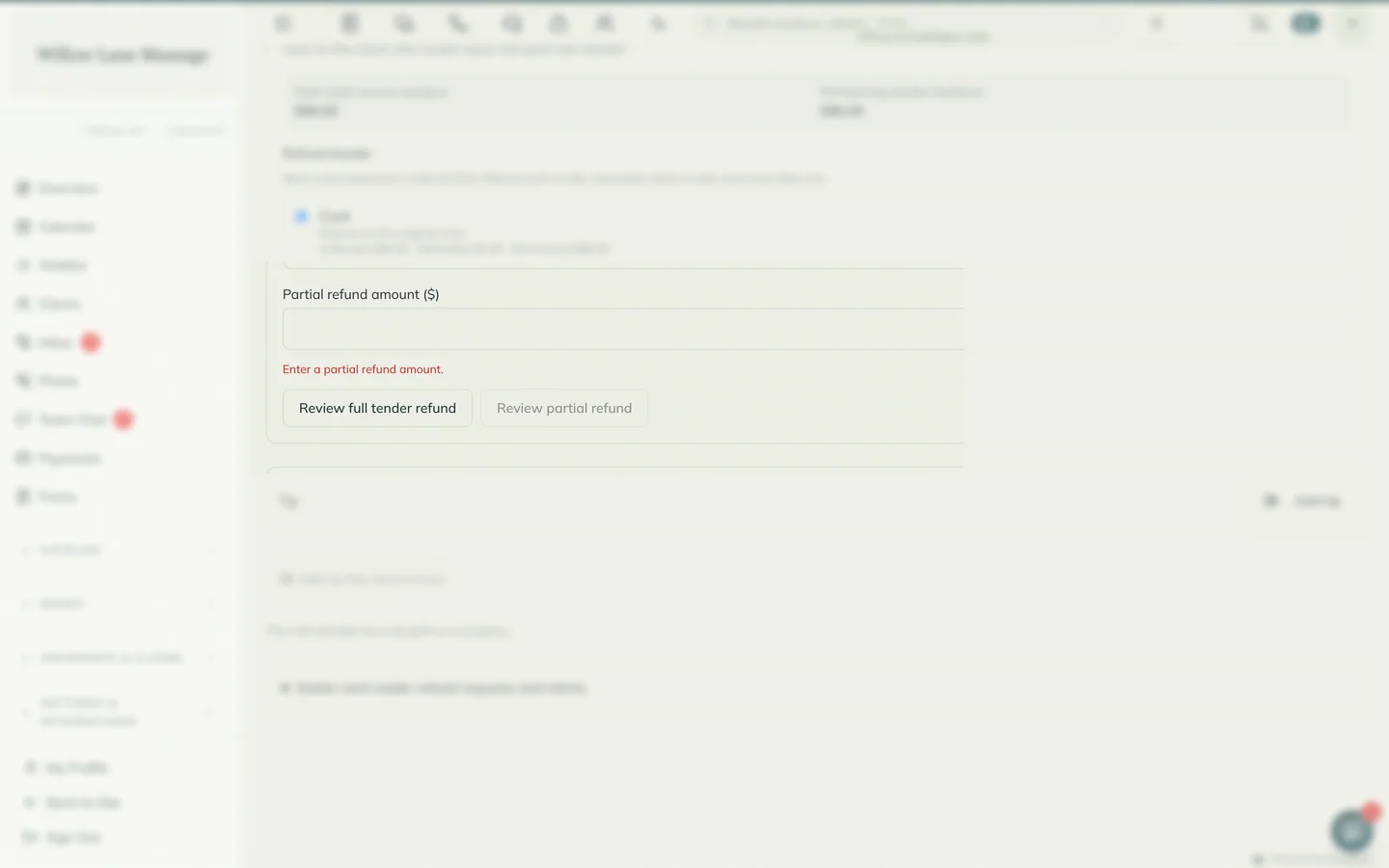
Press Review full tender refund to give it all back. For part of it, type the amount in Partial refund amount and press Review partial refund. A cash refund also asks which cash drawer it comes from.
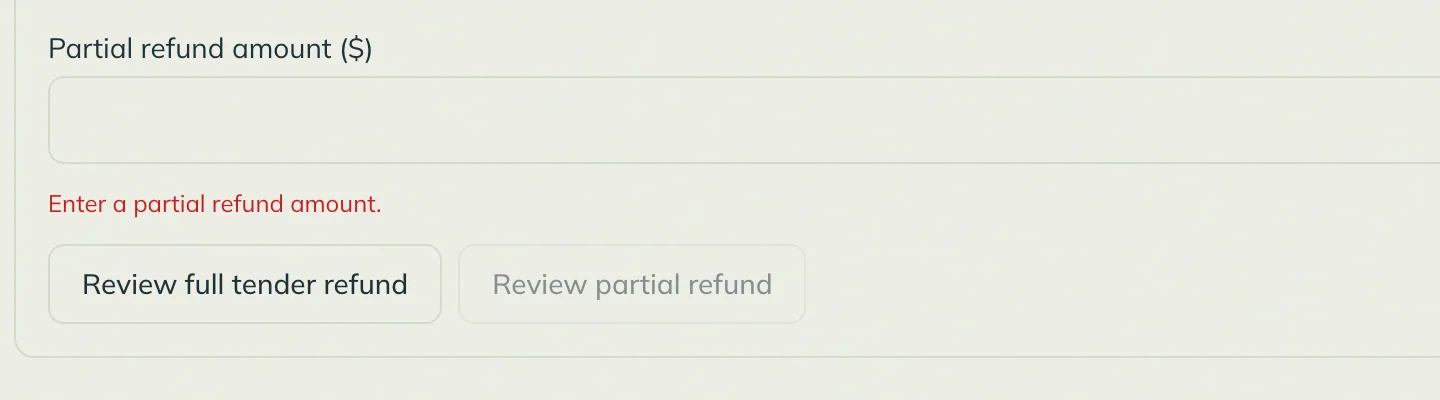
Step 6: Check it and confirm
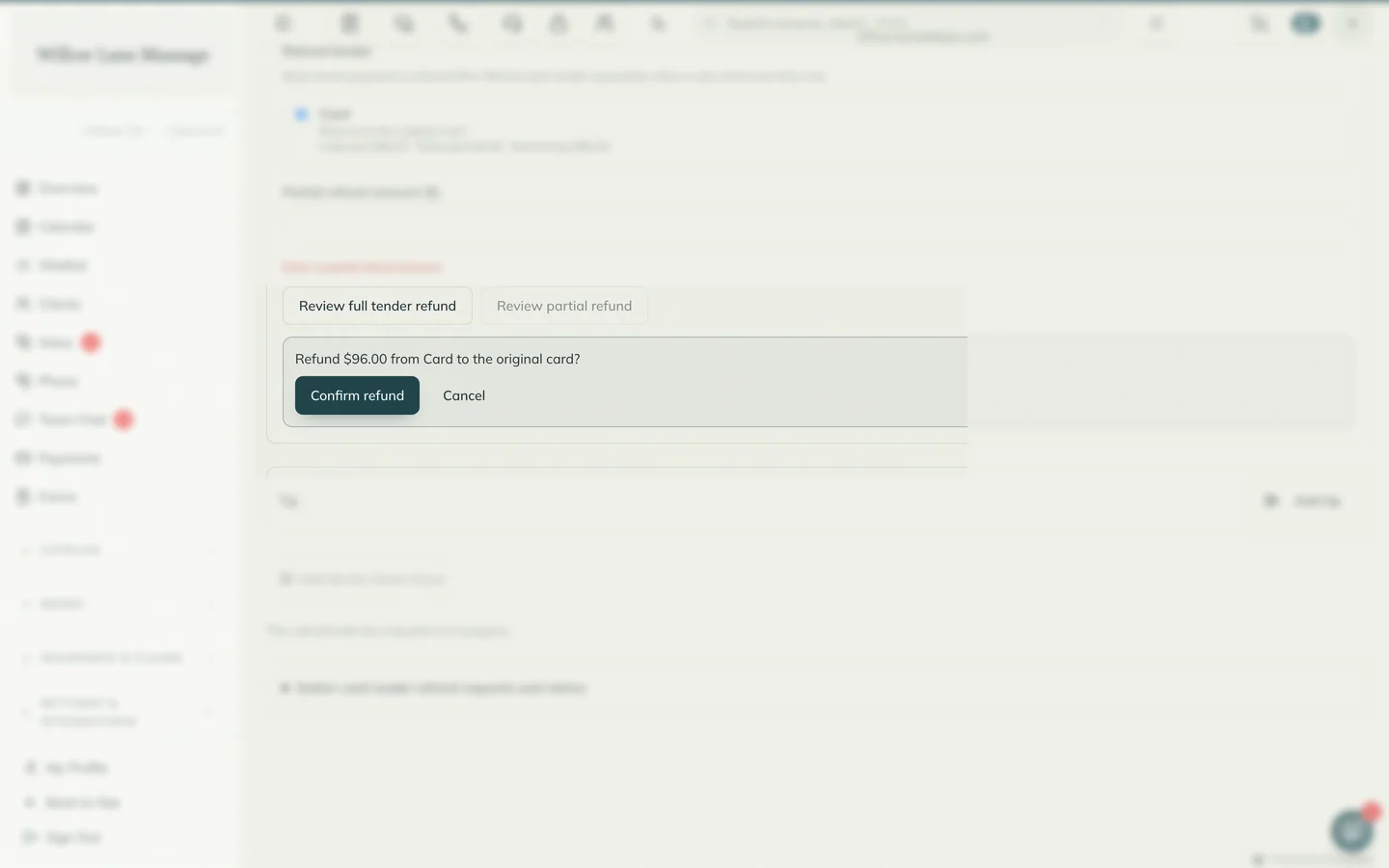
Read the line that says how much goes back and where. If it's right, press Confirm refund (for cash, Record cash refund, then hand the cash to the client). Press Cancel to stop.
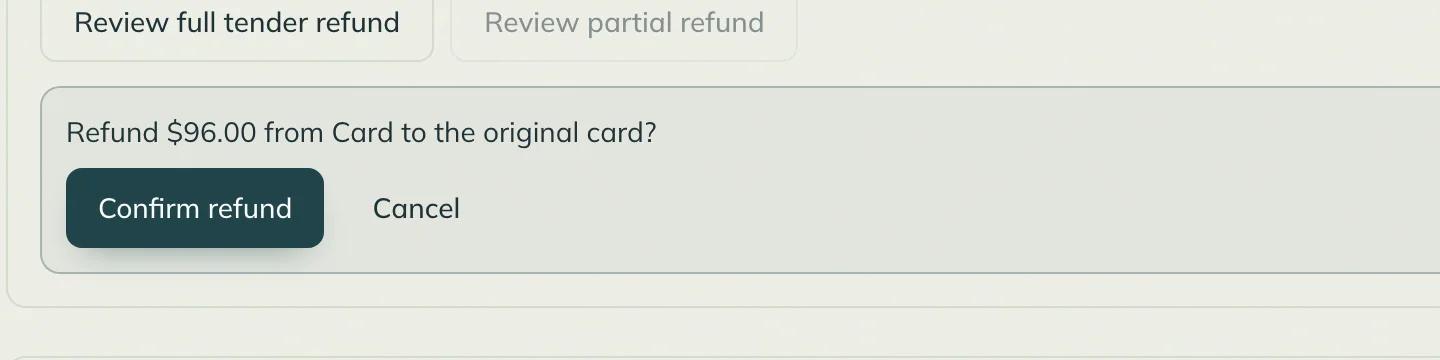
Still stuck?
Ask Kneadle from the chat button in your practice app. It can walk you through this screen or do it with you.
More in Checkout and payments
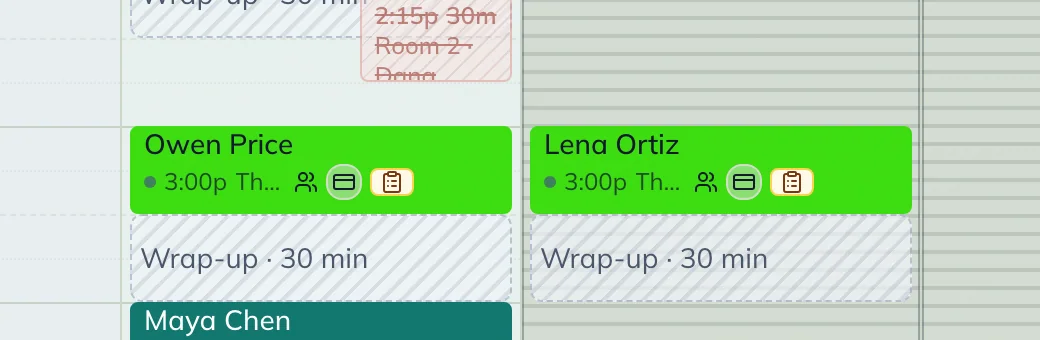 Check out a couples or group visitA couples or group visit checks out once for everyone: open the group, check the package price, then take one payment.
 Check out a member's visitWhen a member comes in, their membership covers the visit at checkout. Check it shows, then finish the checkout.
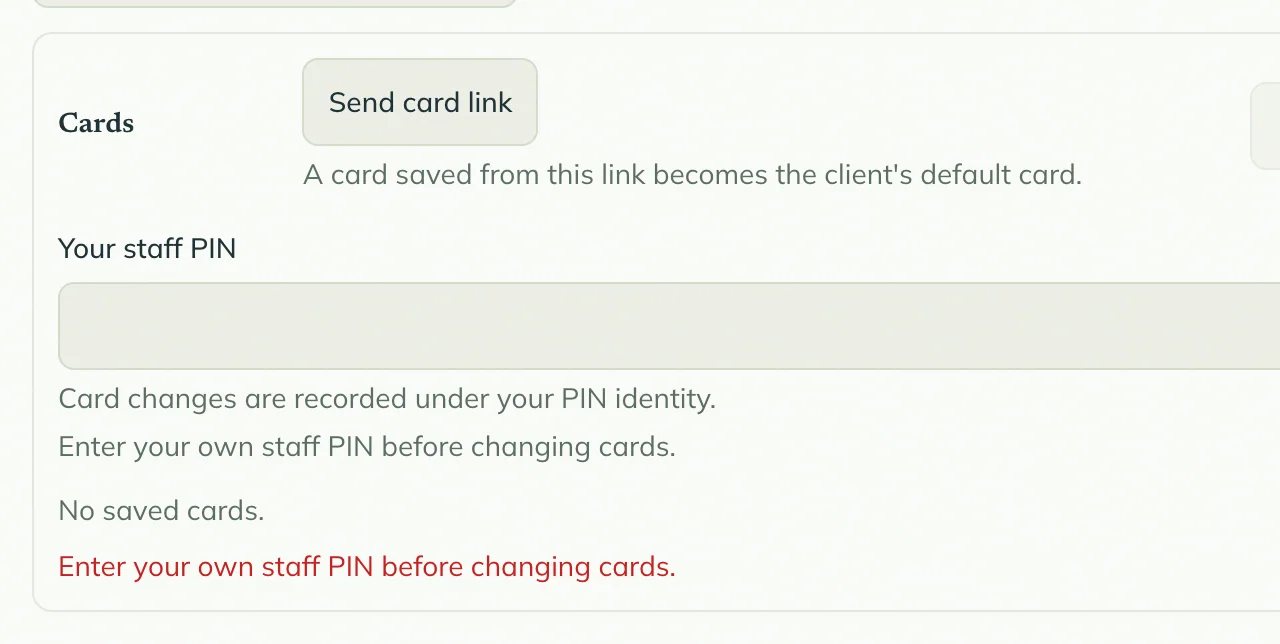 Save a card on file and choose a card holdGet a client's card saved without typing it yourself, and decide which bookings need a card to confirm.