Sign in to your client portal
Sign in with your email address and a one-time sign-in link to see your visits, forms and cards. Share this with a client who asks how to get in.
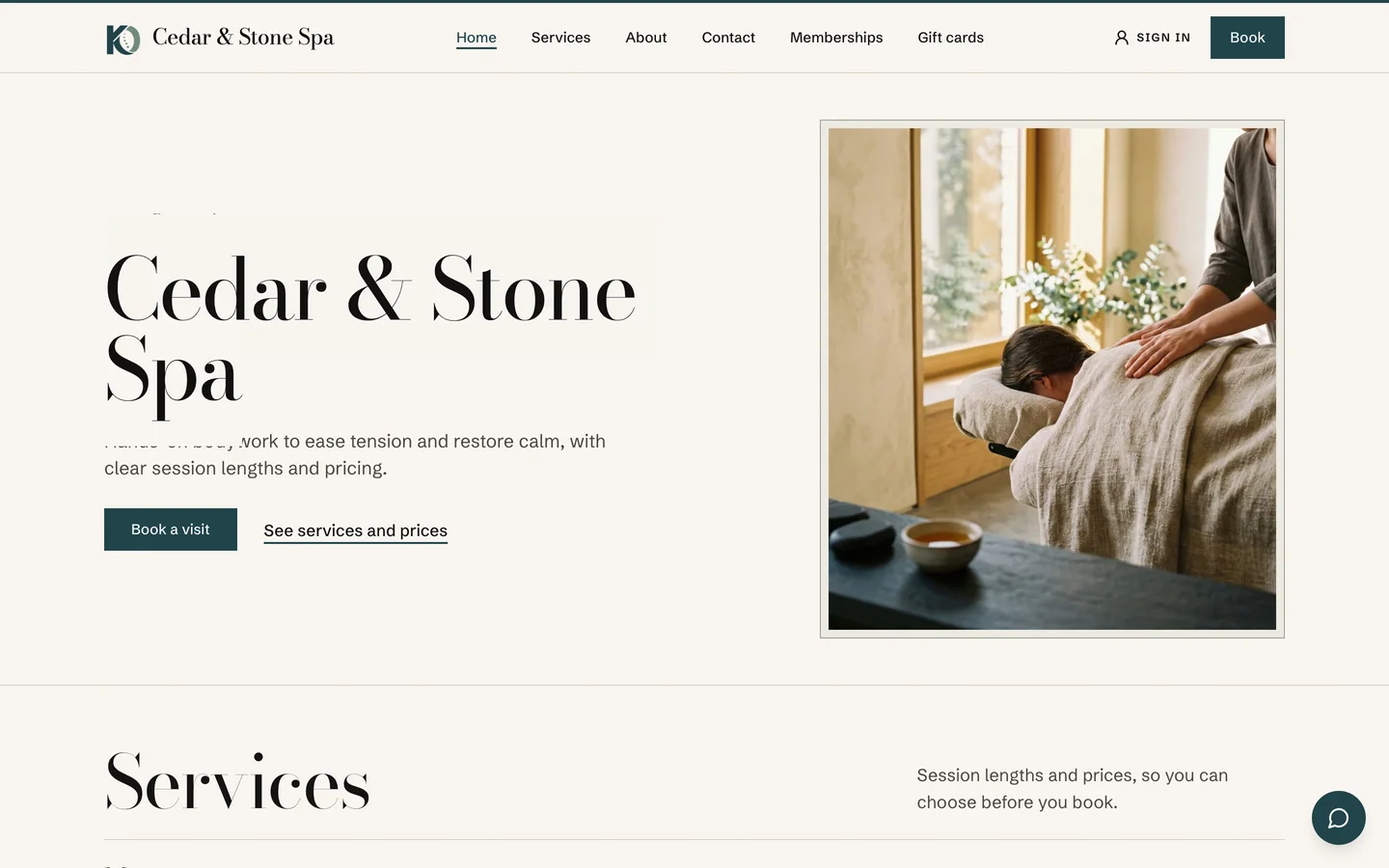
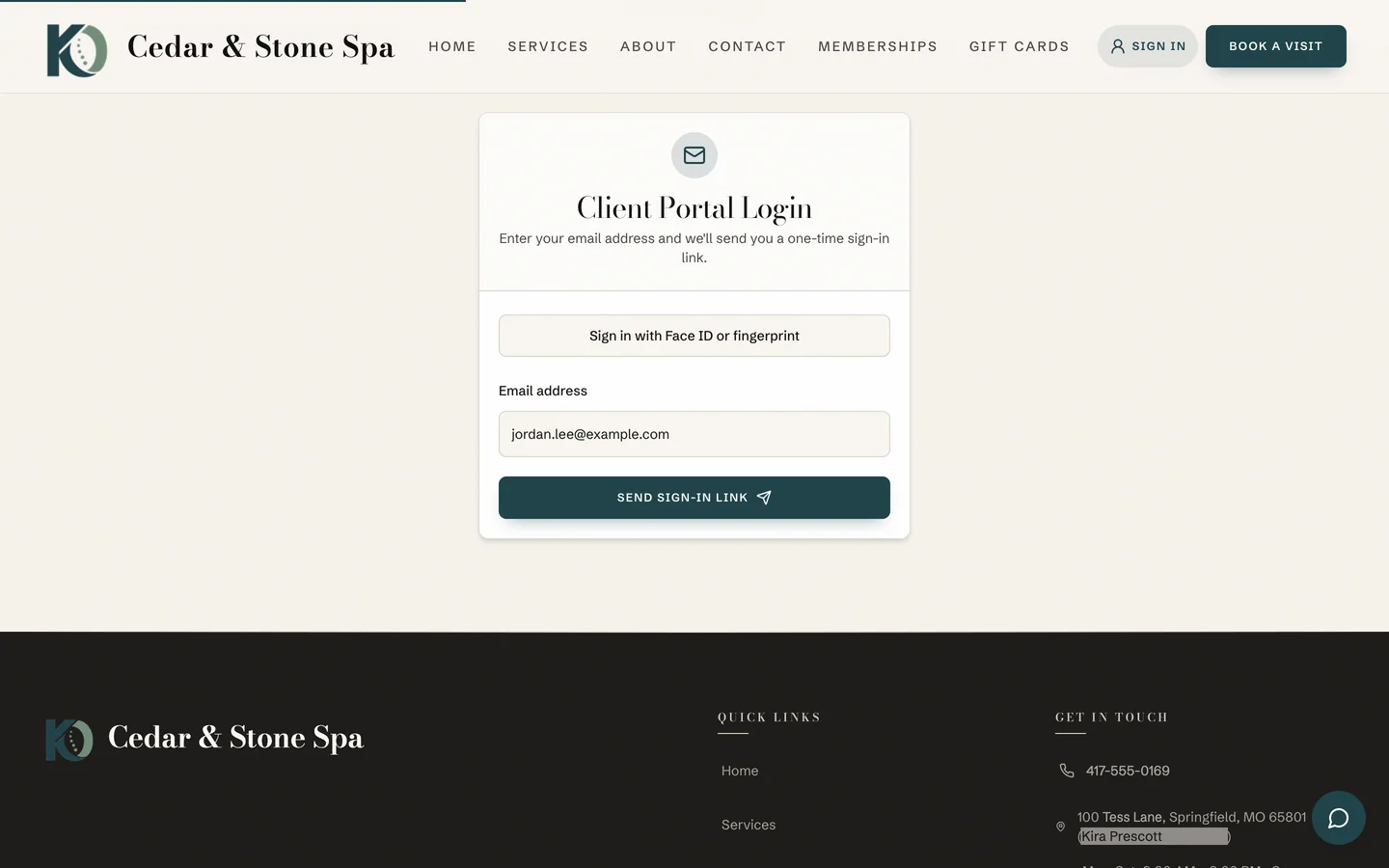
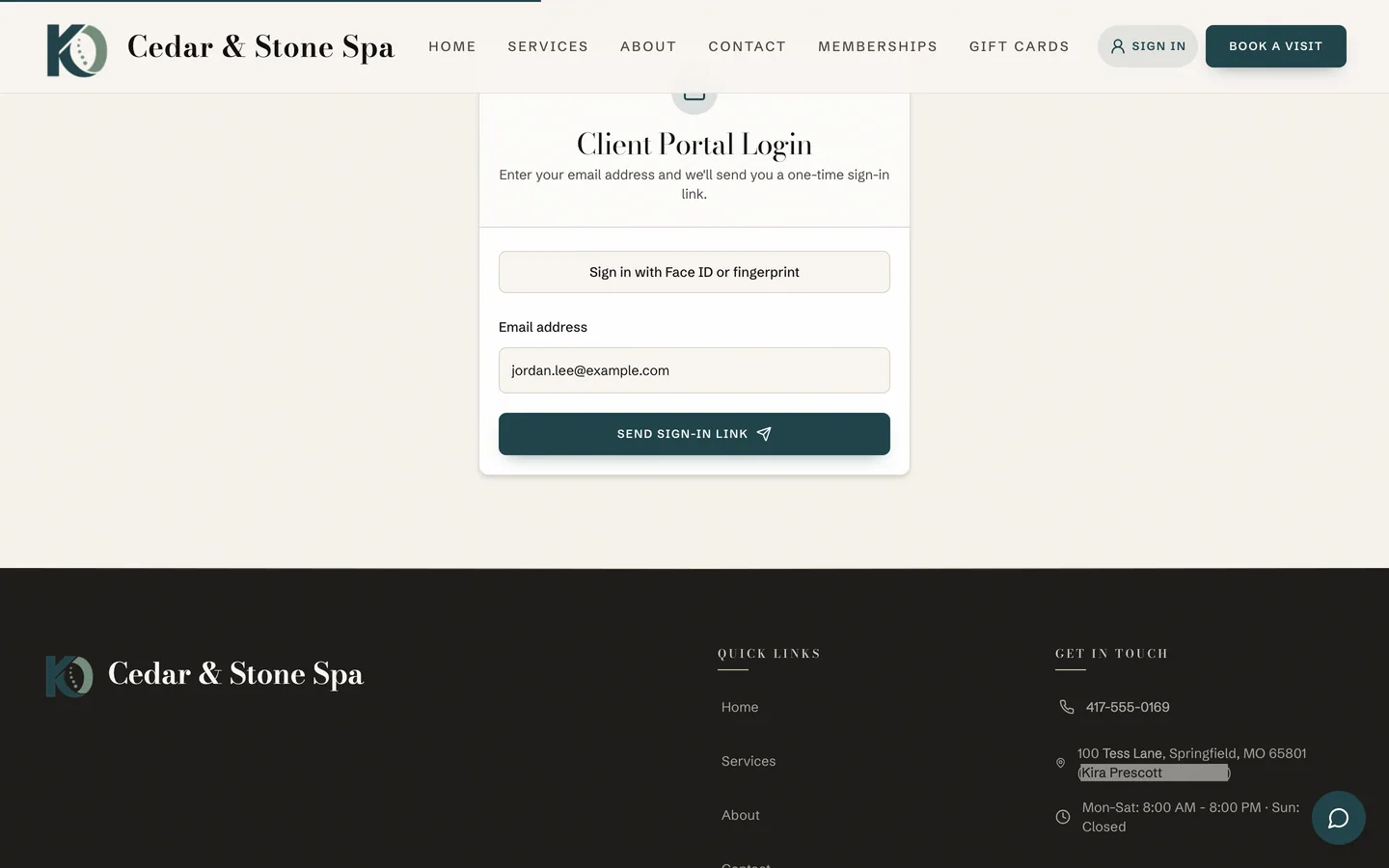
Step 1: Open Sign in
Go to the practice's website and choose Sign in at the top of the page.
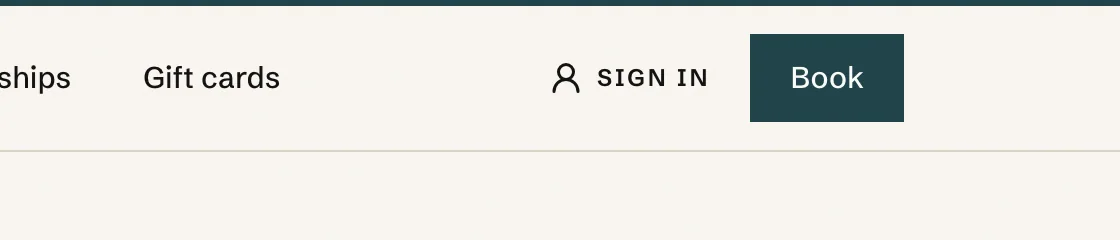
Step 2: Type your email address
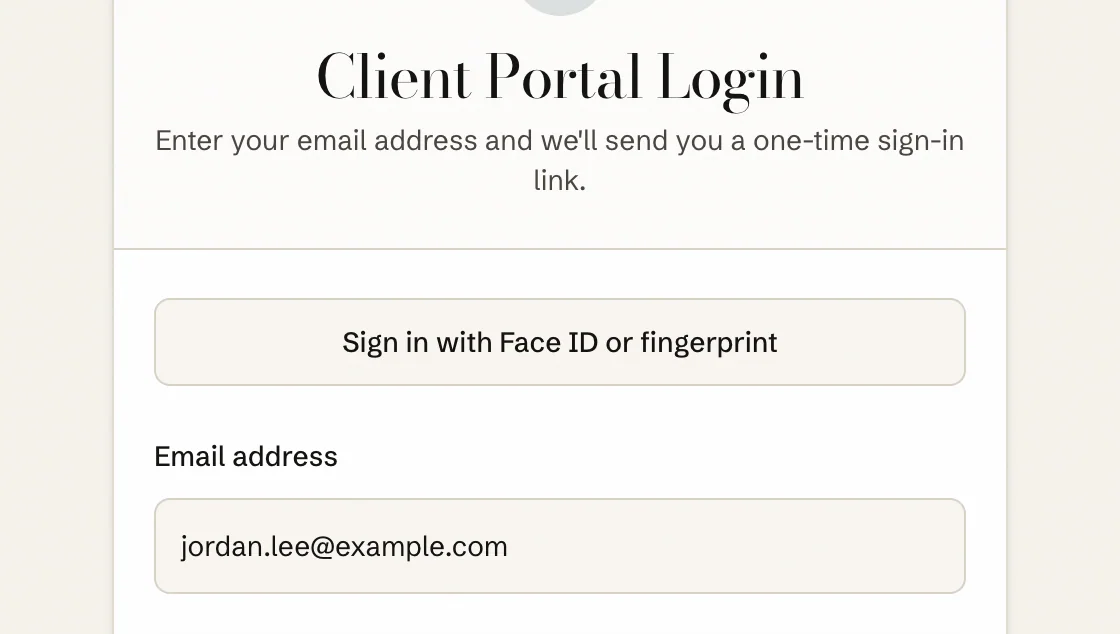
Type the email address the practice has for you in Email address. If you set up Face ID or a fingerprint before, you can choose Sign in with Face ID or fingerprint instead.
Step 3: Send the sign-in link
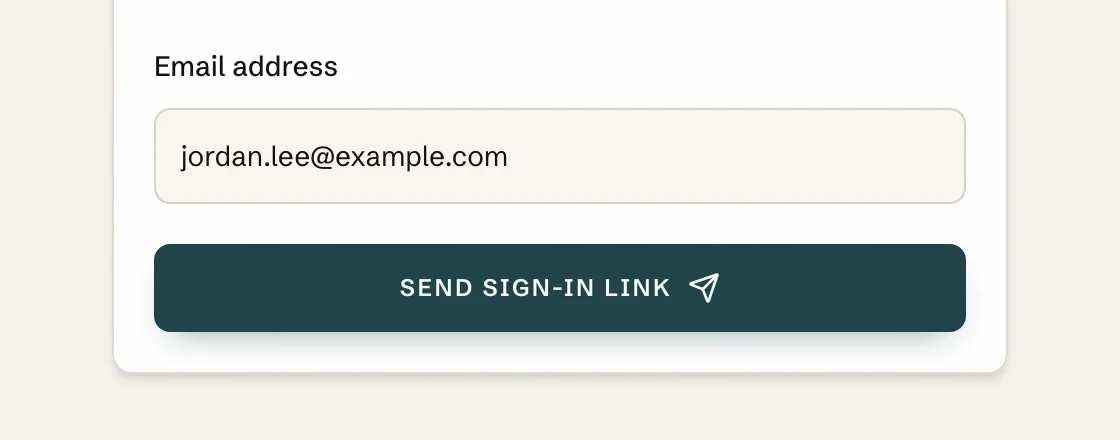
Press Send sign-in link. If that email is on file with the practice, a sign-in link is on its way.
Step 4: Open the link in your email
Open the email from the practice and press the sign-in link. Your portal opens. The link works once, for 15 minutes; if it has expired, go back to Sign in and send a new one. Don't see the email? Check your spam folder, or ask the practice which email they have for you.
Still stuck?
Ask Kneadle from the chat button in your practice app. It can walk you through this screen or do it with you.
More in For your clients
 Buy a gift card onlinePick a design and an amount, choose how it arrives, add a note and pay on the practice's website. Share this with a client who wants to give a gift.
 Fill in your forms before a visitFill in and sign the intake forms your practice asks for, from your client portal or the link they sent. Share this with a client before their first visit.