When a member's card fails
What happens when a membership renewal is declined, how automatic notices and staff pay links work, and how to preview what your member sees.
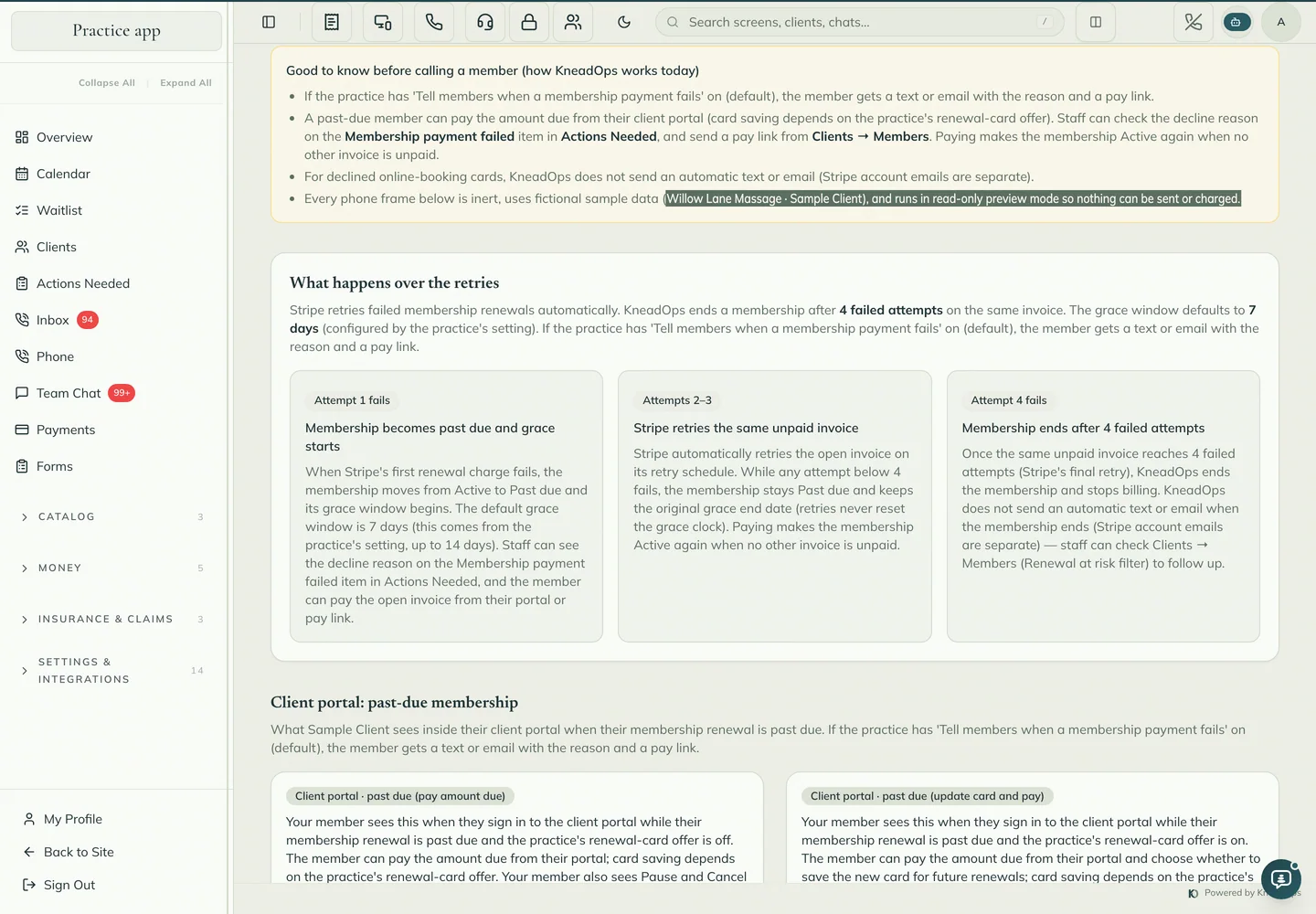
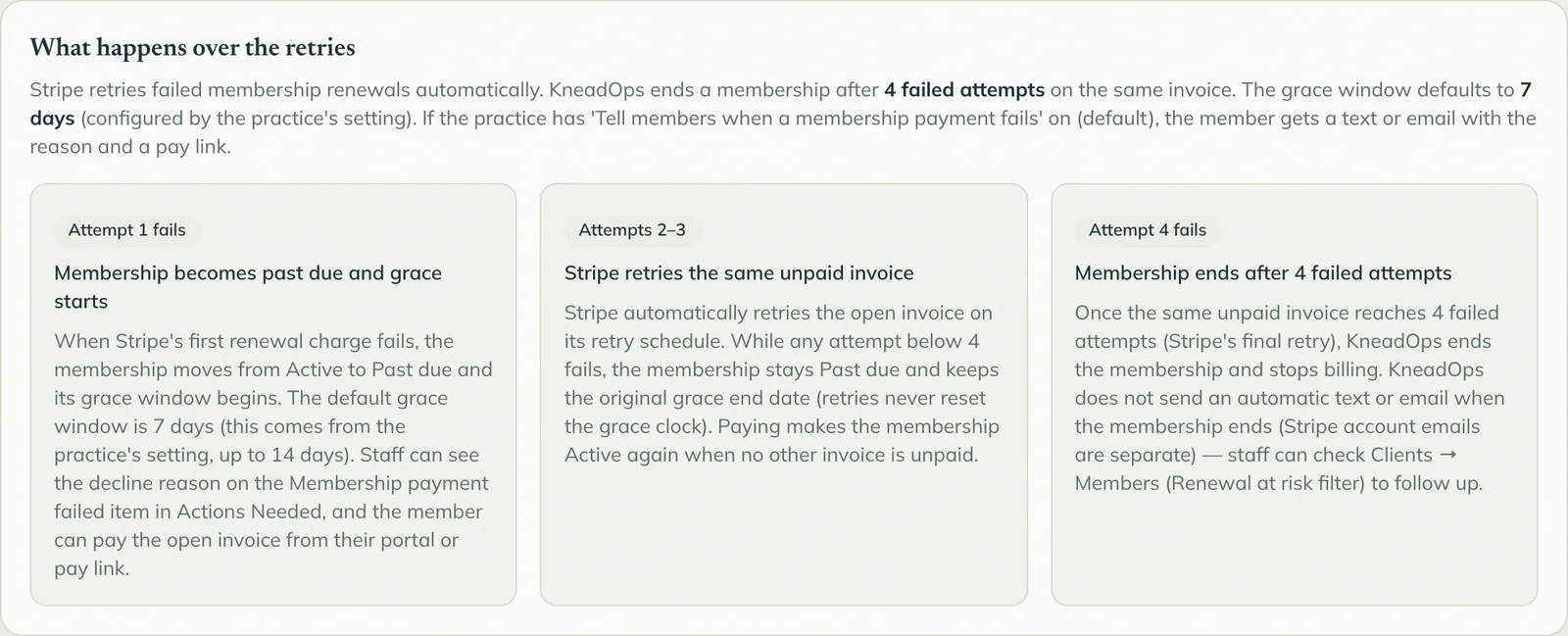
Step 1: Understand automatic retries and grace days
When a monthly membership renewal fails, Stripe retries it automatically. After 4 failed tries the membership ends, and members keep the grace days you set (7 days by default). Staff see the bank's decline reason (for example Not enough funds or Card expired) on the Membership payment failed item in Actions Needed.
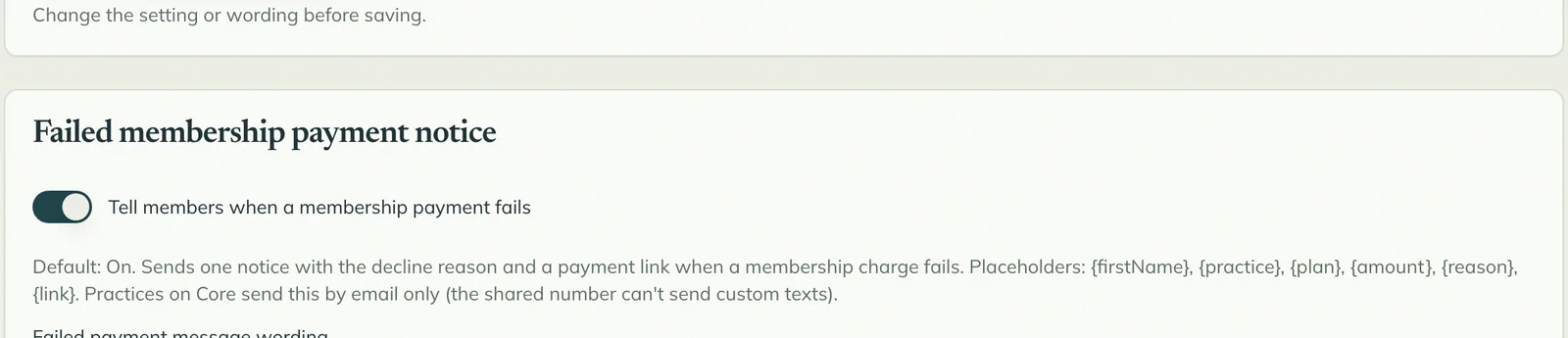
Step 2: Keep automatic failed-payment notices on
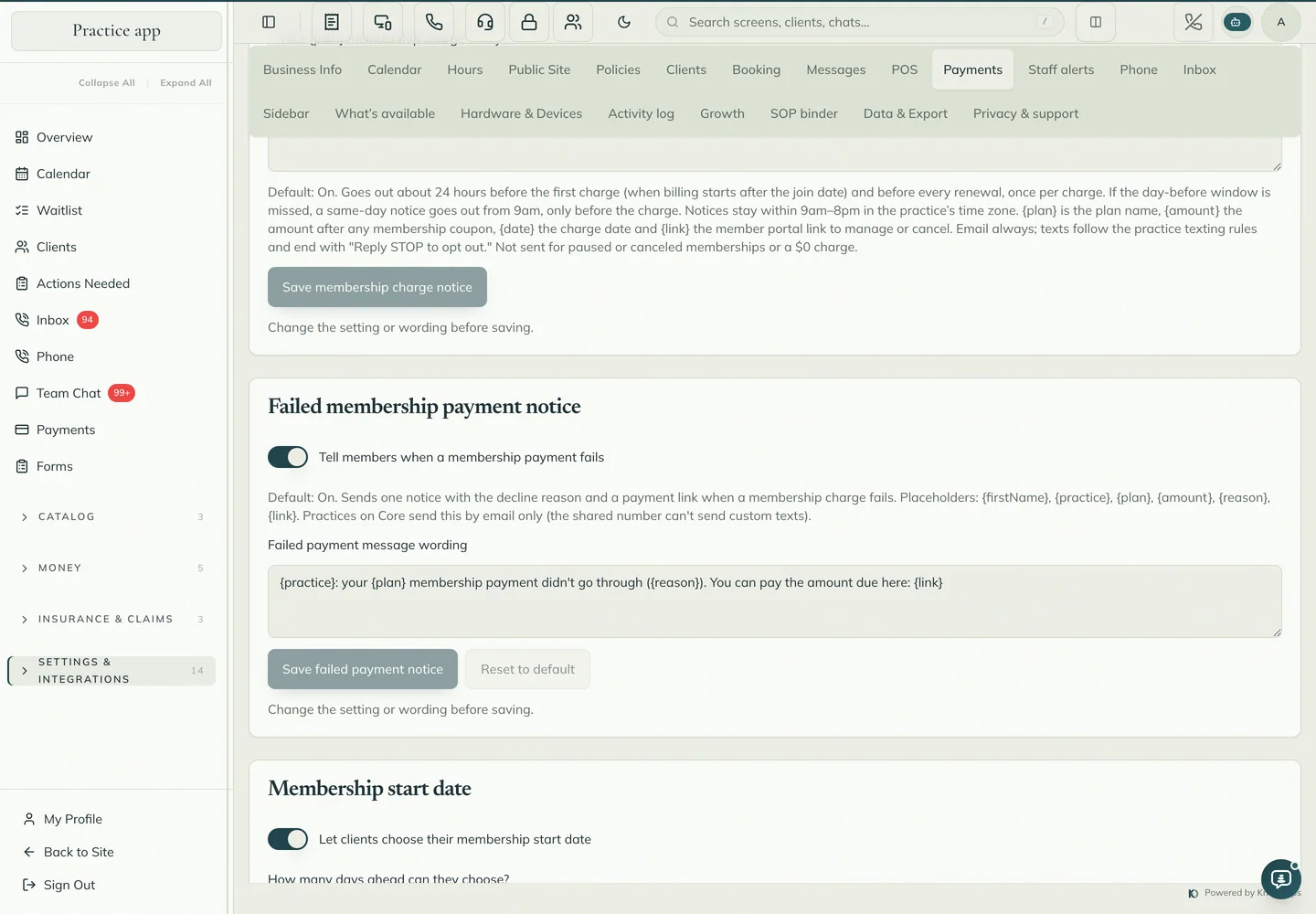
Open Settings, choose Payments, and scroll to Failed membership payment notice. Keep Tell members when a membership payment fails on (it is on by default) so the member gets a text or email with the decline reason and a pay link. Staff can also send a pay link anytime from Clients → Members.
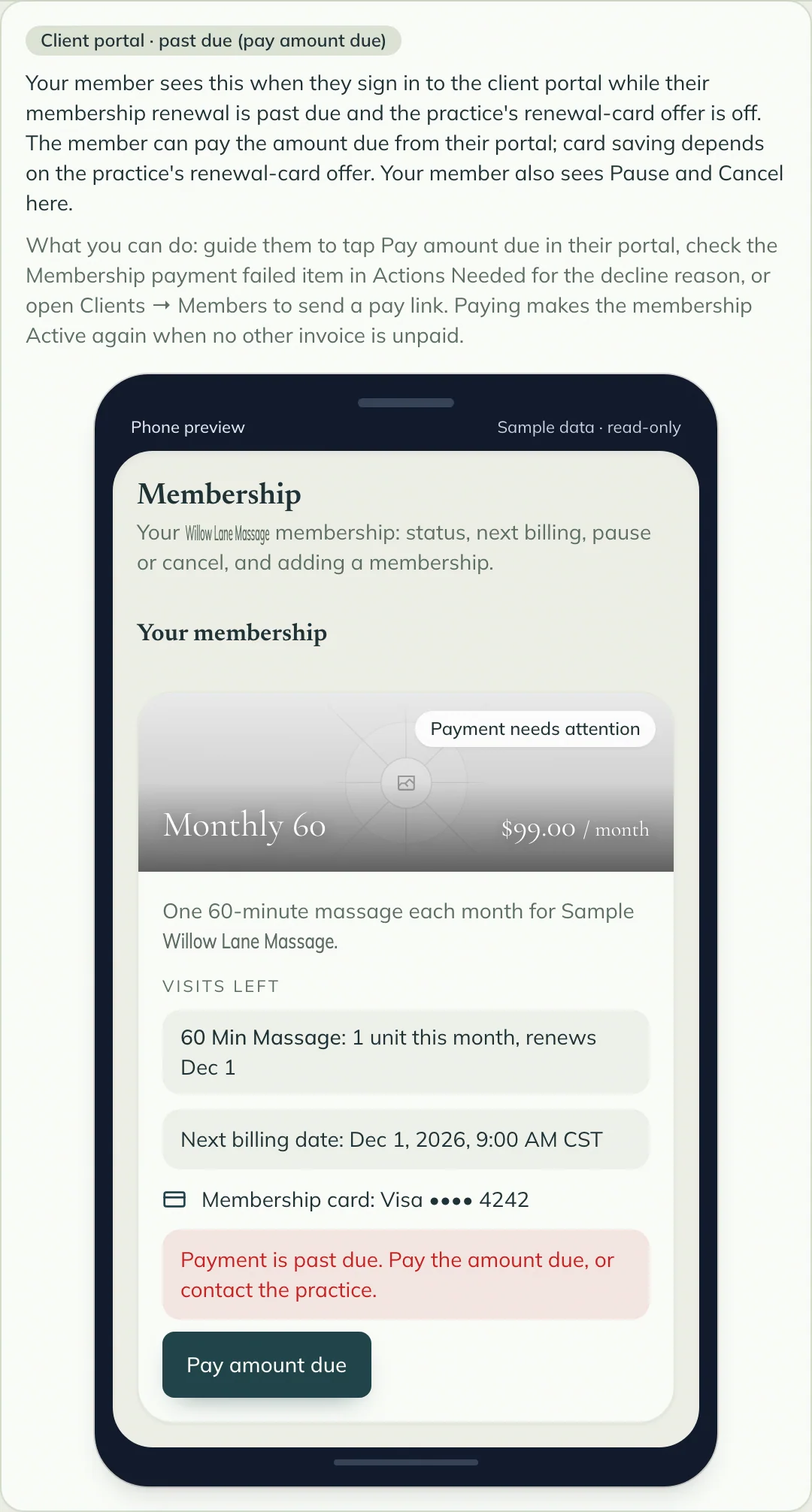
Step 3: See what your member sees in their portal
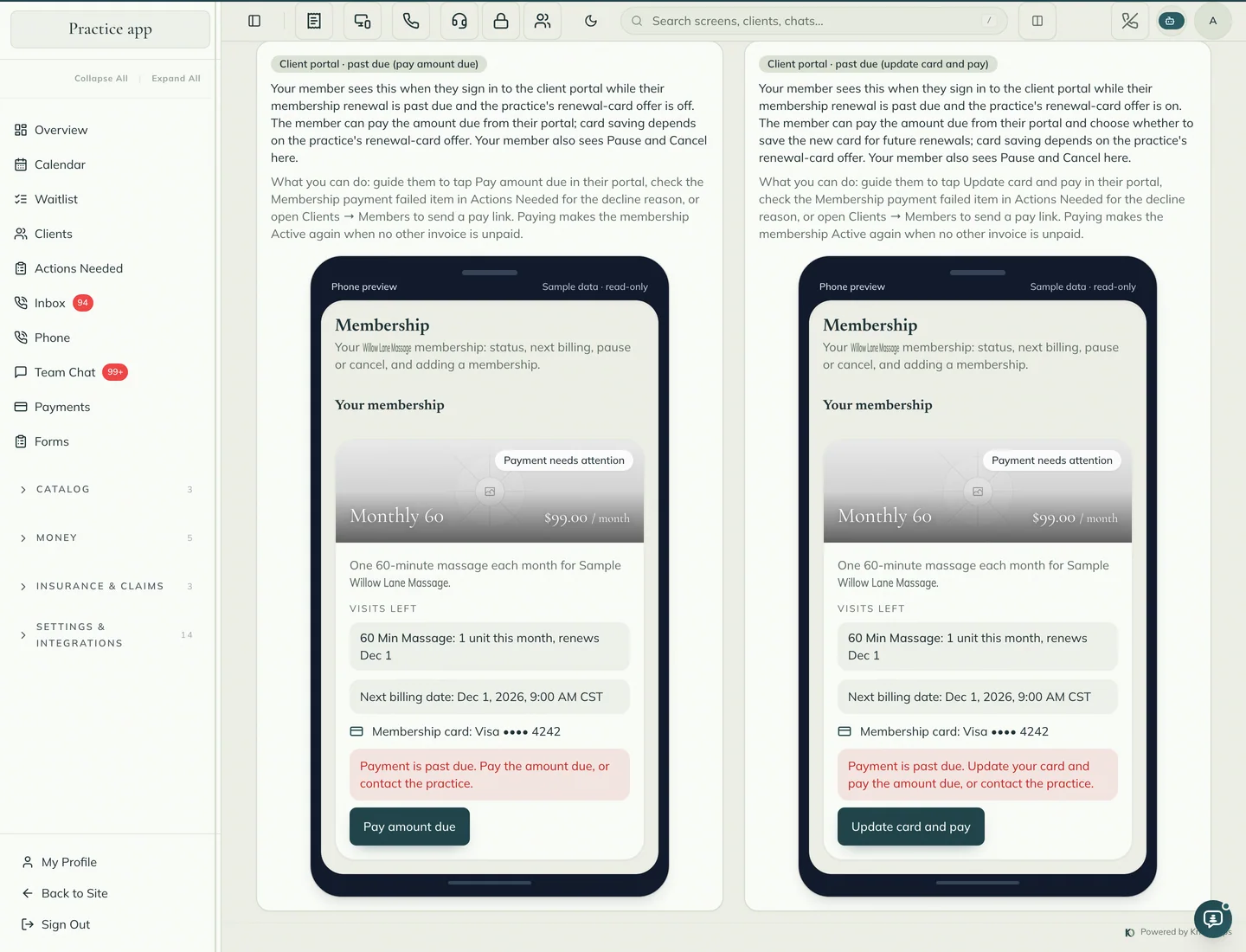
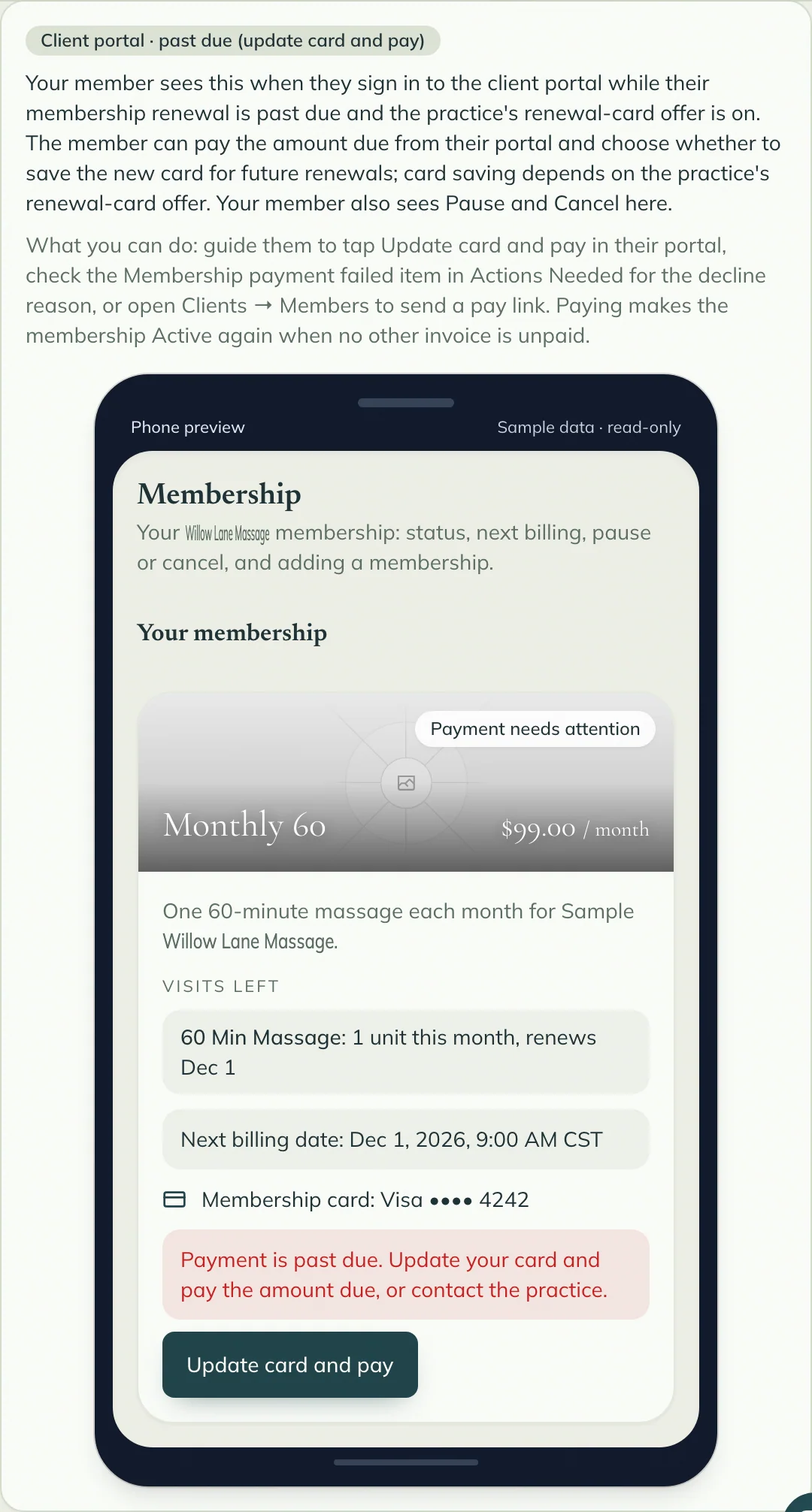
A past-due member sees a Payment needs attention notice on their membership card in the client portal and a Pay amount due button. Paying makes the membership Active again when no other invoice is unpaid.
Step 4: When card saving for renewals is on
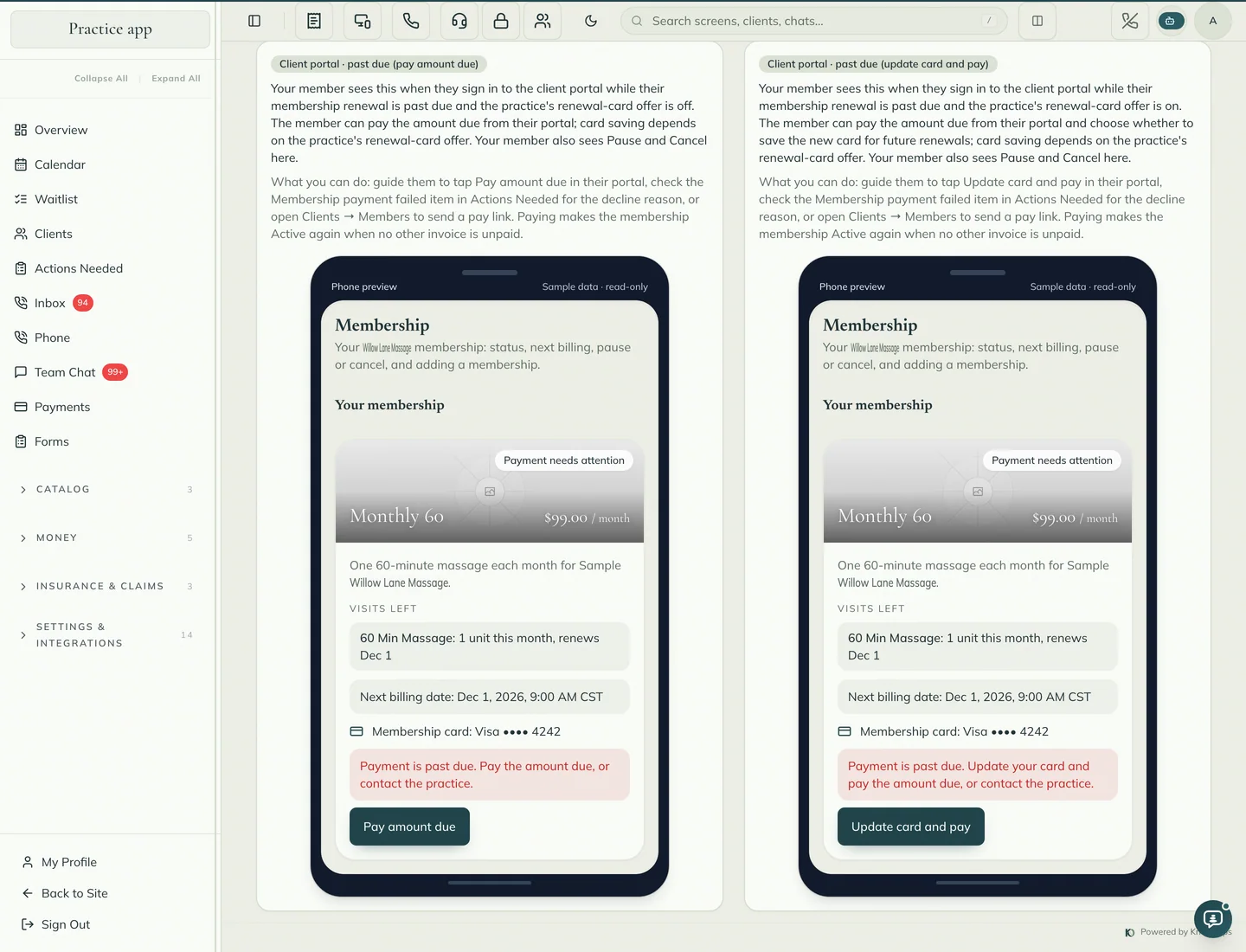
When your practice offers card saving for membership renewals, the button reads Update card and pay so the member can put a new card on file and pay the past-due invoice in one step.
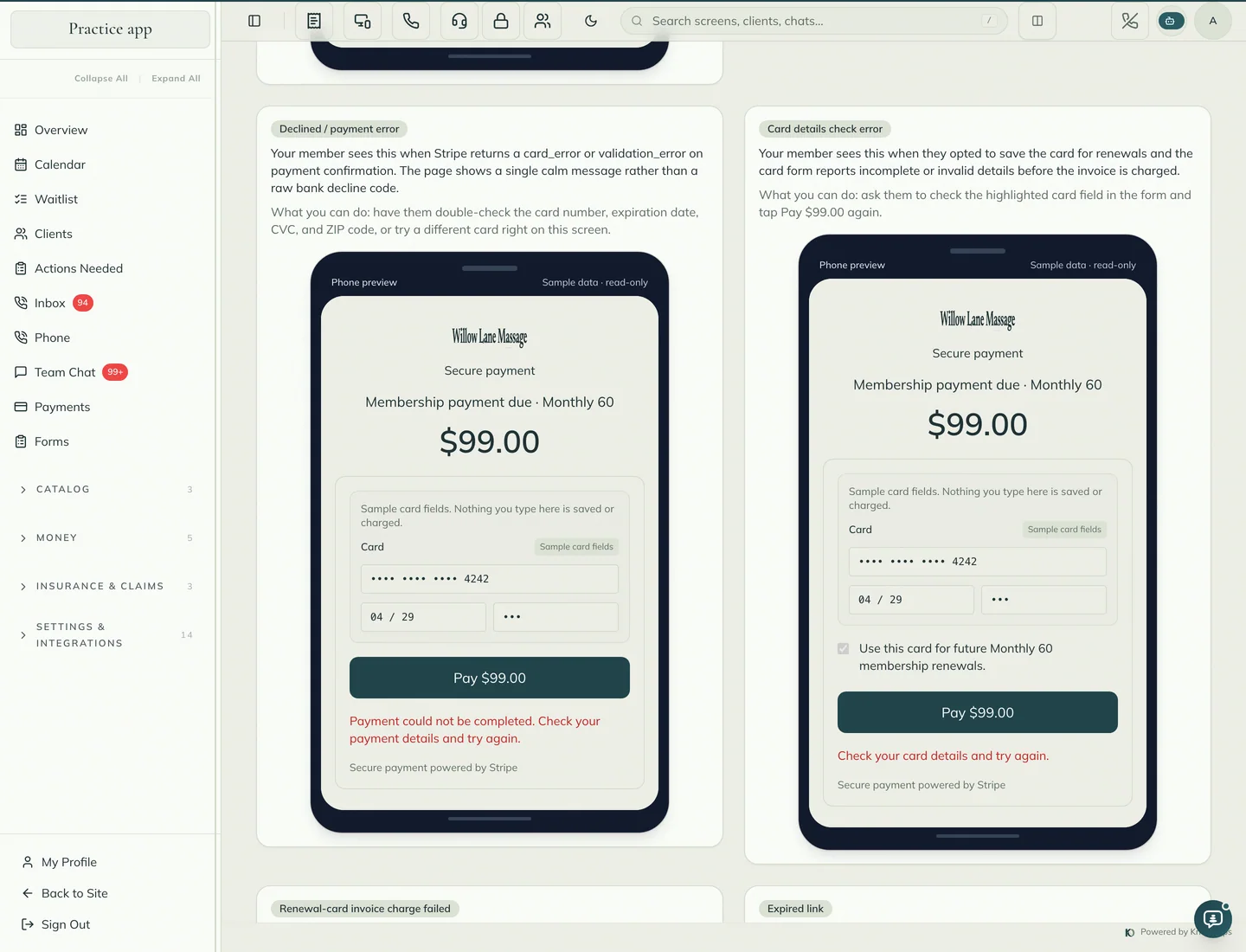
Step 5: Preview every decline screen as the owner
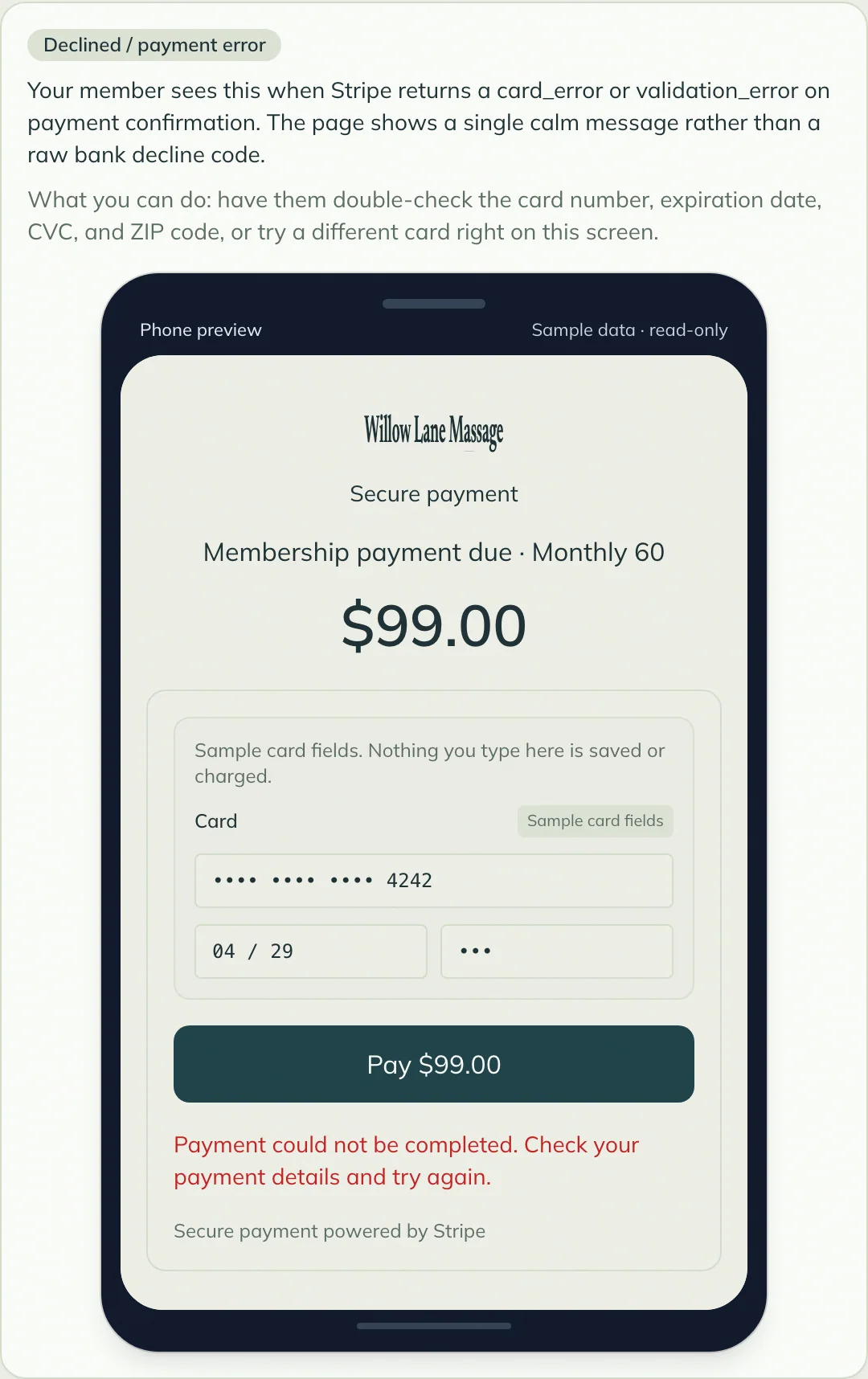
To walk a member through their pay link screen over the phone, open See what clients see and choose When a payment fails (owners only). Every phone frame uses sample data and is read-only, so nothing can be charged or sent.
Still stuck?
Ask Kneadle from the chat button in your practice app. It can walk you through this screen or do it with you.
More in Checkout and payments
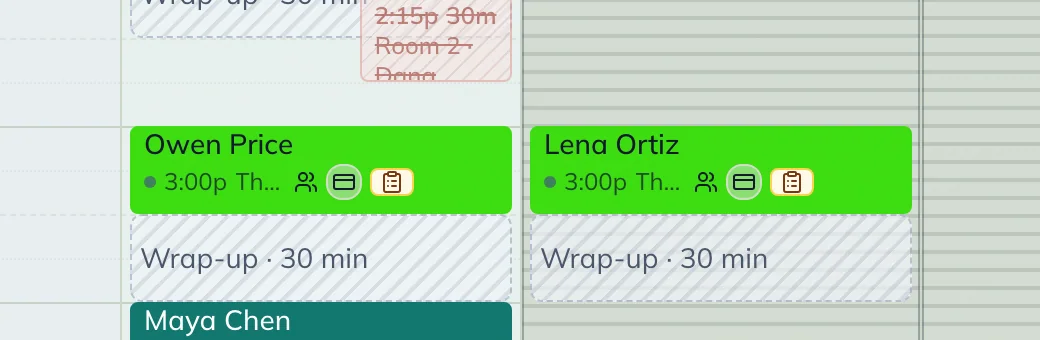 Check out a couples or group visitA couples or group visit checks out once for everyone: open the group, check the package price, then take one payment.
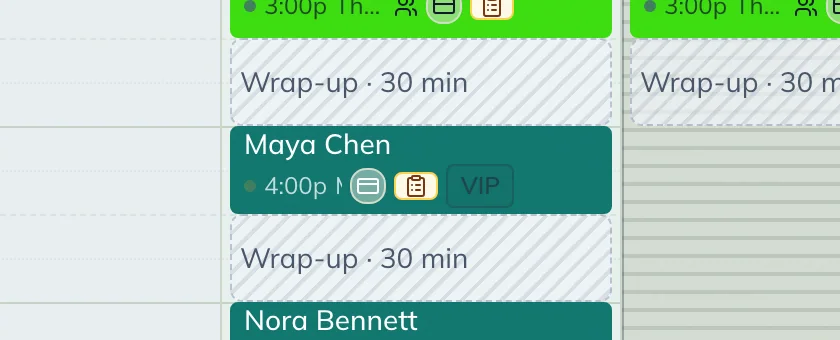 Check out a member's visitWhen a member comes in, their membership covers the visit at checkout. Check it shows, then finish the checkout.
 Refund a paymentGive a client their money back, all of it or part, from the sale they paid for. Card refunds go back to the card; cash refunds are recorded from the drawer.