Set a therapist's working hours and time off
Set the days and hours each therapist works, and block out vacations or appointments, so clients can only book them when they are really in.
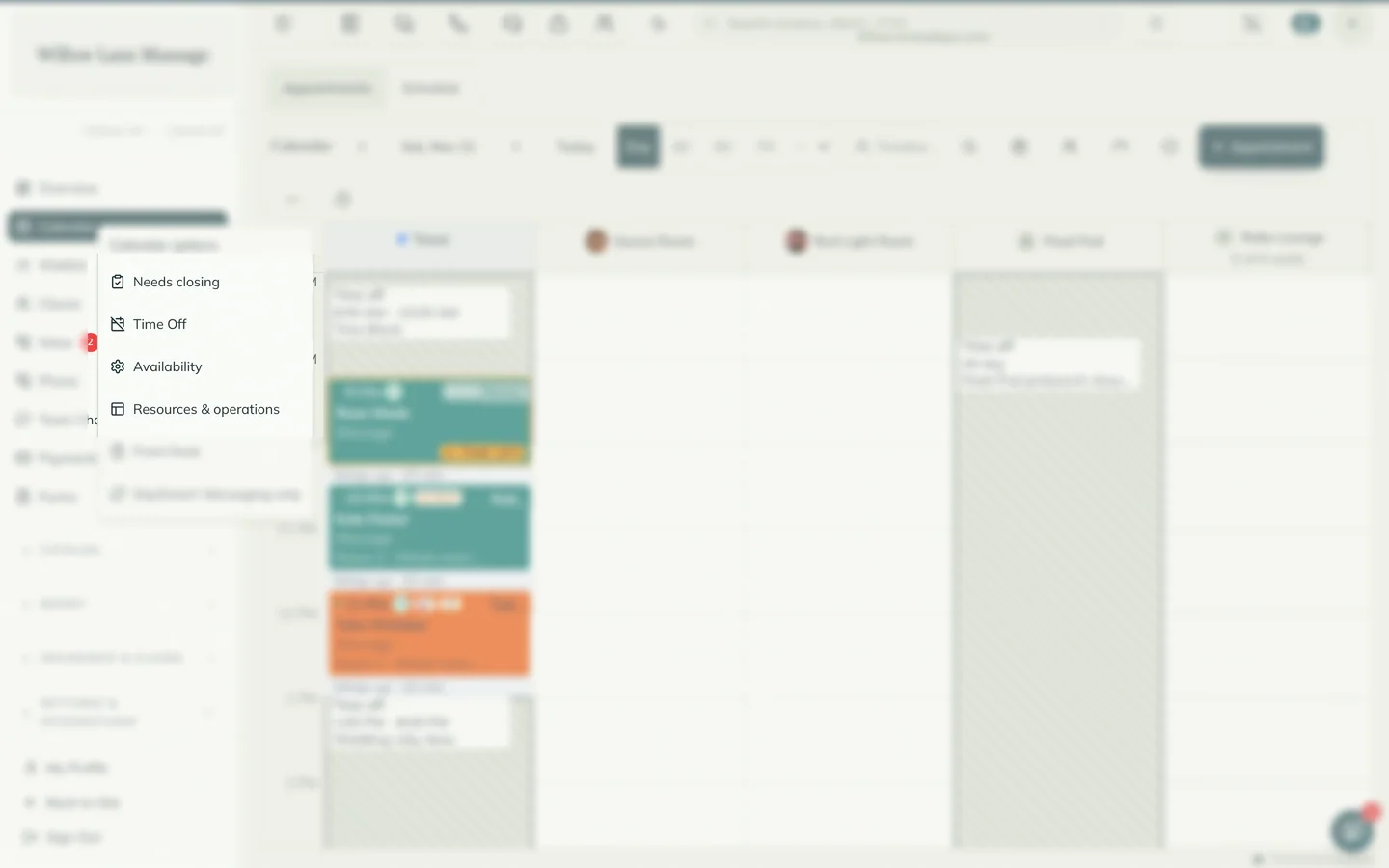
Step 1: Open Availability
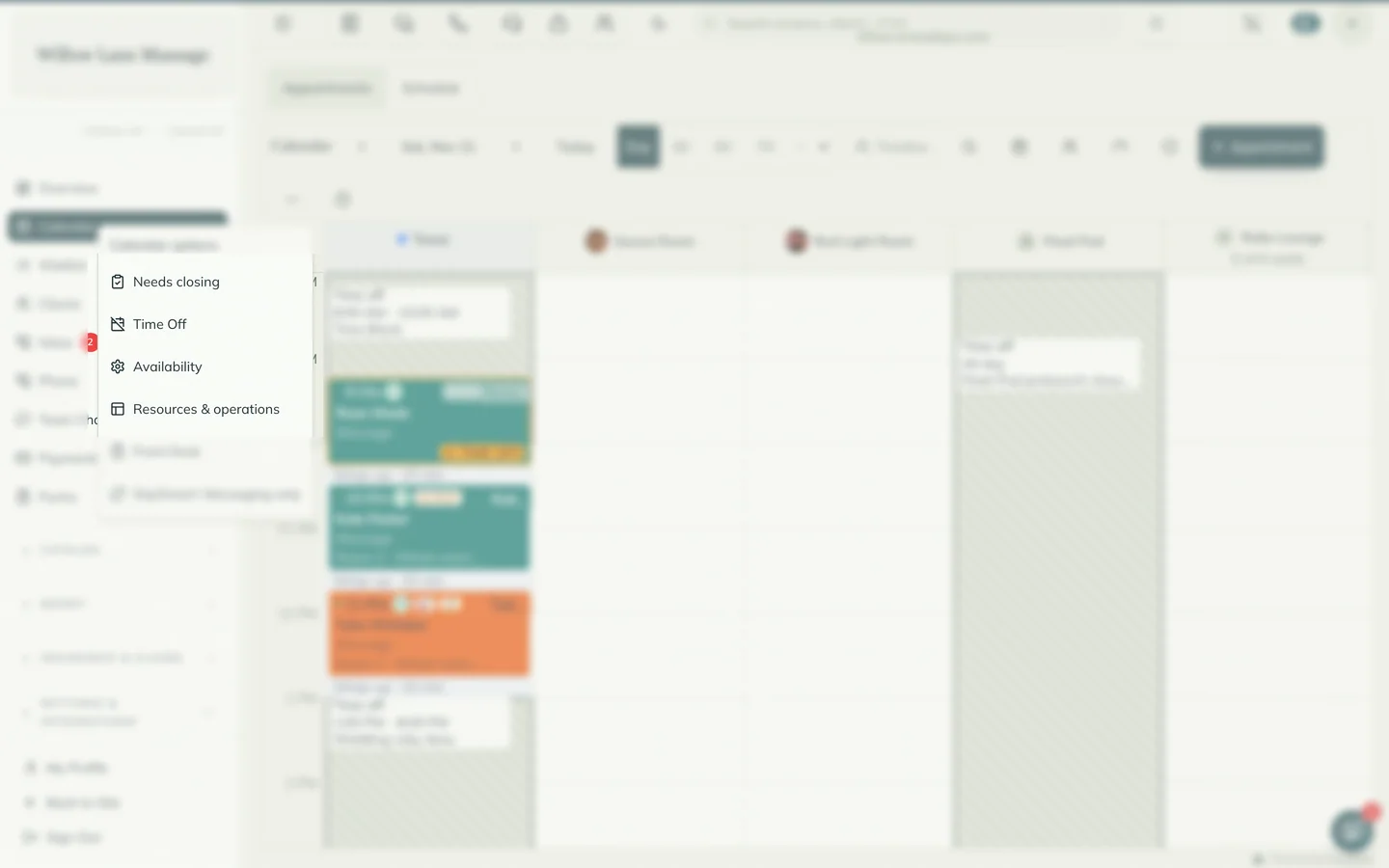
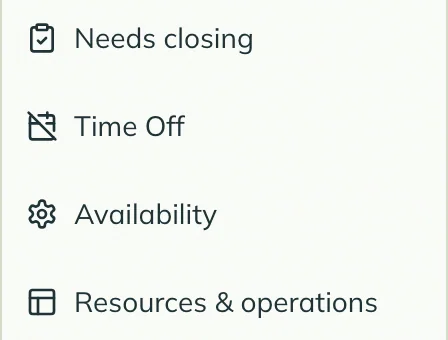
On the Calendar, press the ⋯ button (Calendar options) and choose Availability.
Step 2: Pick the therapist
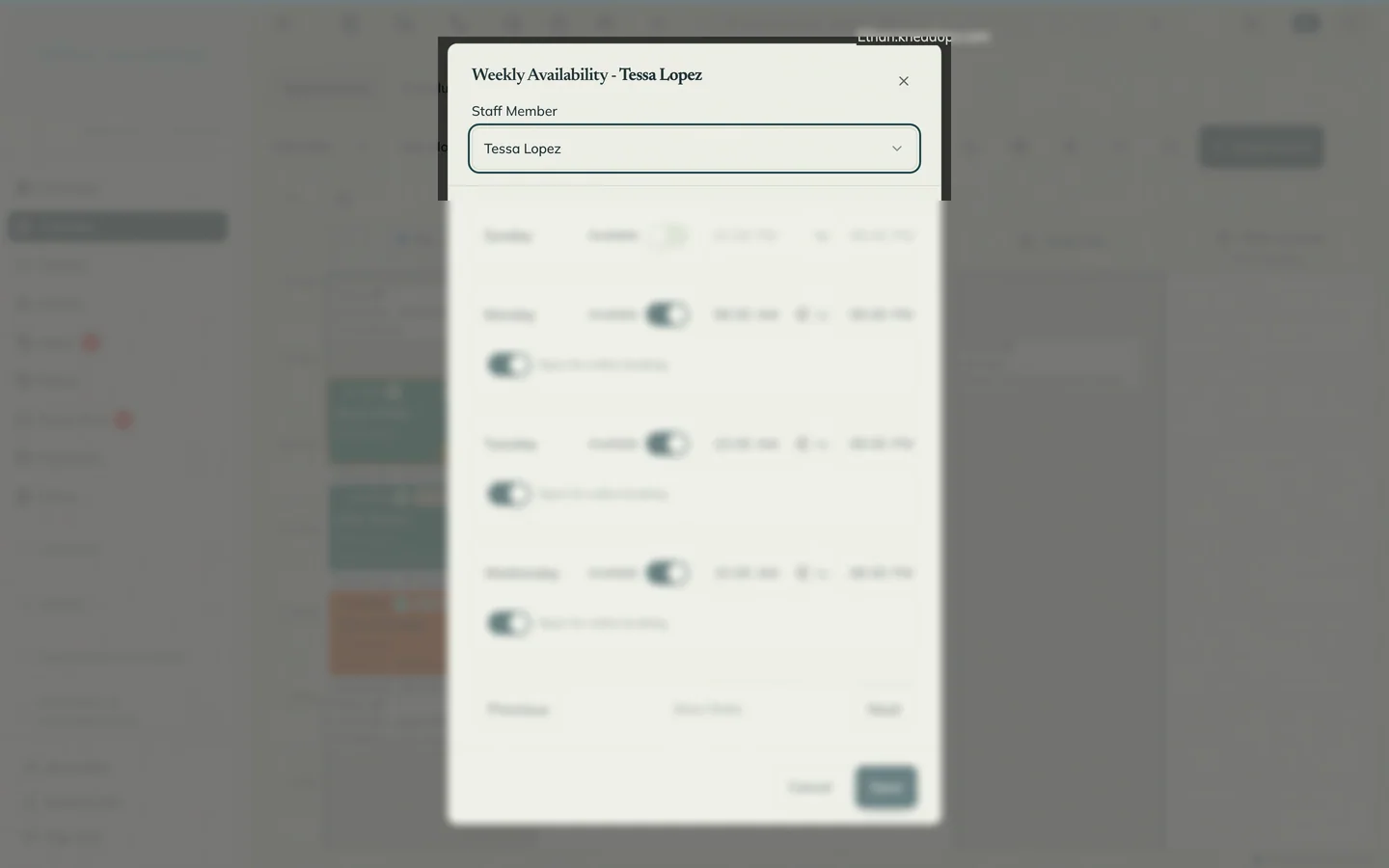
Under Staff Member, choose the person whose hours you are setting.

Step 3: Set each day
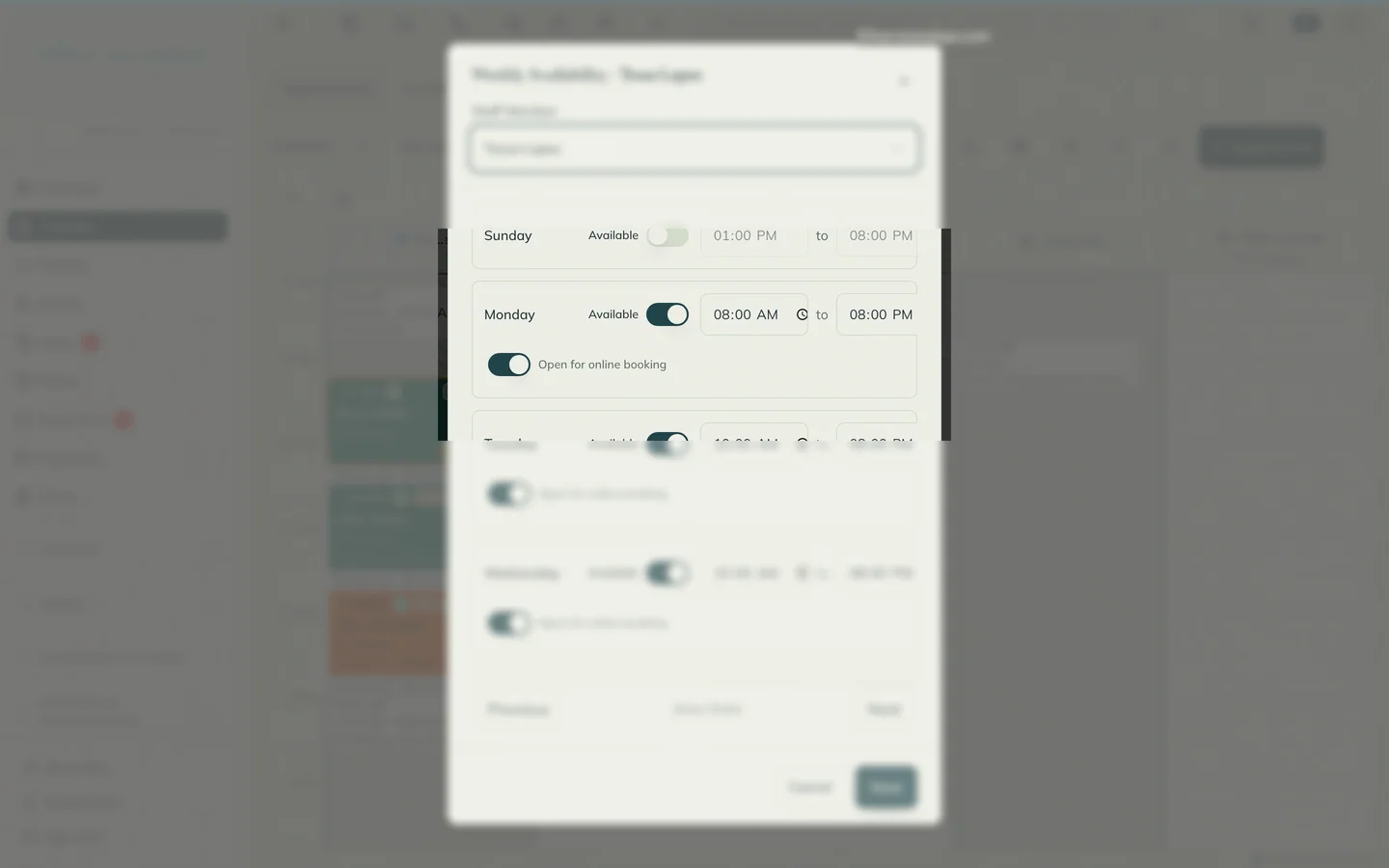
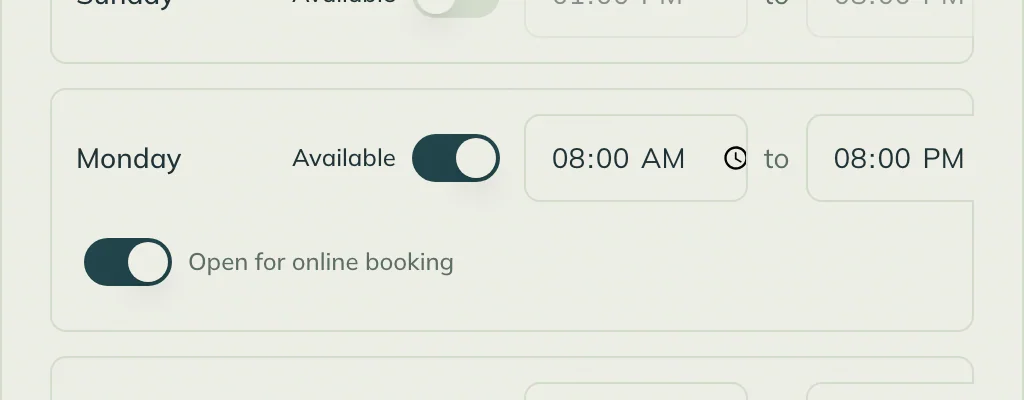
Turn Available on for each day they work and set their start and end times. Open for online booking lets clients book those hours on your website.
Step 4: Save the hours
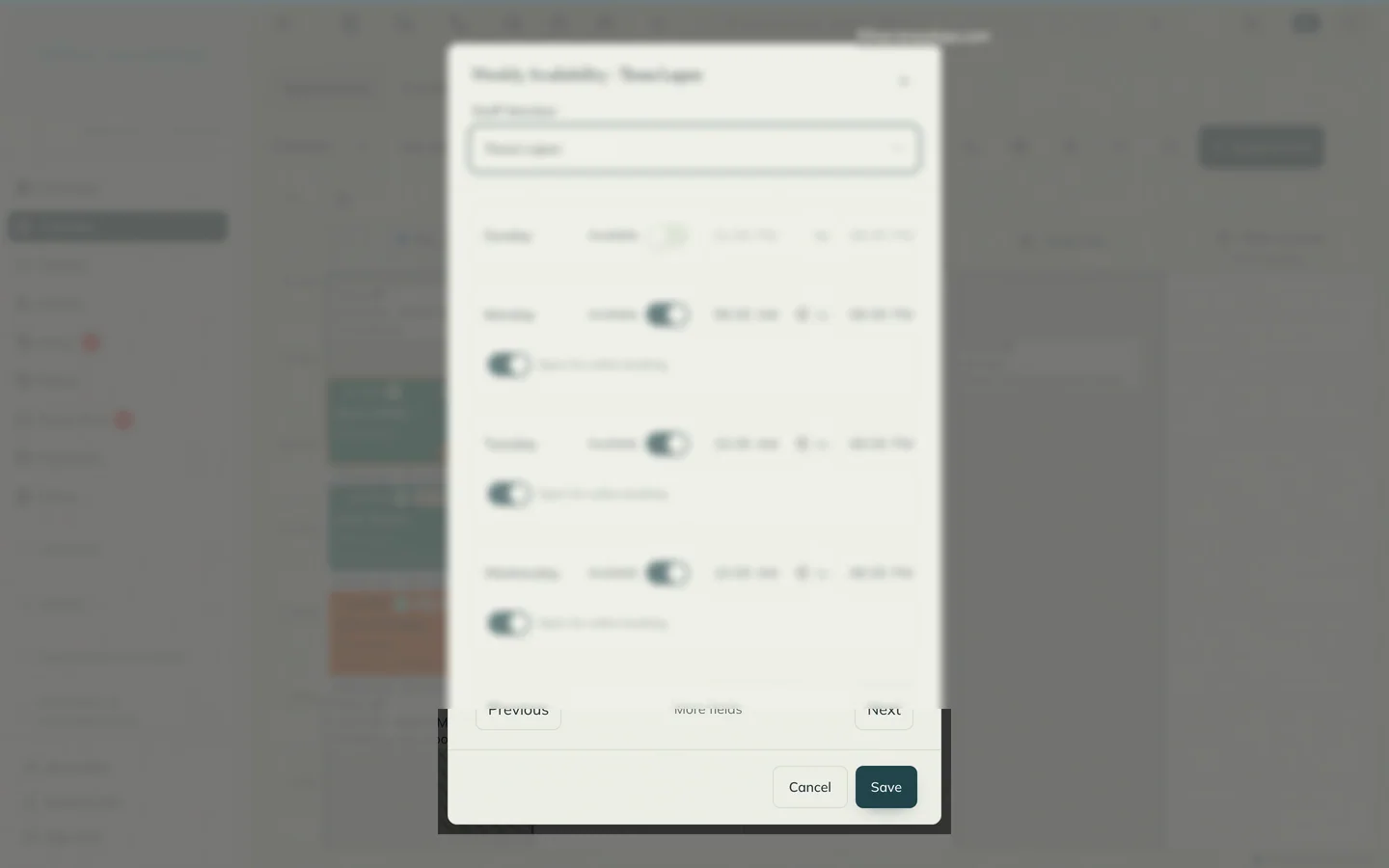
Press Save. The calendar greys out the hours they don't work, and online booking only offers the hours you opened.

Step 5: Open Time Off
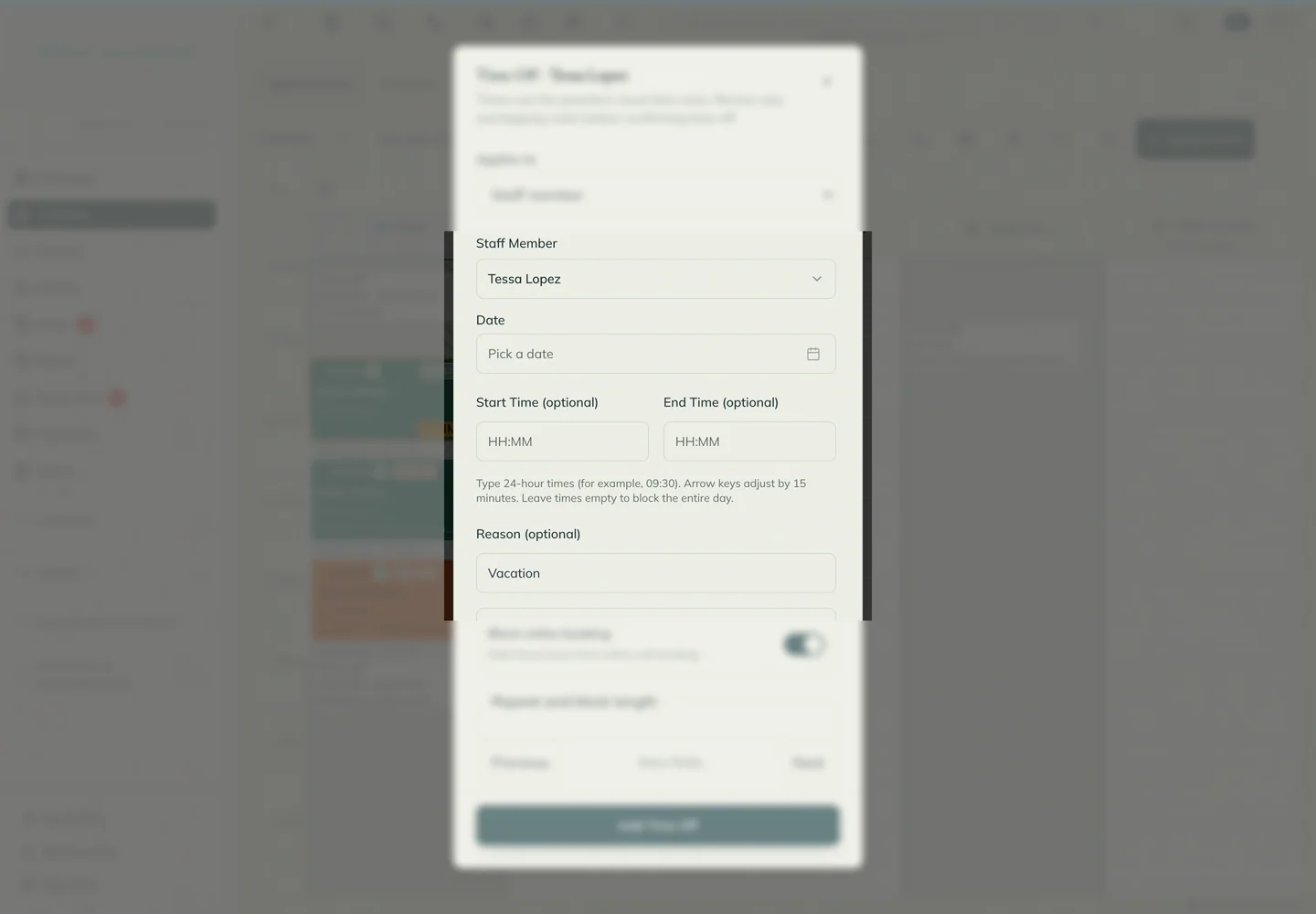
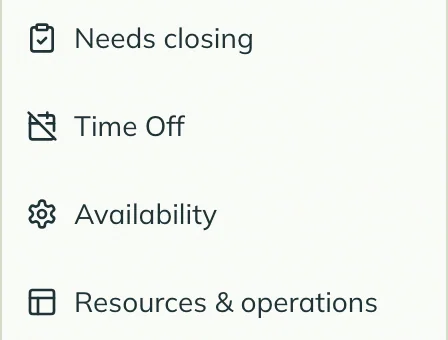
For a vacation or a single afternoon away, open the ⋯ menu again and choose Time Off.
Step 6: Fill in the time off
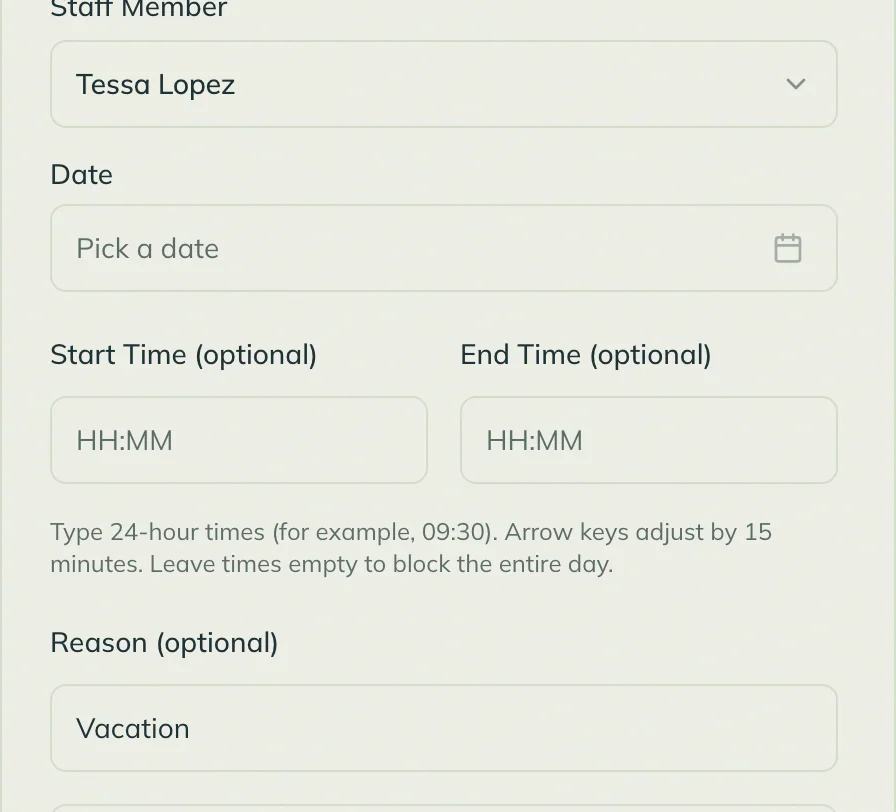
Choose the Staff Member and the Date. Leave the times empty to block the whole day, or type a start and end time (24-hour, like 13:00). A Reason is optional.
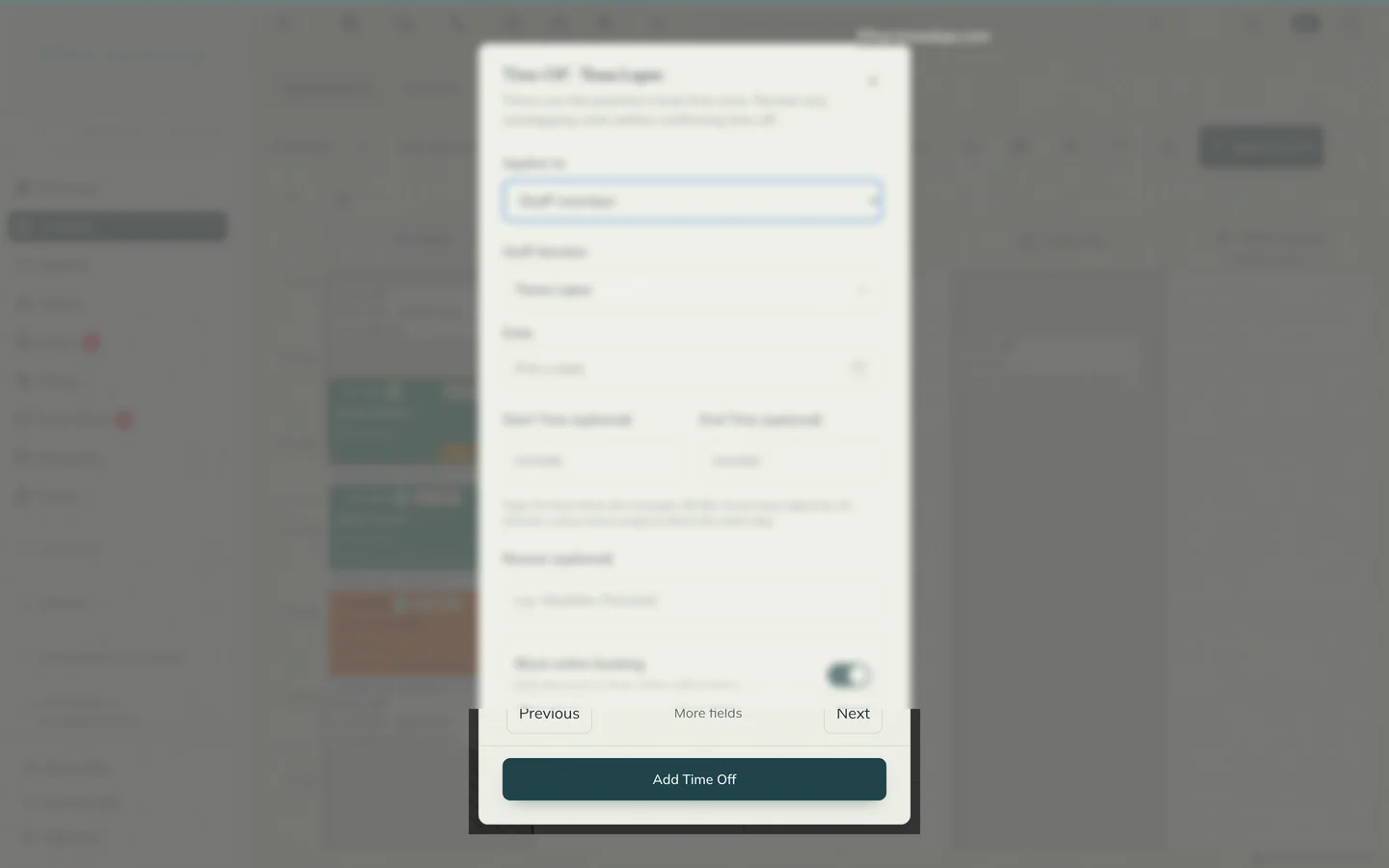
Step 7: Press Add Time Off
Press Add Time Off. If a client is already booked in that time, you are asked to review those visits first.

Still stuck?
Ask Kneadle from the chat button in your practice app. It can walk you through this screen or do it with you.
More in Calendar and visits
 Add a VA authorization and book against itEnter a VA referral's visits and dates so KneadOps counts each visit and warns you before the visits run out.
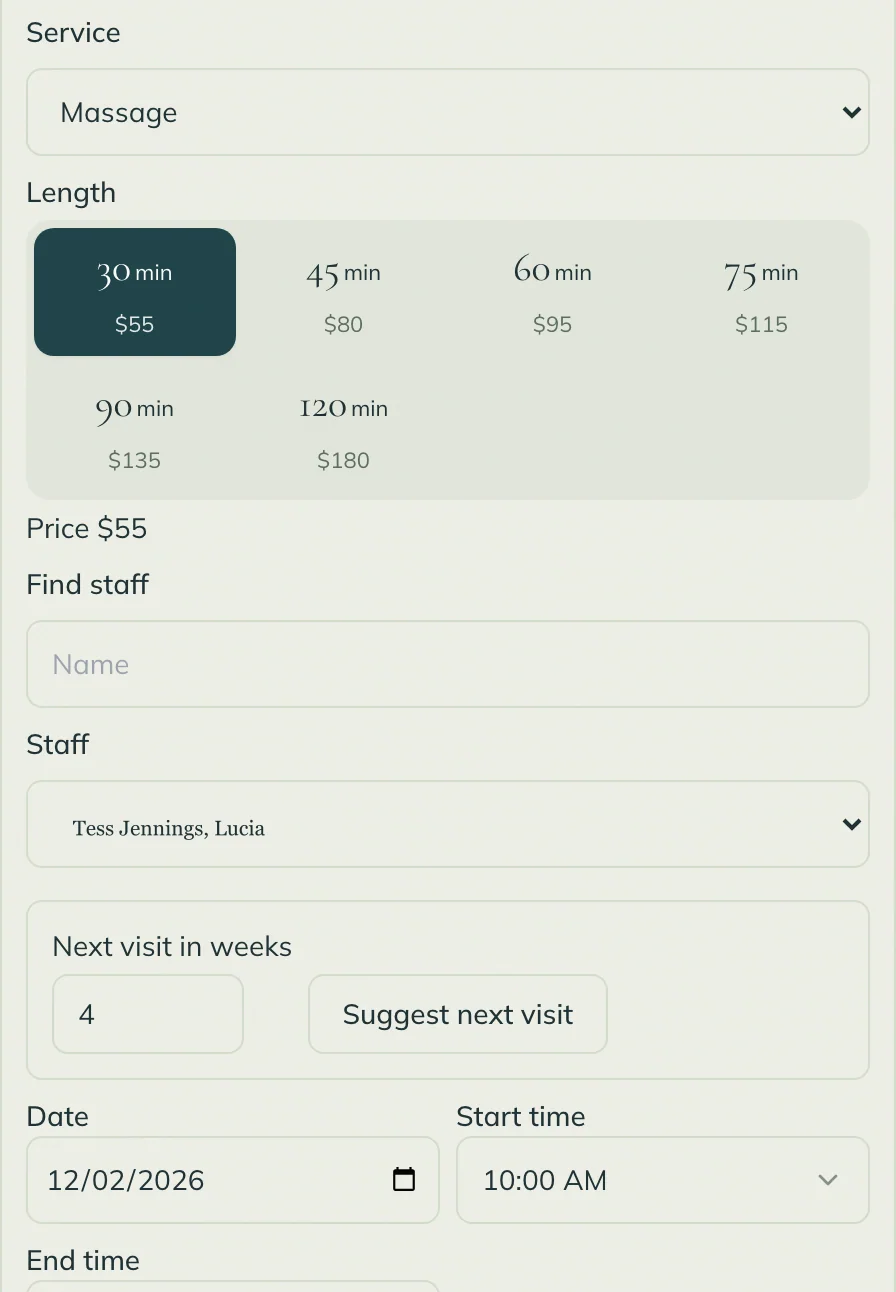 Book a repeating series of visitsBook a client for the same time every week or every few weeks in one go, check each date, and choose what happens when one doesn't fit.
 Book a visit for a clientPut a client on the calendar from the front desk: pick the client, the treatment, the therapist and a time.