Take payment at checkout
Check a client out from their visit and take cash or card, on the card reader, by phone or with Pay by QR.
Step 1: Open the visit
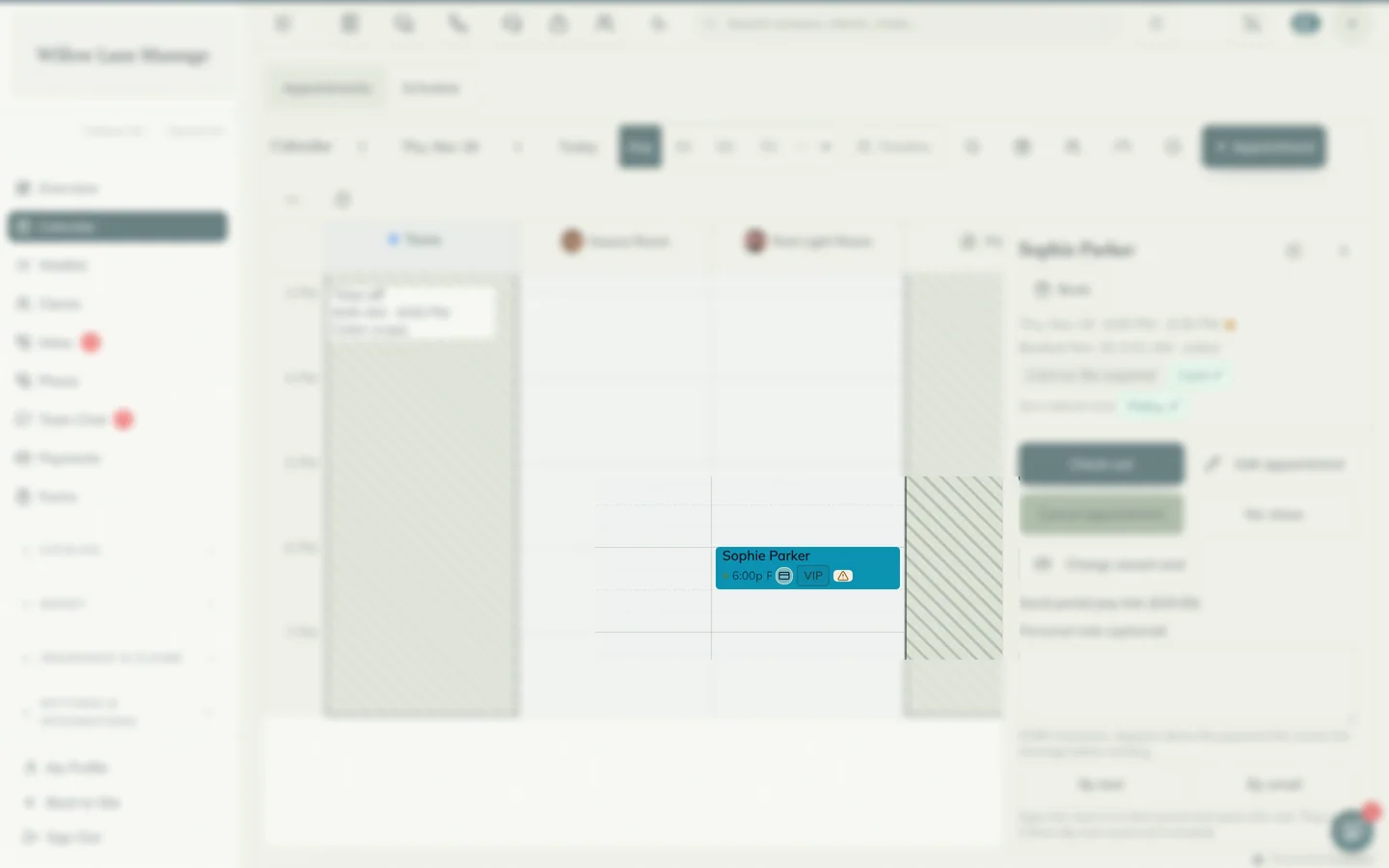
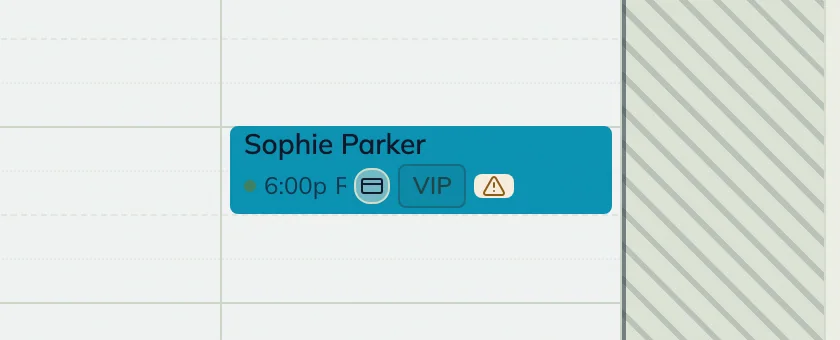
On the Calendar, click the client's visit. Its details open on the right.
Step 2: Press Check out
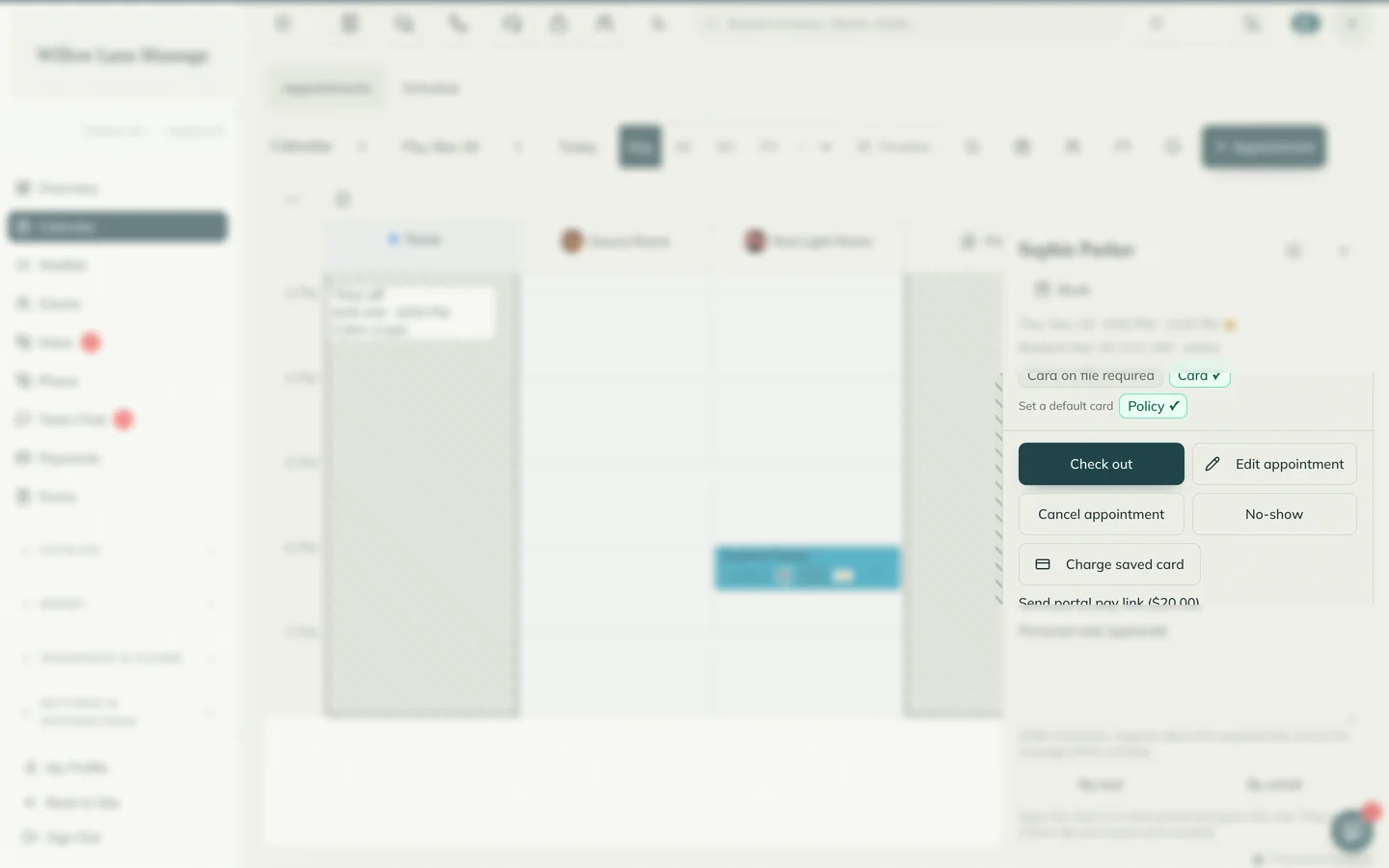
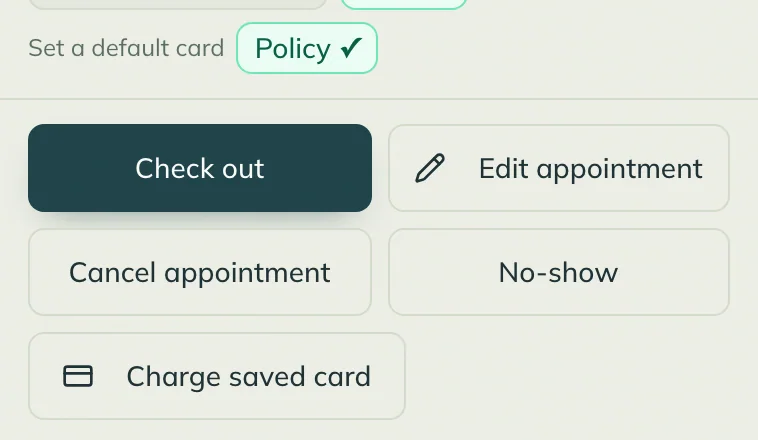
Press Check out at the top of the visit's details.
Step 3: Check what they owe
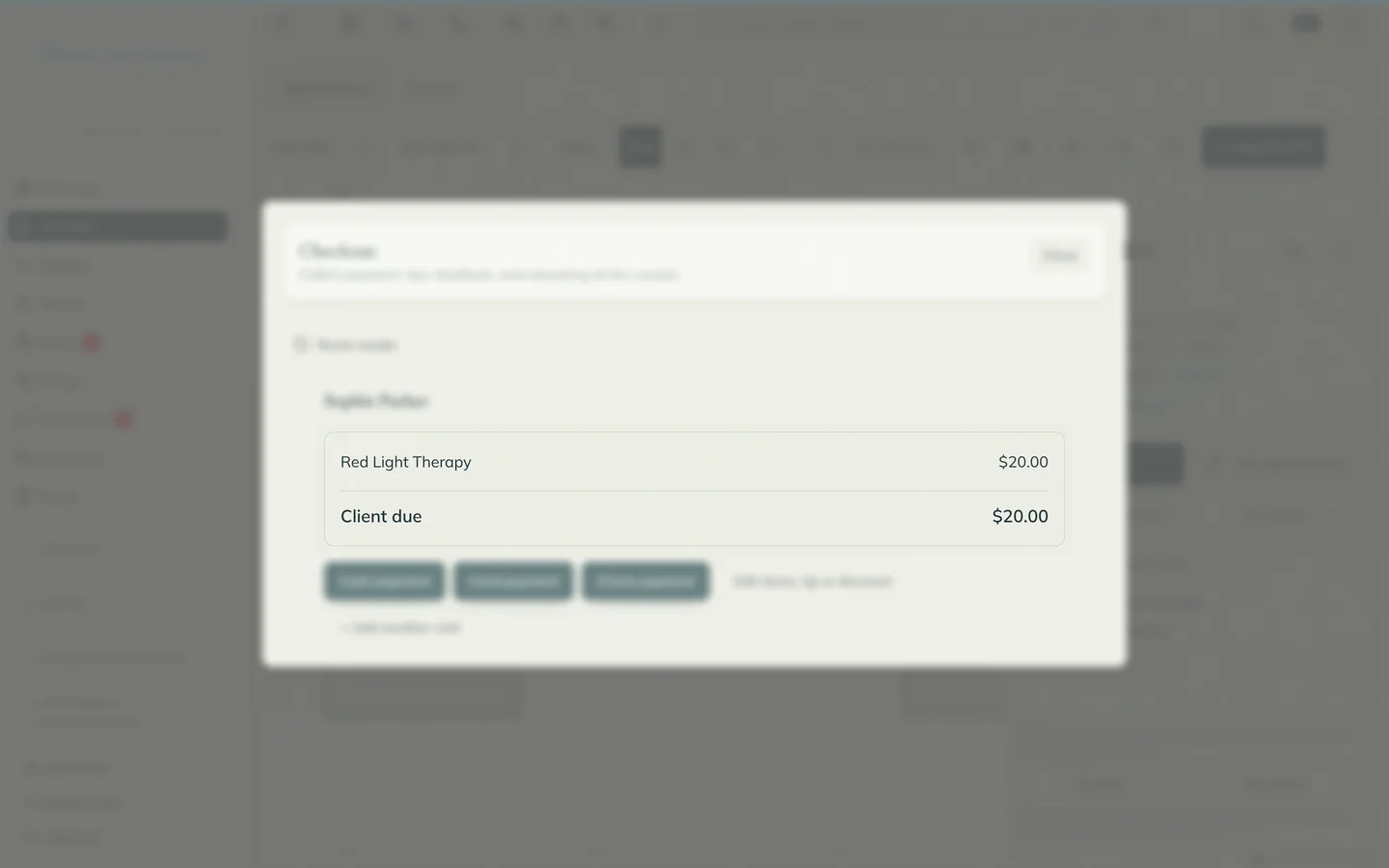
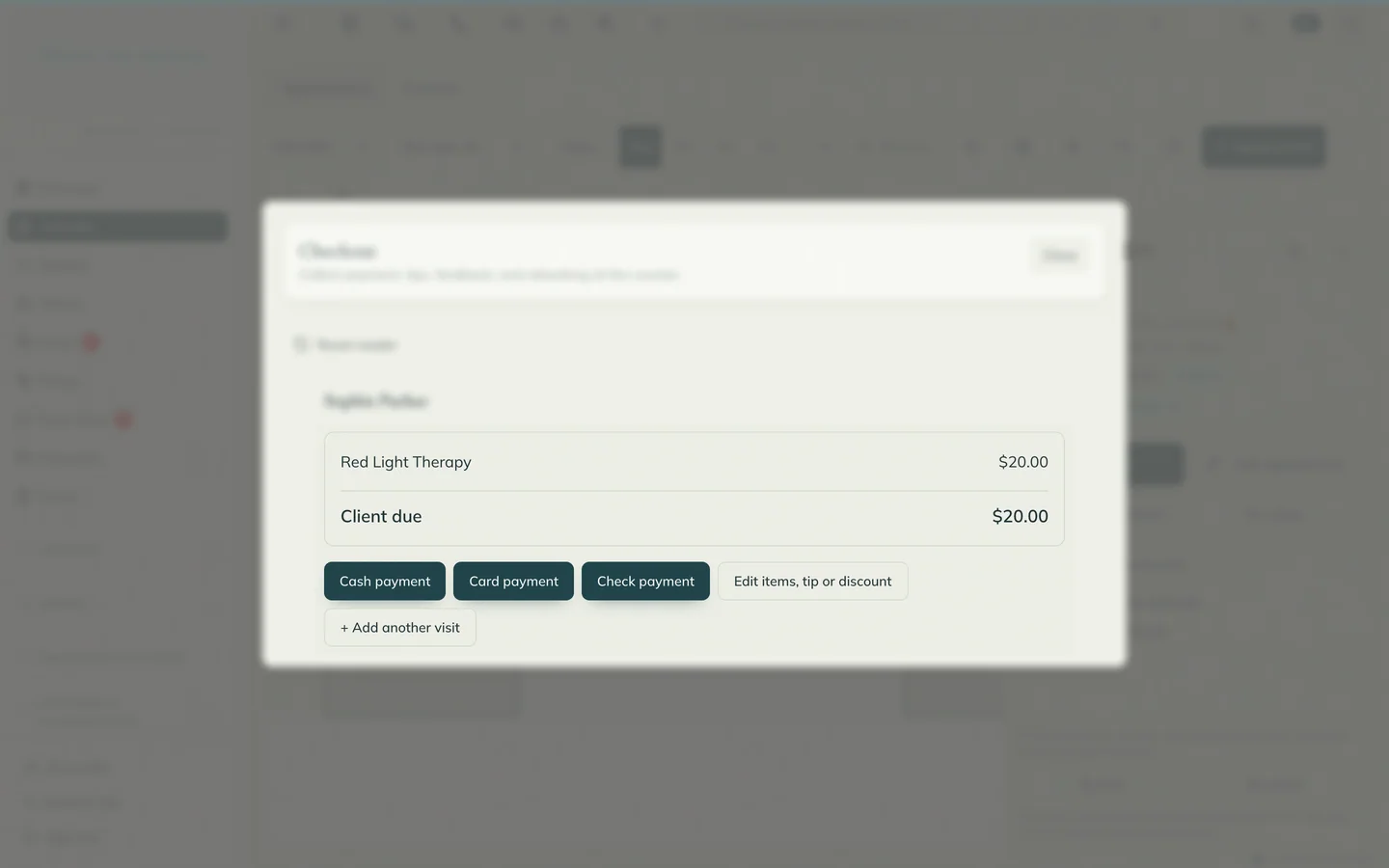
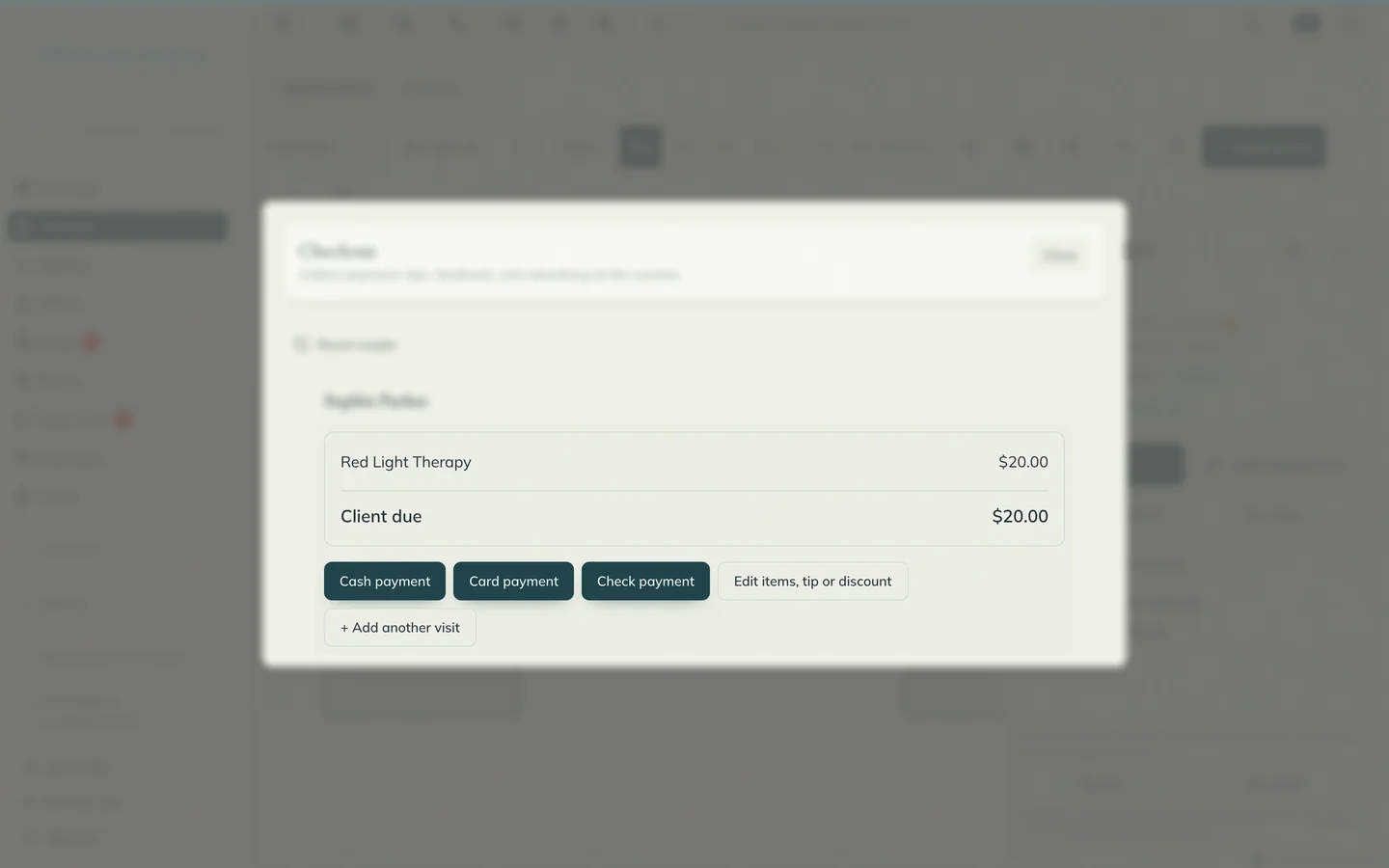
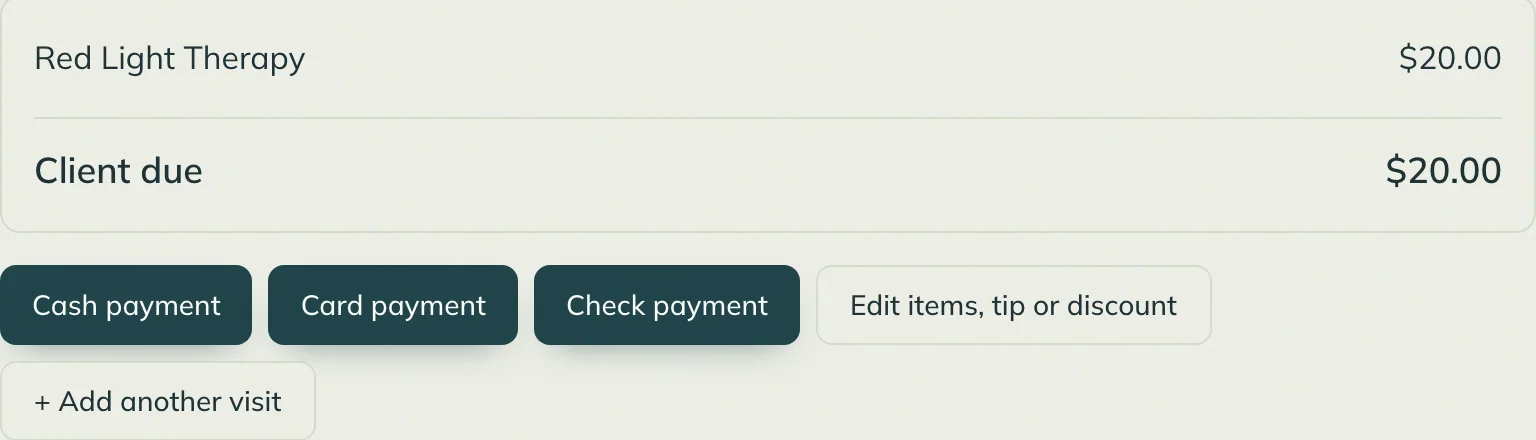
Checkout lists what the client had and shows Client due, the amount to collect. Nothing is charged yet.

Step 4: Add a tip, product or discount (if needed)
To add a tip, a product, a promo code or a gift card, or to change the price, press Edit items, tip or discount before you take payment.
Step 5: Paid in cash
Press Cash payment. On the next screen, type what the client handed you under Cash received (or press Exact). Checkout shows the change to give back. Then press Complete checkout.
Step 6: Paid by card
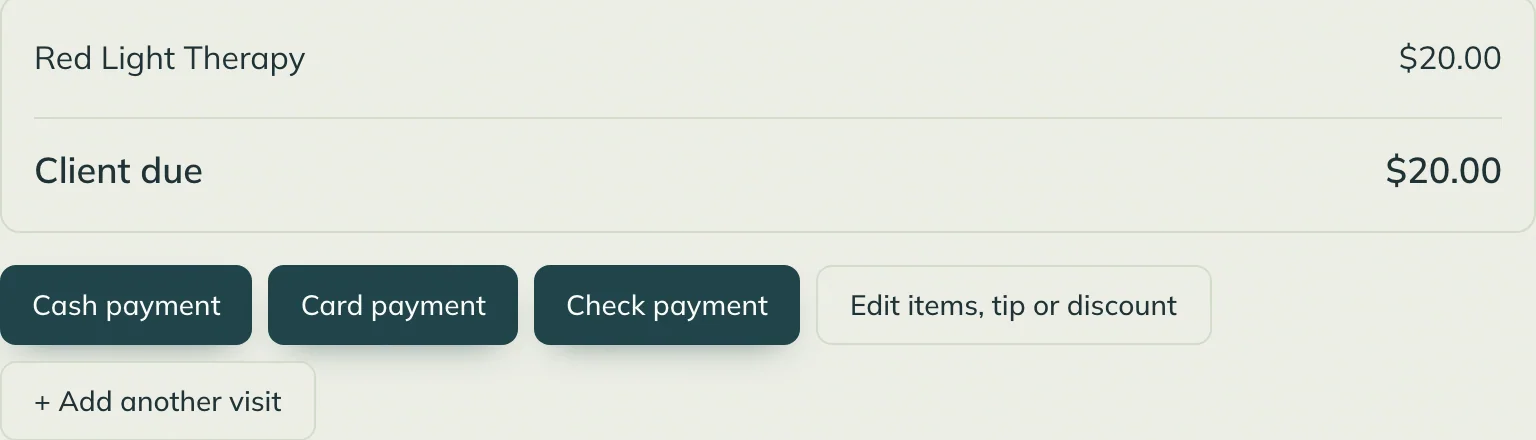
Press Card payment. The amount goes to your card reader, and the client taps or inserts their card. No reader? On the next screen, Pay by QR shows a code the client scans to pay on their own phone, Send pay link texts or emails them a link, and Take card by phone is for a card read out over the phone.
Still stuck?
Ask Kneadle from the chat button in your practice app. It can walk you through this screen or do it with you.
More in Checkout and payments
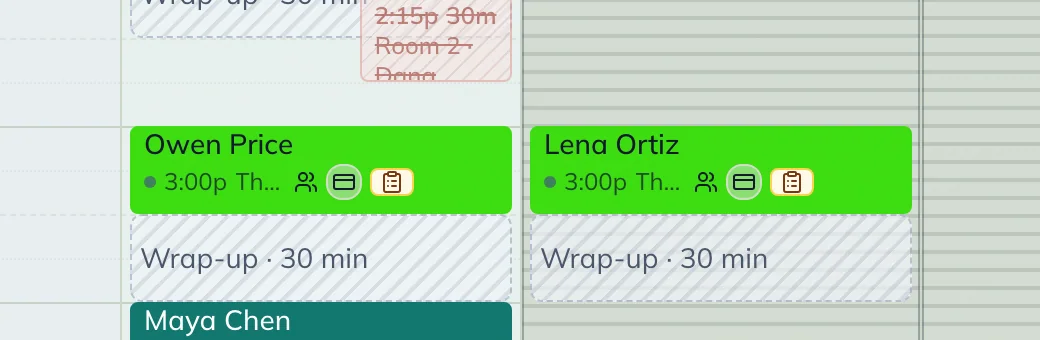 Check out a couples or group visitA couples or group visit checks out once for everyone: open the group, check the package price, then take one payment.
 Check out a member's visitWhen a member comes in, their membership covers the visit at checkout. Check it shows, then finish the checkout.
 Refund a paymentGive a client their money back, all of it or part, from the sale they paid for. Card refunds go back to the card; cash refunds are recorded from the drawer.