Write a visit note
Write the SOAP note for a visit from the calendar, save it as you go and sign it when it's done.
Step 1: Open the visit
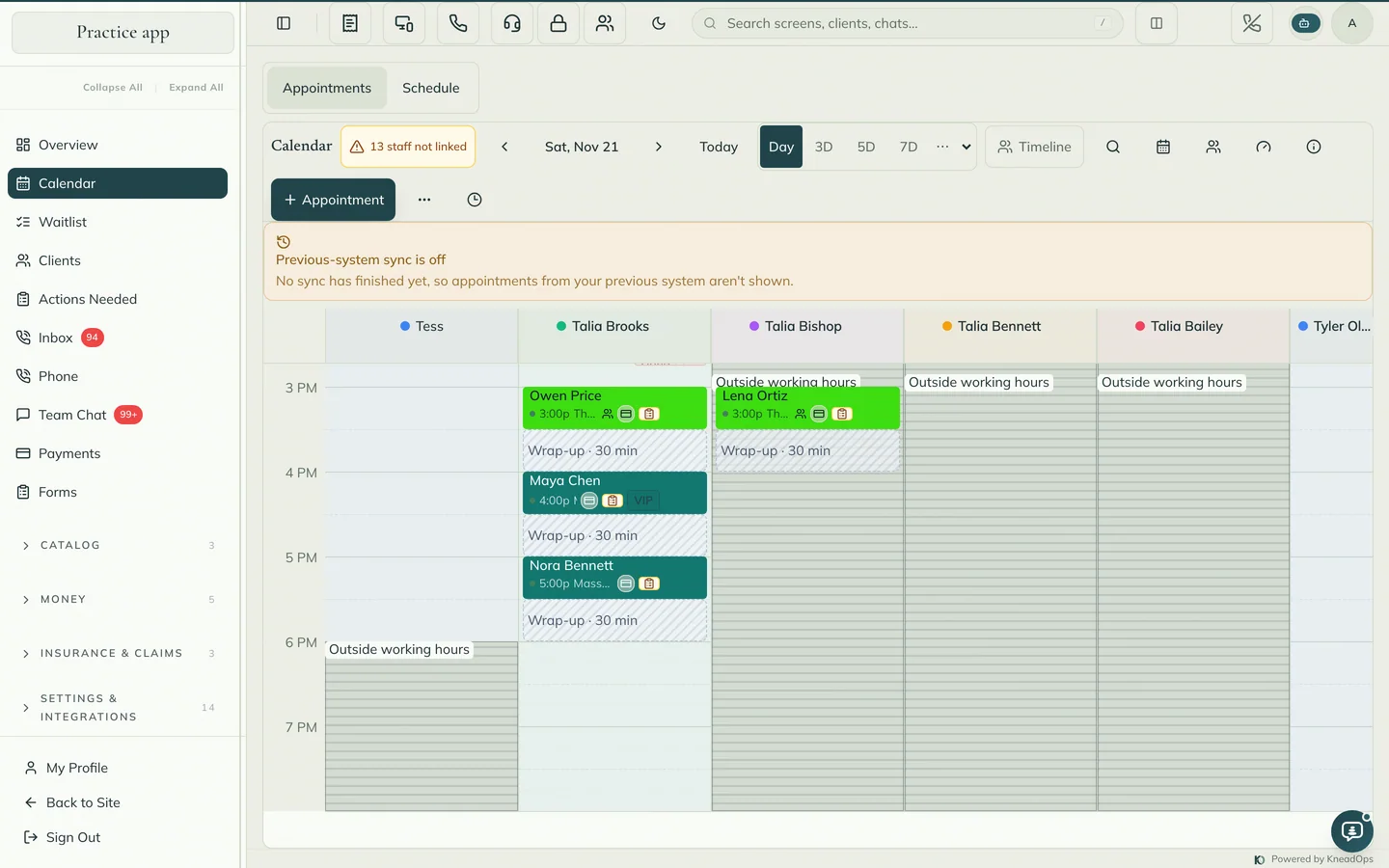
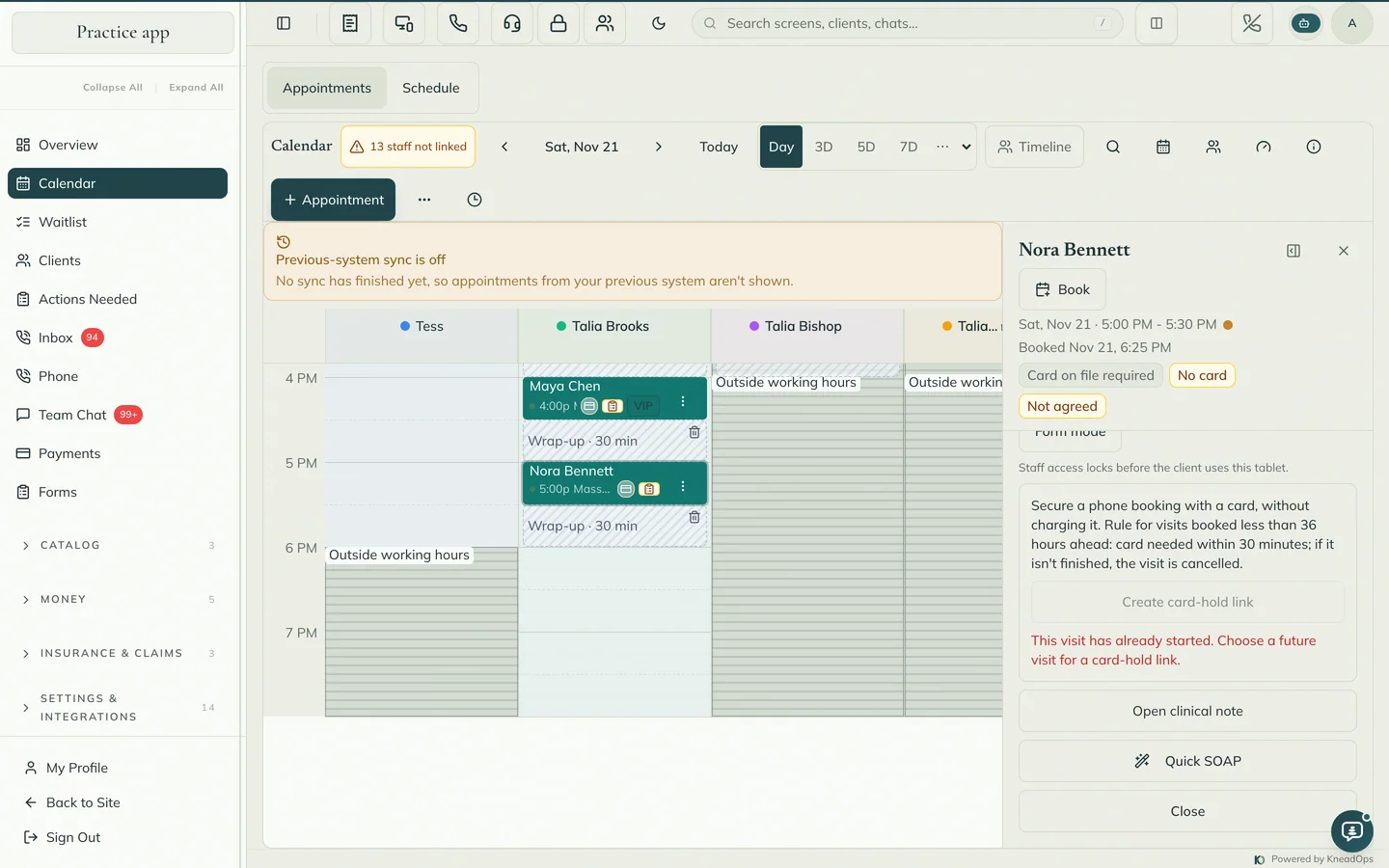
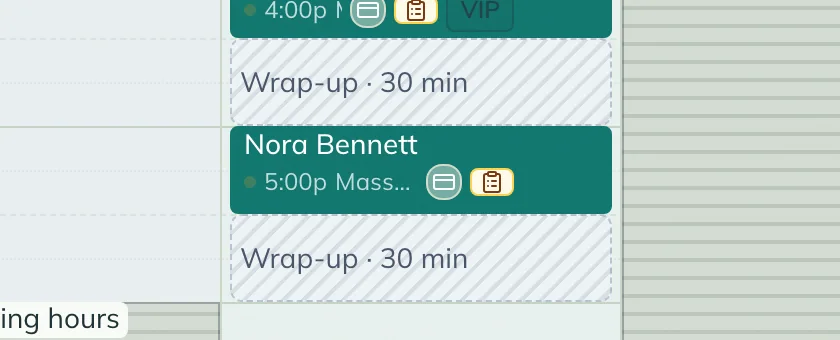
On the Calendar, click the visit you just finished. Its details open on the right.
Step 2: Press Open clinical note
Scroll down the visit's details and press Open clinical note. It shows for visits from today or earlier.

Step 3: Write each part of the note
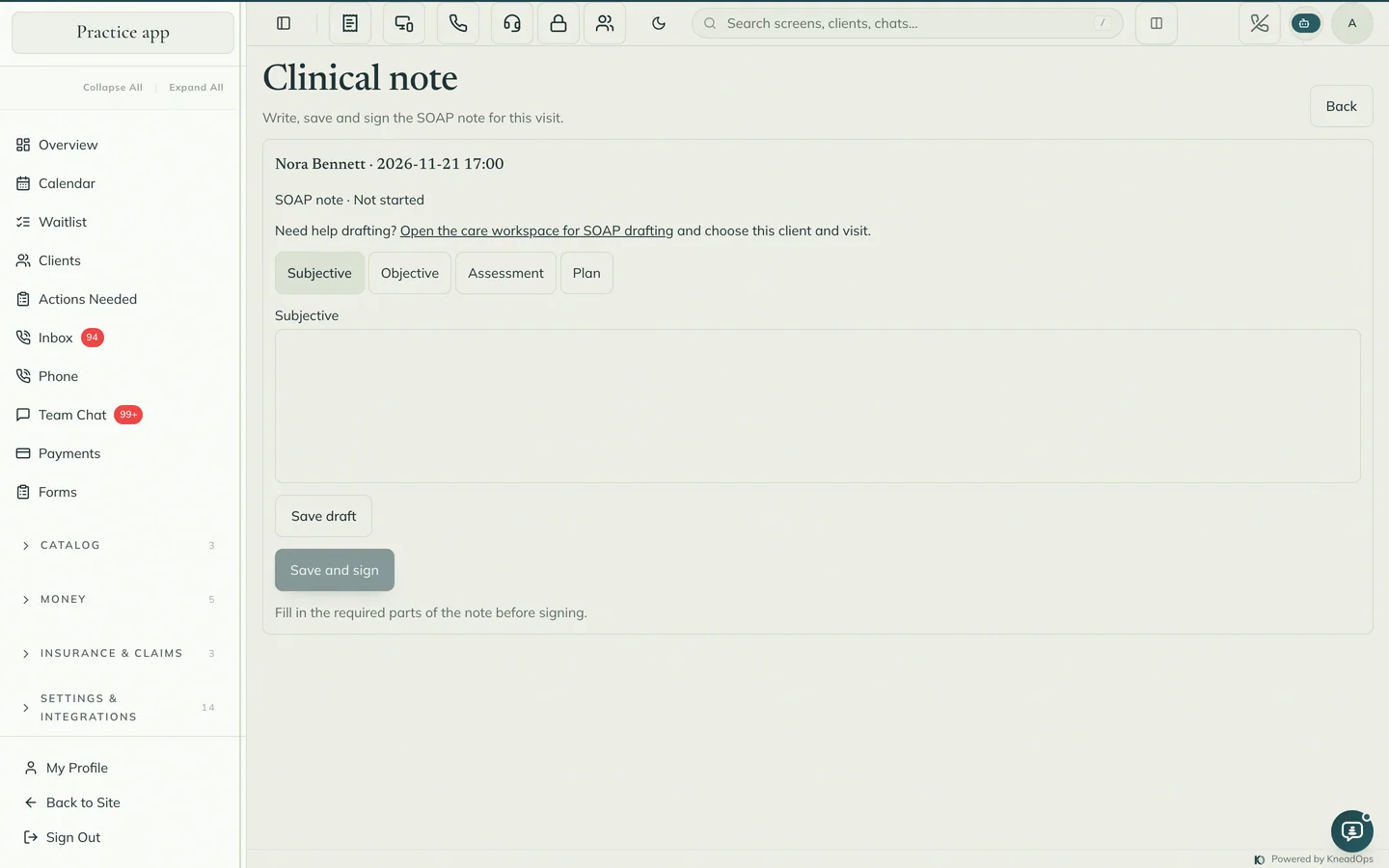
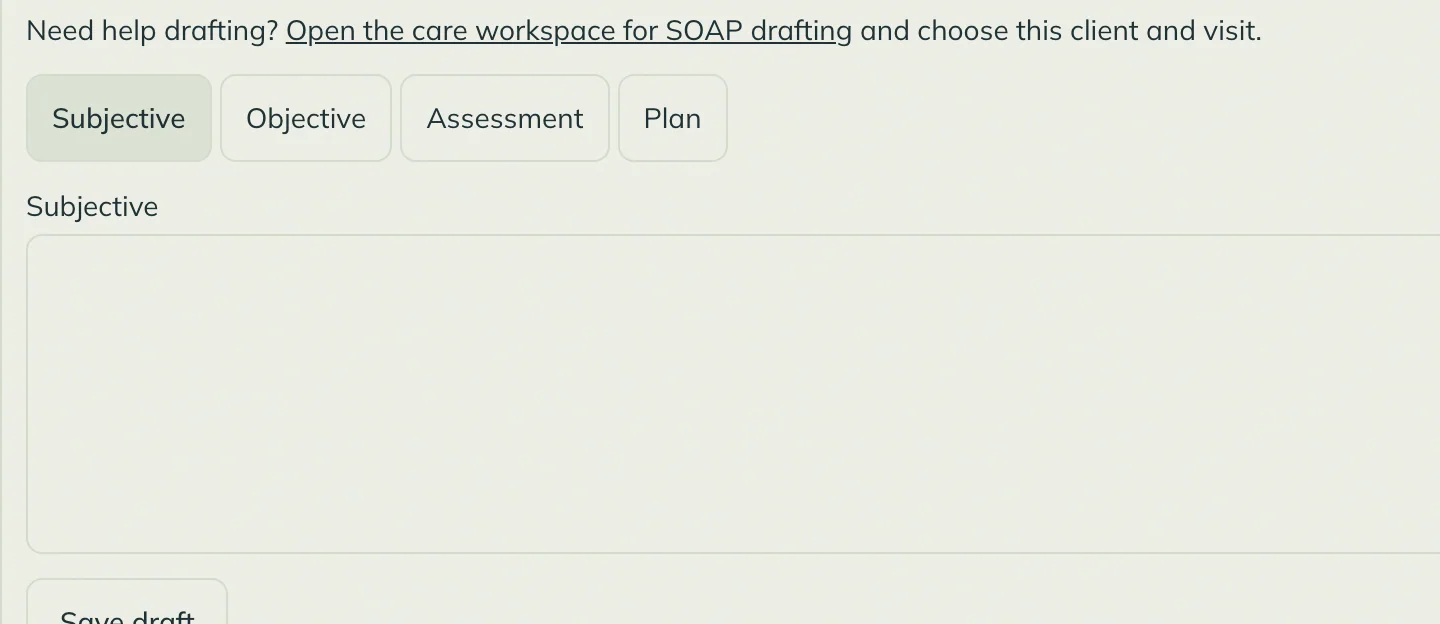
Use the tabs to move between Subjective, Objective, Assessment and Plan, and type in the box under each one. Your draft saves as you type.
Step 4: Save or sign
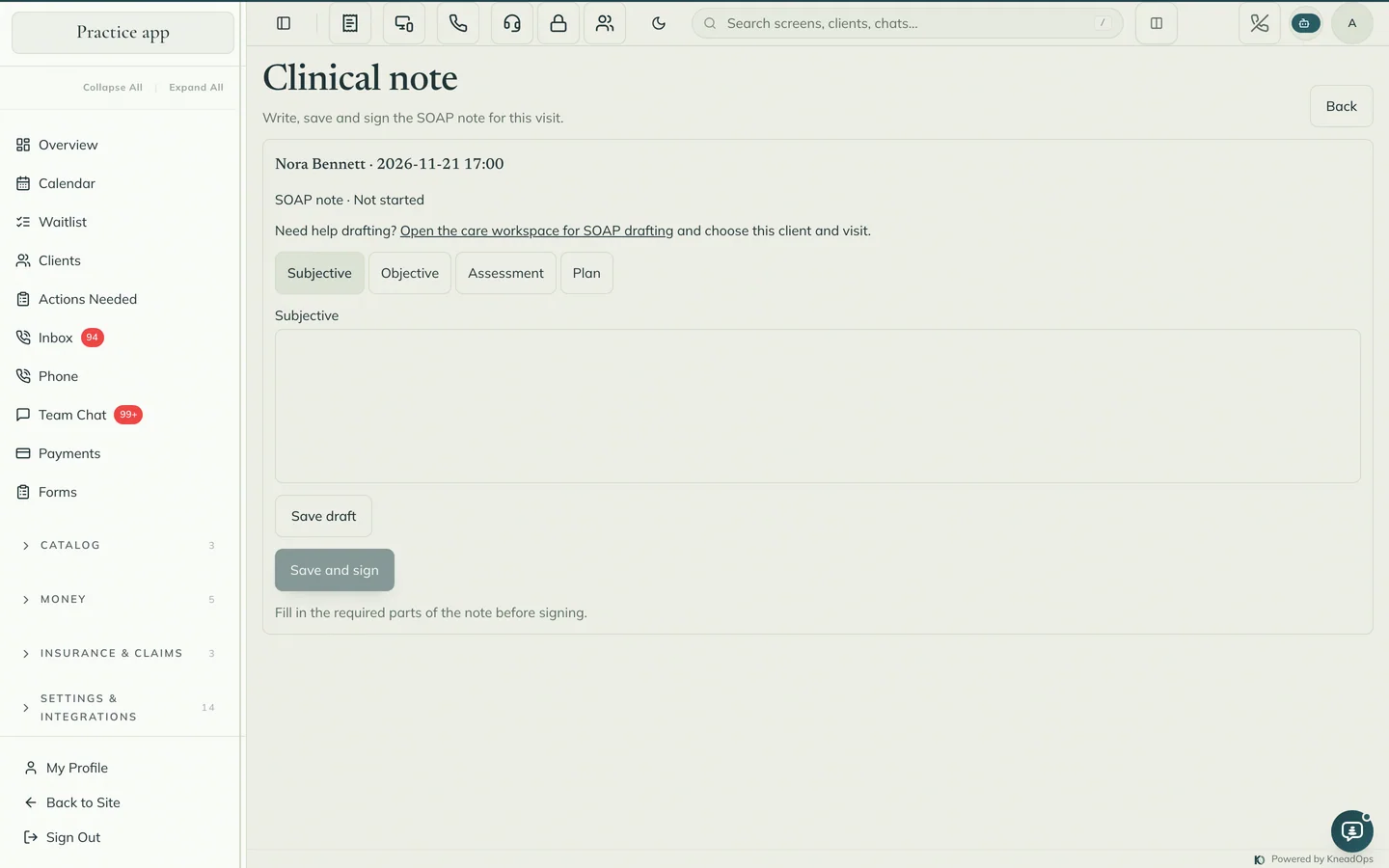
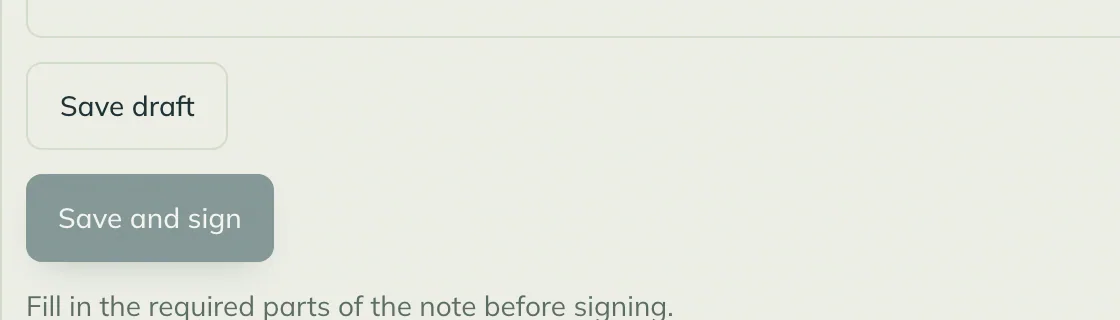
Press Save draft to finish later. When the note is complete, press Save and sign. A signed note is locked; changes after that go in an addendum.
Still stuck?
Ask Kneadle from the chat button in your practice app. It can walk you through this screen or do it with you.
More in Calendar and visits
 Add a VA authorization and book against itEnter a VA referral's visits and dates so KneadOps counts each visit and warns you before the visits run out.
 Book a repeating series of visitsBook a client for the same time every week or every few weeks in one go, check each date, and choose what happens when one doesn't fit.
 Book a visit for a clientPut a client on the calendar from the front desk: pick the client, the treatment, the therapist and a time.