Offer an opening to the waitlist
When a time opens up, see who on the waitlist fits it and send them an offer by email or text.
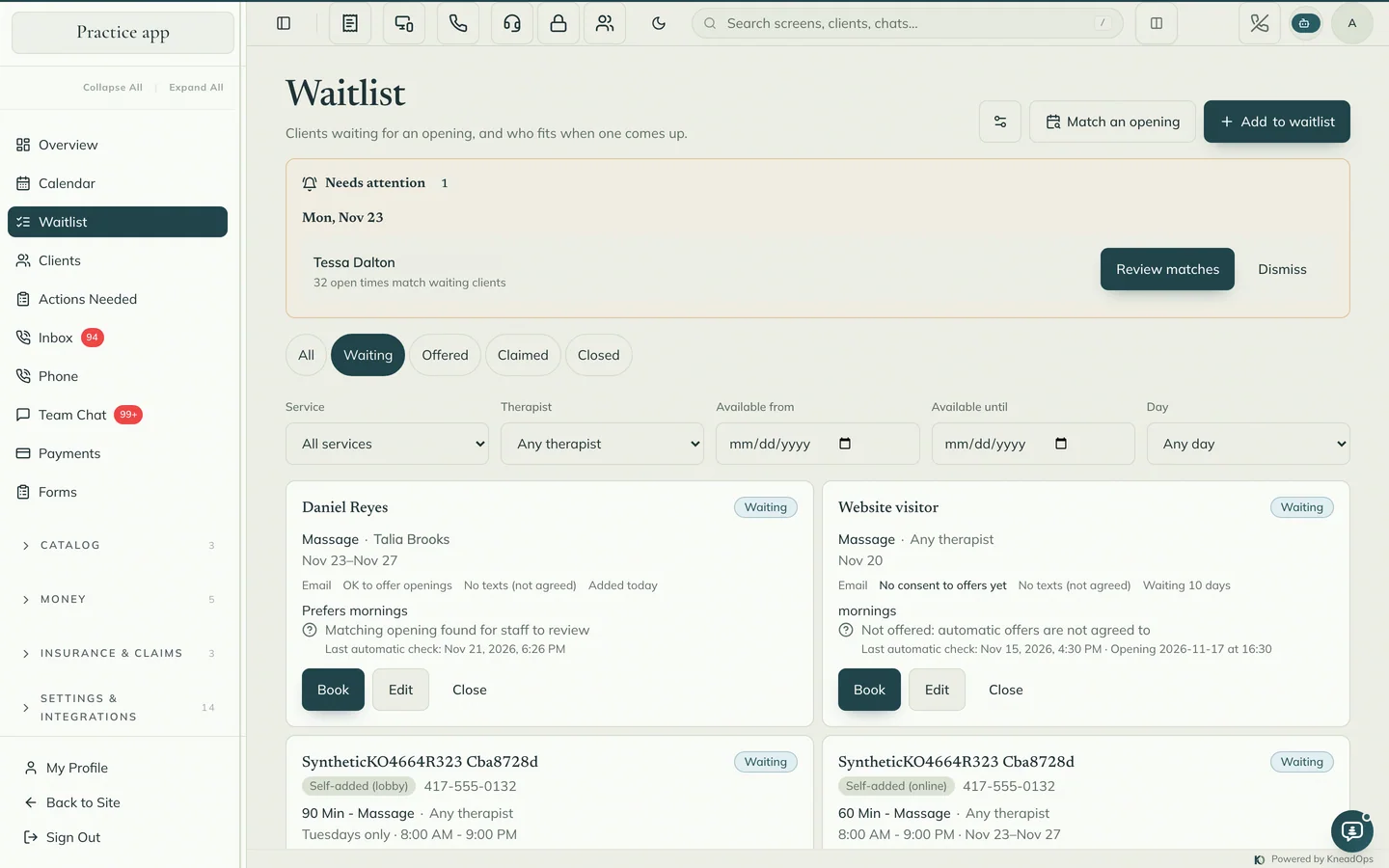
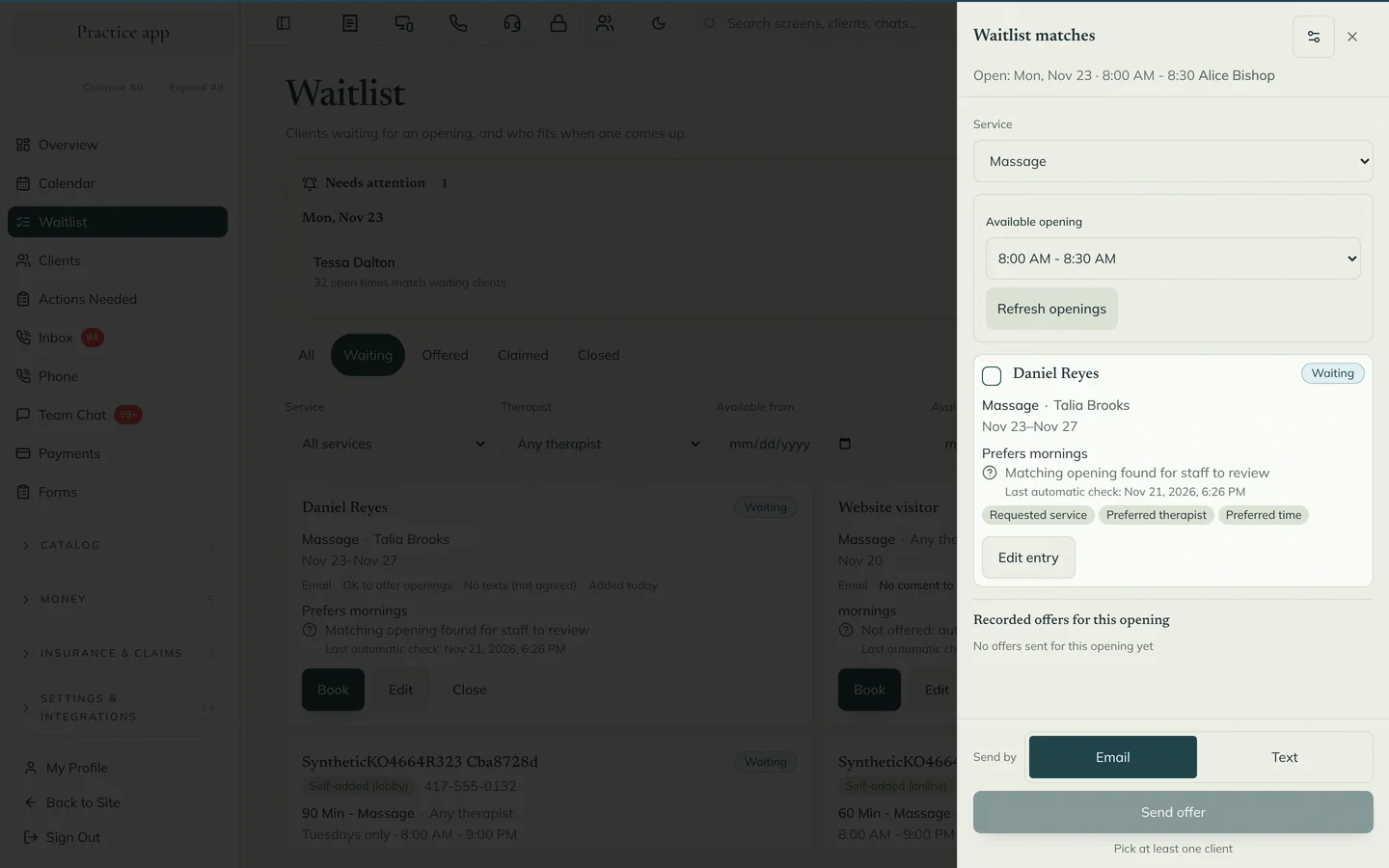
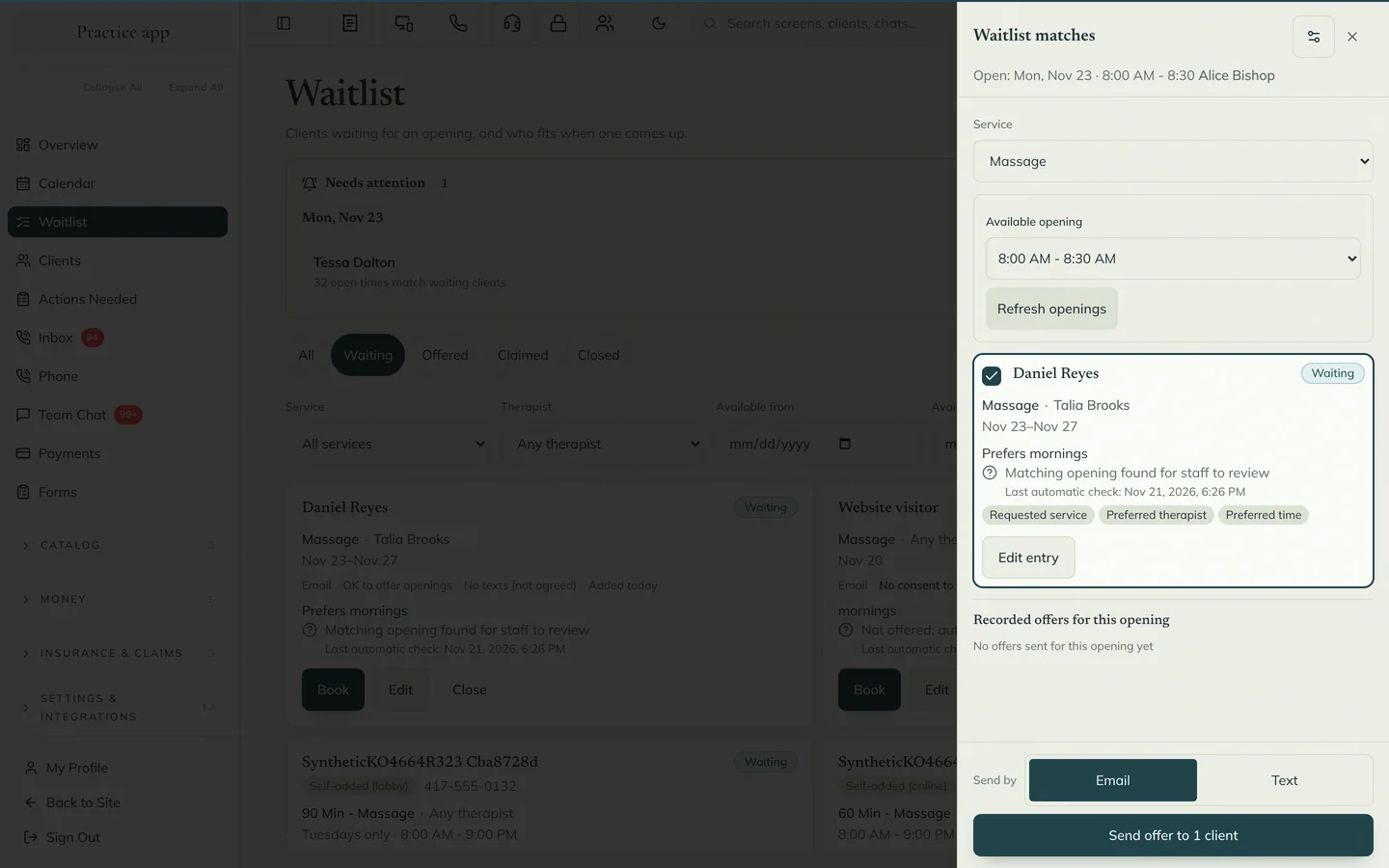
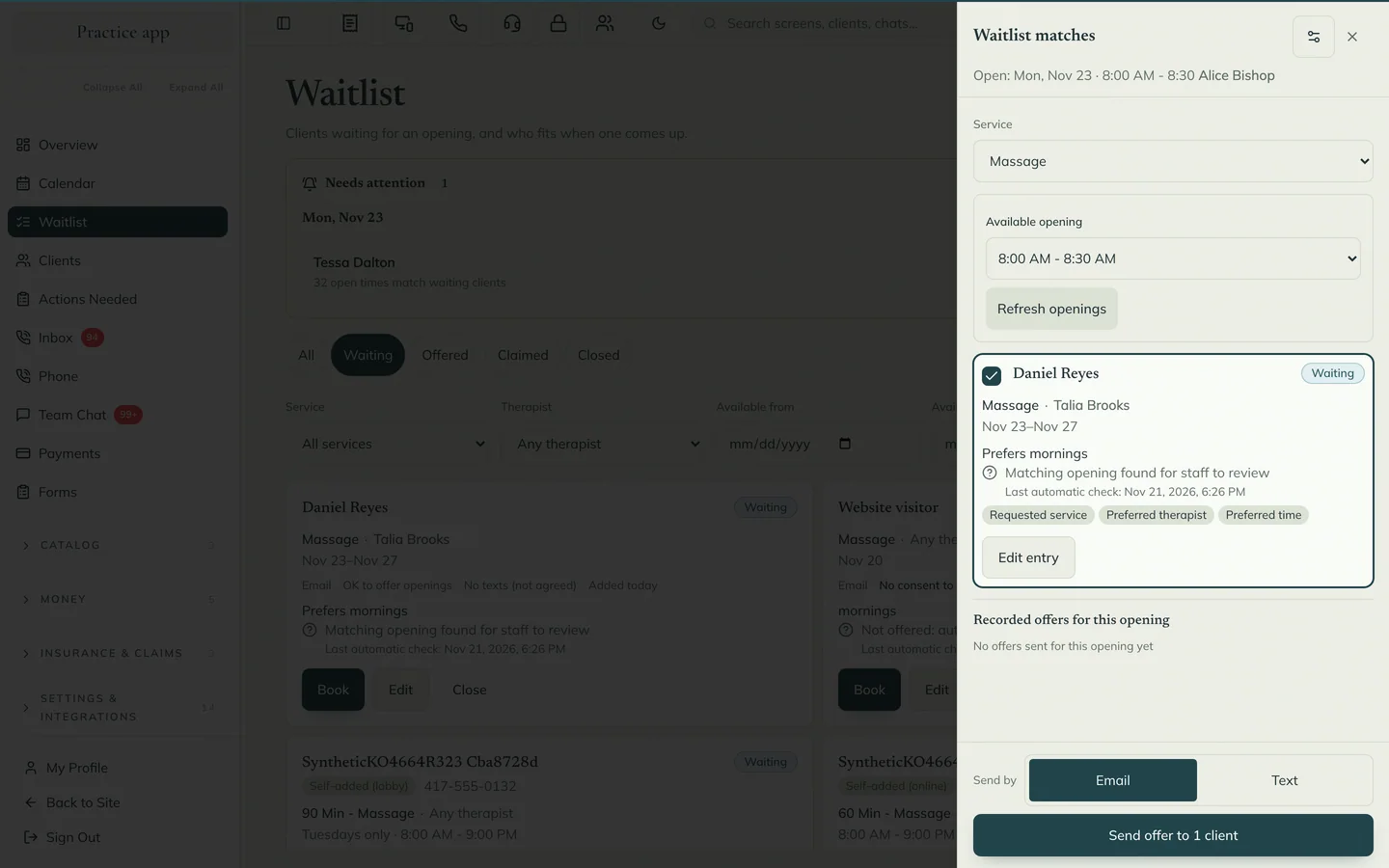
Step 1: Open the waitlist's matches
Open Waitlist. When an opening fits someone who is waiting, it is listed under Needs attention. Press Review matches. No alert? Press Match an opening at the top and say when the therapist is free.

Step 2: Choose the service and the time
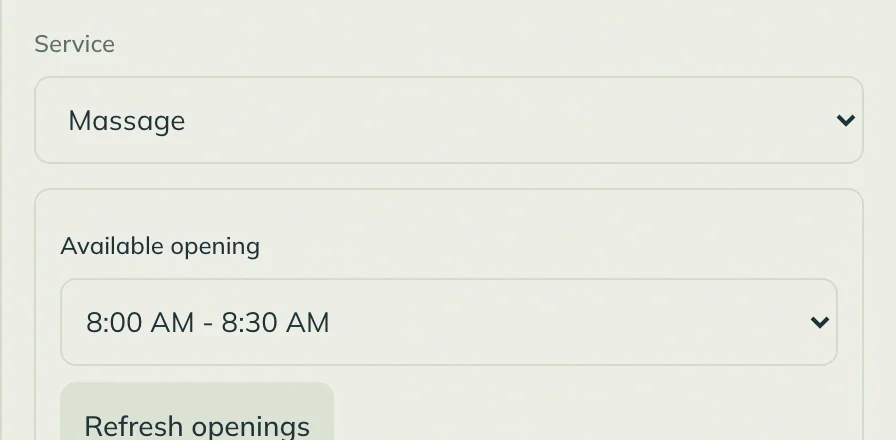
Pick the Service the opening is for, then the exact time under Available opening. Everyone on the waitlist who fits that time is listed below.
Step 3: Tick who gets the offer
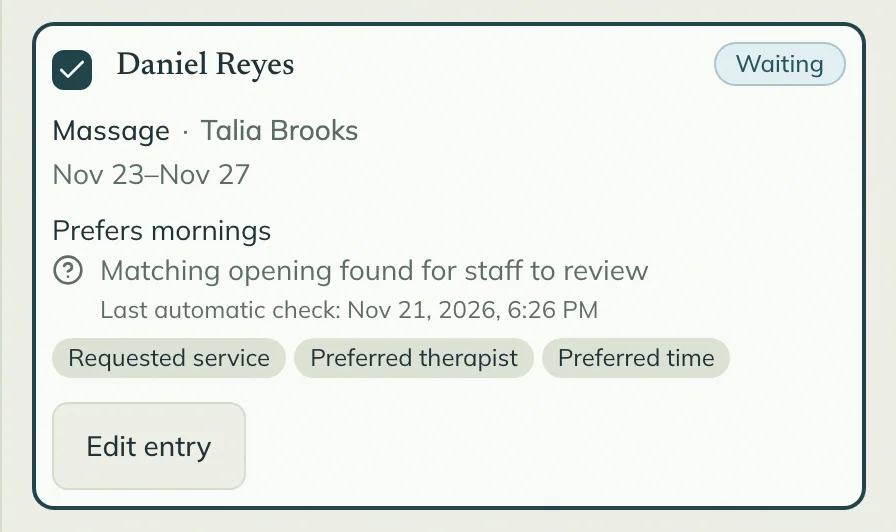
Tick each client you want to offer the time to. Their card shows what they asked for and how they like to be contacted.
Step 4: Choose email or text, then send
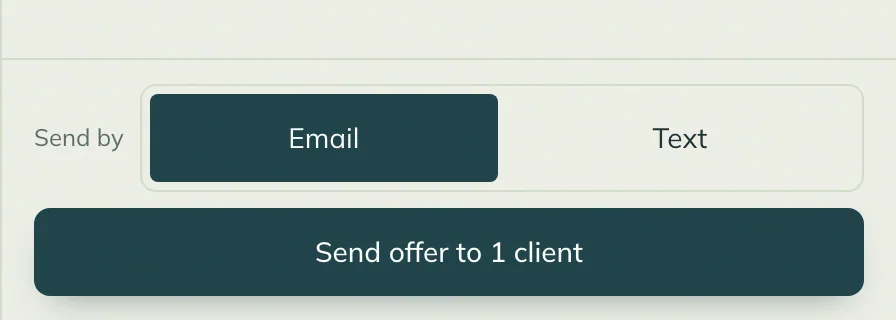
Choose Email or Text, then press Send offer. The time is held while they decide. Offer several clients at once and the first to claim it gets the slot.
Still stuck?
Ask Kneadle from the chat button in your practice app. It can walk you through this screen or do it with you.
More in Calendar and visits
 Add a VA authorization and book against itEnter a VA referral's visits and dates so KneadOps counts each visit and warns you before the visits run out.
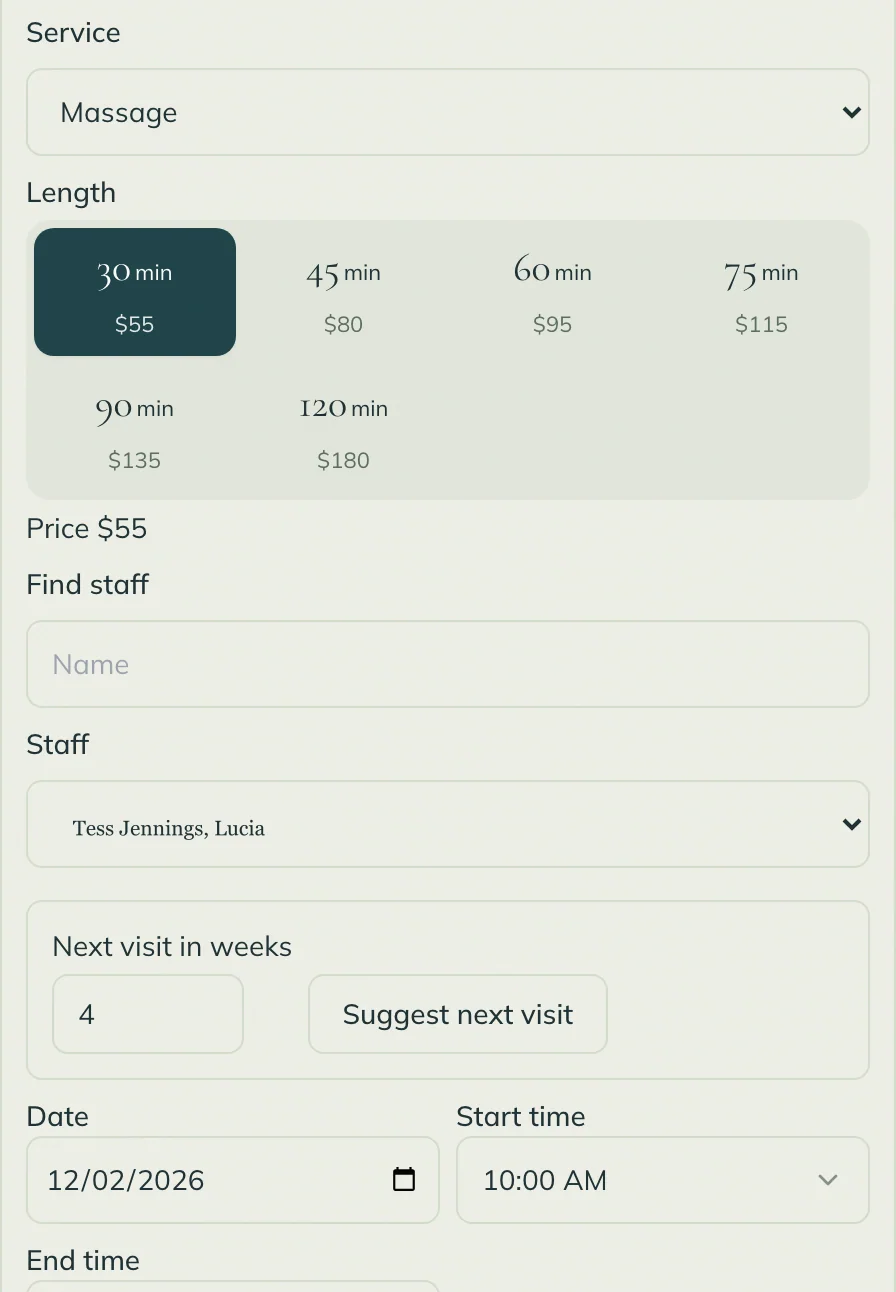 Book a repeating series of visitsBook a client for the same time every week or every few weeks in one go, check each date, and choose what happens when one doesn't fit.
 Book a visit for a clientPut a client on the calendar from the front desk: pick the client, the treatment, the therapist and a time.